
LMS LabsEvidence Checklist docs500 credits · US$50

    Evidence Checklist
    for Moodle

    Practical observations for Australian RTOs. Mark a numbered, mapped checklist in one tap, attach photos, video and audio to the exact cell, and sign off on screen while the student watches their own checklist update live.

    No AIMoodle 4.4 to 5.3Desktop, iPad and phone
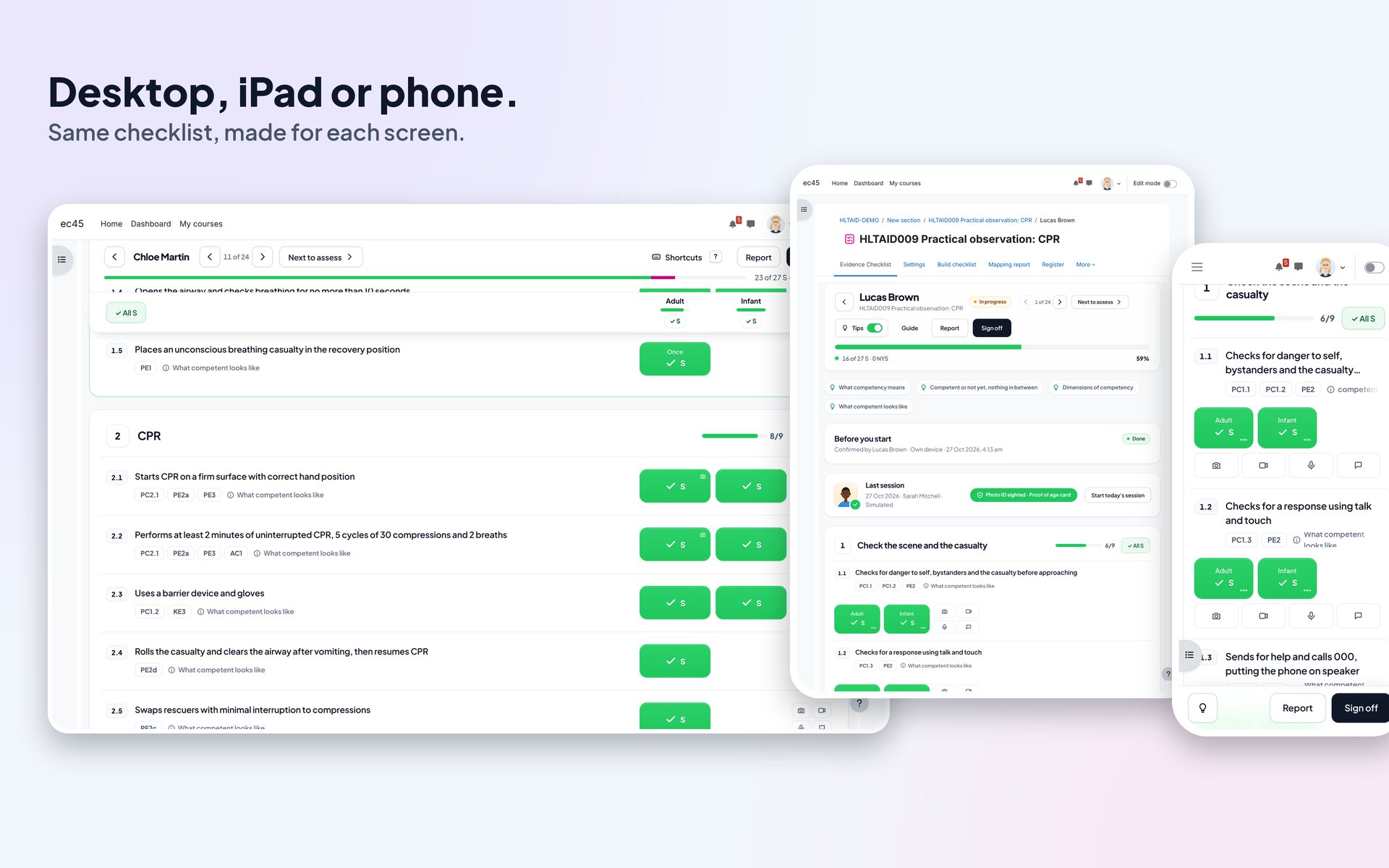
    An assessor marking on a desktop while the student follows on a phone

    What Evidence Checklist does

    Evidence Checklist is a Moodle activity for practical observations in Australian RTOs, such as CPR on a manikin, a workplace task or a simulated scenario. Assessors mark a numbered, mapped checklist in one tap, attach photos, video and audio to the exact cell, and sign off on screen. Students watch their own checklist update live, and every attempt produces a sealed Practical Evidence Report for validators and auditors.
    The marking screen
    The marking screen
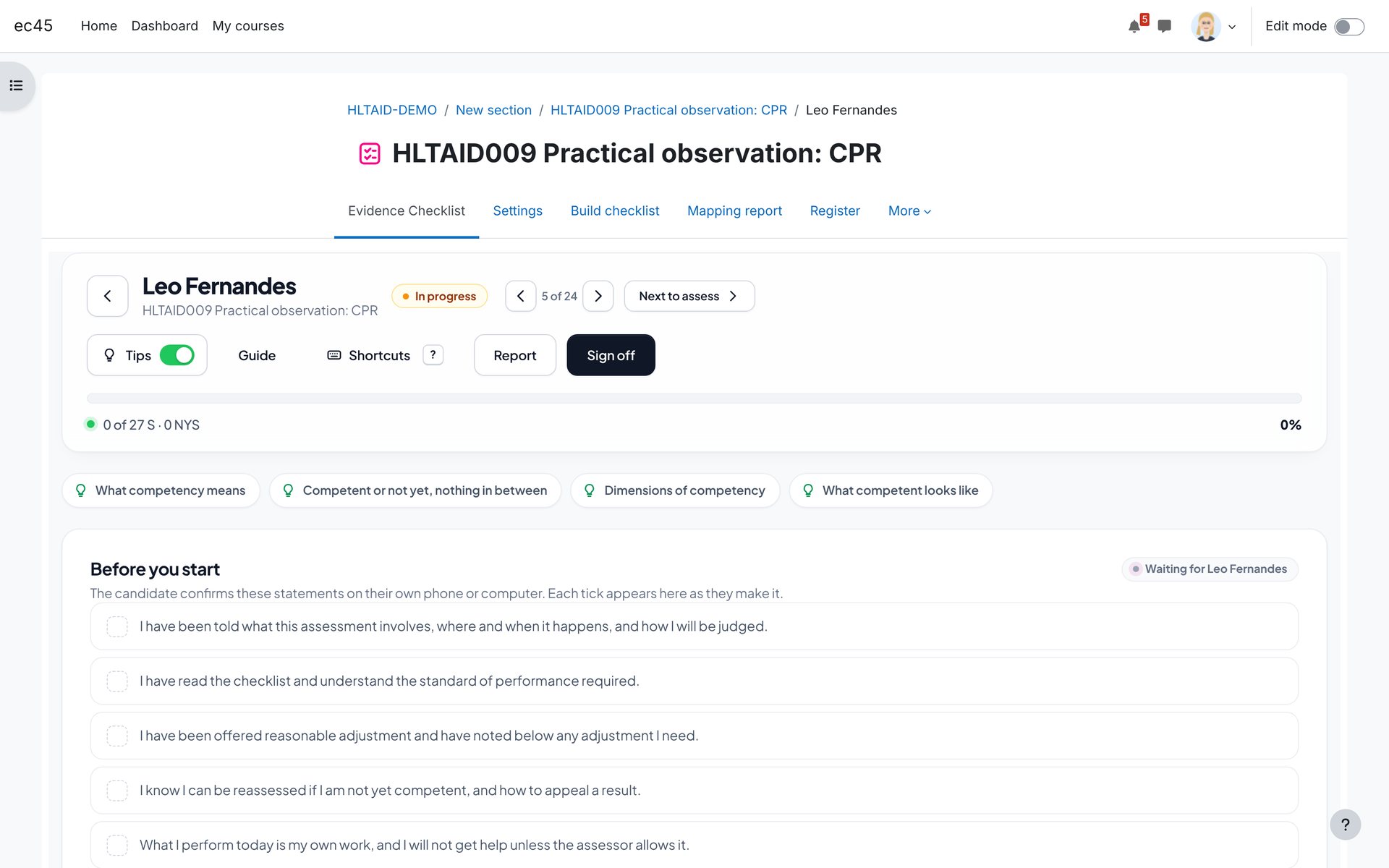
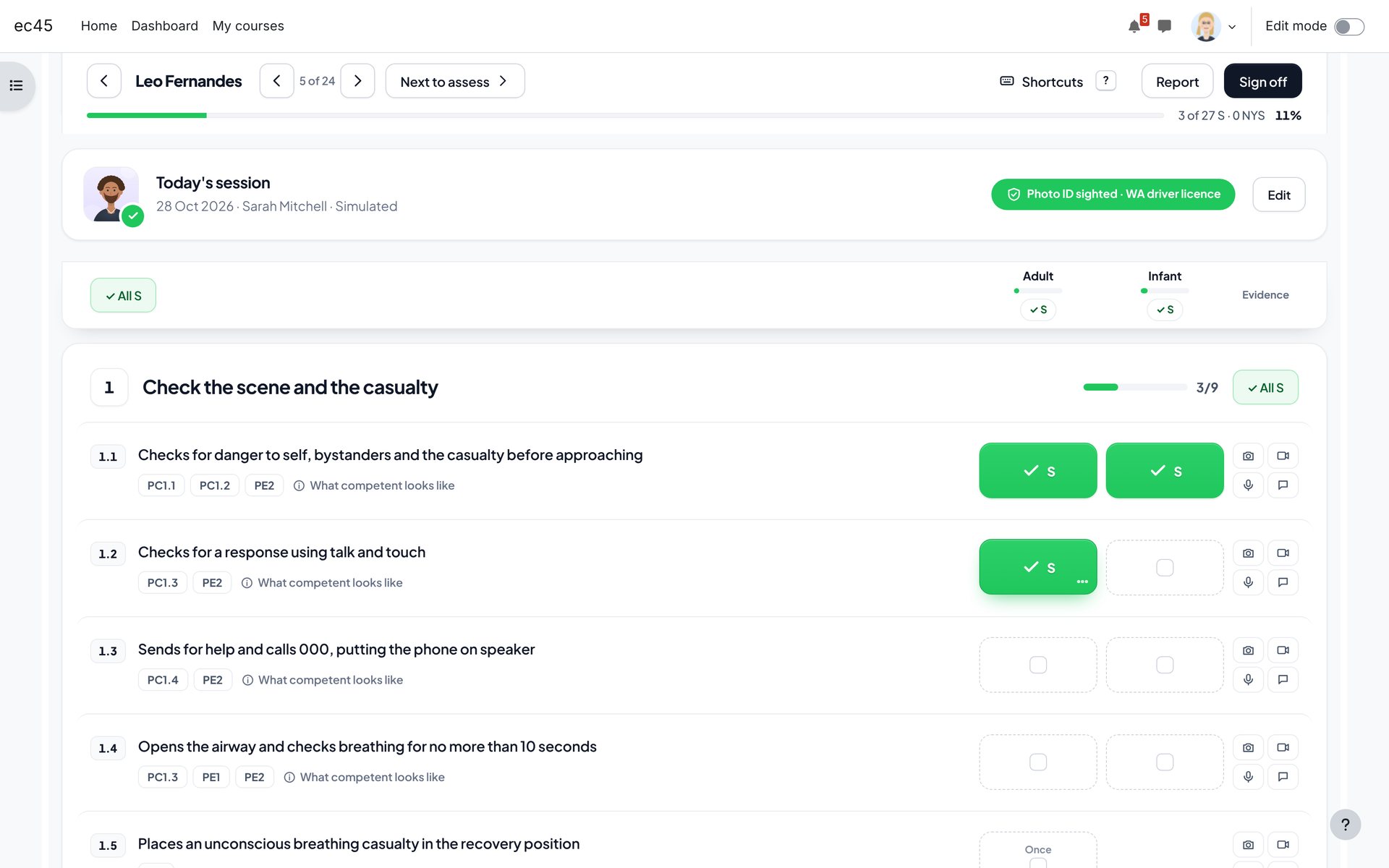
    The marking screen. One row per checklist item, one cell per column the unit requires.
    1. 1Student, progress and sign-off stay in the sticky header.
    2. 2Columns come from the unit, for example Adult and Infant.
    3. 3Tap once for S. Tap again for NYS, again to clear.
    4. 4Evidence pad: photo, video, audio and comment in one tap.
    5. 5Unit references for each item, straight from the mapping.

    No AI, and why that matters

    There is no AI inside the plugin. It makes no ChatGPT calls, has no ongoing AI usage charges. Activation sends only site credentials to LMS Labs; checklist content and evidence stay in Moodle. Decisions are made by the assessor, which is what the Standards for RTOs require. The only AI step is optional and outside Moodle: you can paste the bundled prompt into your own ChatGPT or Claude account to draft the checklist, then check it in the preview before anything is saved.

    NO AINO AI CREDITSNO CHATGPT CALLS

    Install

    1. Requirements. Moodle 4.4, 4.5, 5.0, 5.1 or 5.3, with PHP 8.1 or later. ffmpeg is optional, for video compression.
    2. Upload. Site administration, Plugins, Install plugins. Upload mod_evidencechecklist_v1.2.0.zip and follow the upgrade screens.
    3. Check the defaults. Site administration, Plugins, Activity modules, Evidence Checklist. The settings are listed below.
    4. Add an activity. In a course, add an activity and choose Evidence Checklist. Enter the unit code and title, the setting and the equipment.

    Quick start

    1. Build. On Build checklist, copy the prompt, give ChatGPT the unit's Complete PDF from training.gov.au, paste the result into Fast paste, preview and import.
    2. Check the mapping. The mapping report shows every requirement and what covers it. Assessing can stay locked until it is complete.
    3. Confirm. The student confirms the pre-assessment statements on their own phone, or you ask them aloud.
    4. Mark. Tap cells, add evidence from the pad, and write gap plans for anything not yet satisfactory.
    5. Sign off. Both sign on screen. The result goes to the student, the gradebook and course completion, and the report is ready.

    Build the checklist

    The bundled prompt turns a unit of competency into a plain-English observation checklist and a two-way mapping report. Your unit code, title, setting and equipment are filled in for you.
    Write the checklist with ChatGPT
    Write the checklist with ChatGPT
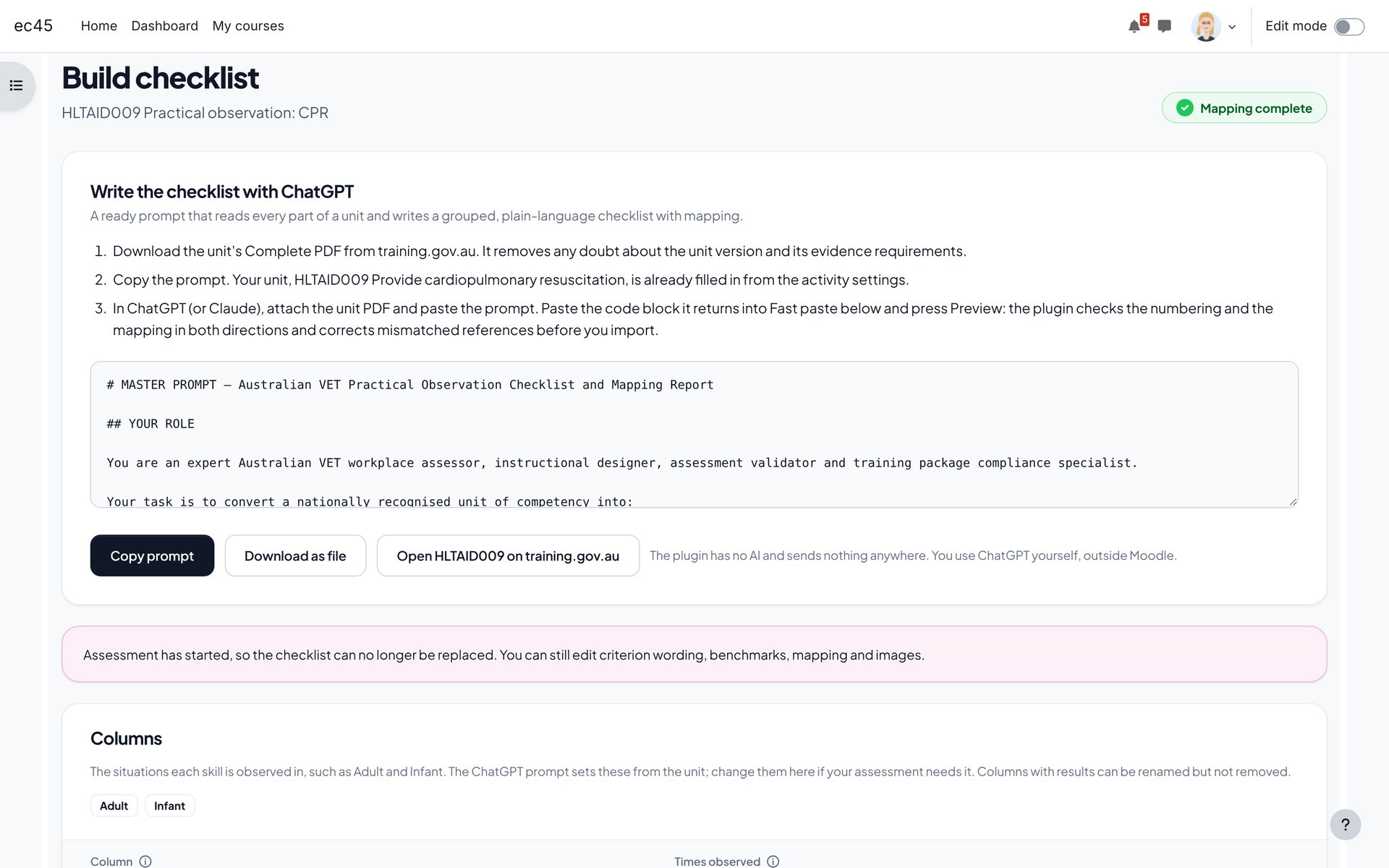
    Write the checklist with ChatGPT. The prompt is filled with your unit code, title, setting and equipment.
    1. 1Copy the ready-made prompt, or download it as a file.
    2. 2Open the unit on training.gov.au and download its Complete PDF.
    3. 3The prompt asks for numbered items, columns, benchmarks, gap tips and the full mapping.
    Fast paste
    Fast paste
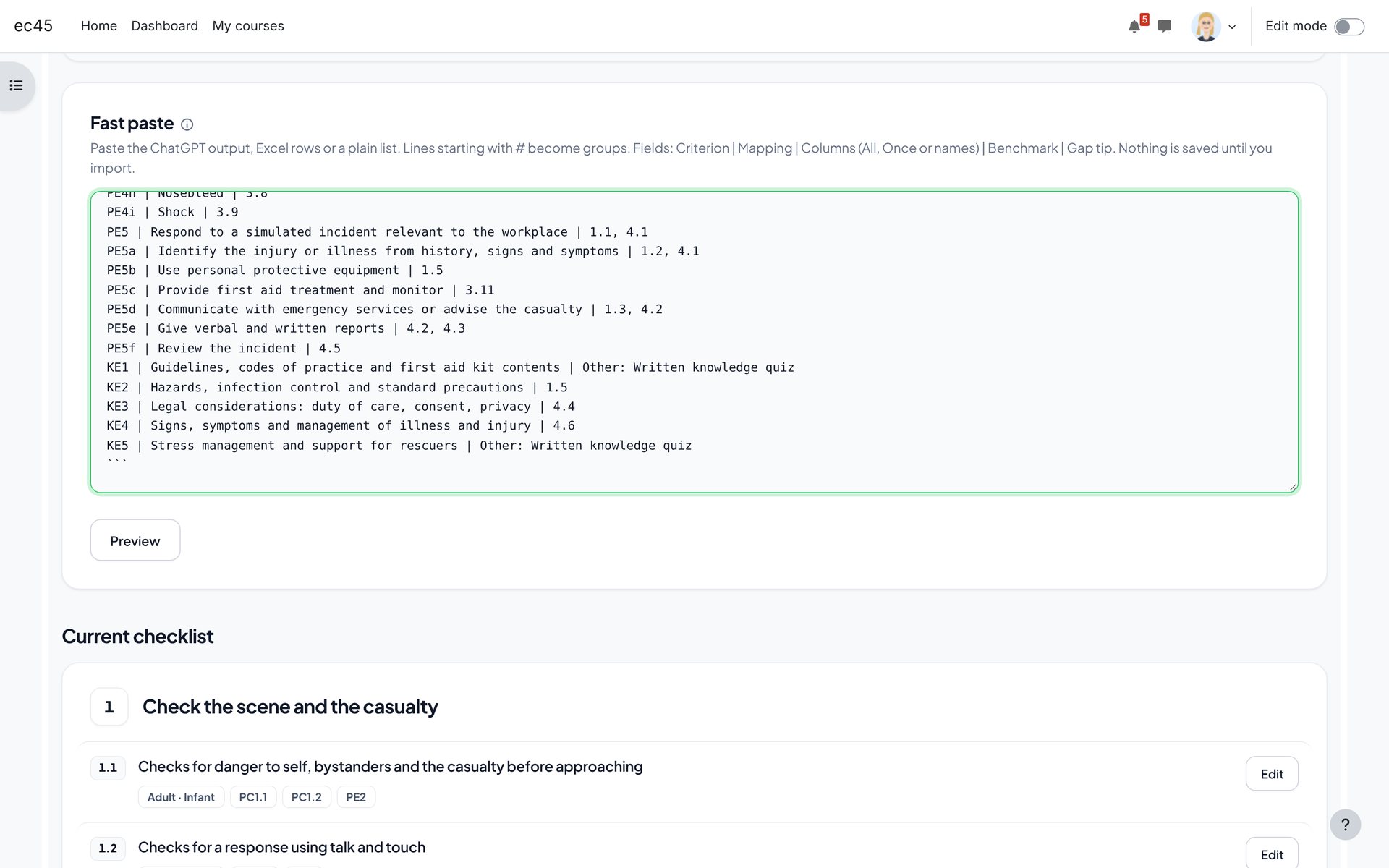
    Fast paste. Paste the code block ChatGPT returns. Nothing is saved until you preview it.
    1. 1Groups, items, columns, benchmarks and gap tips in one paste.
    2. 2Preview first: errors are listed by line number.
    Preview and mapping check
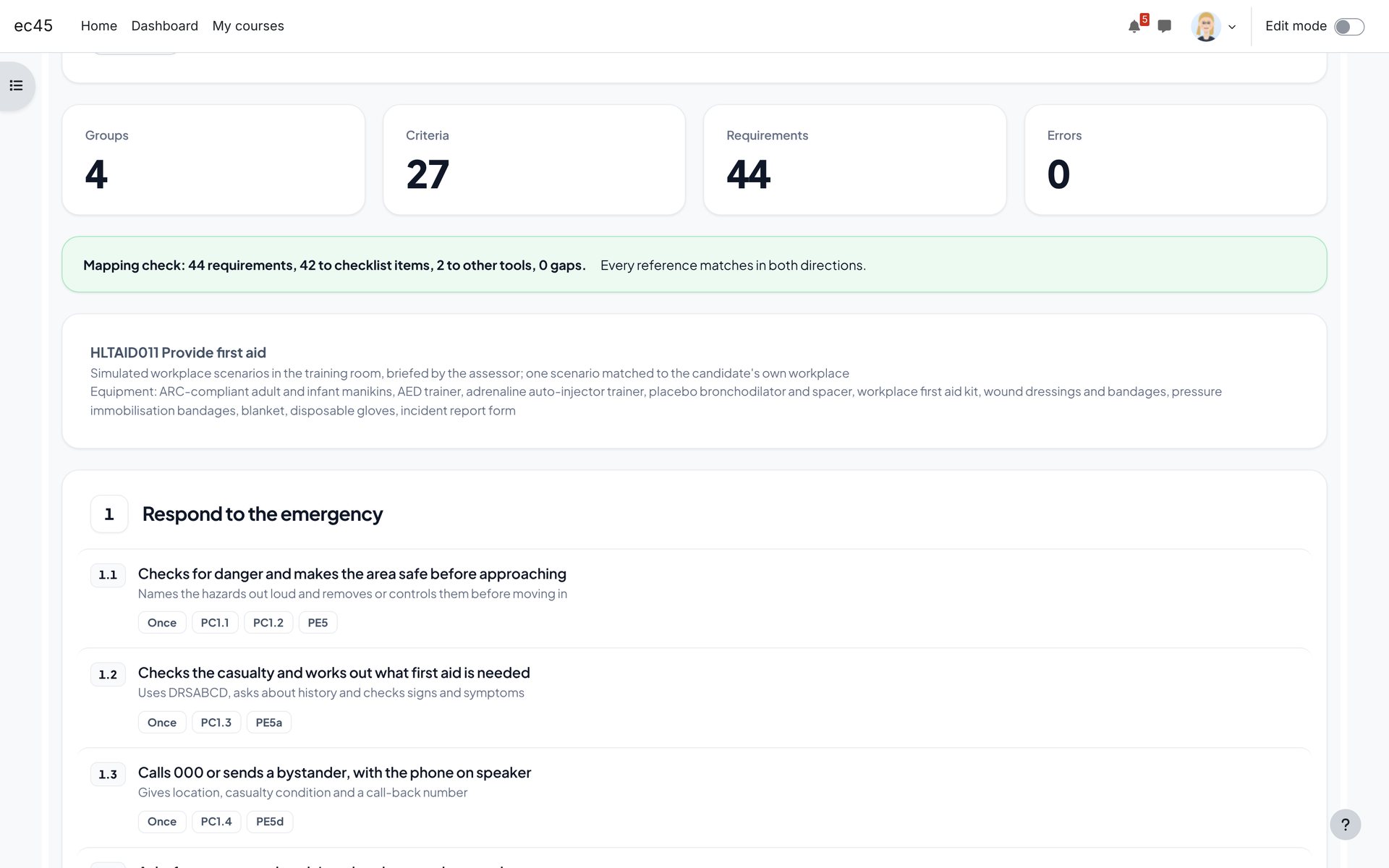
    Preview and mapping check
    Preview and mapping check. Numbering and mapping are checked in both directions before import.
    1. 1Groups, items, requirements and errors at a glance.
    2. 2The mapping check repairs safe mismatches and tells you what it changed.
    Columns
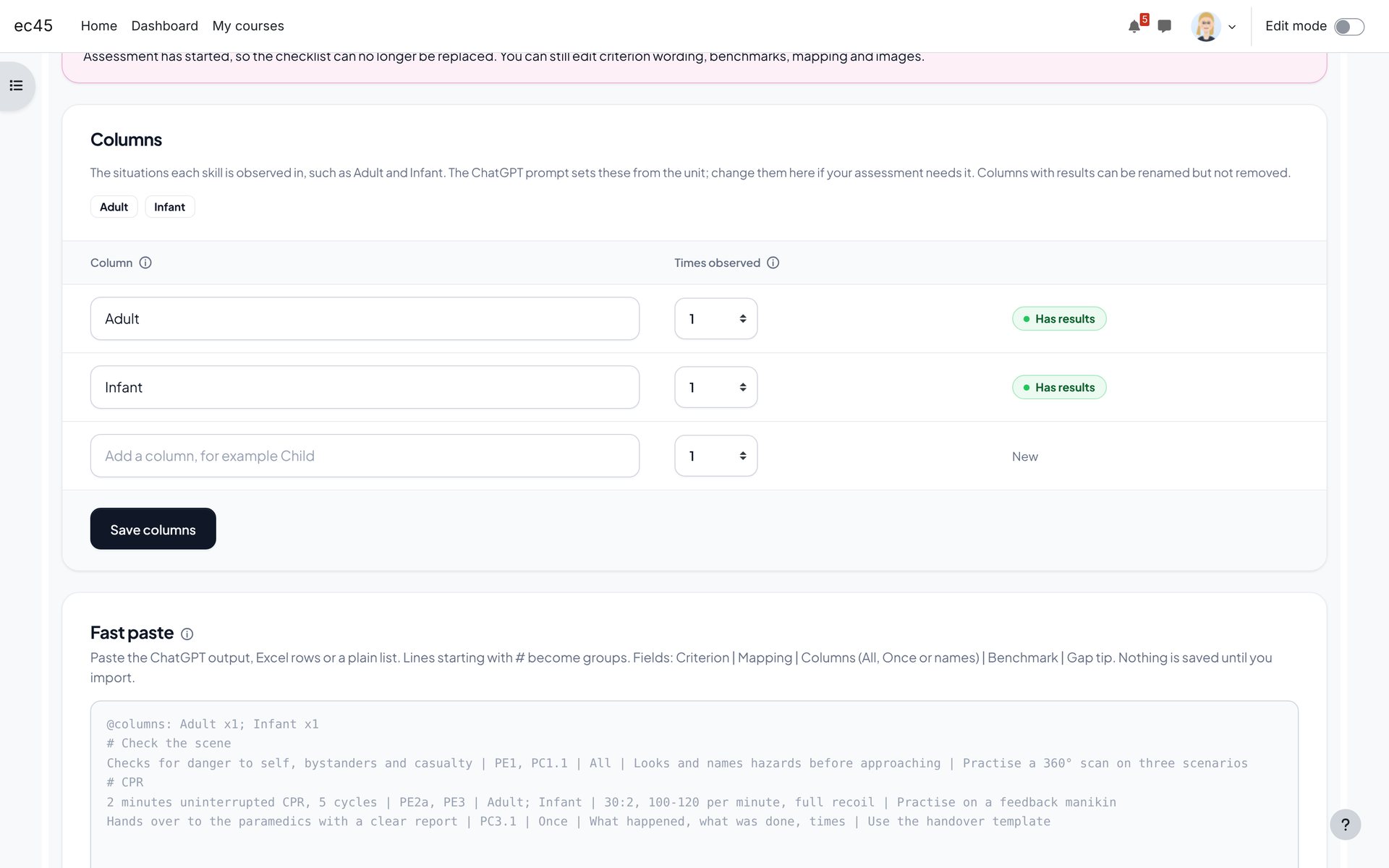
    Columns
    Columns. Rename a column, add one, or change how many times it is observed.
    1. 1Columns are set by the prompt from the unit.
    2. 2Times observed, for units that need repeat observations.
    3. 3Columns with results are protected from removal.
    Edit a checklist item
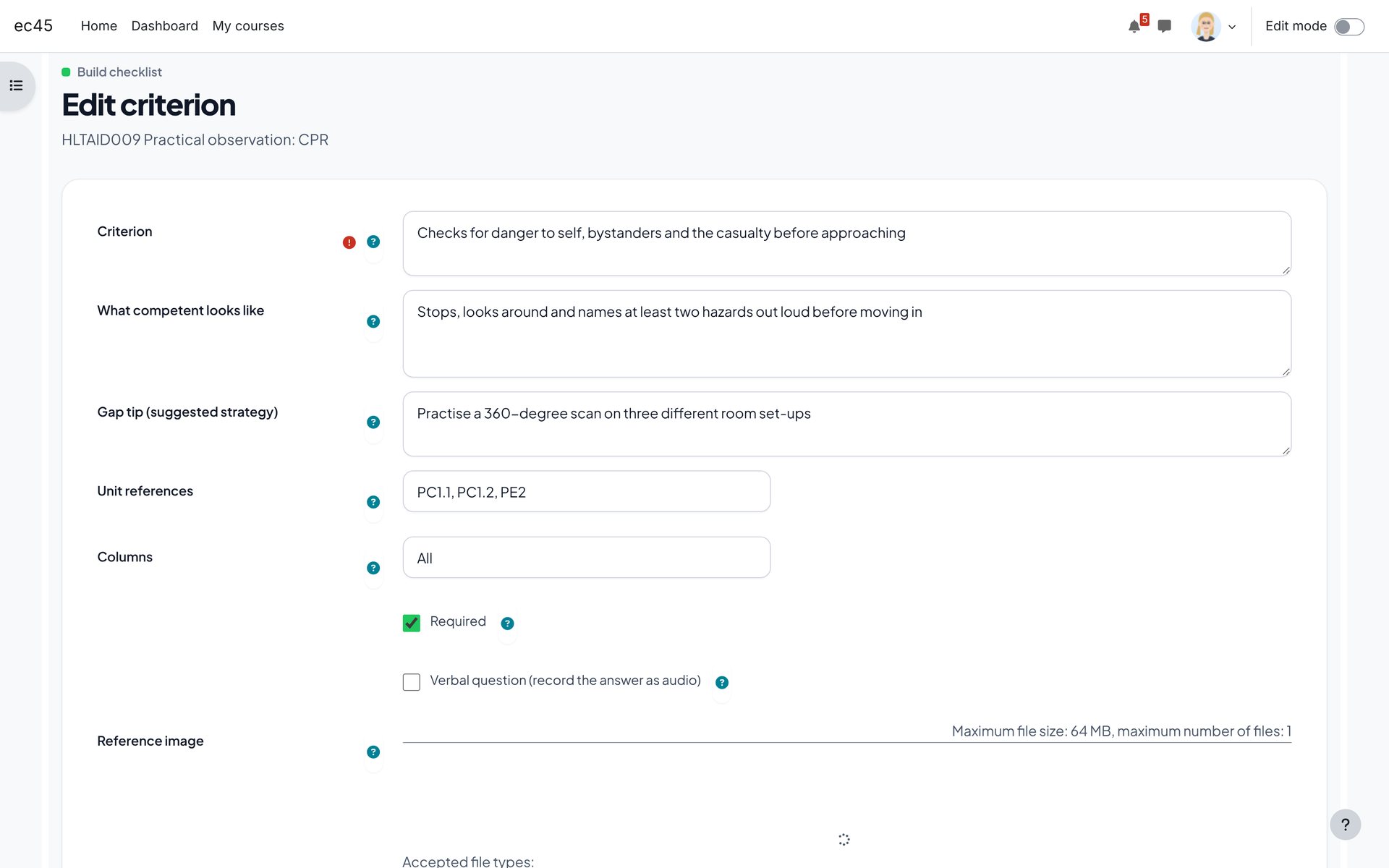
    Edit a checklist item
    Edit a checklist item. Wording, benchmark, gap tip, references and columns.
    1. 1Plain workplace wording, starting with a verb.
    2. 2Required and verbal question options.

    Mapping report

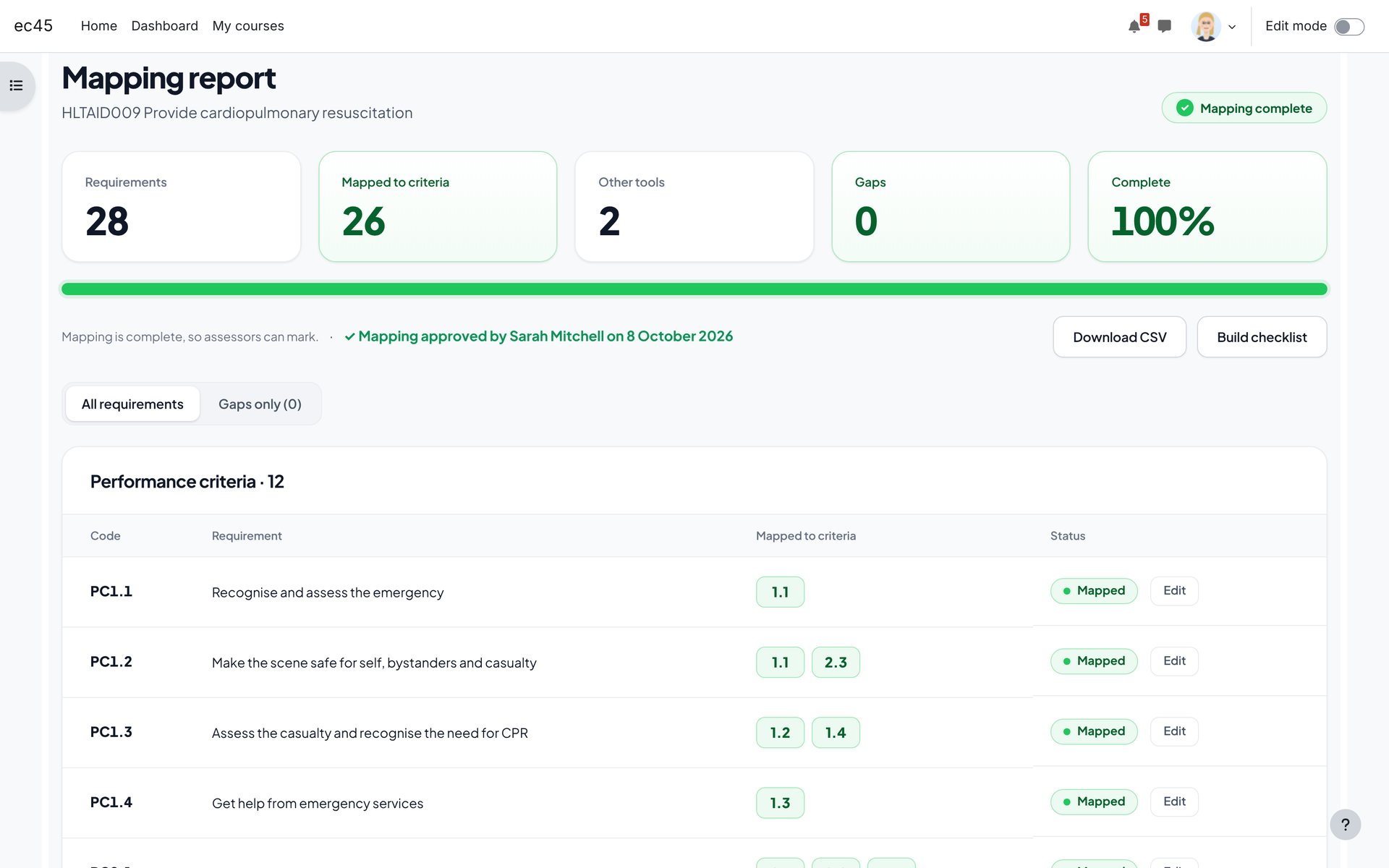
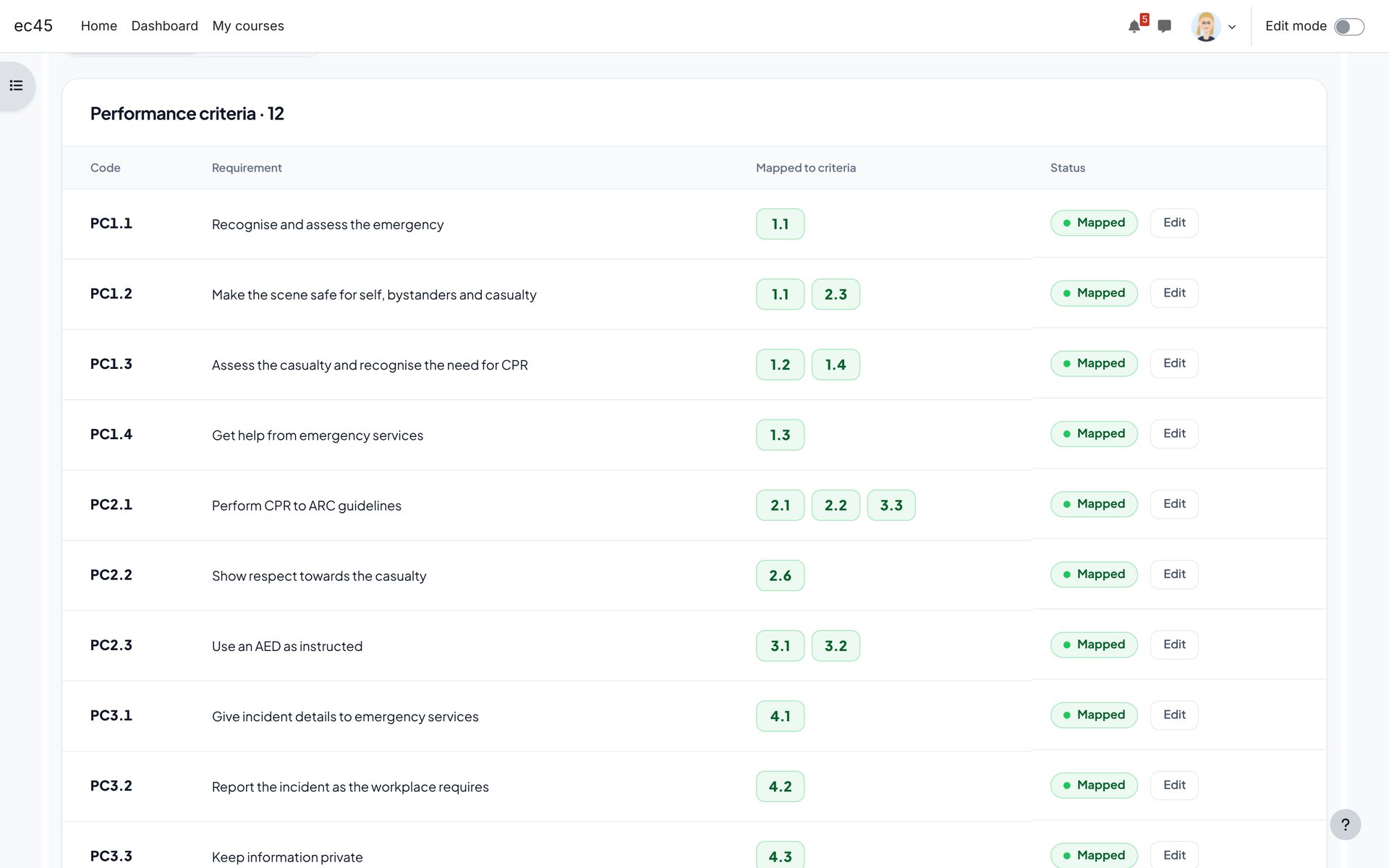
    Every performance criterion, performance evidence point, knowledge evidence point, assessment condition and foundation skill is listed with the checklist items that cover it, or the other assessment tool that does.
    Mapping report
    Mapping report
    Mapping report. Every performance criterion and evidence requirement, with the items that cover it.
    1. 1Requirements, mapped, other tools and gaps.
    2. 2Export the mapping for your validation file.
    Mapping detail
    Mapping detail
    Mapping detail. Green is mapped, magenta is a gap.
    1. 1Checklist item numbers that cover the requirement.
    2. 2Status for each requirement.
    3. 3Edit a mapping inline; item references update to match.

    Before the assessment

    The candidate confirms they understand the task, know their rights and are ready. The assessor records today's session, a candidate photo and the identity check.
    Class list
    Class list
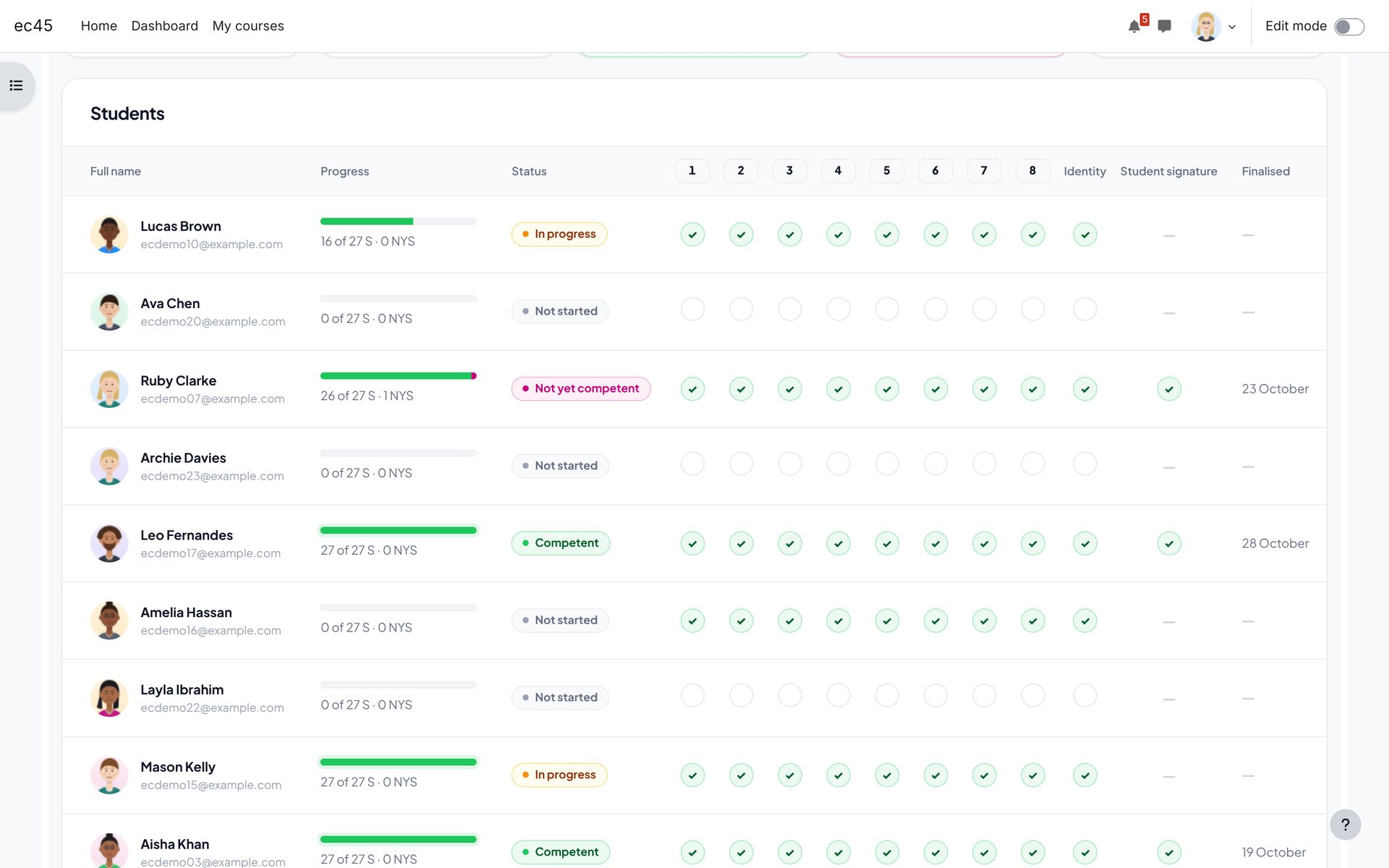
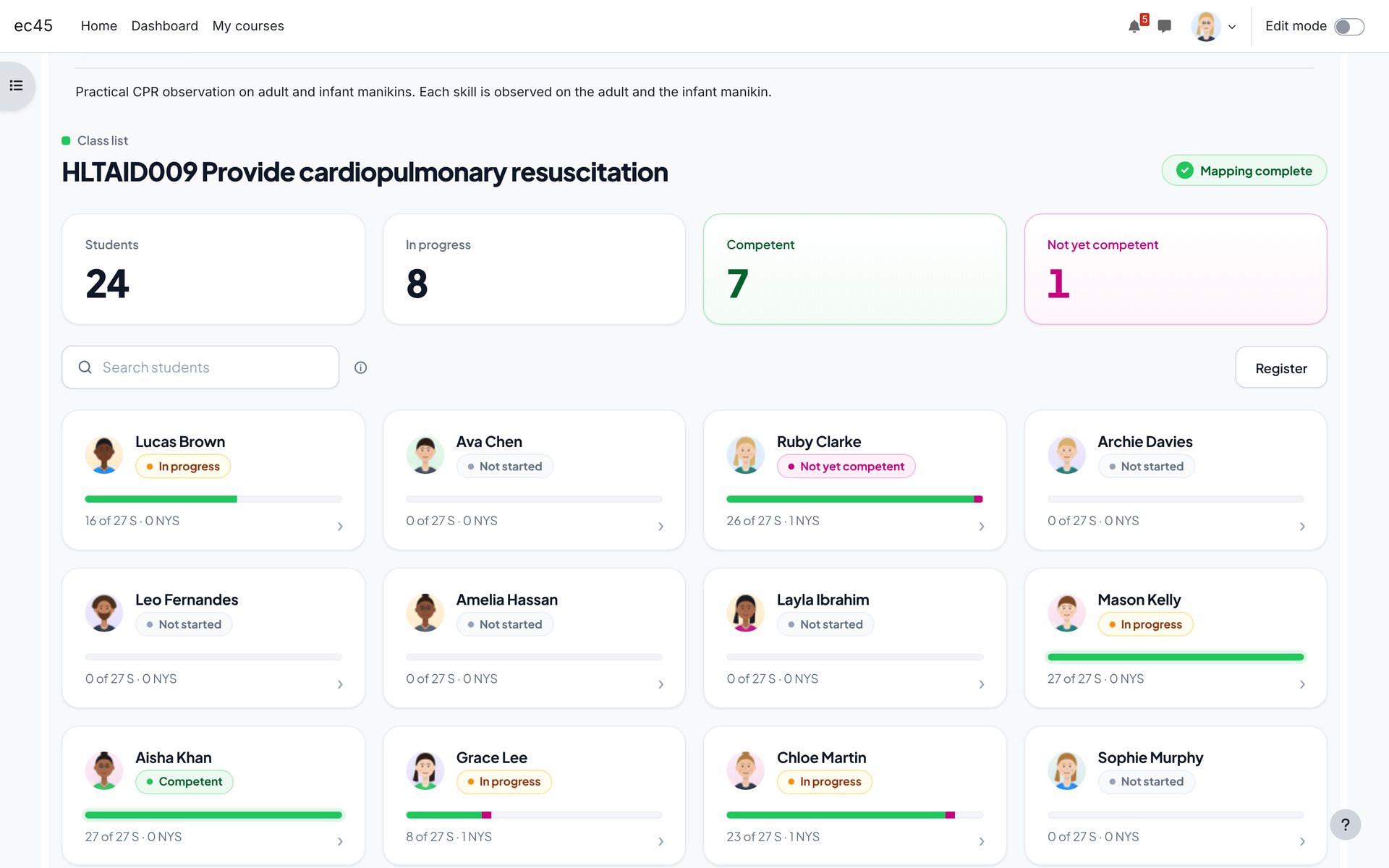
    Class list. Every student with progress and status, filtered by group.
    1. 1Students, in progress, Competent and Not yet competent.
    2. 2Search by name or email.
    3. 3Open a student to start marking.
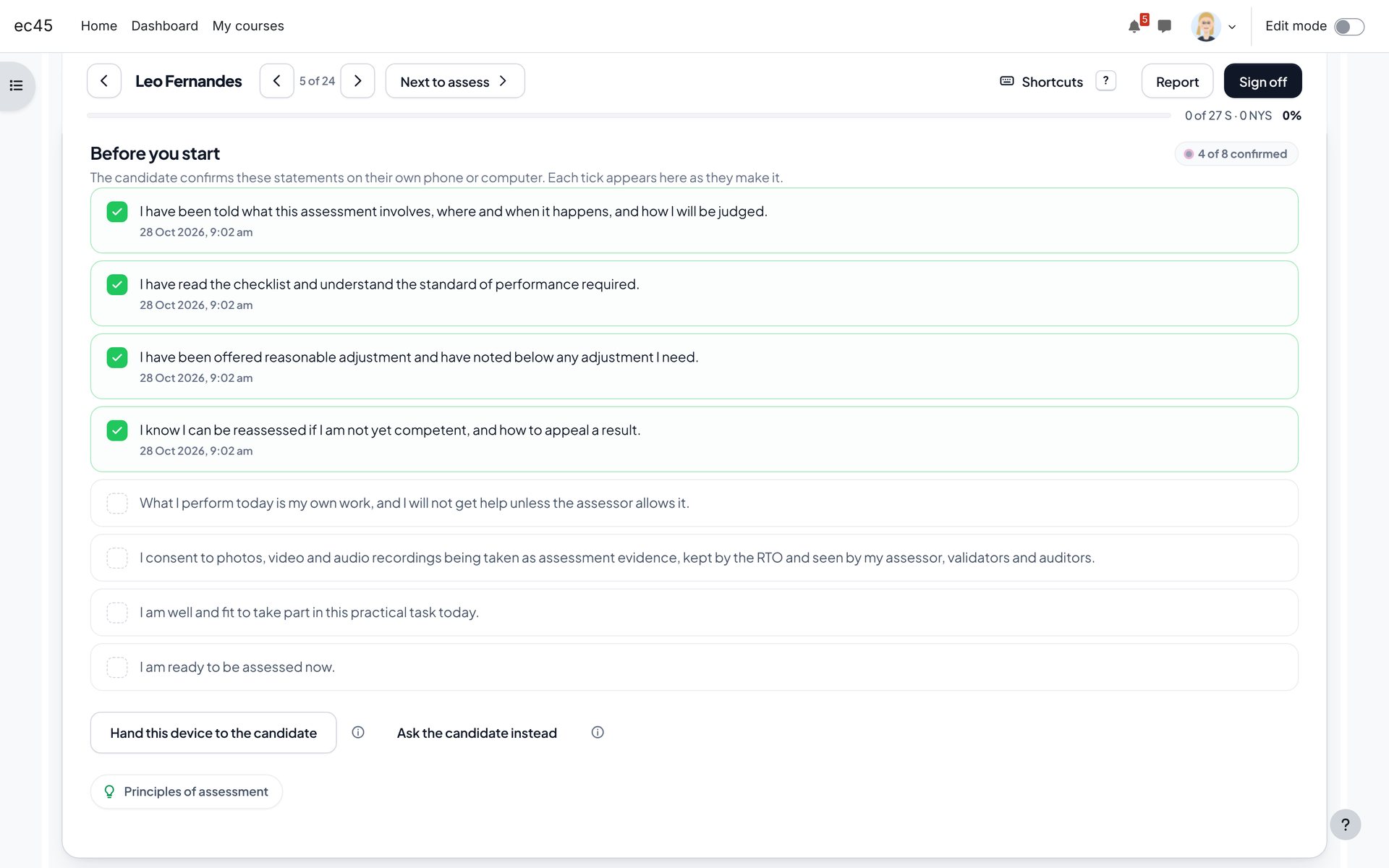
    Before you start: live confirmation
    Before you start: live confirmation
    Before you start: live confirmation. The candidate ticks each statement on their own phone.
    1. 1Each tick appears on the assessor's screen with its time.
    2. 2Shows how many statements are confirmed so far.
    3. 3No device? Hand your tablet over...
    4. 4...or ask the questions aloud.
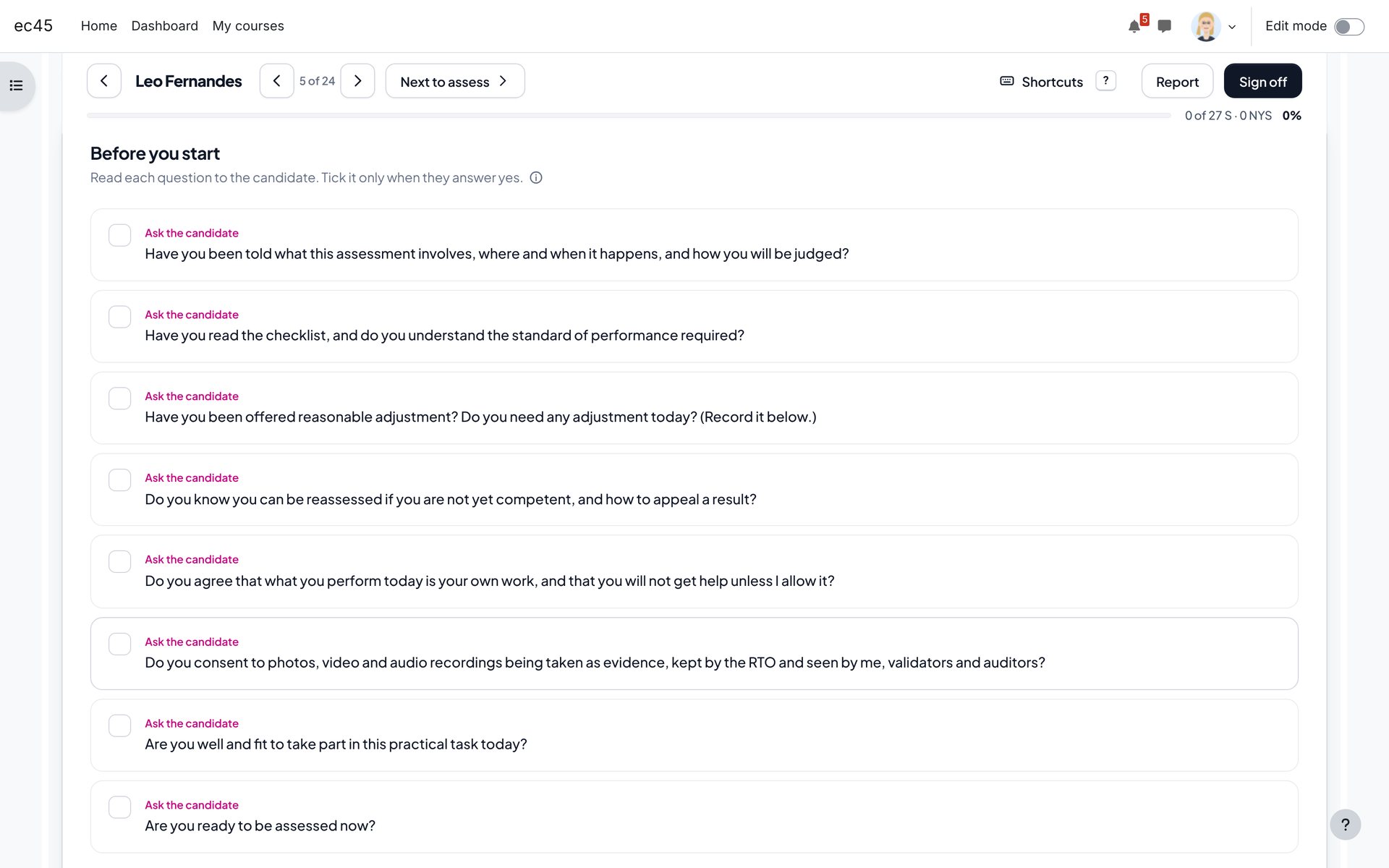
    Ask the candidate
    Ask the candidate
    Ask the candidate. The statements become spoken questions for the assessor.
    1. 1Each one reads as a question to ask.
    2. 2Tick only when the candidate answers yes.
    Hand the device over
    Hand the device over
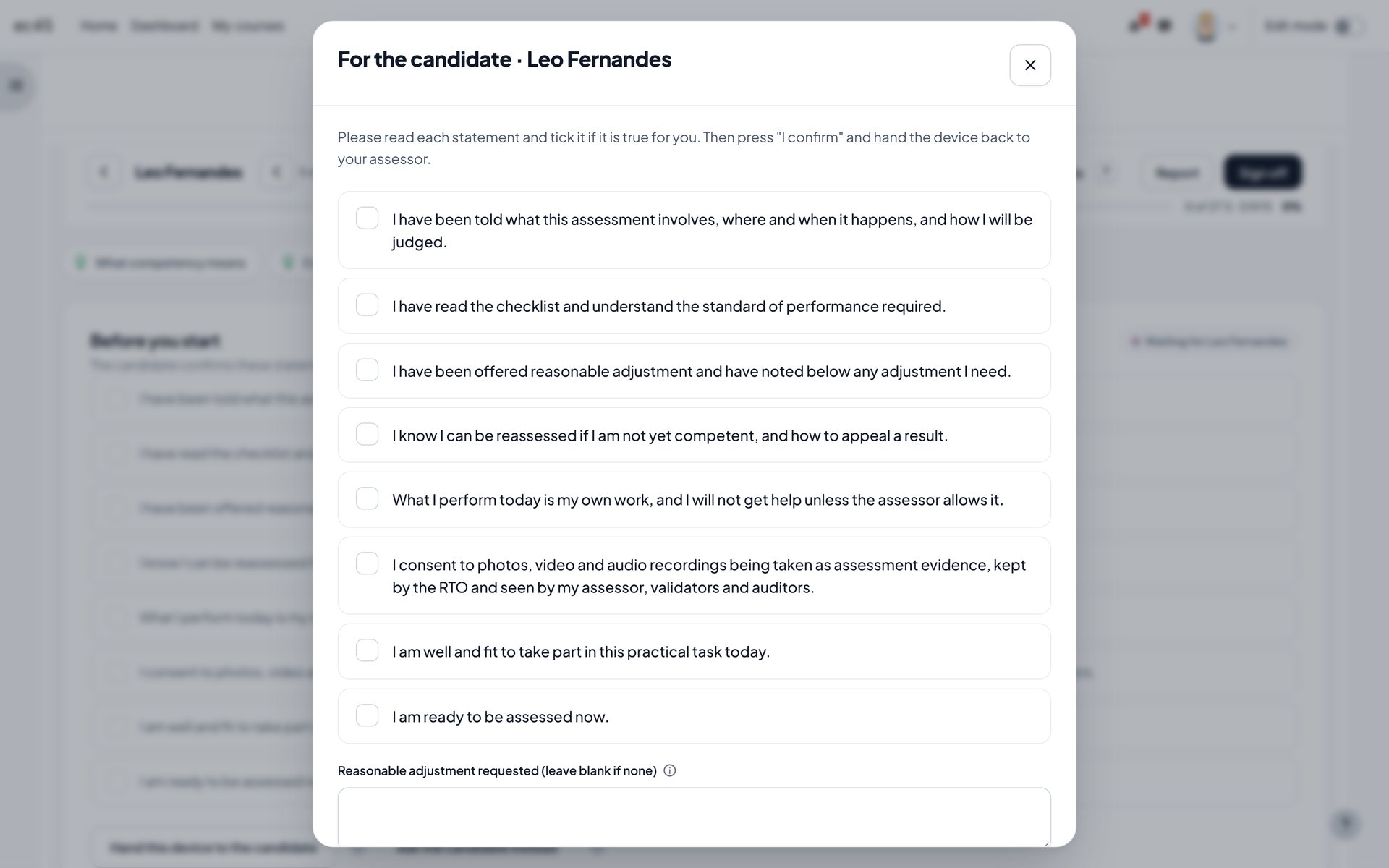
    Hand the device over. A first-person screen for the candidate on the assessor's device.
    1. 1The candidate reads and ticks each statement.
    2. 2They note any reasonable adjustment they need.
    Today's session and identity
    Today's session and identity
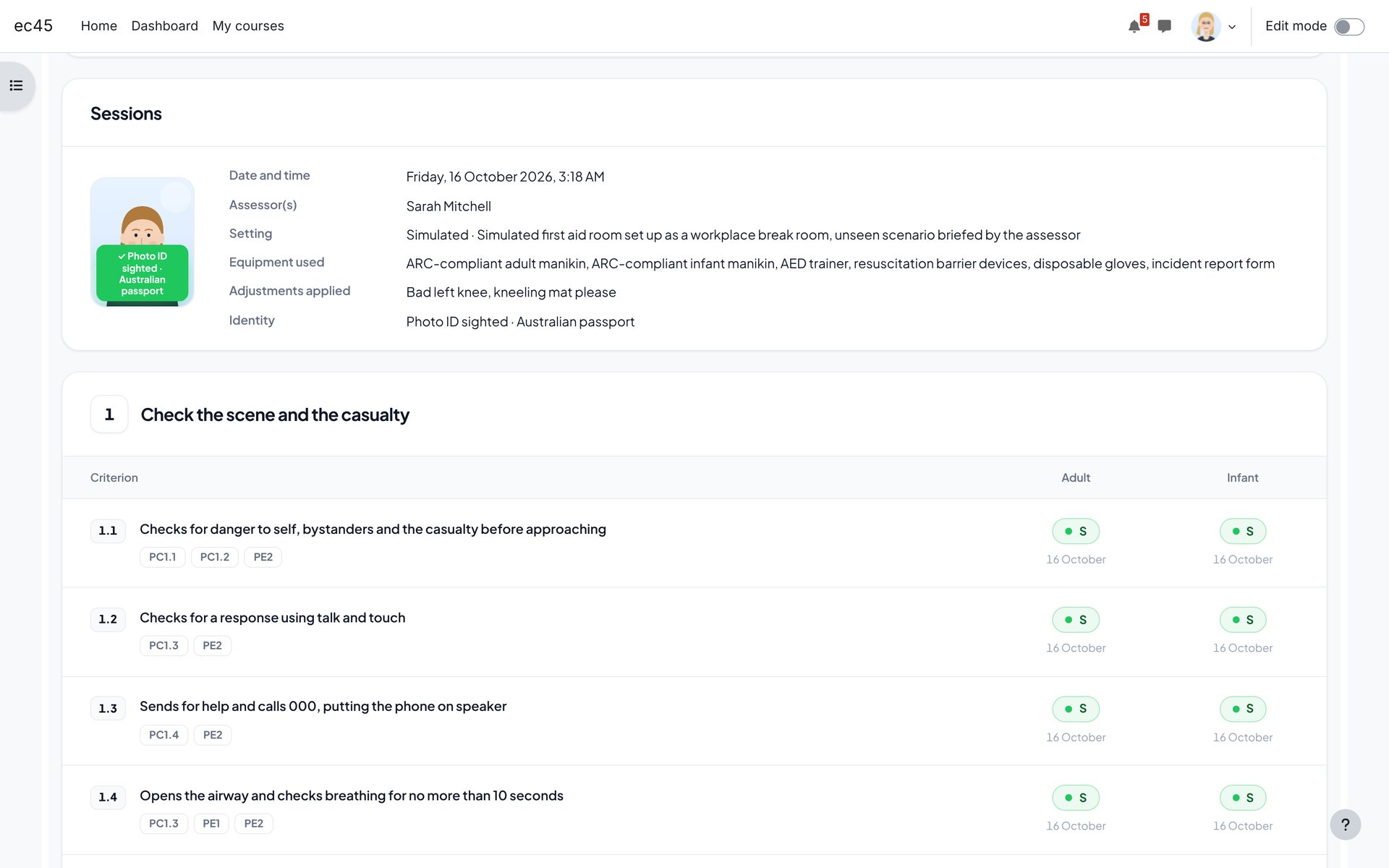
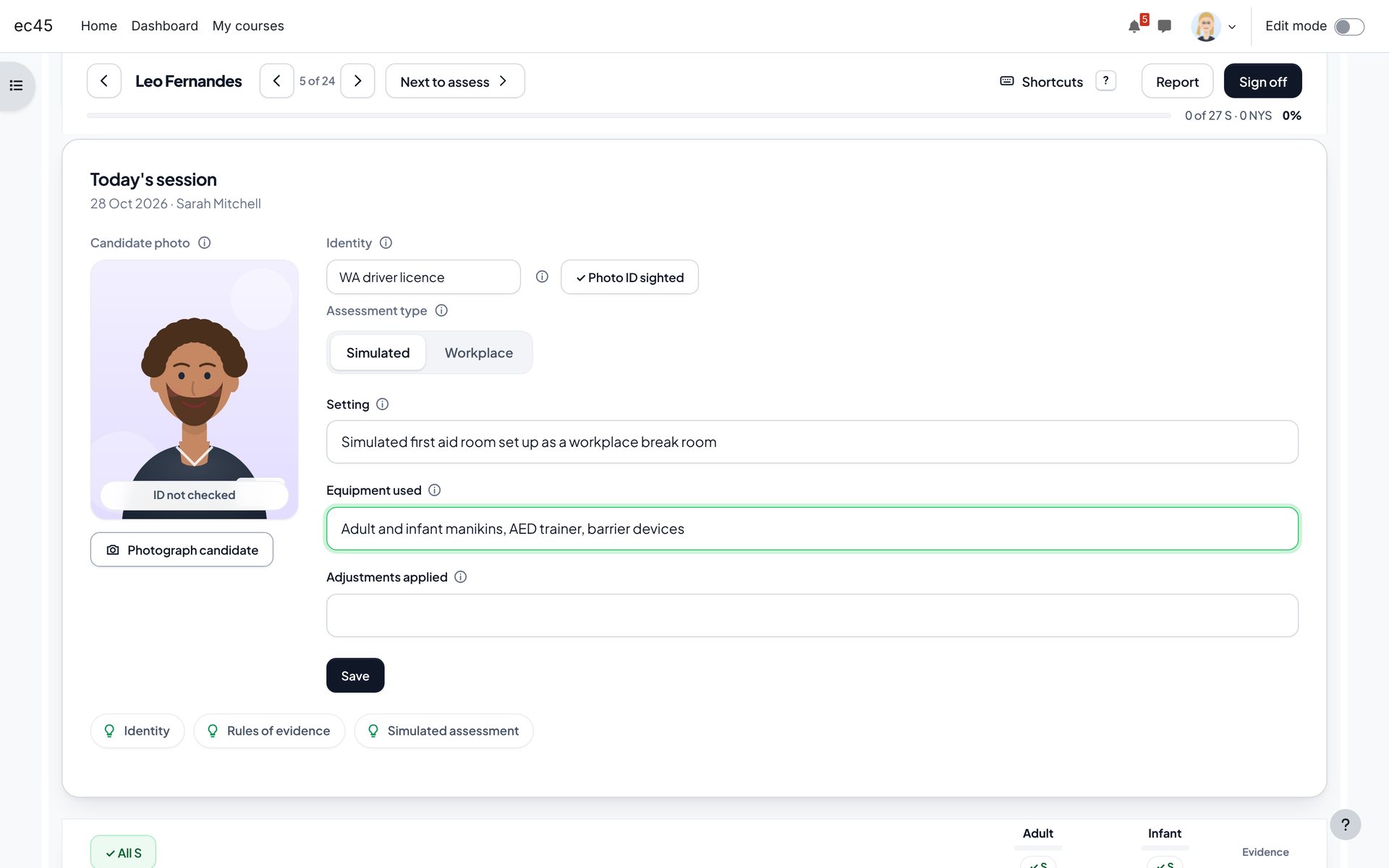
    Today's session and identity. Photo, identity check, setting and equipment for this session.
    1. 1A photo of the candidate on the day.
    2. 2Tick that you sighted their photo ID. Never type the number.
    3. 3Simulated or workplace.
    4. 4Setting, equipment and any adjustments.
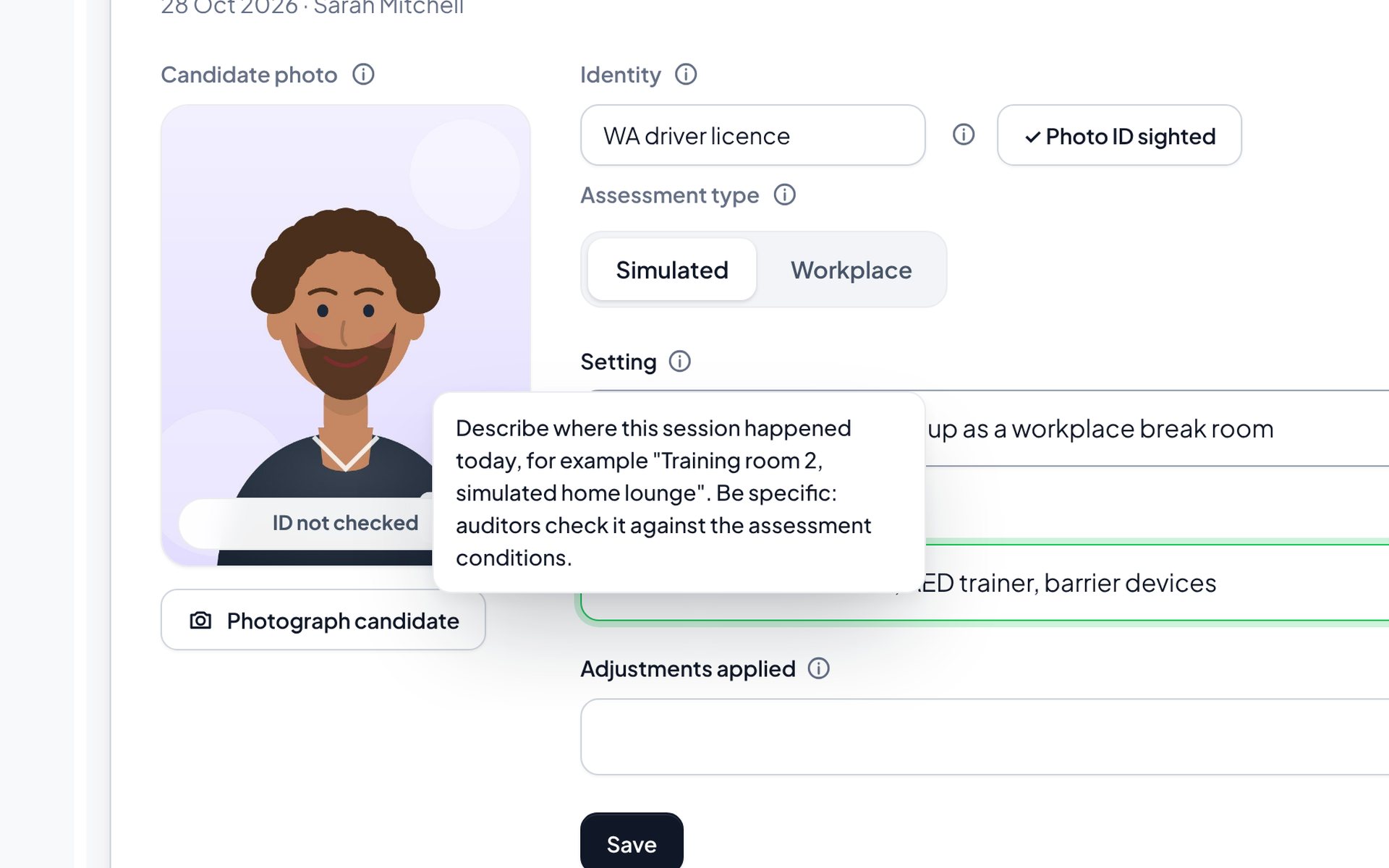
    Help on every field
    Help on every field
    Help on every field. Every input has an information icon with practical advice.
    1. 1Plain advice for new assessors, on hover or tap.

    Marking

    Marking is built for speed: one tap per cell, evidence from the row, and keyboard shortcuts on a computer. On a touch screen you can also swipe a cell right for S and left for NYS.
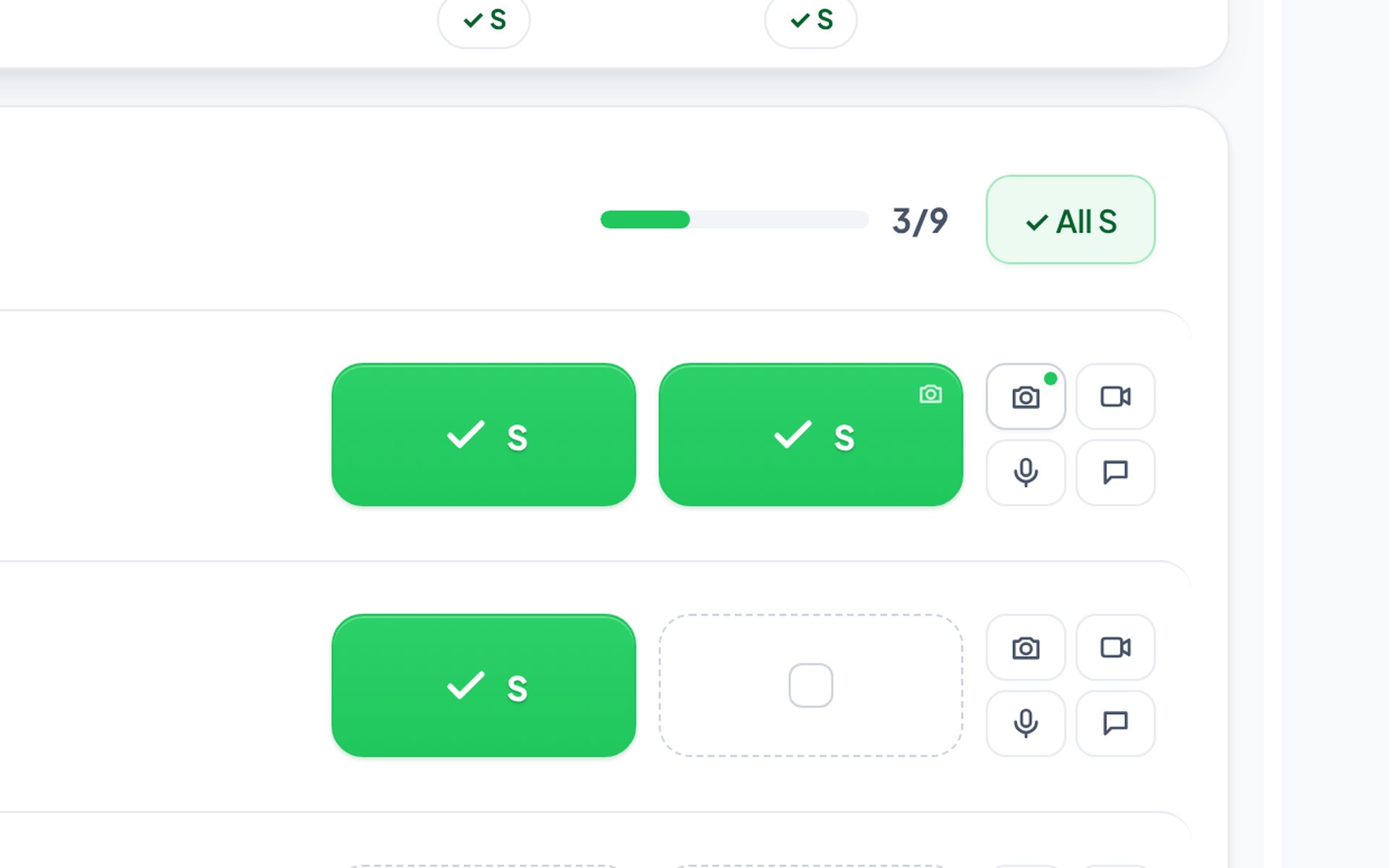
    Evidence pad
    Evidence pad
    Evidence pad. Photo, video, audio and comment for the row's current cell.
    1. 1Photo: the camera opens straight away.
    2. 2Video, checked for length before upload.
    3. 3Audio note or verbal answer.
    4. 4Quick comment. A green dot shows saved evidence.
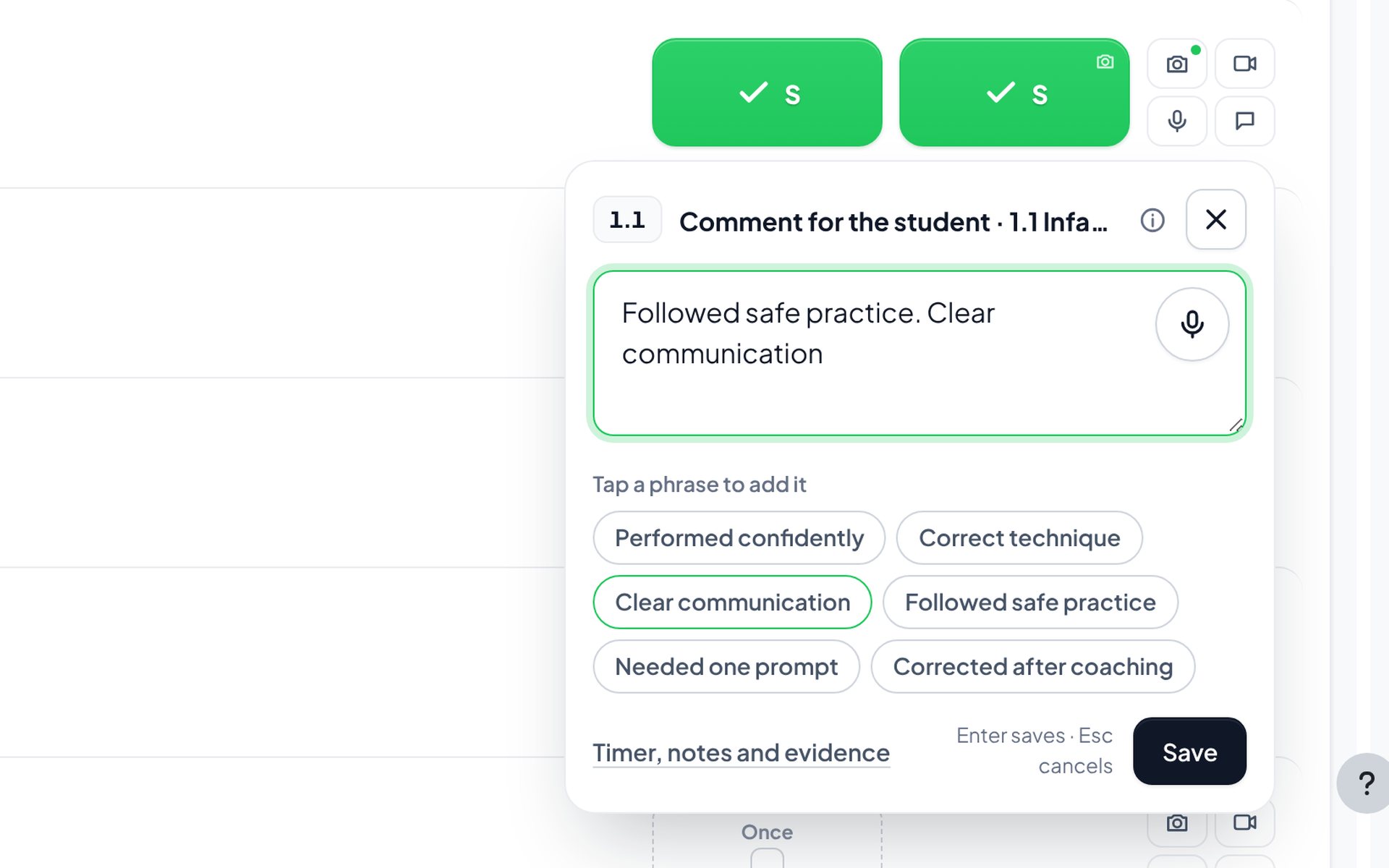
    Quick comment
    Quick comment
    Quick comment. One-tap phrases and your recent comments.
    1. 1Type, dictate or tap phrases. Enter saves.
    2. 2Phrases add to the comment with one tap.
    3. 3Open the full panel when you need more.
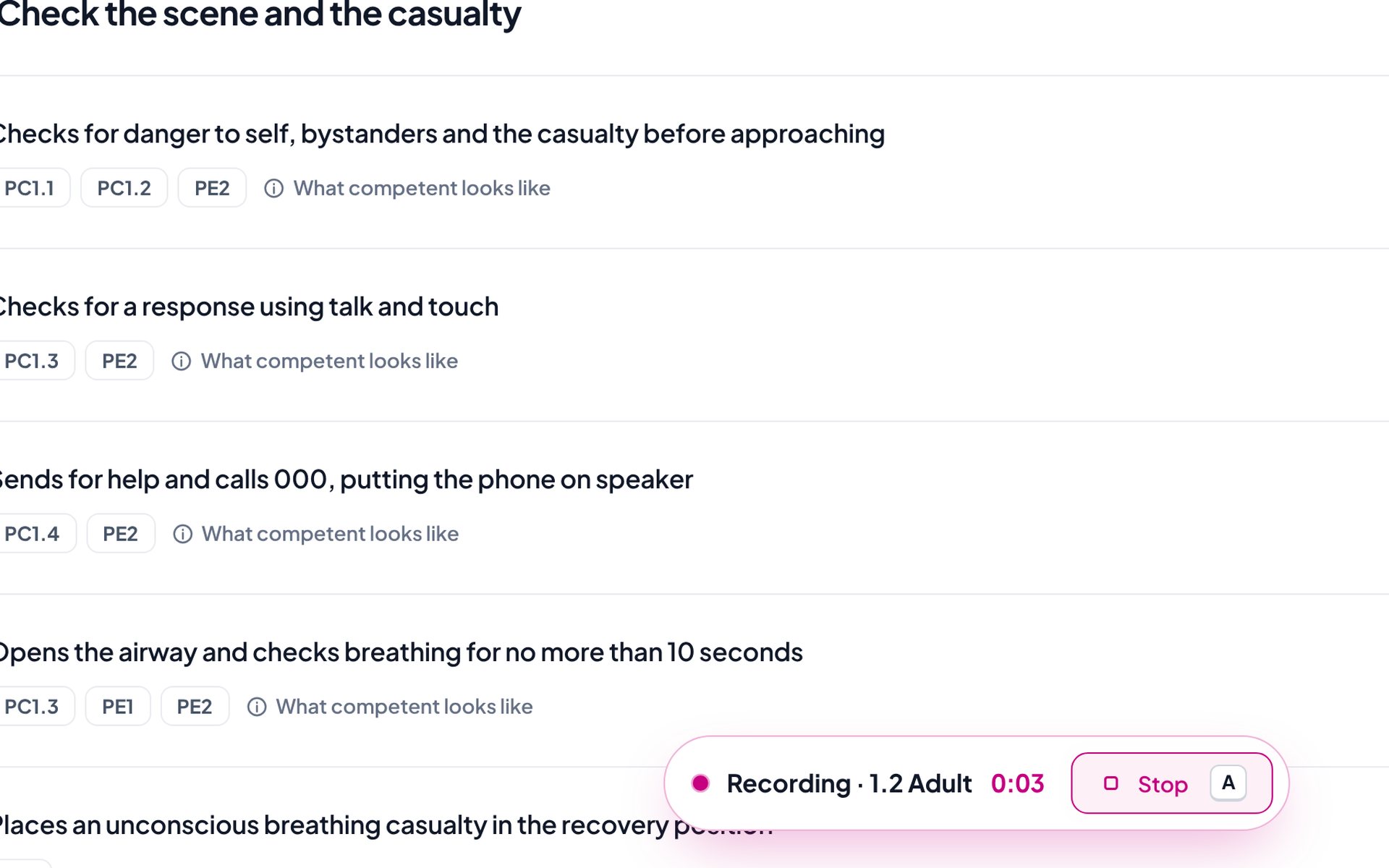
    Record from the row
    Record from the row
    Record from the row. Record a verbal answer without opening the panel.
    1. 1Recording bar with a timer and a one-tap stop.
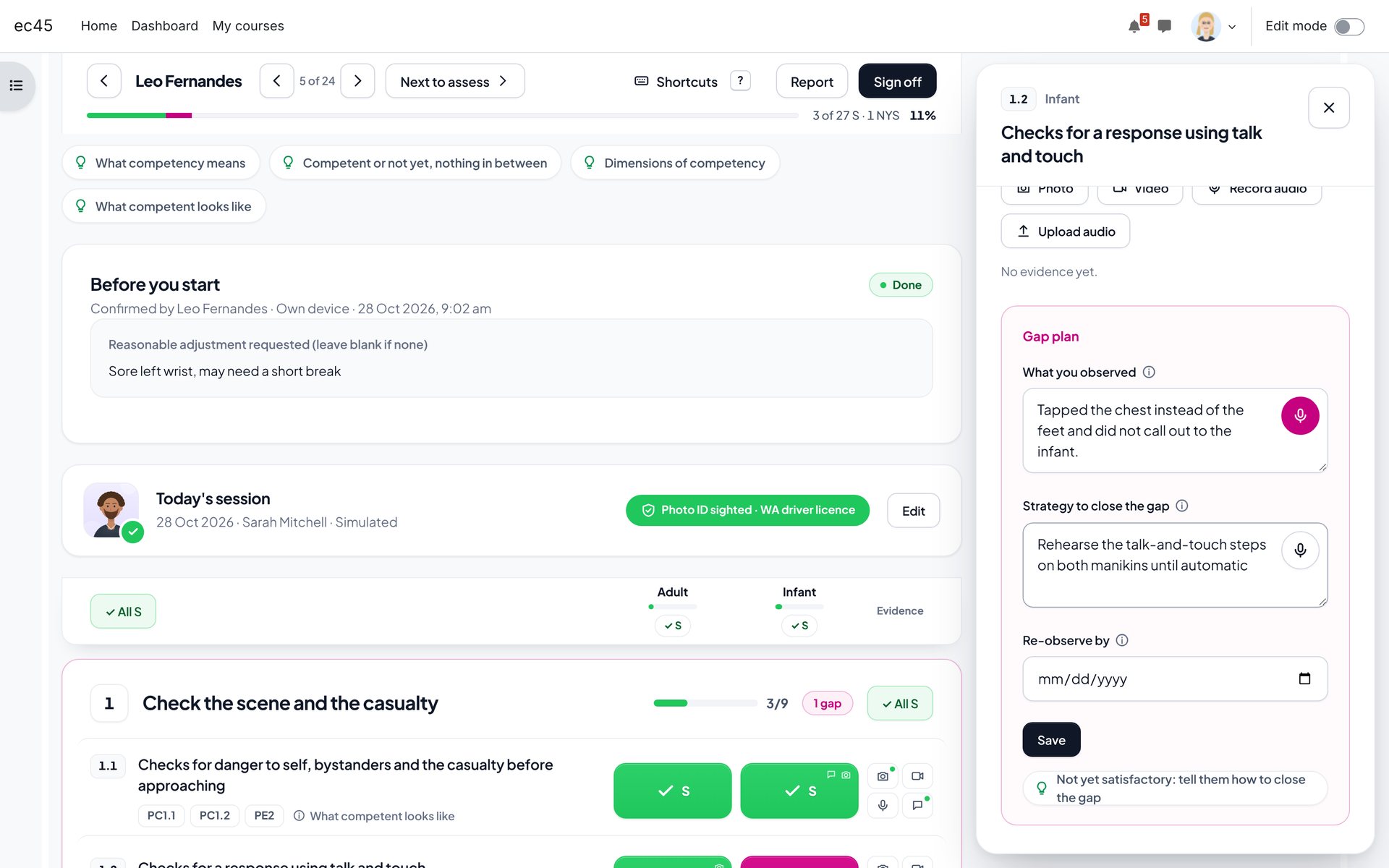
    NYS and the gap plan
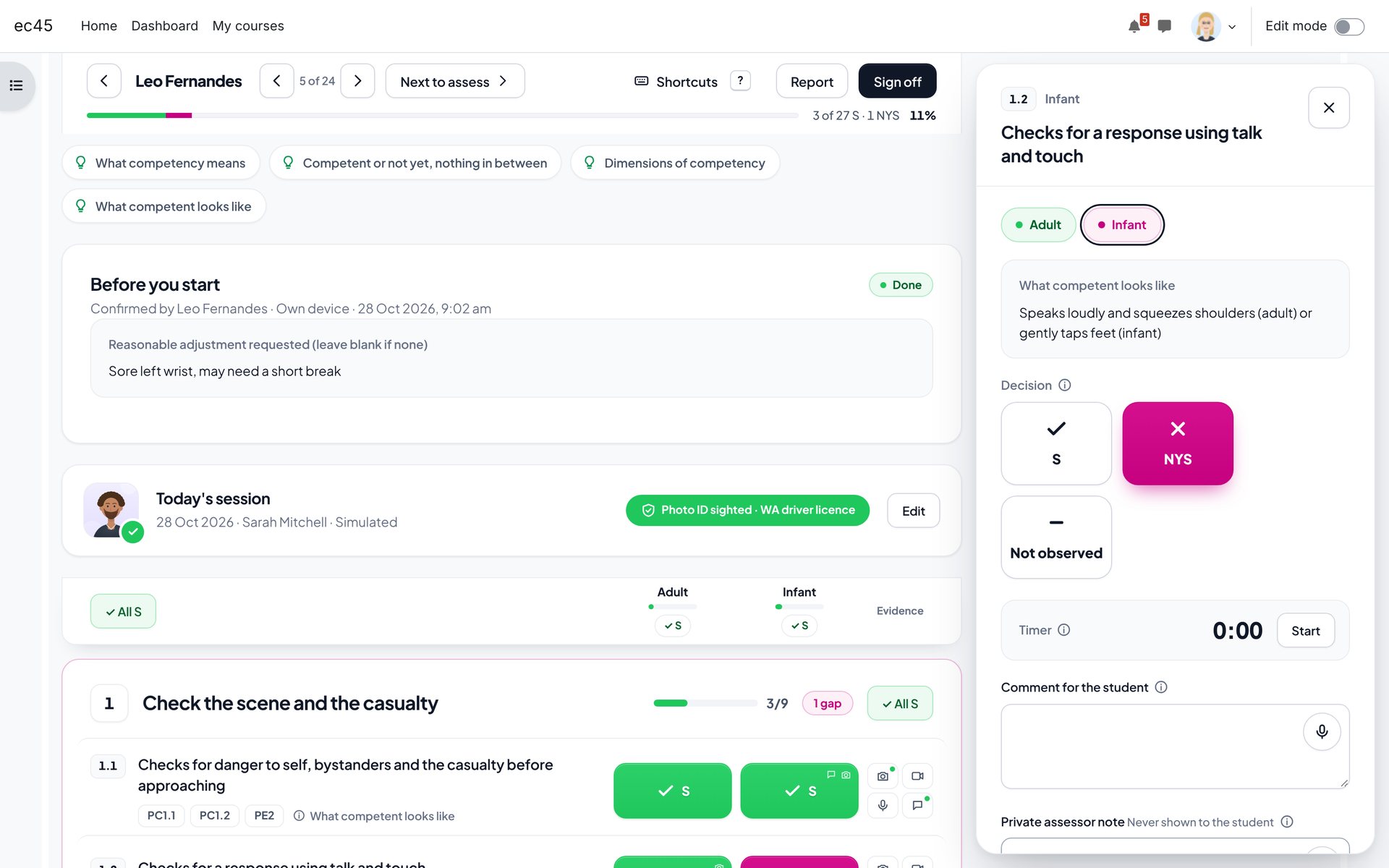
    NYS and the gap plan
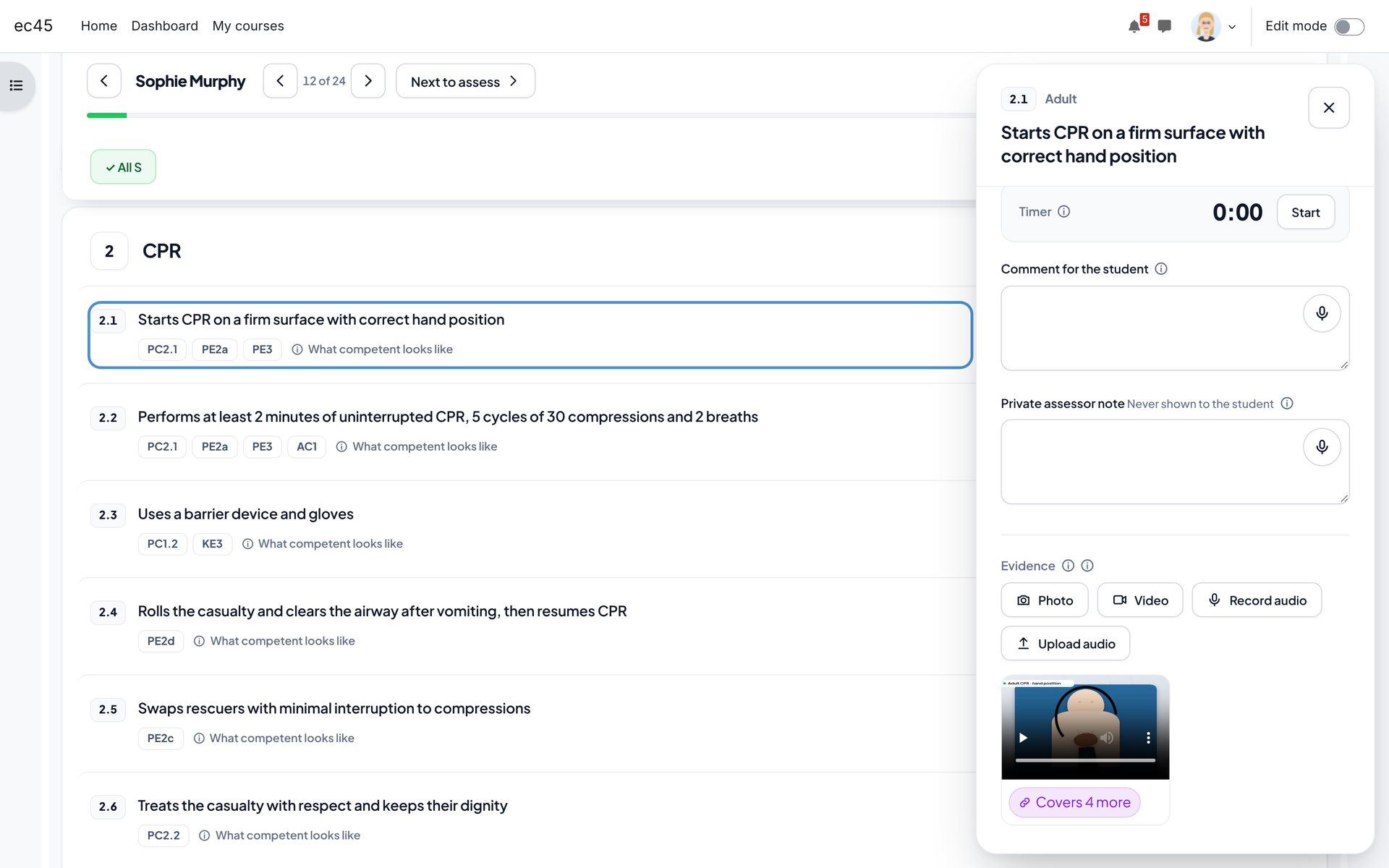
    NYS and the gap plan. The side panel docks beside the grid, so marking continues.
    1. 1Not yet satisfactory opens the gap plan.
    2. 2Switch between the item's columns.
    3. 3Timer for tasks with a duration.
    Dictation
    Dictation
    Dictation. Say what you saw; the words are typed for you.
    1. 1What you observed, the strategy and a re-observe date.
    2. 2Microphone on every comment field.
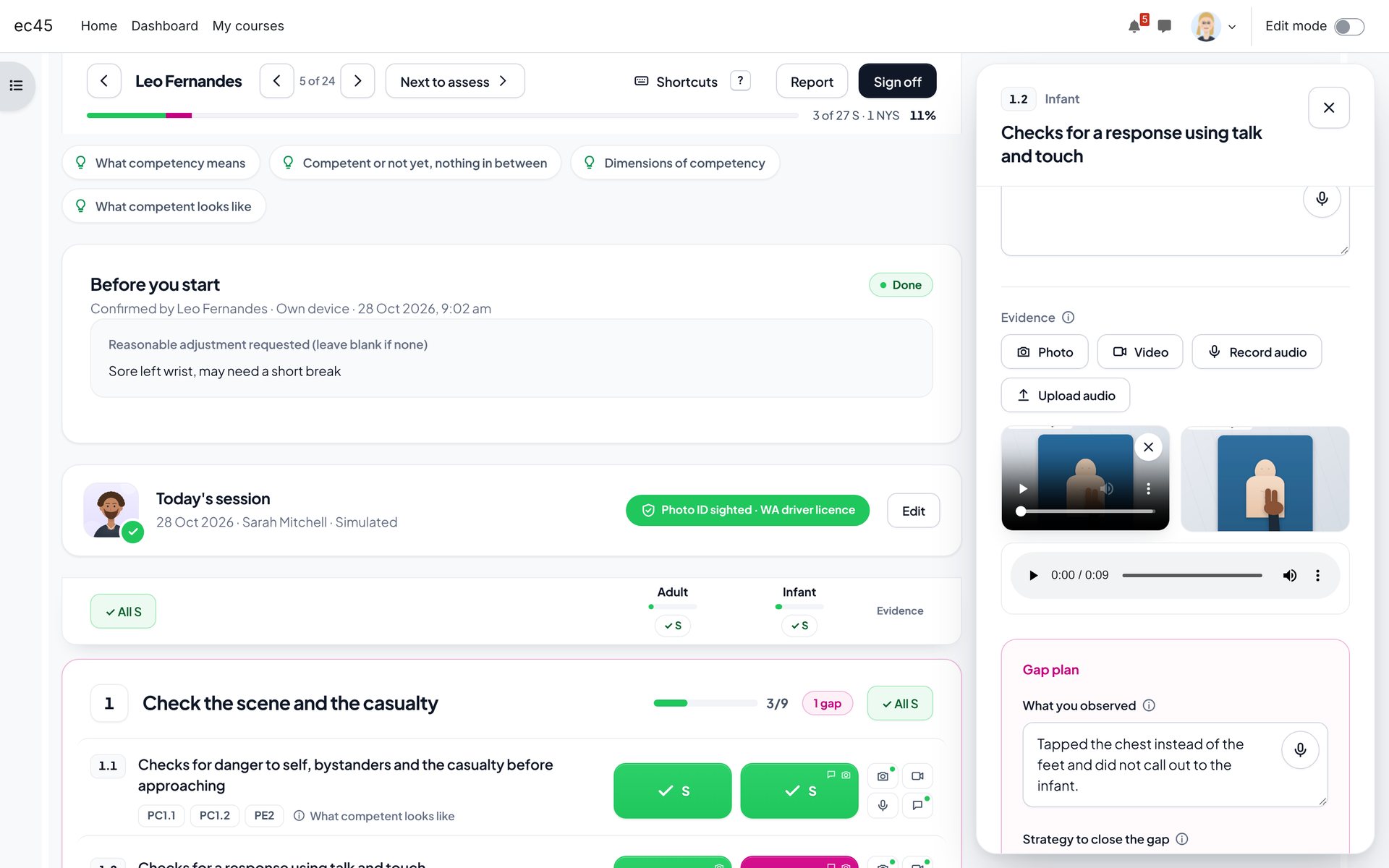
    Evidence in the panel
    Evidence in the panel
    Evidence in the panel. Photos, video and audio stored against the exact cell.
    1. 1Every file is listed with a player or preview.
    Keyboard marking
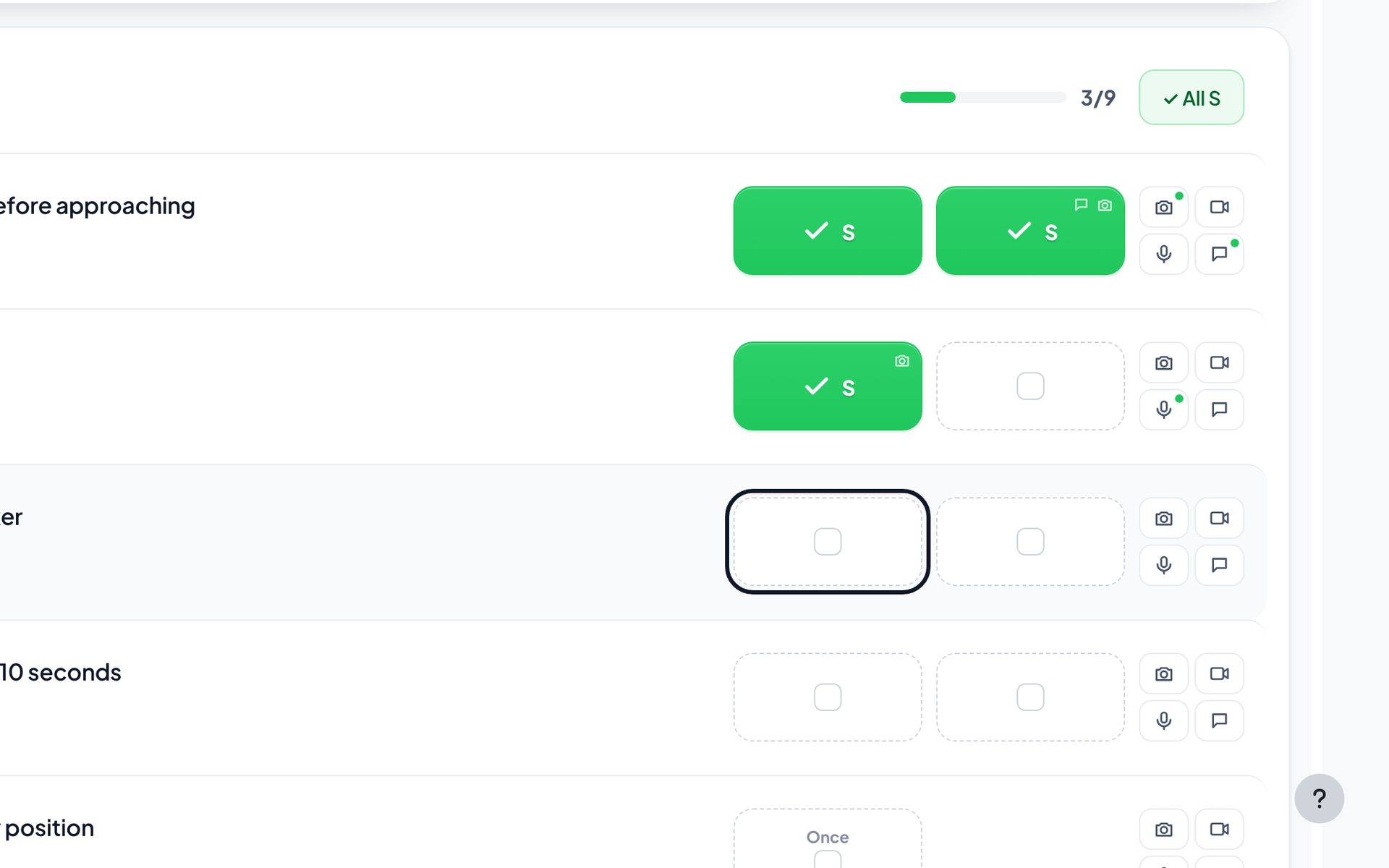
    Keyboard marking
    Keyboard marking. Arrow keys move the highlight; one key marks.
    1. 1S marks and moves on, N is NYS, U undoes.
    Shortcuts menu
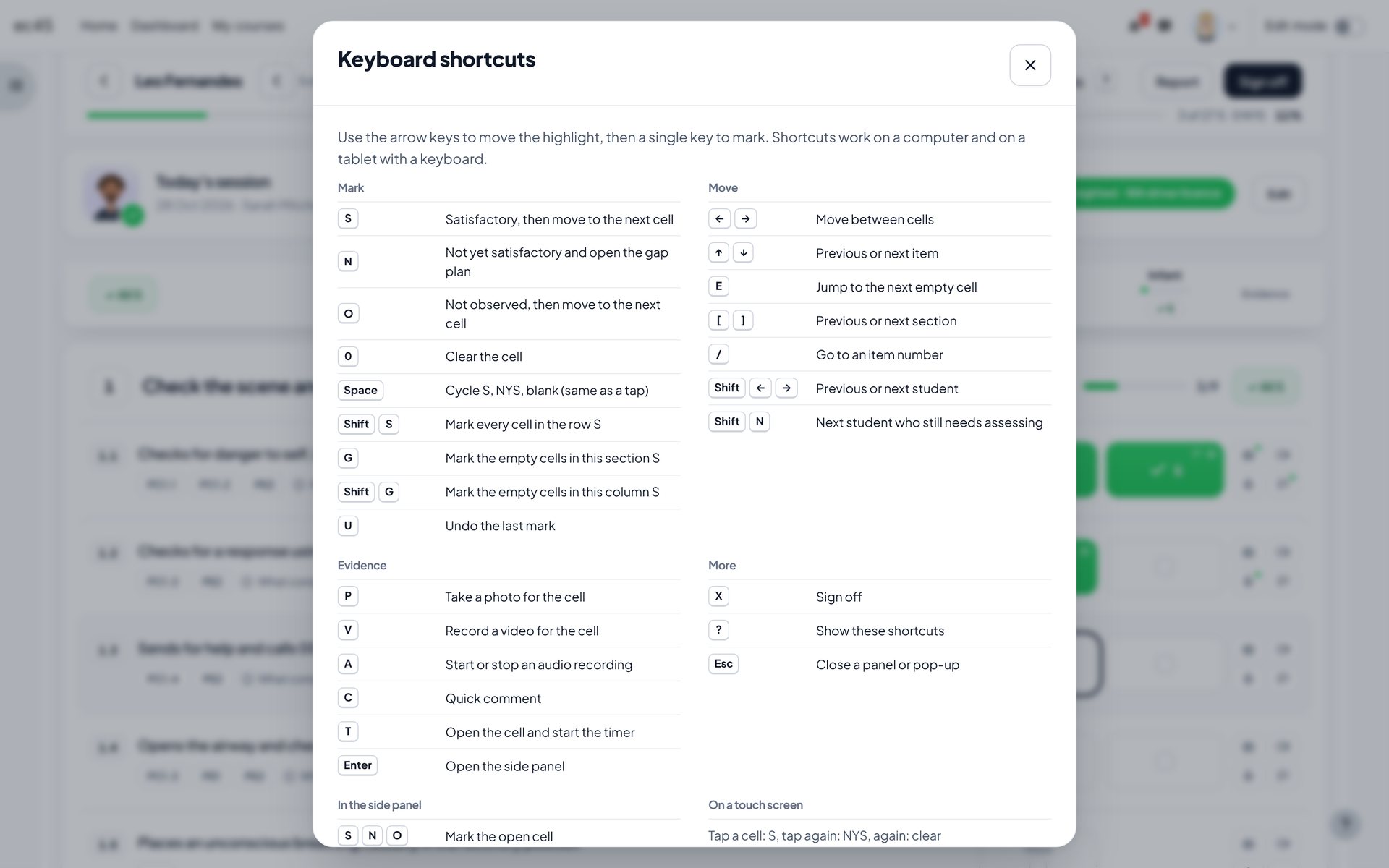
    Shortcuts menu
    Shortcuts menu. Press ? or use the Shortcuts button at the top right.
    1. 1Marking, moving, evidence and the side panel, all on one sheet.
    All S with undo
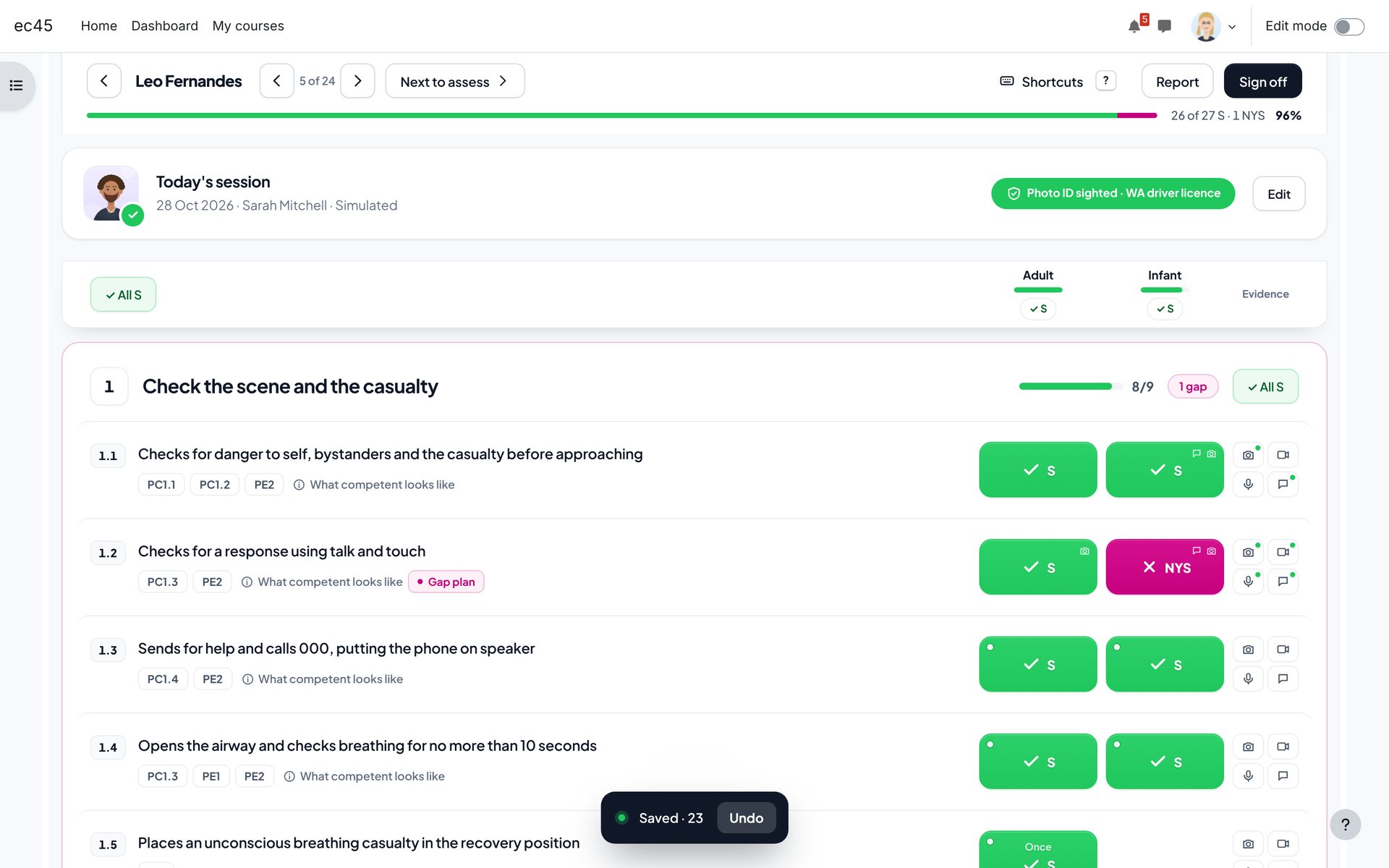
    All S with undo
    All S with undo. Fill a section, a column or the whole checklist, then undo within ten seconds.
    1. 1Undo is right there.
    2. 2Fill one column.
    Assessor tips
    Assessor tips
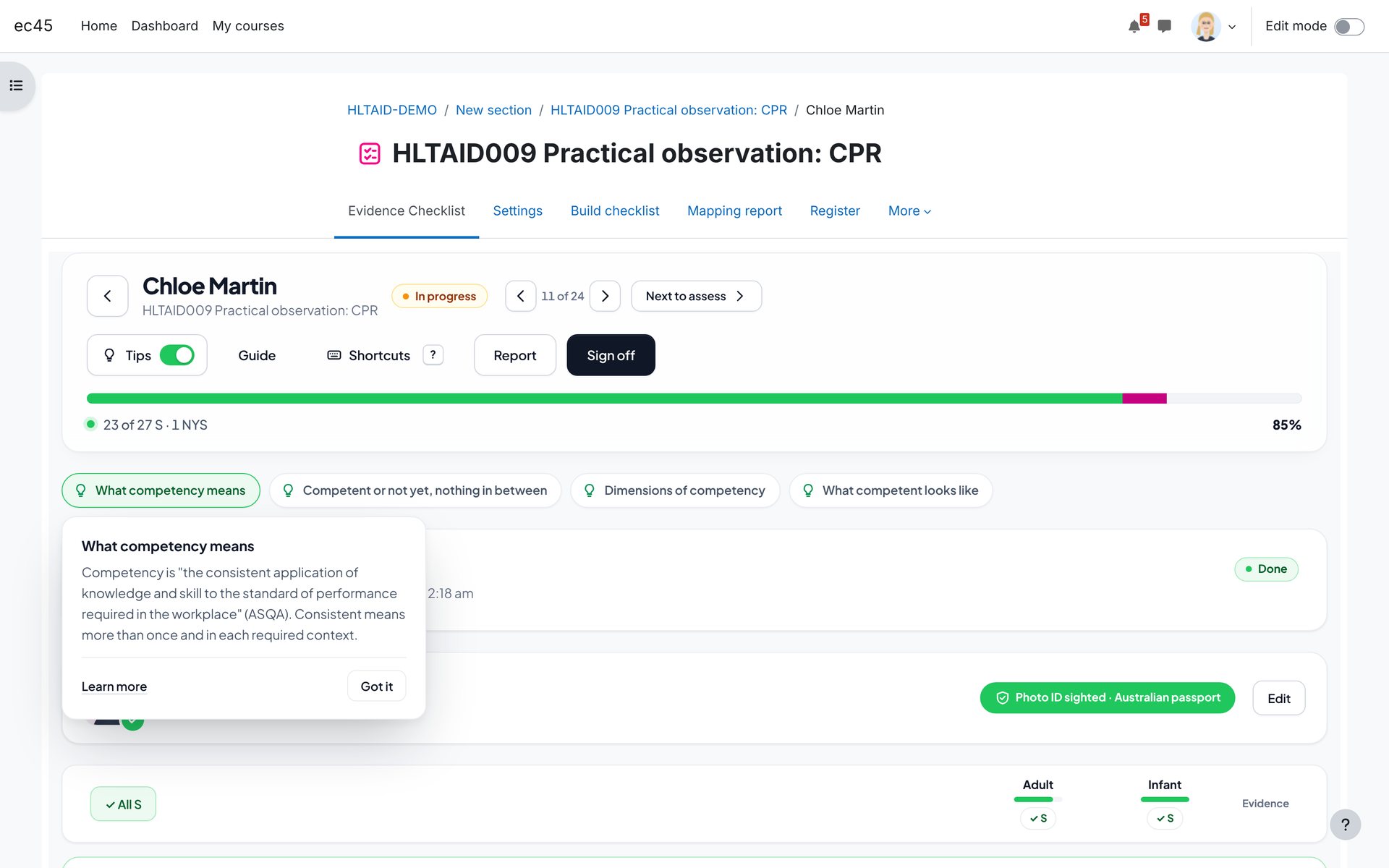
    Assessor tips. Short guidance on competency, evidence and sign-off, with links to ASQA.
    1. 1Open a tip, follow the link, or dismiss it.

    One file, several criteria

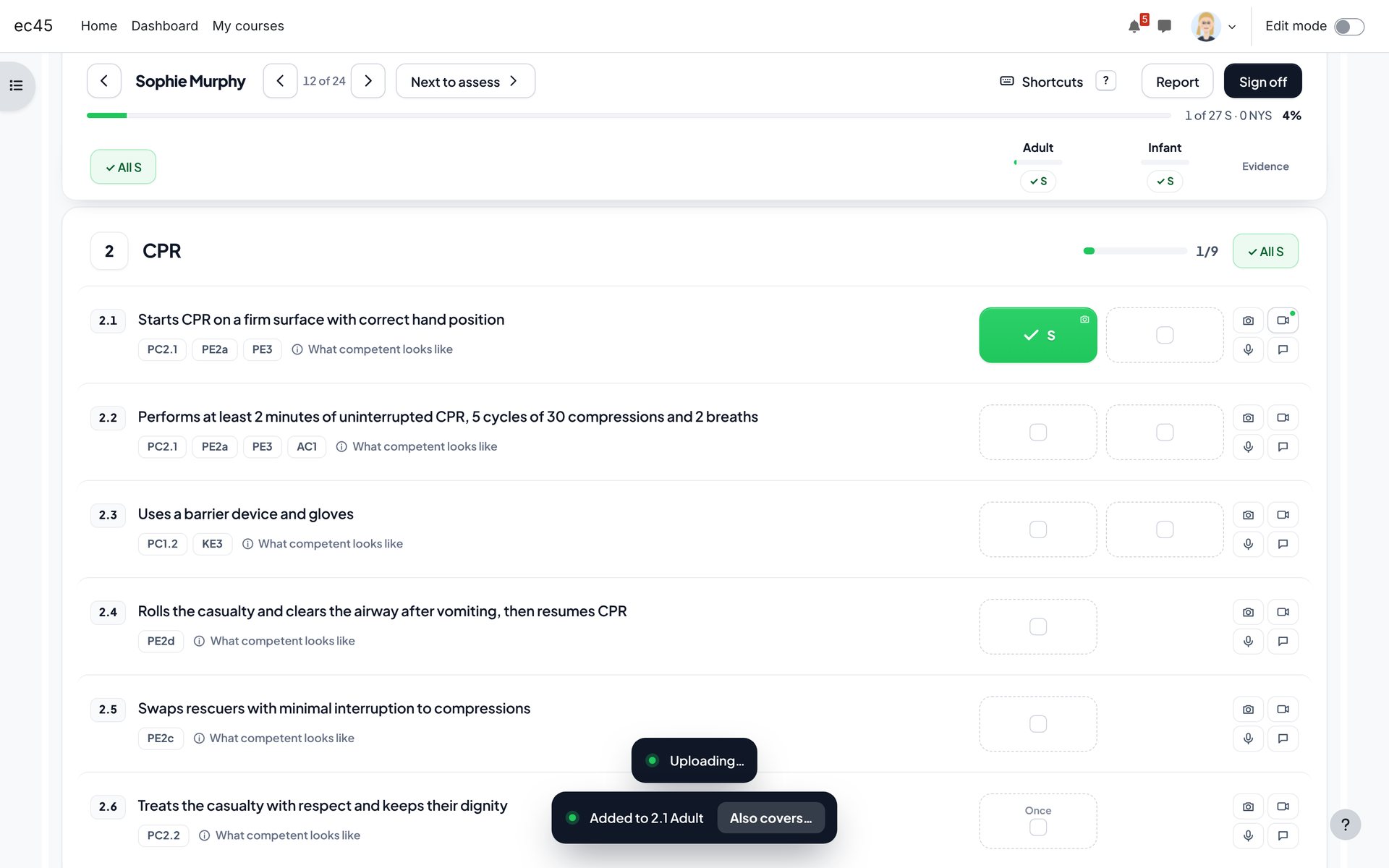
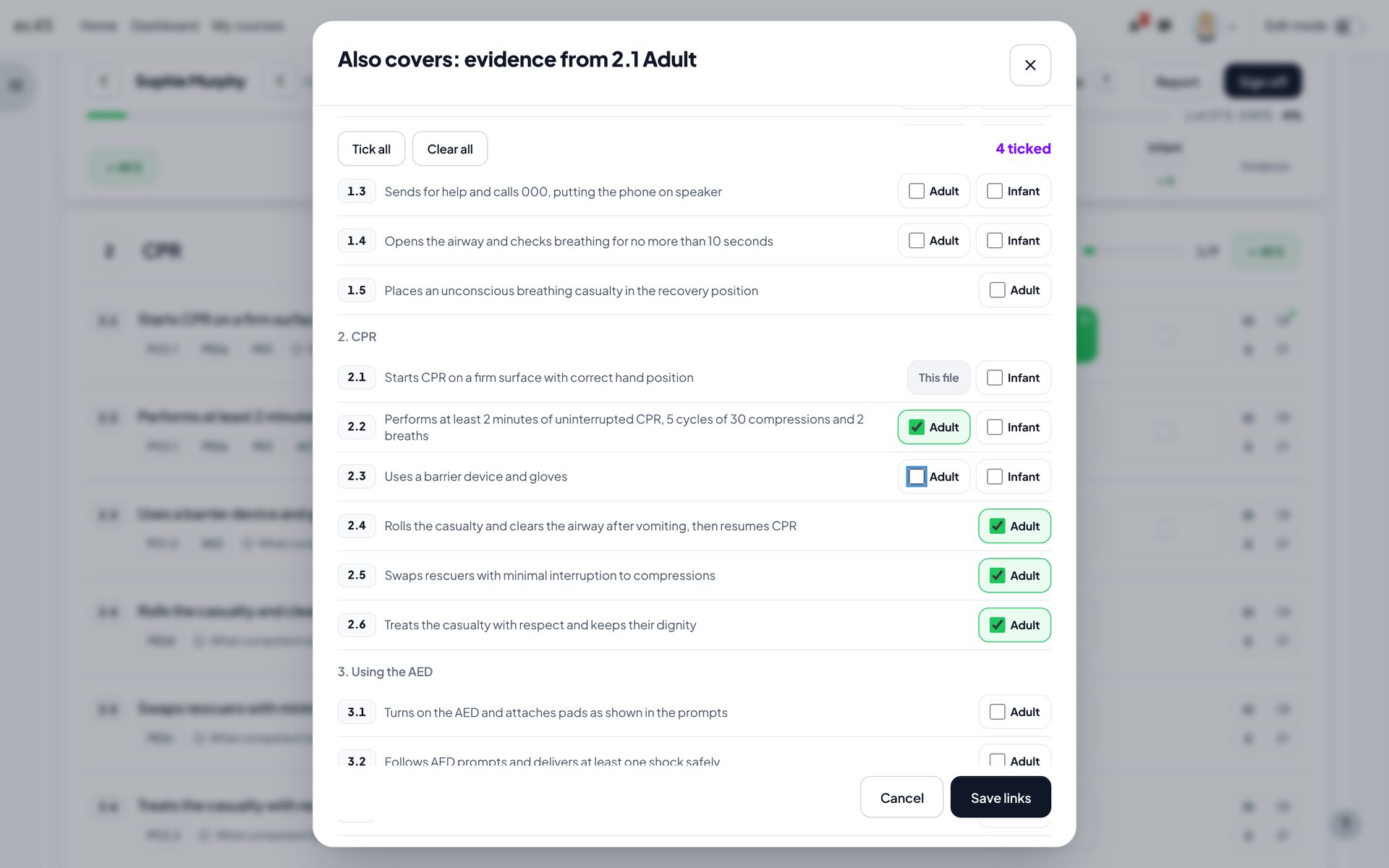
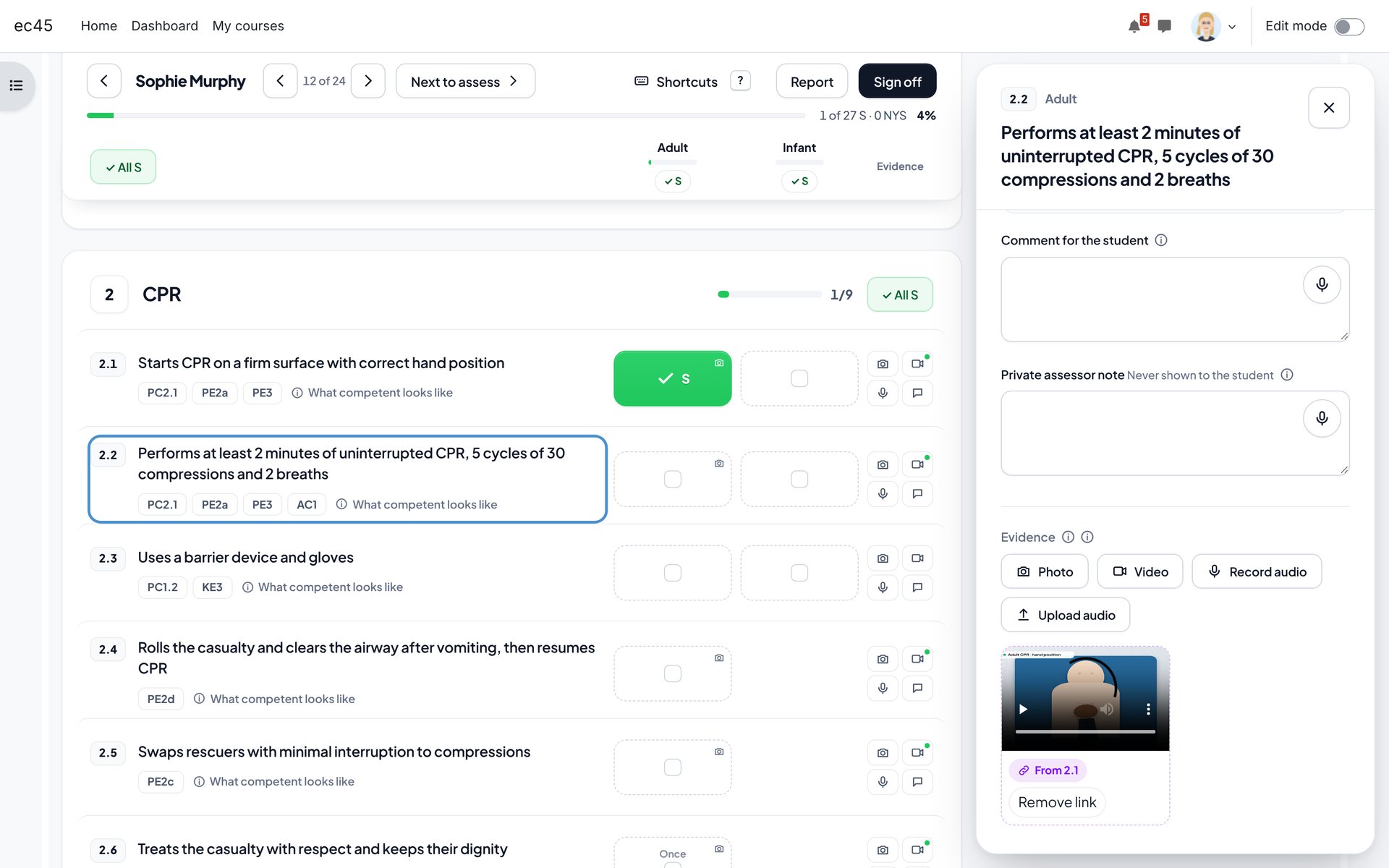
    A two-minute CPR video often shows several criteria at once. Record it once, then tap Also covers and tick each criterion it clearly shows. The file is stored once and appears on every ticked row, on the student's screen and in the web and PDF evidence reports, labelled with the row it came from.
    Also covers, straight after recording
    Also covers, straight after recording
    Also covers, straight after recording. Every new photo, video or audio offers Also covers in the saved message.
    1. 1Tap Also covers while the moment is fresh.
    Also covers: pick the criteria
    Also covers: pick the criteria
    Also covers: pick the criteria. One file, every criterion it clearly shows.
    1. 1Where the file was recorded.
    2. 2Tick all or Clear all. The rest of the section is ticked for you the first time.
    3. 3How many other criteria the file covers.
    4. 4Save. Nothing is marked: you still mark each criterion.
    Linked evidence on another row
    Linked evidence on another row
    Linked evidence on another row. The same file shows on every linked row, for the assessor and the student.
    1. 1Where the file came from.
    2. 2Remove the link from this row only.
    The original file
    The original file
    The original file. The row where it was recorded shows how many criteria it covers.
    1. 1Tap to change the list at any time.

    Why there is no "applies to all criteria" box. The rules of evidence ask that each judgement is valid and sufficient. A blanket tick links criteria the video may not show, which is exactly what auditors look for. Ticking each criterion keeps the link deliberate, and linking never marks anything: you still mark each criterion after checking the footage.

    Keyboard shortcuts

    KeysWhat it does
    S or 1Satisfactory, then move to the next cell
    N or 2Not yet satisfactory and open the gap plan
    O or 3Not observed, then move on
    0 or DeleteClear the cell
    SpaceCycle S, NYS, blank, the same as a tap
    Shift SMark every cell in the row S
    G / Shift GMark the empty cells in this section / this column S
    U or Ctrl ZUndo the last mark
    Arrow keysMove between cells and items
    EJump to the next empty cell
    [ ]Previous or next section
    /Go to an item number
    P V A CPhoto, video, audio recording, quick comment
    T / EnterStart the timer / open the side panel
    Shift arrows / Shift NPrevious or next student / next student to assess
    X / ? / EscSign off / show shortcuts / close

    The student's live view

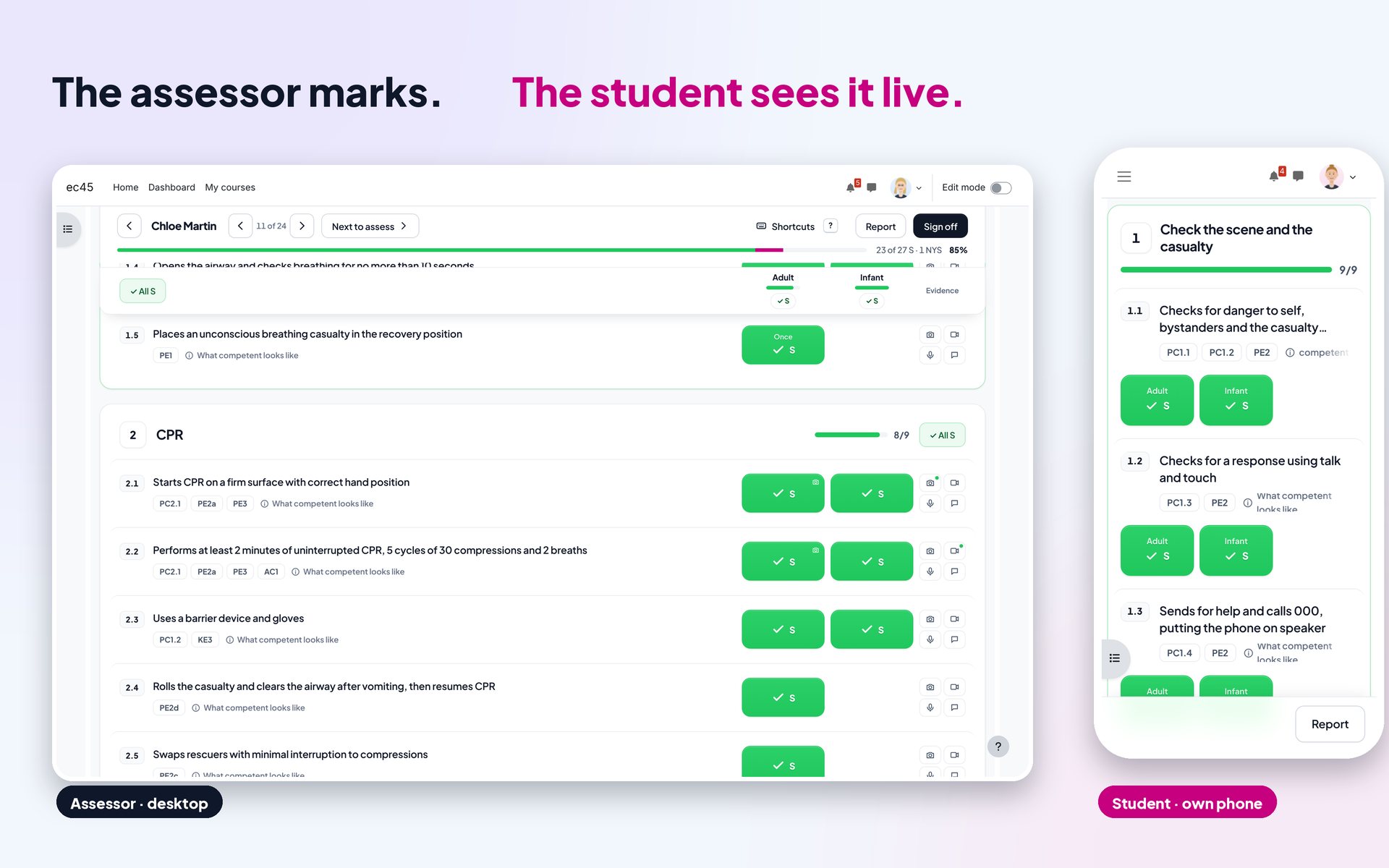
    Students see each mark, comment and gap plan on their own checklist within seconds. Private assessor notes are never sent to the student. You can turn the live view off per activity, so students see results only after sign-off.
    Live student view
    Live student view
    Live student view. The student's own view updates within seconds of each mark.
    1. 1The assessor marks on a desktop or tablet.
    2. 2The student follows on their own phone.
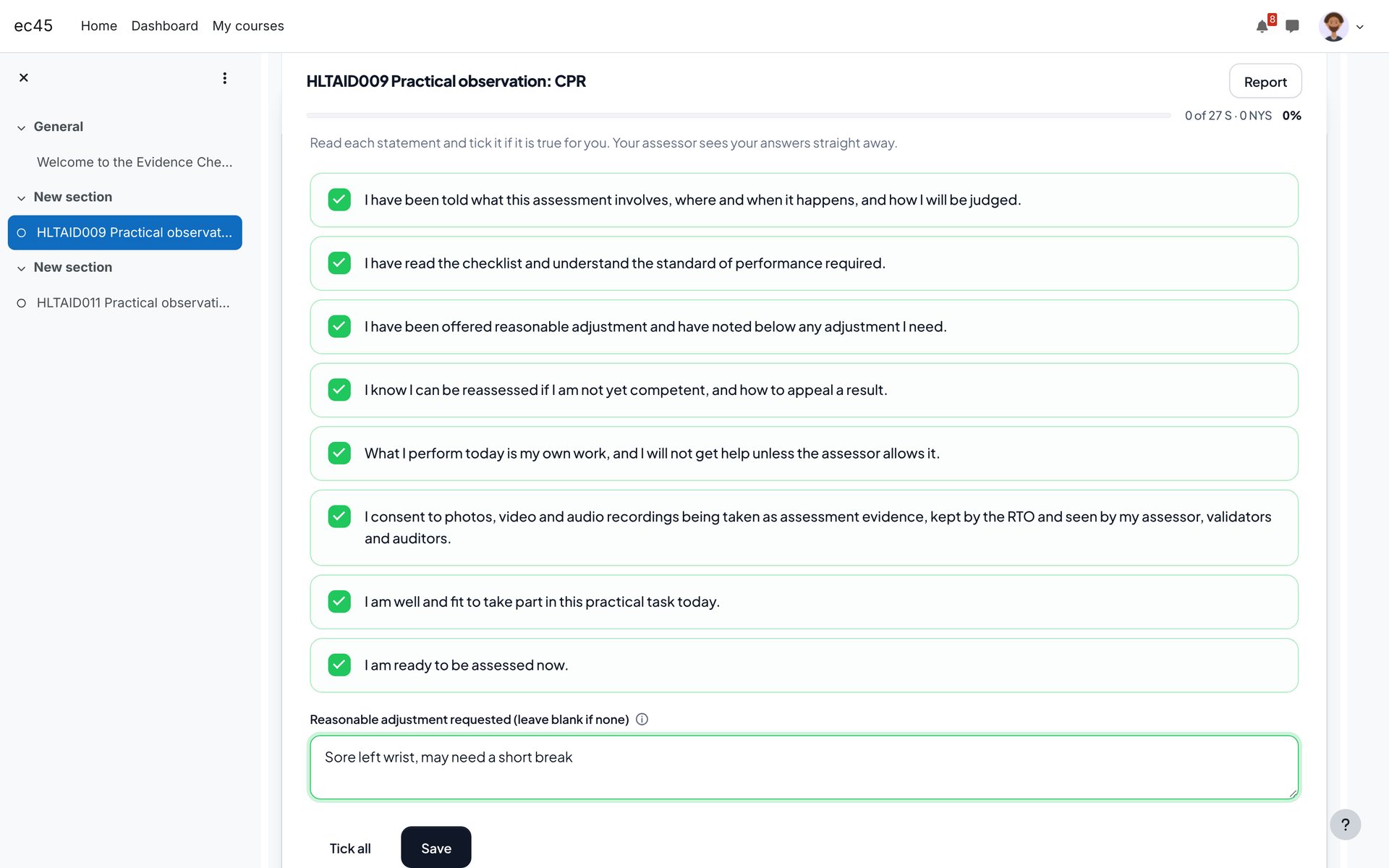
    The student's confirmation
    The student's confirmation
    The student's confirmation. First-person statements on the student's device.
    1. 1Each statement is ticked by the student.
    2. 2Any adjustment they need.
    Desktop, iPad and phone
    Desktop, iPad and phone
    Desktop, iPad and phone. Fixed cell sizes and a bottom action bar on small screens.
    1. 1Desktop: rows with columns and the evidence pad.
    2. 2iPad: labelled tiles under each item.
    3. 3Phone: an action bar for Report and Sign off.

    Sign off and report

    Sign-off is one step. Competent is available only when every required cell is S and no gap plan is open.
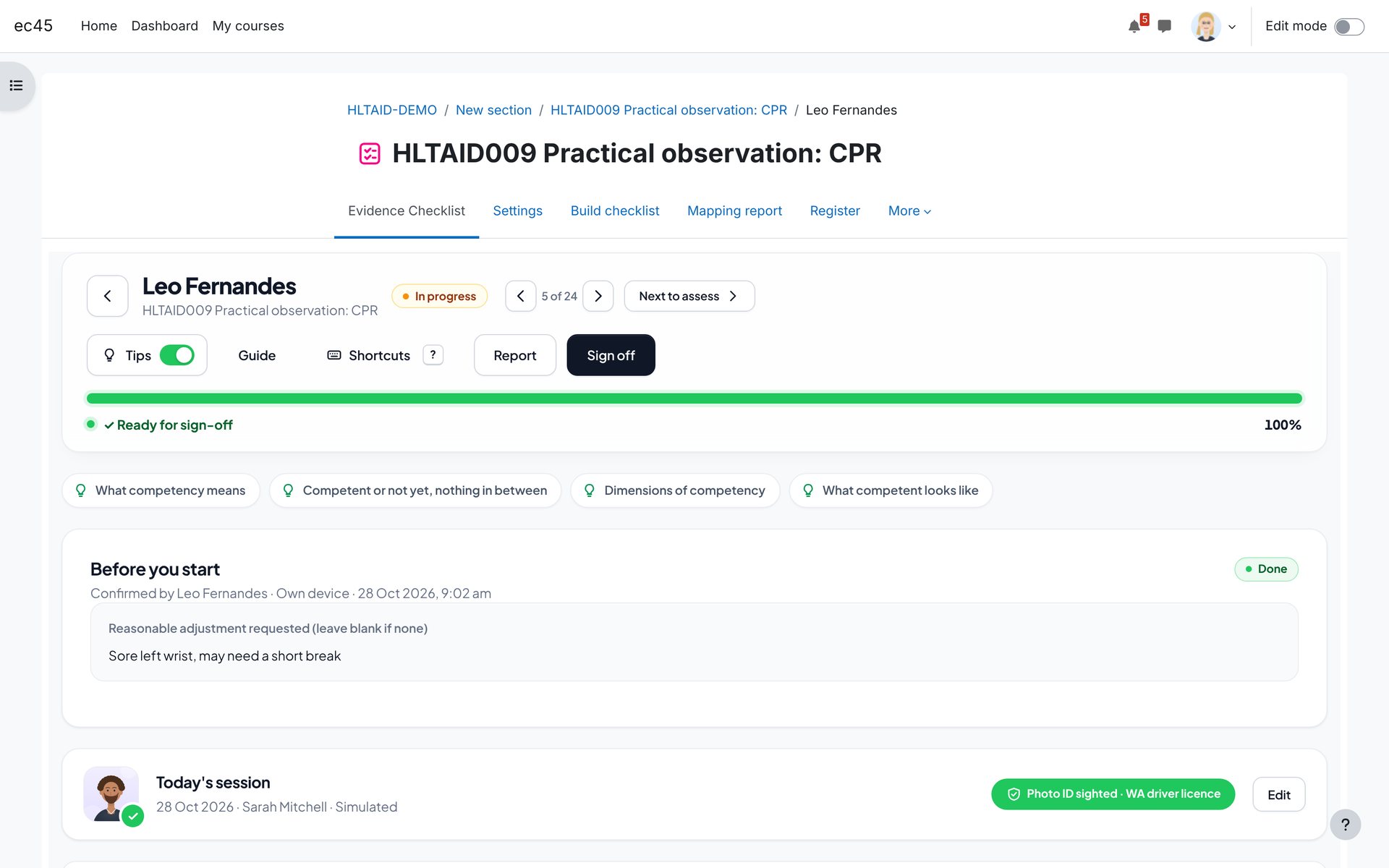
    Ready for sign-off
    Ready for sign-off
    Ready for sign-off. The bar fills when every required cell is S.
    1. 1Progress turns to Ready for sign-off.
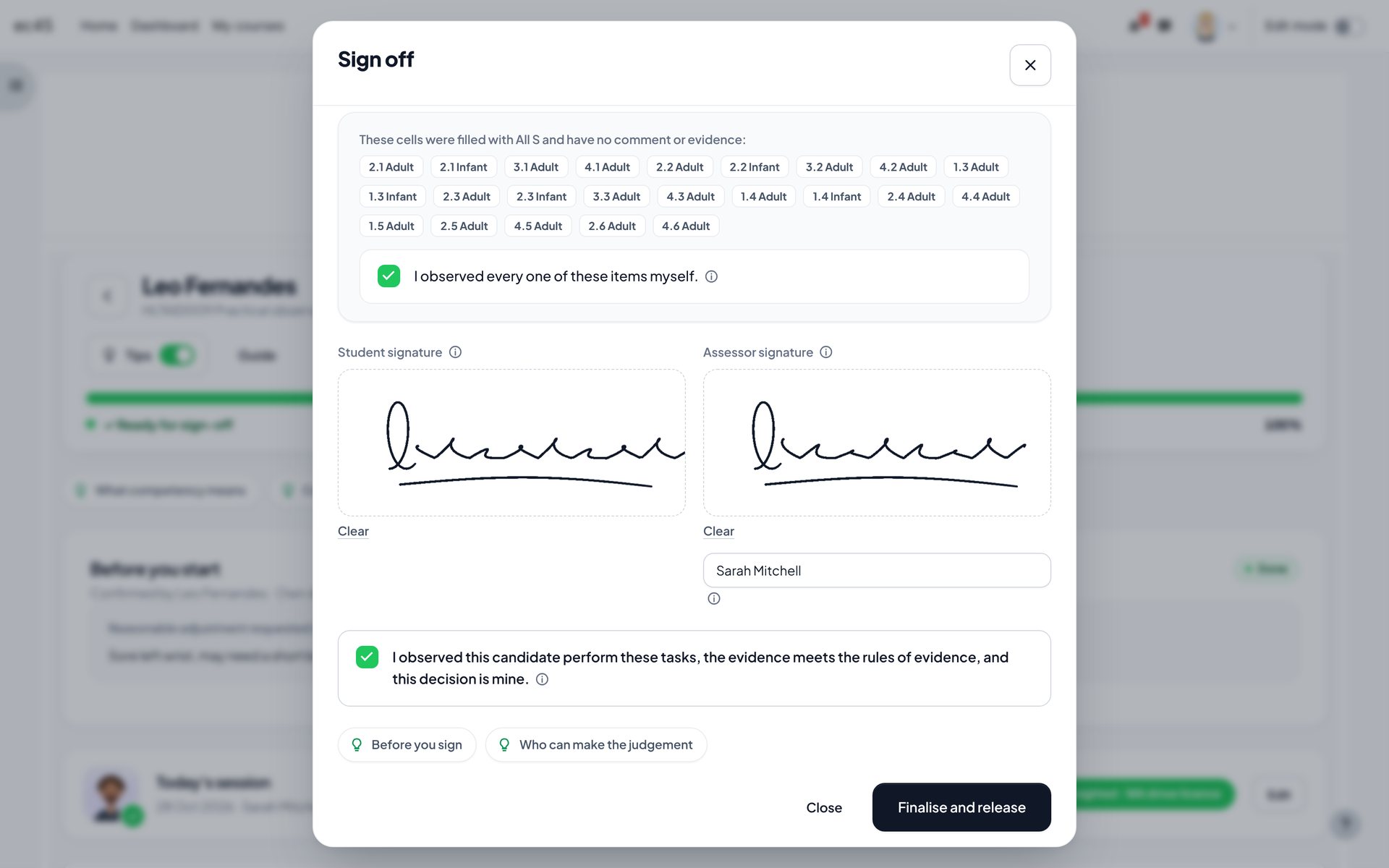
    One-step sign-off
    One-step sign-off
    One-step sign-off. Decision, feedback, signatures and declaration on one sheet.
    1. 1Cells filled with All S are listed for confirmation.
    2. 2Student and assessor sign on screen.
    3. 3The assessor's declaration.
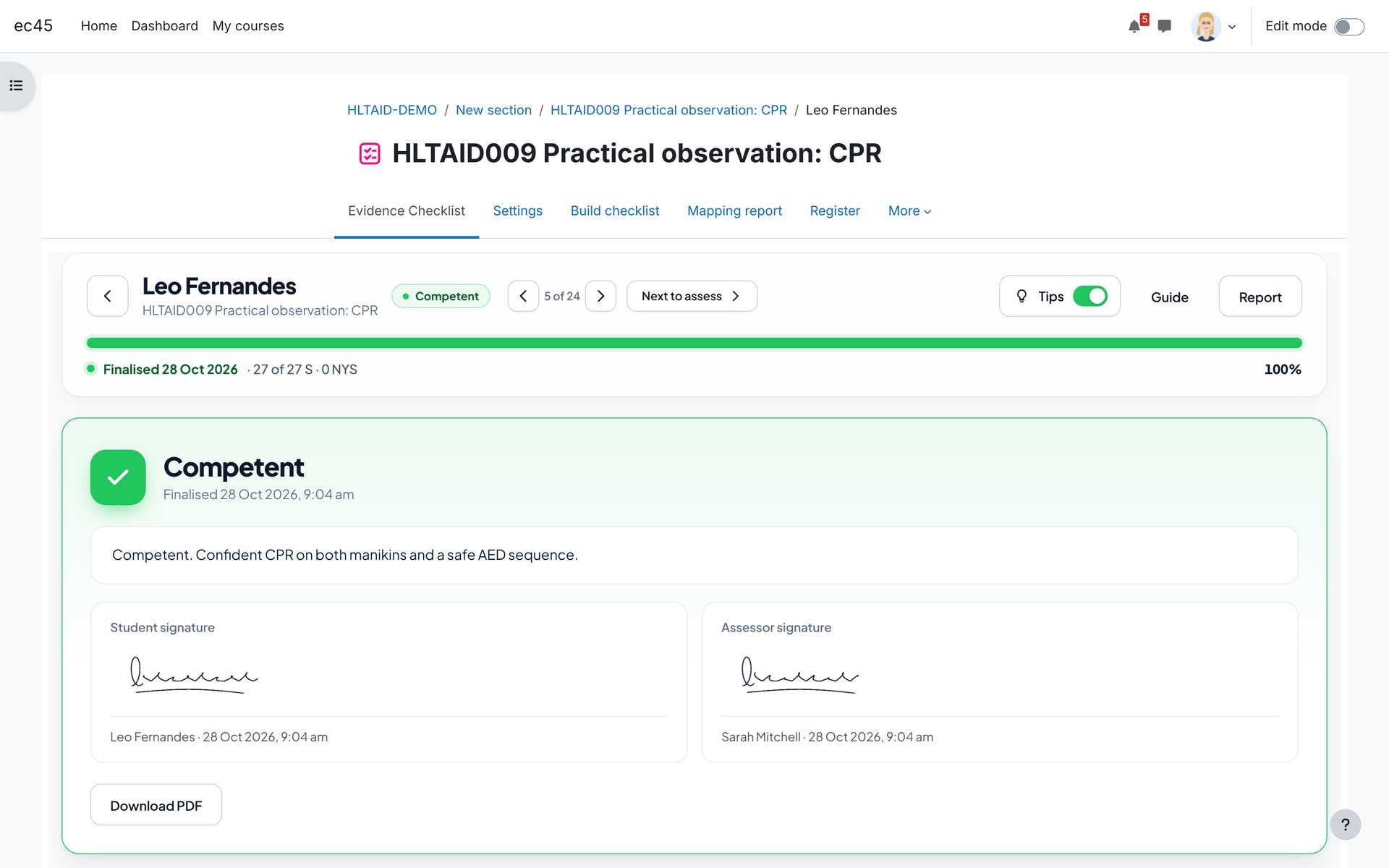
    Result released
    Result released
    Result released. To the student, the gradebook and course completion.
    1. 1Decision, feedback and both signatures.
    2. 2The evidence report as a PDF.
    Next to assess
    Next to assess
    Next to assess. Move through the group without going back to the class list.
    1. 1Previous and next student.
    2. 2Jumps to the next student who still needs assessing.
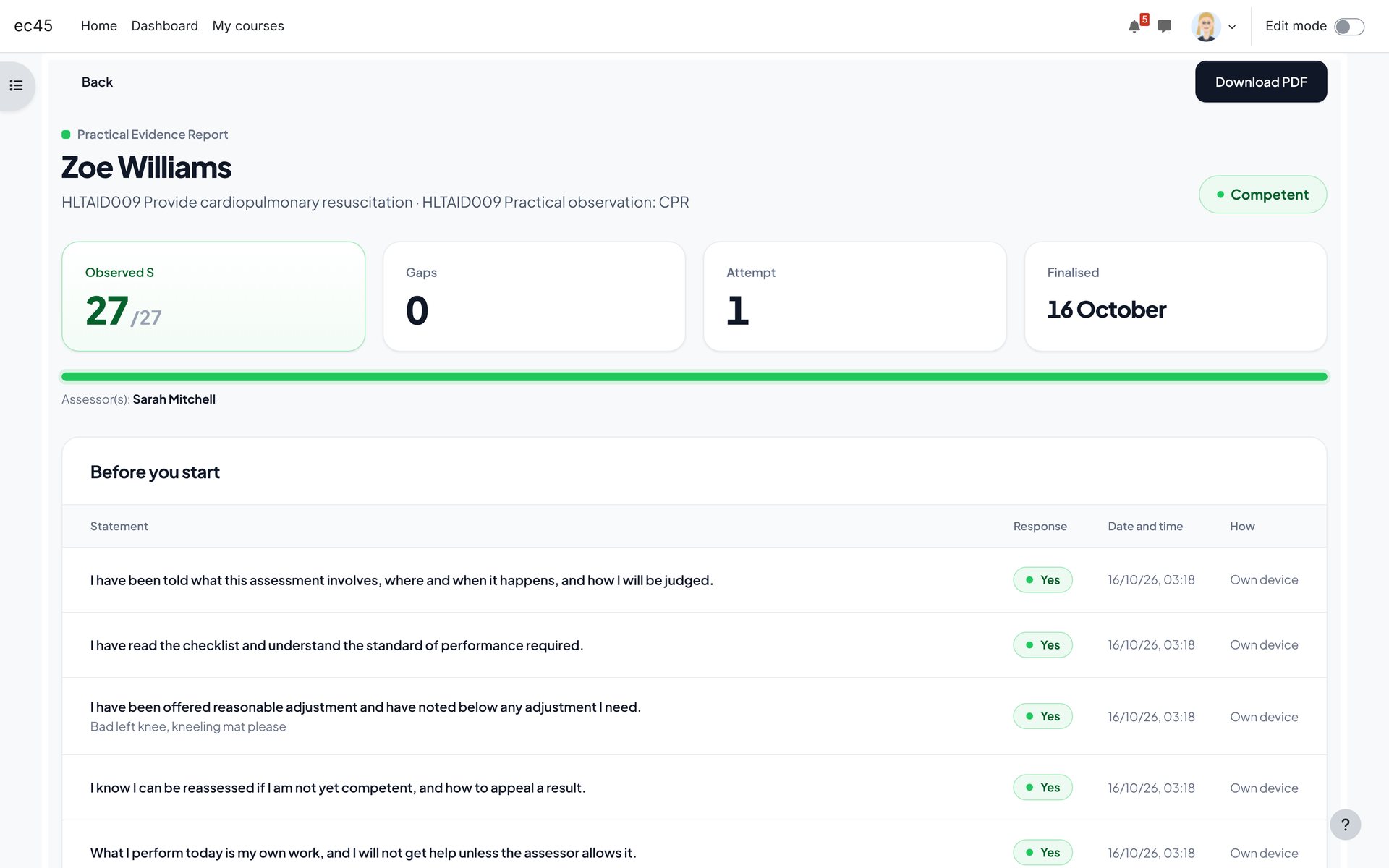
    Practical Evidence Report
    Practical Evidence Report
    Practical Evidence Report. One report per student, ready for validators and auditors.
    1. 1Observed, gaps, attempt and date finalised.
    2. 2Download the sealed PDF.
    Sessions in the report
    Sessions in the report
    Sessions in the report. Who, when, where, equipment, adjustments and identity.
    1. 1Each observation session with its candidate photo.
    Evidence in the report
    Evidence in the report
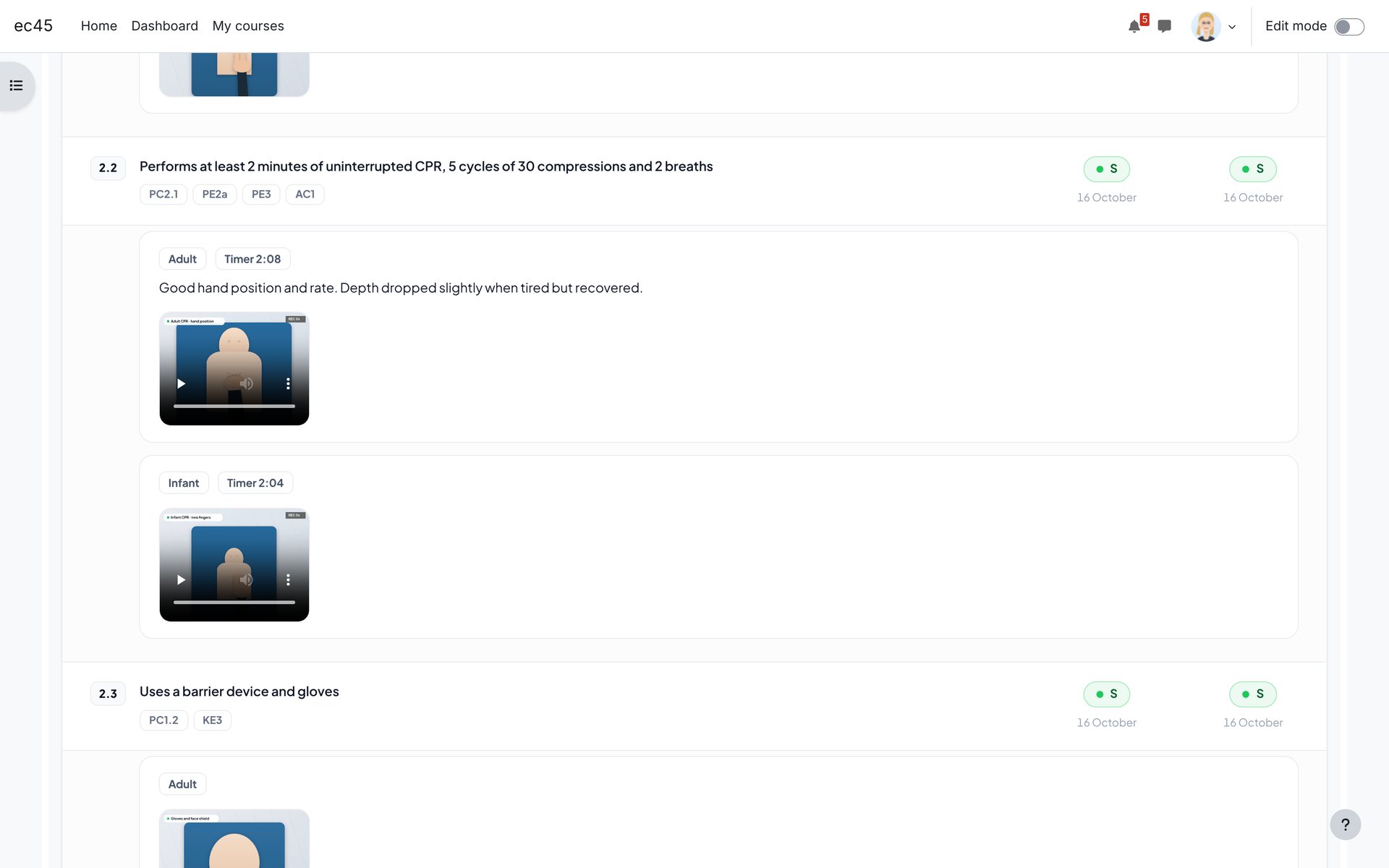
    Evidence in the report. Photos, video and audio sit with the item they prove.
    1. 1Video plays inside the report.
    The PDF
    The PDF
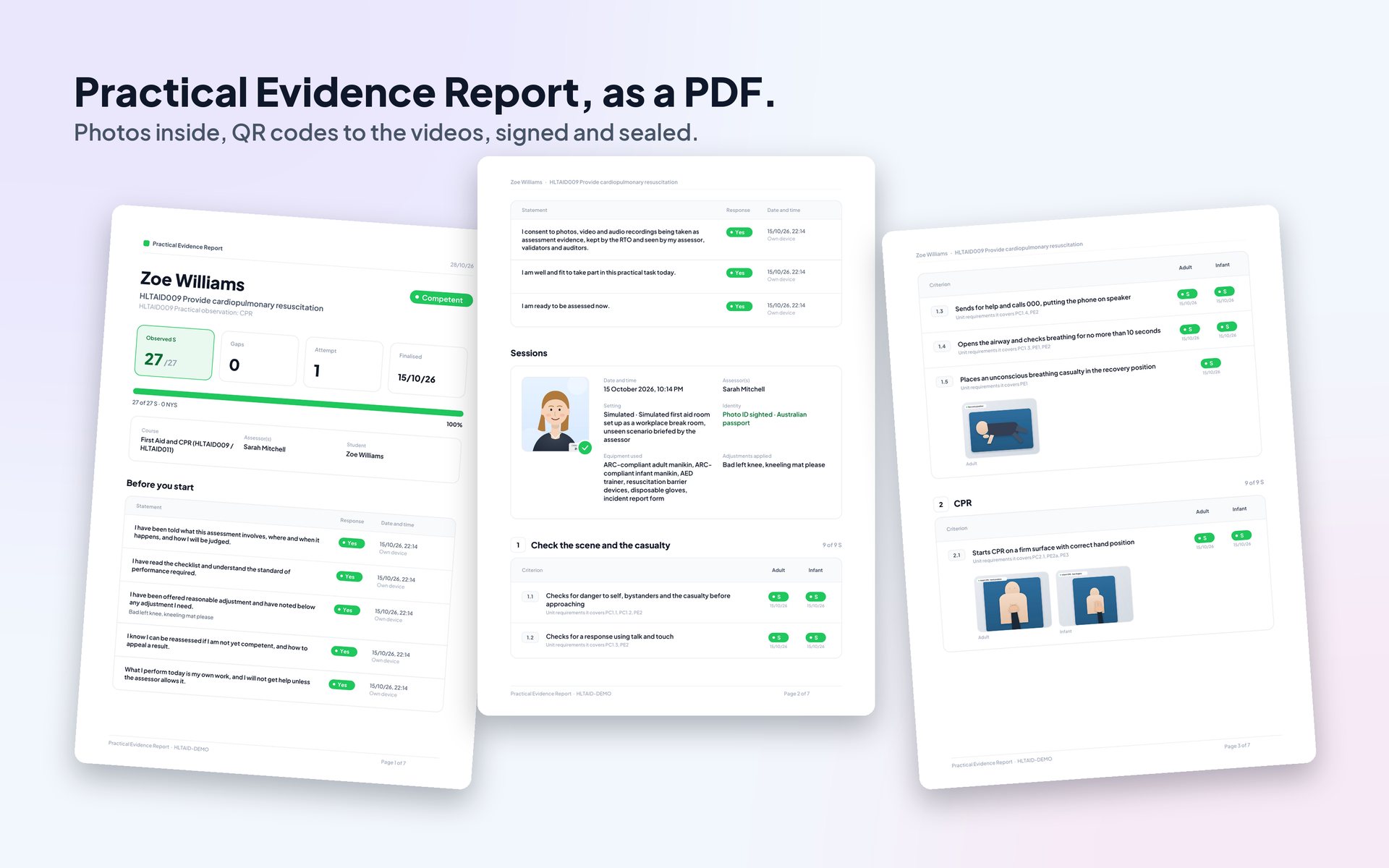
    The PDF. Photos embedded and QR codes that open each video.
    1. 1Cover with the decision and summary.
    2. 2Confirmations and sessions.
    3. 3Every item with its evidence.
    Register
    Register
    Register. The whole group in one table, ready to export.
    1. 1Progress, status, confirmations, identity and dates.

    Settings
    Activity settings
    Activity settings
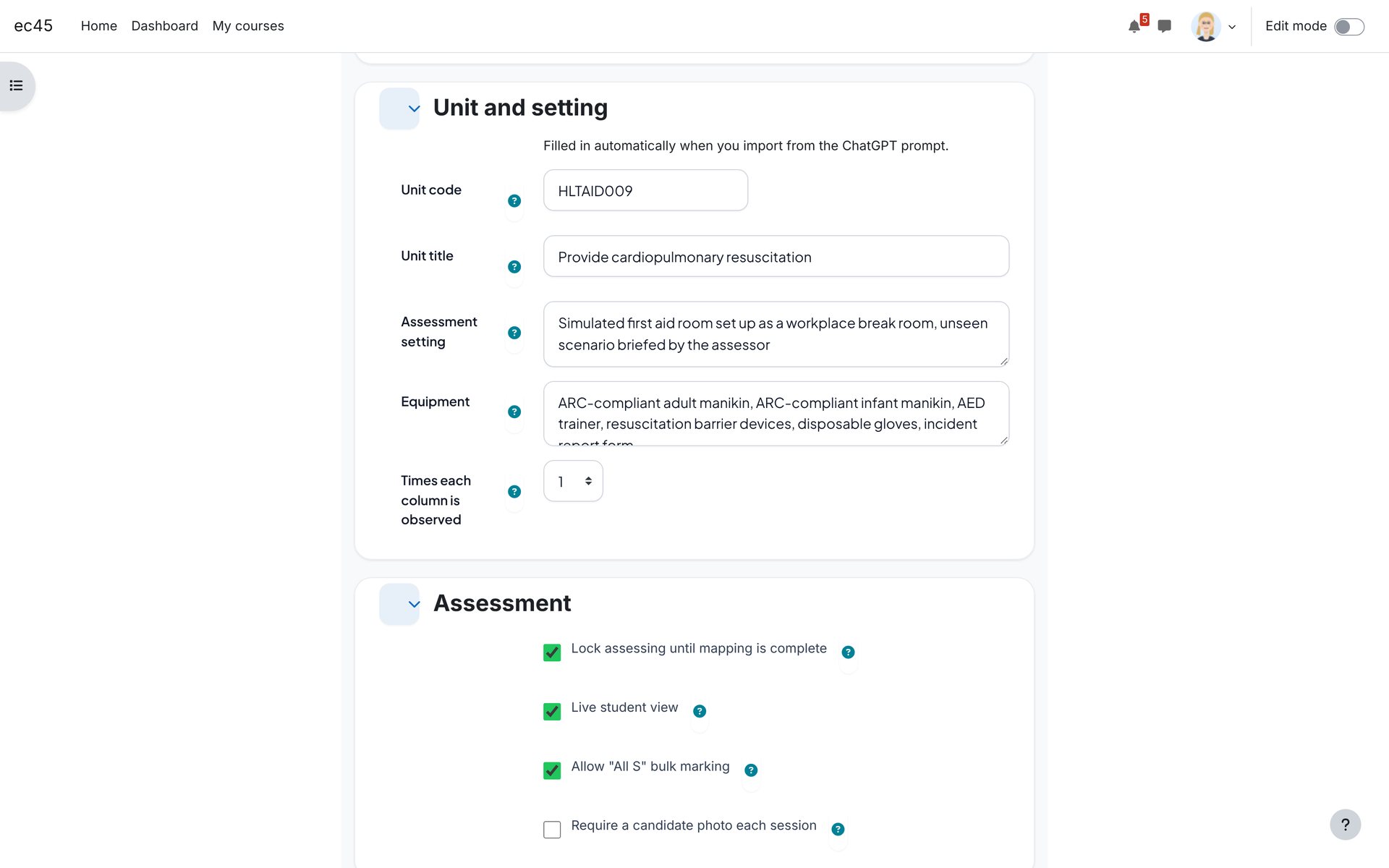
    Activity settings. Unit, setting and equipment feed the ChatGPT prompt.
    1. 1Unit code and title.
    2. 2Assessment options: mapping lock, live view, All S, photo.
    Site settingWhat it does
    Lock assessing until mapping is completeDefault for new activities. "Force the mapping lock" stops teachers turning it off.
    Live student viewStudents see marks as they happen.
    Allow "All S" bulk markingBulk cells are flagged and confirmed at sign-off.
    Times each column is observedDefault when the prompt does not set it.
    Pre-assessment statementsDefault statements for new activities, one per line.
    Assessor tips, voice dictationTips default on or off; dictation uses the browser's own speech service.
    Photo size, longest video, largest uploadPhotos are compressed on the device before upload.
    Path to ffmpegOptional: compresses video to 720p with a poster frame, and audio to mono AAC.
    ColoursSatisfactory and gap colours.
    Verify IDShows an approved Verify ID photo for identity checks, in this course or site-wide.

    Permissions

    CapabilityWhat it allowsDefault roles
    mod/evidencechecklist:assessObserve and mark studentsTeacher, non-editing teacher, manager
    mod/evidencechecklist:finaliseSign off and finalise resultsTeacher, non-editing teacher, manager
    mod/evidencechecklist:manageBuild the checklist and mappingTeacher, manager
    mod/evidencechecklist:viewallreportsView all evidence reports (validators and auditors)Teacher, non-editing teacher, manager
    mod/evidencechecklist:amendAmend finalised assessmentsTeacher, manager
    mod/evidencechecklist:beassessedBe assessedStudent
    mod/evidencechecklist:viewView the activityAll course roles

    Best practice

    • Write each item as one thing you can see or hear in under a minute, starting with a verb.
    • Keep every number and condition from the unit: "at least 2 minutes", "5 cycles", "on an infant manikin".
    • Use only the columns the unit requires. Every extra column is another tap on every row.
    • Write benchmarks two assessors would agree on, and use figures only from the unit or the guideline it names.
    • Use All S only for sections you watched in full. The sign-off asks you to confirm those cells.
    • Record why, not just what, in the gap plan, and set a re-observe date.
    • Keep completed assessment evidence for at least six months after the result, or longer if your RTO policy requires it.

    Privacy, backup and data

    Everything is stored in your Moodle site: results, comments, notes, signatures, photos, video and audio. The plugin implements the Moodle privacy API for export and deletion, and course backup and restore carry the checklist, mapping, attempts and evidence. Each finalised attempt is sealed with a SHA-256 fingerprint so later changes can be detected. Voice dictation, when turned on, uses the browser's own speech service.

    Questions

    Does it use AI?

    No. The plugin contains no AI and makes no outside calls. The prompt is optional and runs in your own ChatGPT or Claude account.

    Can two assessors mark the same student?

    Yes. Both screens and the student's view update within seconds, and every change is logged with who made it.

    What if the candidate has no phone?

    Ask the questions aloud and tick their answers, or hand your device over. The report records which way each answer was given.

    What happens after Not yet competent?

    Start a reassessment. Satisfactory cells carry into the new attempt and are flagged, and the gaps are open again.

    Which Moodle versions are supported?

    Moodle 4.4 to 5.3, tested with the Boost and Academi themes.

    Changelog

    v1.2.0 · 28 October 2026

    • One video, photo or audio file can cover several criteria: Also covers links it to every criterion it shows. Stored once, shown on every linked row, labelled in the web and PDF reports.
    • Linking never marks a criterion. Links are kept in backup and restore and in privacy exports.
    • Switching rows with the side panel open keeps the grid beside the panel.

    v1.1.0 · 28 October 2026

    • Evidence pad on every row, quick comments with phrases, and audio recording from the row.
    • Keyboard shortcuts with a Shortcuts menu, swipe to mark on touch screens, and Next to assess.
    • The side panel docks beside the grid on wide screens, and gap plans save as you type.
    • Assessors see the candidate's confirmations live, and can ask the questions aloud or hand their device over.
    • Help on every input, and controls that keep their colours in themes such as Academi.
    • Fixes: recorded audio saved as audio, live updates can no longer step back, simultaneous edits by two assessors always reach both screens.

    v1.0.0 · 27 October 2026

    • First release.

    One-time site licence

    500 Credits ($50 USD)

    Record practical observations, evidence and assessor decisions inside Moodle. Unlock once with LMS Labs credits, or buy on Moodle Marketplace for US$50. These are alternative purchase routes—not two charges. There are no ongoing AI usage charges.

    In Quick Links, open Plugins → Evidence Checklist and confirm the unlock. Then open its settings and select Check activation — no charge. Central Config supplies the credentials; plugin-specific credentials are optional.

    Open your Evidence Checklist activity to access its Report. Use Quick Links → Settings to reach the plugin settings. Installation and activation checks never debit credits.

    Catalogue release: 1.2.1

    Evidence Checklist
    mod_evidencechecklist
    Every field below matches a Marketplace edit screen, in the exact order the submission flow asks for it. Work top to bottom, copy field by field.
    marketplace.moodle.com

    Use this plugin on its own — or make the whole suite simpler

    Evidence Checklist works by itself. Where it asks for LMS Labs credentials, enter the Site ID and API key assigned to your Moodle site. See LMS Labs pricing and AI credits for current plans.

    Using more than one LMS Labs plugin? These companions are free on LMS Labs:

    • AI Grader Central Config — enter the Site ID and API key once; compatible plugins can read the same values, so you do not need to enter them again in every plugin.
    • AI Dashboard Quick Links — one Moodle dashboard for installed plugins, settings, documentation, release checks and controlled updates.

    Both are optional, free companion plugins and require no LMS Labs credit unlock. Any AI credits used by connected plugins remain separate metered usage.

    1

    Overview

    Appears on your plugin page and in search results — name, icon, short description, screenshots.

    Plugin name*

    Icon*

    Upload this PNG as the plugin icon. Minimum dimensions 200×200 px — this file is 1024×1024.

    Evidence Checklist Marketplace icon

    1024×1024 PNG, under 200 KB — comfortably above the 200×200 px minimum and under the 10 MB upload limit.

    Short description*

    Search cards show only the first 119 characters — the opening line has to sell on its own.

    132/256 characters

    Screenshots

    Show meaningful features in use — the main UI, an important workflow, a finished report or dashboard. Must be at least 128 px wide and no more than 480 px wide. Avoid empty states, unreadable detail, and near-duplicate shots.

    2

    Description

    The main sales pitch on your plugin page — paste into the rich-text editor, then bold the headings.

    Description*

    Starts with the standalone-or-connected-suite setup, then gives the product pitch, requirements, external services and pricing.

    2,026/7,000 characters

    Marketplace page HTML

    The complete listing page — the standalone/connected-suite setup appears first, followed by the product description. In the Marketplace description editor, switch to HTML source view (</> button) and paste it in one go. The Marketplace may strip style attributes, so the paste block uses semantic headings, paragraphs, lists, links, and one root element; confirm the saved listing after submission.

    Preview

    Use this plugin on its own — or make the whole suite simpler

    This plugin works by itself. Where it asks for LMS Labs credentials, enter the Site ID and API key assigned to your Moodle site. See LMS Labs pricing and AI credits for current plans.

    Highly recommended when you use more than one LMS Labs plugin:

    • AI Grader Central Config (free) — enter the Site ID and API key once. Compatible plugins can read the same values, so you do not need to enter them again in every plugin.
    • AI Dashboard Quick Links (free) — one Moodle dashboard for installed plugins, settings, documentation, release checks and controlled updates.

    Both companion plugins are optional. You can keep using this plugin on its own and retain its own settings where available. Full help: Evidence Checklist documentation.

    Evidence Checklist

    Practical observation checklists with mapped evidence, assessor signatures and reporting. One-time site unlock; no AI usage charges.

    Activity module · v1.2.1 · Moodle 4.4–5.3 (declared compatibility) · Paid — 500 Credits ($50 USD) (one-off)

    Practical observation checklists with mapped evidence, assessor signatures and reporting. One-time site unlock; no AI usage charges.

    Features

    • Practical observation checklists with mapped evidence, assessor signatures and reporting
    • One-time site unlock; no AI usage charges

    Requirements

    • Moodle 4.4–5.3 (declared compatibility)

    Installation

    Download the ZIP from lms-labs.com, then upload via Site administration → Plugins → Install plugins. Full step-by-step installation guide at https://lms-labs.com/evidence-checklist/docs.

    Documentation

    Full documentation including screenshots, configuration reference, FAQ, and changelog:

    https://lms-labs.com/evidence-checklist/docs

    External Services

    This plugin does not communicate with any external service. All processing occurs within your Moodle installation.

    Pricing

    This plugin is available on the Moodle Marketplace for 500 Credits ($50 USD) (one-off). An LMS Labs account (free) is required to use AI features.

    Support

    Licence

    This plugin is released under the GNU General Public Licence v3 or later.

    3

    Support

    Links that help customers find help, report issues, and get the most from the plugin.

    Issue/bug tracker URL*

    Documentation

    Website

    Discussion

    Privacy information

    What data (if any) leaves the customer's Moodle site — Moodle requires external services disclosed before purchase.

    4

    Pricing and billing

    Use the canonical one-time acquisition price or free status shown below. AI usage credits, where applicable, remain separate metered usage.

    Price name*

    Amount (USD)*

    Billing type*

    Price description

    Shown on the pricing card — what the customer gets, stated plainly.

    Terms of Sale URL*

    Appears on your plugin page — must be consistent with the price description.

    Optional. Turn on 'Enable invoice-based purchasing' only if you want to issue and manage invoices through Stripe Connect — otherwise leave it off.

    5

    Versions

    Add new version → upload the ZIP. The main download link always points to your latest version.

    Release manifest is loading.

    Release version

    Maturity

    Repository branch

    The branch in the source repository that holds this release's code. All our plugin repos publish releases to main.

    Repository tag

    The git tag pinning this exact release — the release pipeline creates it automatically on every publish.

    Supported Moodle versions

    Raw compatibility statement: Moodle 4.4–5.3 (declared compatibility). version.php uses the standard 10-digit Moodle format YYYYMMDDXX (e.g. 2026081400). The Marketplace reads the version from version.php inside the uploaded ZIP.

    Version notes (latest changelog)

    6

    Contributors

    Who maintains the plugin. Only the lead maintainer can publish.

    Lead maintainer

    The lead maintainer edits the plugin page, uploads versions, and manages contributors. Add teammates as Maintainer (can edit and upload versions) or Contributor (credited on the page only).

    Technical reference

    Component (frankenstyle)

    Must match version.php $plugin->component and the ZIP root folder.

    Plugin type

    Install directory

    Licence

    Source control URL

    Support email

    Tags

    Machine-readable JSON

    Complete field set as JSON — an automated browser agent can read this block directly to populate the Marketplace edit screens.

    {
      "pluginName": "Evidence Checklist",
      "frankenstyle": "mod_evidencechecklist",
      "pluginTypePrefix": "mod",
      "pluginTypeLabel": "Activity module",
      "installDirectory": "/mod/evidencechecklist/",
      "shortDescription": "Practical observation checklists with mapped evidence, assessor signatures and reporting. One-time site unlock; no AI usage charges.",
      "fullDescription": "Standalone or connected setup\n\nThis plugin works by itself. If it asks for LMS Labs credentials, enter your site's Site ID and API key; see https://lms-labs.com/pricing.\n\nUsing several plugins? Install the free AI Grader Central Config plugin to enter credentials once for compatible plugins, and the free AI Dashboard Quick Links block for one dashboard with settings, docs and updates.\n\nPractical observation checklists with mapped evidence, assessor signatures and reporting. One-time site unlock; no AI usage charges.\n\n## Features\n\n- Practical observation checklists with mapped evidence, assessor signatures and reporting\n- One-time site unlock; no AI usage charges\n\n## Requirements\n\n- Moodle 4.4–5.3 (declared compatibility)\n\n## Installation\n\nDownload the ZIP from [lms-labs.com](https://lms-labs.com), then upload via **Site administration → Plugins → Install plugins**. Full step-by-step installation guide at [https://lms-labs.com/evidence-checklist/docs](https://lms-labs.com/evidence-checklist/docs).\n\n## Documentation\n\nFull documentation including screenshots, configuration reference, FAQ, and changelog:\n\n**[https://lms-labs.com/evidence-checklist/docs](https://lms-labs.com/evidence-checklist/docs)**\n\n## External Services\n\nThis plugin does not communicate with any external service. All processing occurs within your Moodle installation.\n\n## Pricing\n\nThis plugin is available on the Moodle Marketplace for **500 Credits ($50 USD)** (one-off). An LMS Labs account (free) is required to use AI features.\n\n## Support\n\n- Documentation: [https://lms-labs.com/evidence-checklist/docs](https://lms-labs.com/evidence-checklist/docs)\n- Bug reports: [https://github.com/lmshostingservices/moodle-mod_evidencechecklist/issues](https://github.com/lmshostingservices/moodle-mod_evidencechecklist/issues)\n- Website: [lms-labs.com](https://lms-labs.com)\n- Email: support@lmshostingservices.com\n\n## Licence\n\nThis plugin is released under the [GNU General Public Licence v3](https://www.gnu.org/licenses/gpl-3.0.html) or later.",
      "descriptionHtml": "<div><p><strong>Evidence Checklist</strong></p><p><em>Practical observation checklists with mapped evidence, assessor signatures and reporting. One-time site unlock; no AI usage charges.</em></p><p>Activity module &middot; v1.2.1 &middot; Moodle 4.4–5.3 (declared compatibility) &middot; Paid — 500 Credits ($50 USD) (one-off)</p><p>Practical observation checklists with mapped evidence, assessor signatures and reporting. One-time site unlock; no AI usage charges.</p><p><strong>Features</strong></p><ul><li>Practical observation checklists with mapped evidence, assessor signatures and reporting</li><li>One-time site unlock; no AI usage charges</li></ul><p><strong>Requirements</strong></p><ul><li>Moodle 4.4–5.3 (declared compatibility)</li></ul><p><strong>Installation</strong></p><p>Download the ZIP from <a href=\"https://lms-labs.com\">lms-labs.com</a>, then upload via <strong>Site administration → Plugins → Install plugins</strong>. Full step-by-step installation guide at <a href=\"https://lms-labs.com/evidence-checklist/docs\">https://lms-labs.com/evidence-checklist/docs</a>.</p><p><strong>Documentation</strong></p><p>Full documentation including screenshots, configuration reference, FAQ, and changelog:</p><p><strong><a href=\"https://lms-labs.com/evidence-checklist/docs\">https://lms-labs.com/evidence-checklist/docs</a></strong></p><p><strong>External Services</strong></p><p>This plugin does not communicate with any external service. All processing occurs within your Moodle installation.</p><p><strong>Pricing</strong></p><p>This plugin is available on the Moodle Marketplace for <strong>500 Credits ($50 USD)</strong> (one-off). An LMS Labs account (free) is required to use AI features.</p><p><strong>Support</strong></p><ul><li>Documentation: <a href=\"https://lms-labs.com/evidence-checklist/docs\">https://lms-labs.com/evidence-checklist/docs</a></li><li>Bug reports: <a href=\"https://github.com/lmshostingservices/moodle-mod_evidencechecklist/issues\">https://github.com/lmshostingservices/moodle-mod_evidencechecklist/issues</a></li><li>Website: <a href=\"https://lms-labs.com\">lms-labs.com</a></li><li>Email: <a href=\"mailto:support@lmshostingservices.com\">support@lmshostingservices.com</a></li></ul><p><strong>Licence</strong></p><p>This plugin is released under the <a href=\"https://www.gnu.org/licenses/gpl-3.0.html\">GNU General Public Licence v3</a> or later.</p></div>",
      "releaseVersion": "1.2.1",
      "versionNumberNote": "version.php uses the standard 10-digit Moodle format YYYYMMDDXX (e.g. 2026081400). The Marketplace reads the version from version.php inside the uploaded ZIP.",
      "maturity": "Stable",
      "supportedMoodleVersions": [
        "4.4",
        "4.5",
        "5.0",
        "5.1",
        "5.2",
        "5.3"
      ],
      "compatibleRaw": "Moodle 4.4–5.3 (declared compatibility)",
      "repositoryName": "moodle-mod_evidencechecklist",
      "repositoryBranch": "main",
      "repositoryTag": "v1.2.1",
      "sourceControlUrl": "https://github.com/lmshostingservices/moodle-mod_evidencechecklist",
      "bugTrackerUrl": "https://github.com/lmshostingservices/moodle-mod_evidencechecklist/issues",
      "documentationUrl": "https://lms-labs.com/evidence-checklist/docs",
      "homepageUrl": "https://lms-labs.com/evidence-checklist/docs",
      "discussionUrl": "https://lms-labs.com/evidence-checklist/docs?tab=discussion",
      "zipDownloadUrl": "",
      "license": "GNU GPL v3 or later",
      "licenseUrl": "https://www.gnu.org/licenses/gpl-3.0.html",
      "maintainer": "LMS Hosting Services (LMS Labs)",
      "supportEmail": "support@lmshostingservices.com",
      "tags": [
        "assessment",
        "quiz",
        "grading",
        "assignment",
        "activity",
        "moodle",
        "lms-labs"
      ],
      "pricingModel": "Paid — 500 Credits ($50 USD) (one-off)",
      "priceUsd": 50,
      "marketplacePricingStatus": "priced",
      "marketplacePricingReason": null,
      "creditNote": null,
      "externalServices": "This plugin does not communicate with any external service. All processing occurs within your Moodle installation.",
      "gettingStartedHtml": "<div>\n  <p><strong>Use this plugin on its own — or make the whole suite simpler</strong></p>\n  <p>This plugin works by itself. Where it asks for LMS Labs credentials, enter the Site ID and API key assigned to your Moodle site. See <a href=\"https://lms-labs.com/pricing\">LMS Labs pricing and AI credits</a> for current plans.</p>\n  <p><strong>Highly recommended when you use more than one LMS Labs plugin:</strong></p>\n  <ul>\n    <li><strong><a href=\"https://lms-labs.com/docs/ai-central-config\">AI Grader Central Config</a> (free)</strong> — enter the Site ID and API key once. Compatible plugins can read the same values, so you do not need to enter them again in every plugin.</li>\n    <li><strong><a href=\"https://lms-labs.com/docs/ai-dashboard-quick-links\">AI Dashboard Quick Links</a> (free)</strong> — one Moodle dashboard for installed plugins, settings, documentation, release checks and controlled updates.</li>\n  </ul>\n  <p>Both companion plugins are optional. You can keep using this plugin on its own and retain its own settings where available. Full help: <a href=\"https://lms-labs.com/evidence-checklist/docs\">Evidence Checklist documentation</a>.</p>\n</div>",
      "marketplacePageHtml": "<div><div><p><strong>Use this plugin on its own — or make the whole suite simpler</strong></p><p>This plugin works by itself. Where it asks for LMS Labs credentials, enter the Site ID and API key assigned to your Moodle site. See <a href=\"https://lms-labs.com/pricing\">LMS Labs pricing and AI credits</a> for current plans.</p><p><strong>Highly recommended when you use more than one LMS Labs plugin:</strong></p><ul><li><strong><a href=\"https://lms-labs.com/docs/ai-central-config\">AI Grader Central Config</a> (free)</strong> — enter the Site ID and API key once. Compatible plugins can read the same values, so you do not need to enter them again in every plugin.</li><li><strong><a href=\"https://lms-labs.com/docs/ai-dashboard-quick-links\">AI Dashboard Quick Links</a> (free)</strong> — one Moodle dashboard for installed plugins, settings, documentation, release checks and controlled updates.</li></ul><p>Both companion plugins are optional. You can keep using this plugin on its own and retain its own settings where available. Full help: <a href=\"https://lms-labs.com/evidence-checklist/docs\">Evidence Checklist documentation</a>.</p></div><div><p><strong>Evidence Checklist</strong></p><p><em>Practical observation checklists with mapped evidence, assessor signatures and reporting. One-time site unlock; no AI usage charges.</em></p><p>Activity module &middot; v1.2.1 &middot; Moodle 4.4–5.3 (declared compatibility) &middot; Paid — 500 Credits ($50 USD) (one-off)</p><p>Practical observation checklists with mapped evidence, assessor signatures and reporting. One-time site unlock; no AI usage charges.</p><p><strong>Features</strong></p><ul><li>Practical observation checklists with mapped evidence, assessor signatures and reporting</li><li>One-time site unlock; no AI usage charges</li></ul><p><strong>Requirements</strong></p><ul><li>Moodle 4.4–5.3 (declared compatibility)</li></ul><p><strong>Installation</strong></p><p>Download the ZIP from <a href=\"https://lms-labs.com\">lms-labs.com</a>, then upload via <strong>Site administration → Plugins → Install plugins</strong>. Full step-by-step installation guide at <a href=\"https://lms-labs.com/evidence-checklist/docs\">https://lms-labs.com/evidence-checklist/docs</a>.</p><p><strong>Documentation</strong></p><p>Full documentation including screenshots, configuration reference, FAQ, and changelog:</p><p><strong><a href=\"https://lms-labs.com/evidence-checklist/docs\">https://lms-labs.com/evidence-checklist/docs</a></strong></p><p><strong>External Services</strong></p><p>This plugin does not communicate with any external service. All processing occurs within your Moodle installation.</p><p><strong>Pricing</strong></p><p>This plugin is available on the Moodle Marketplace for <strong>500 Credits ($50 USD)</strong> (one-off). An LMS Labs account (free) is required to use AI features.</p><p><strong>Support</strong></p><ul><li>Documentation: <a href=\"https://lms-labs.com/evidence-checklist/docs\">https://lms-labs.com/evidence-checklist/docs</a></li><li>Bug reports: <a href=\"https://github.com/lmshostingservices/moodle-mod_evidencechecklist/issues\">https://github.com/lmshostingservices/moodle-mod_evidencechecklist/issues</a></li><li>Website: <a href=\"https://lms-labs.com\">lms-labs.com</a></li><li>Email: <a href=\"mailto:support@lmshostingservices.com\">support@lmshostingservices.com</a></li></ul><p><strong>Licence</strong></p><p>This plugin is released under the <a href=\"https://www.gnu.org/licenses/gpl-3.0.html\">GNU General Public Licence v3</a> or later.</p></div></div>",
      "versionNotes": "Issues fixed\n\n- No user-facing fixes were documented for this release.",
      "screenshotsNote": "Show meaningful features in use — the main UI, an important workflow, a finished report or dashboard. Must be at least 128 px wide and no more than 480 px wide. Avoid empty states, unreadable detail, and near-duplicate shots.",
      "logoUrl": "/marketplace-logos/evidencechecklist.png",
      "logoNote": "1024×1024 PNG, under 200 KB — comfortably above the 200×200 px minimum and under the 10 MB upload limit.",
      "iconNote": "Upload this PNG as the plugin icon. Minimum dimensions 200×200 px — this file is 1024×1024.",
      "websiteUrl": "https://lms-labs.com",
      "priceName": "Standard",
      "priceDescription": "One-off purchase — no subscription. Includes the complete feature set and every future plugin update.",
      "billingType": "One-off purchase",
      "termsOfSaleUrl": "https://lms-labs.com/terms",
      "invoiceNote": "Optional. Turn on 'Enable invoice-based purchasing' only if you want to issue and manage invoices through Stripe Connect — otherwise leave it off.",
      "leadMaintainer": "LMS Hosting Services (support@lmshostingservices.com) — Lead maintainer",
      "contributorsNote": "The lead maintainer edits the plugin page, uploads versions, and manages contributors. Add teammates as Maintainer (can edit and upload versions) or Contributor (credited on the page only)."
    }