

Start here
What Fast Grade does
Fast Grade replaces the Moodle assignment grader and the quiz essay marking screen. You mark on the work itself, with green for what is good and amber for what to improve. Turn on auto-marking and every submission opens already marked from your rubric, so you check, change and approve.
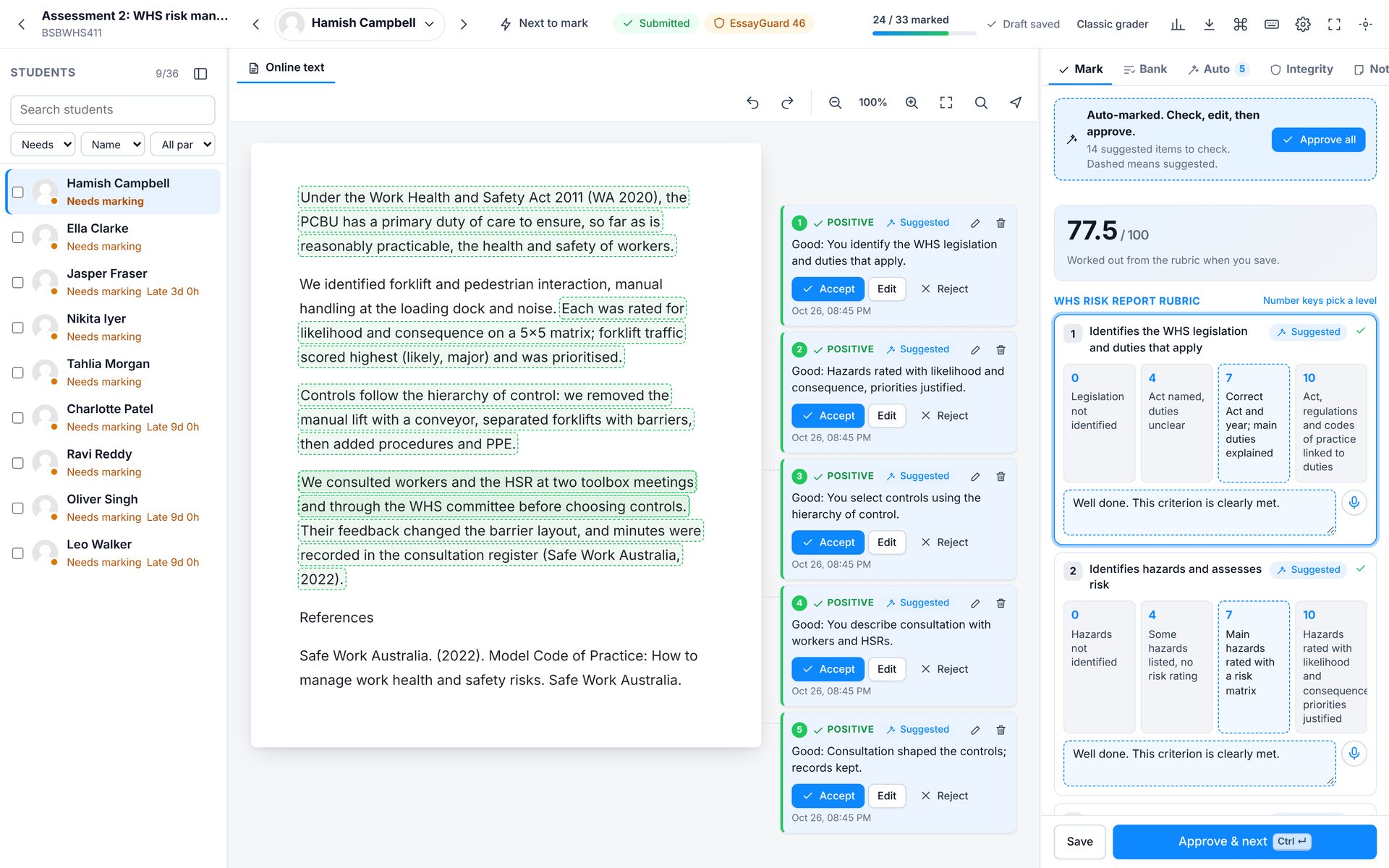
- 1Student list: who still needs marking, late work, and status
- 2Filter and sort the list
- 3The student you are marking. Click, or press Ctrl K, to jump to anyone
- 4Marking progress for the activity
- 5Report, download, shortcuts, layout and focus mode
- 6The submission, with highlights on the work
- 7Comments line up beside the text they belong to
- 8Panel tabs: Mark, Bank, Auto, Integrity, Notes
- 9Auto-marked: check, edit, then approve
- 10The grade, worked out from the rubric
- 11Rubric levels with a remark box per criterion
- 12Approve and open the next student (Ctrl Enter)
Start here
No AI, and why that matters
Fast Grade’s rule-based auto-marking does not call an AI service. It checks each submission against your own rubric with readable rules: key points, terms, word counts and question parts. Optional browser-vendor dictation, Moodle document converters (including cloud converters), and installed integrations can involve external processing.
- Auto-marking checks run in Moodle in the marker’s browser; submissions are not sent to an AI service for marking. Optional cloud speech recognition, document conversion and integrations may process data externally.
- Rule-based marking has no AI usage fees or per-mark credits; LMS Labs acquisition is a separate one-time purchase.
- Every suggestion shows why it was made, and nothing reaches a student until a marker approves it.
- Voice dictation defaults to on-device speech recognition where supported. If enabled by the site, the browser vendor’s speech service can involve external processing.
Start here
Install
Fast Grade is a local plugin. Its package declares Moodle 4.4–5.3 compatibility; the range is not a completed compatibility matrix. Test in your own Moodle environment before classroom use.
- Upload the plugin. In Site administration › Plugins › Install plugins, upload
local_fastgrade_v1.0.0.zip. Or unzip it intolocal/fastgradeon the server. - Complete the upgrade. Visit Site administration › Notifications and follow the steps.
- Choose your settings. Open Site administration › Plugins › Local plugins › Fast Grade.
- Open an activity. Markers see a Fast Grade button on assignments and quizzes straight away.
unzip local_fastgrade_v1.0.0.zip -d /path/to/moodle/local/
php /path/to/moodle/admin/cli/upgrade.php --non-interactive
| Requirement | Version |
|---|---|
| Moodle | 4.4, 4.5, 5.0, 5.1, 5.2, 5.3 |
| PHP | As required by your Moodle version (8.1 or later) |
| Database | PostgreSQL, MySQL, MariaDB or SQL Server |
| Word, PowerPoint and image conversion | Moodle's document converter (for example, unoconv or Google Drive converter) |
| Voice dictation, on device | Chrome 139+ or Firefox 161+ on desktop (declared support; not independently verified) |
Start here
Settings
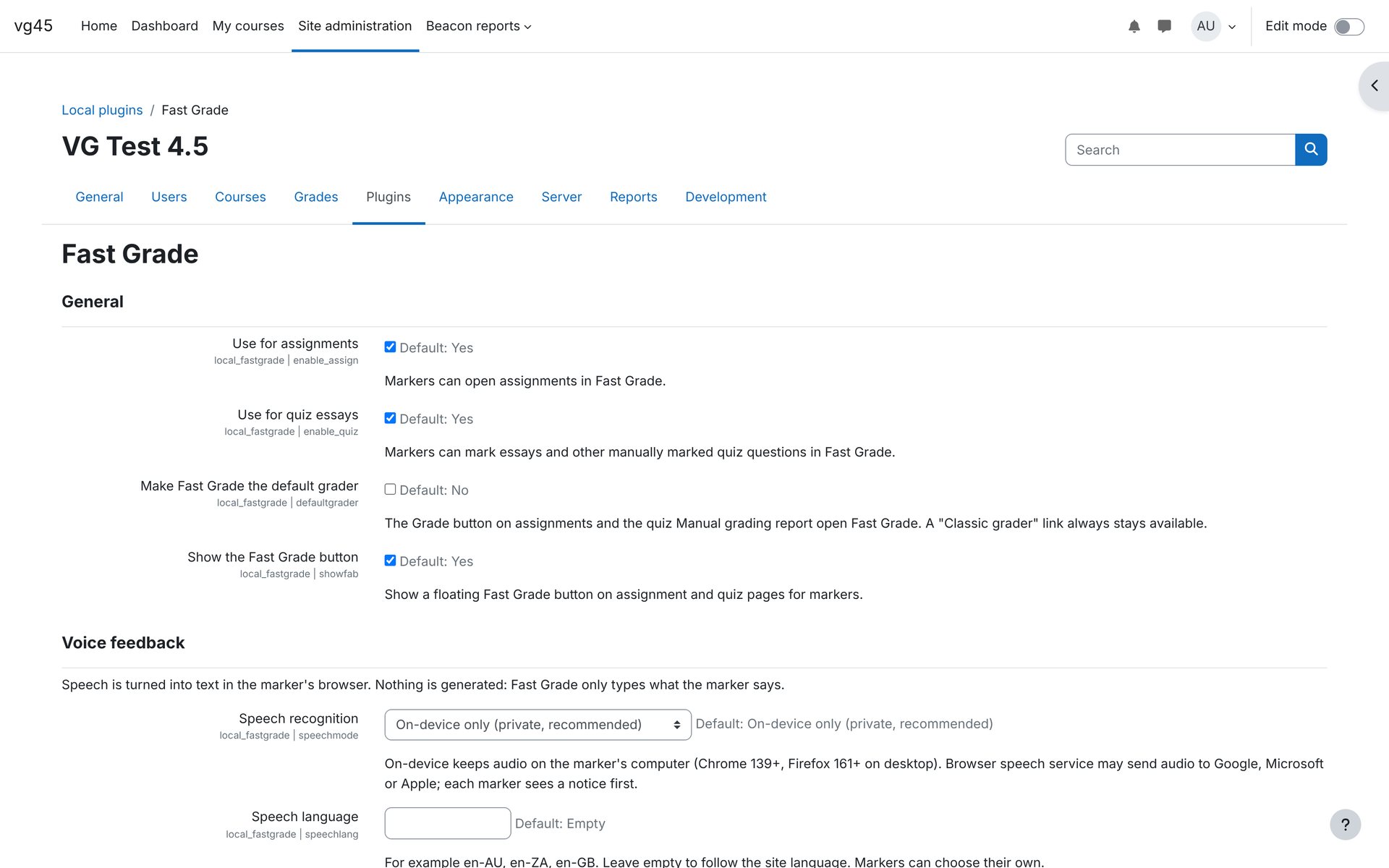
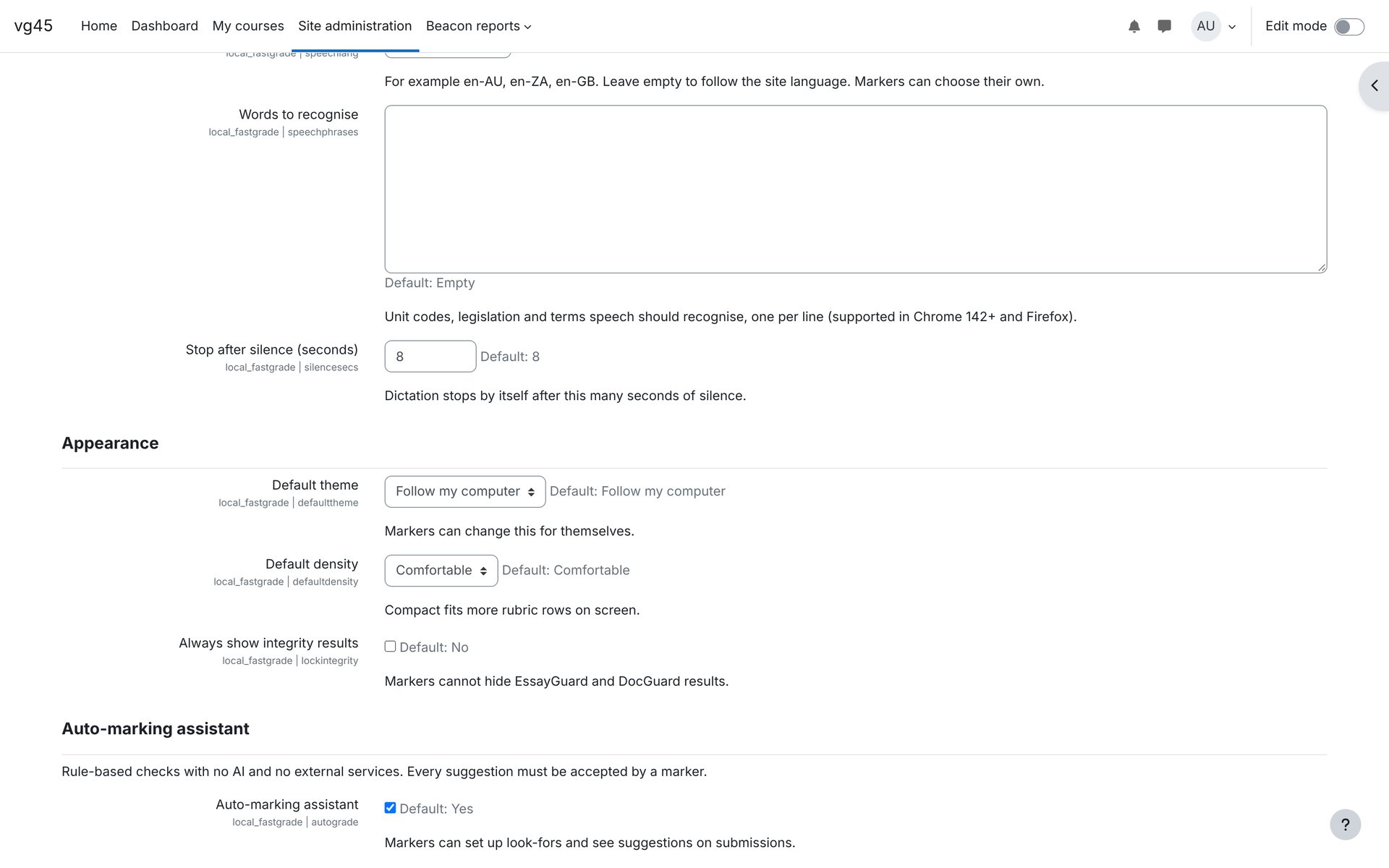
All settings are in Site administration › Plugins › Local plugins › Fast Grade.
| Setting | What it does | Default |
|---|---|---|
| Use for assignments | Markers can open assignments in Fast Grade. | On |
| Use for quiz essays | Markers can mark essays and other manually marked quiz questions. | On |
| Make Fast Grade the default grader | The Grade button and the quiz Manual grading report open Fast Grade. A Classic grader link stays available. | Off |
| Show the Fast Grade button | A floating Fast Grade button on assignment and quiz pages for markers. | On |
| Speech recognition | On-device only (private), the browser's speech service, or off. | On-device |
| Speech language | For example en-AU or en-GB. Empty follows the site language. | Empty |
| Words to recognise | Unit codes, legislation and terms for speech to recognise, one per line. | Empty |
| Stop after silence | Dictation stops after this many seconds of silence. | 8 |
| Default theme and density | The starting look for markers. Each marker can change their own. | Follow computer, comfortable |
| Always show integrity results | Markers cannot hide EssayGuard and DocGuard results. | Off |
| Auto-marking assistant | Markers can set up checks and see suggestions on submissions. | On |
| Marking turnaround target | Days after submission work should be marked. The report flags anything slower. | 14 |
| Smallest group to compare markers | Markers with fewer marked submissions are shown but not compared. | 10 |
Start here
Permissions
| Capability | Who has it by default | What it allows |
|---|---|---|
local/fastgrade:grade | Teacher, editing teacher, manager | Mark in Fast Grade. Markers also need the activity's own grading permission. |
local/fastgrade:managecriteria | Editing teacher, manager | Set up auto-marking checks and quiz criteria panels. |
local/fastgrade:managecoursebank | Editing teacher, manager | Share comments with the whole course. |
local/fastgrade:managesitebank | Manager | Manage site-wide comments. |
local/fastgrade:viewfeedback | Student, teacher, editing teacher, manager | See annotated feedback once marks are released. |
local/fastgrade:viewreport | Teacher, editing teacher, manager | Open and export the activity report. |
Marking
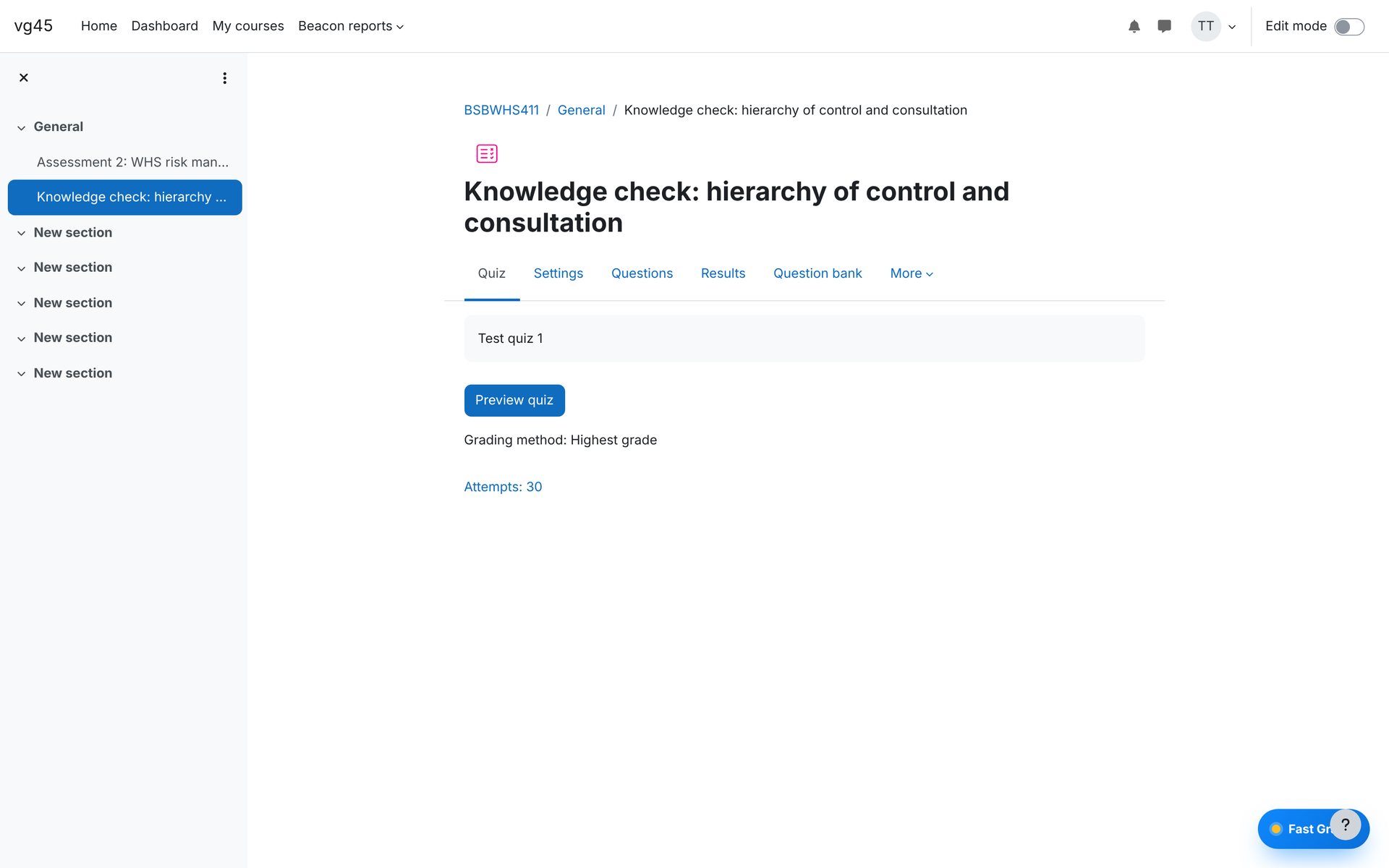
Open Fast Grade
On any assignment or quiz, markers see a Fast Grade button in the bottom corner and a Fast Grade link in the activity menu. If the site makes Fast Grade the default grader, the usual Grade button opens it too.
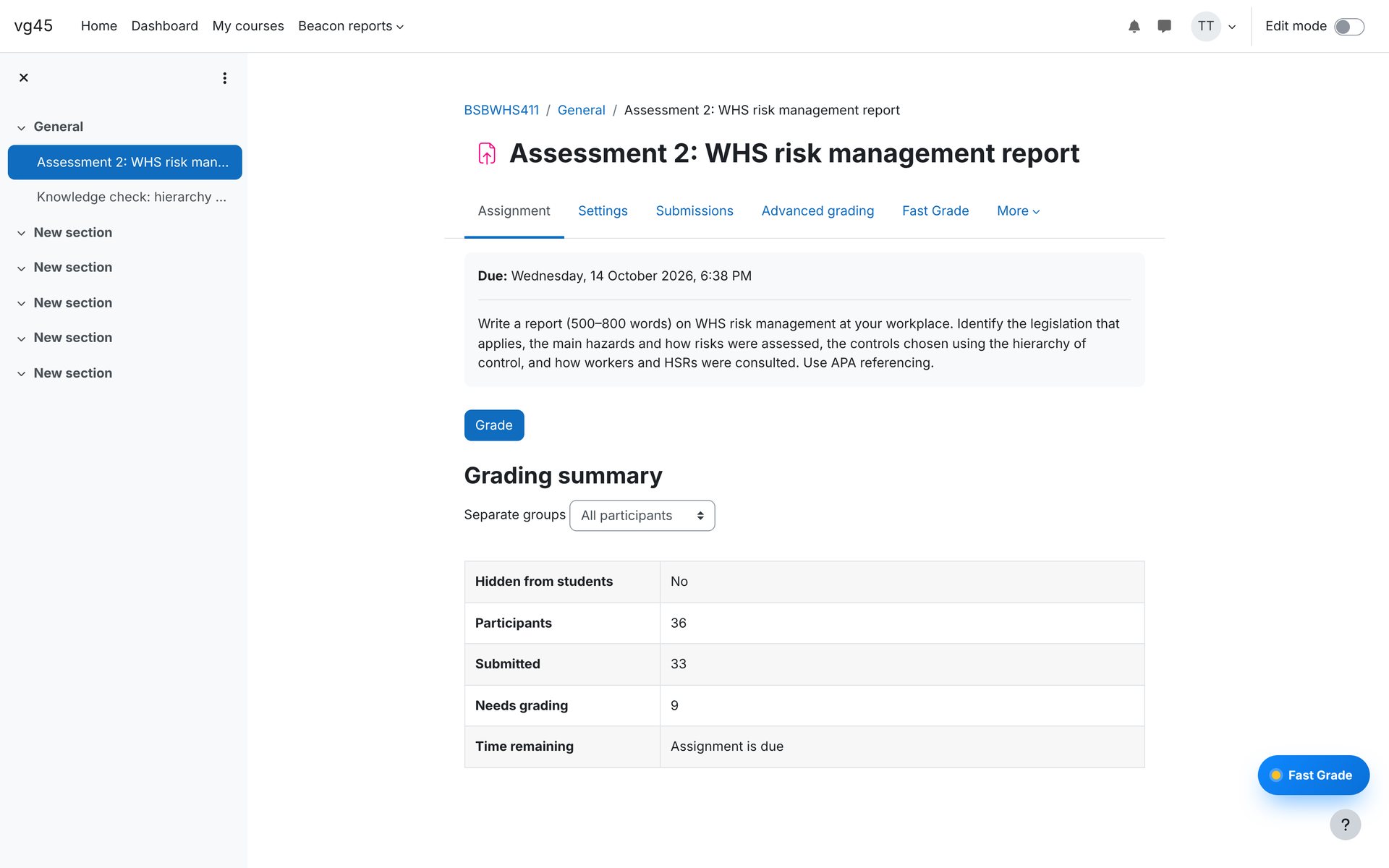
- 1Fast Grade button
- 2Fast Grade in the activity menu
Marking
The marking screen
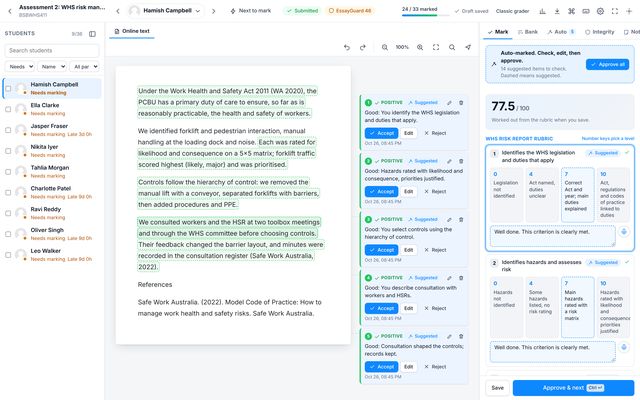
The screen has three parts: students on the left, the work in the middle, and your marking panel on the right. Each part can be resized, collapsed or hidden.
- 1Student list: who still needs marking, late work, and status
- 2Filter and sort the list
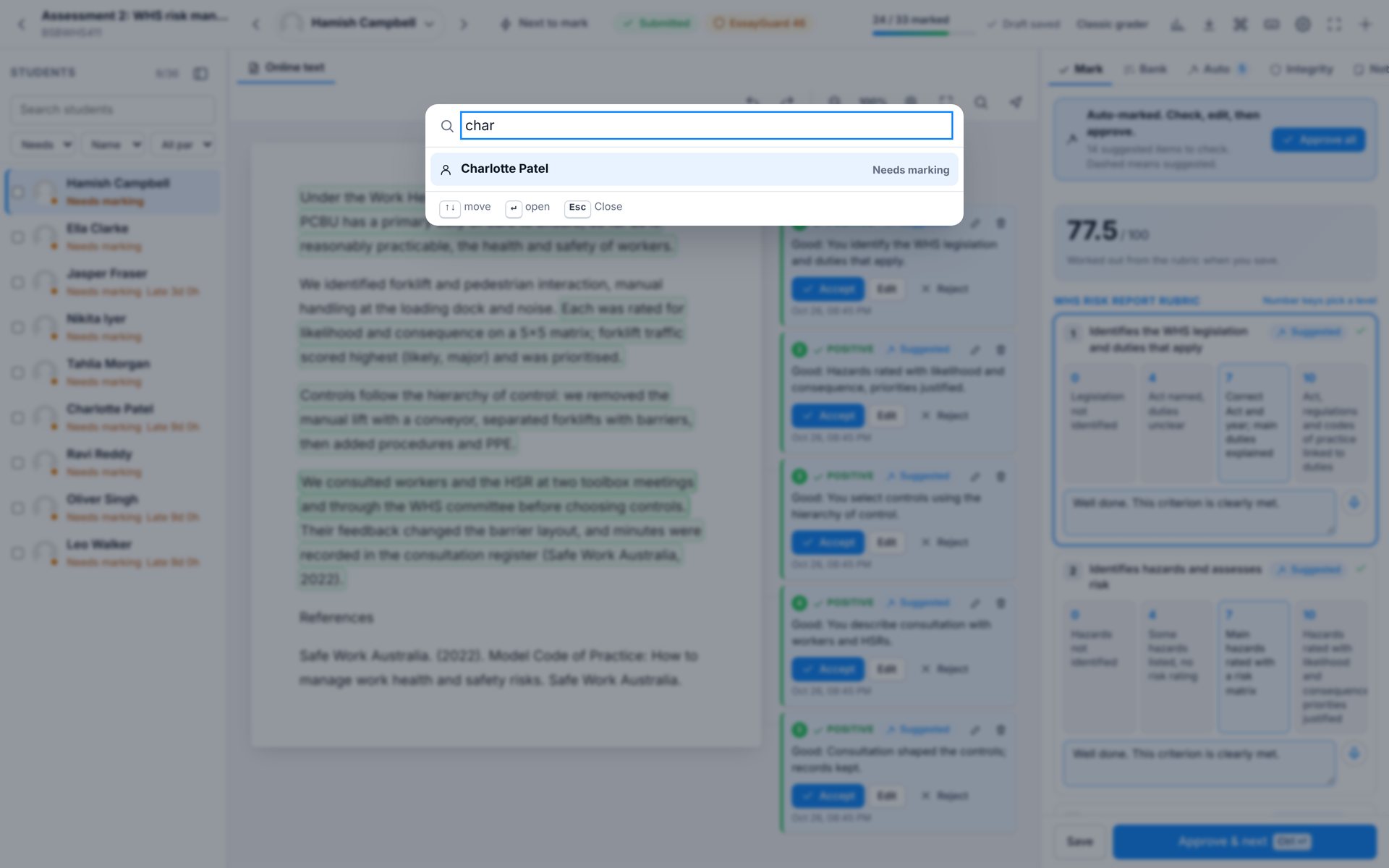
- 3The student you are marking. Click, or press Ctrl K, to jump to anyone
- 4Marking progress for the activity
- 5Report, download, shortcuts, layout and focus mode
- 6The submission, with highlights on the work
- 7Comments line up beside the text they belong to
- 8Panel tabs: Mark, Bank, Auto, Integrity, Notes
- 9Auto-marked: check, edit, then approve
- 10The grade, worked out from the rubric
- 11Rubric levels with a remark box per criterion
- 12Approve and open the next student (Ctrl Enter)
Find a student
Press Ctrl K and type a name, or press N to jump to the next one waiting. J and K move through the list.
Save as you go
Your work saves as a draft while you mark. Ctrl S saves, and Ctrl Enter saves and opens the next student.
See status
Chips in the top bar show submission status, late days, extensions and integrity results.
Marking
Mark on the work
Select any text, or double-click a paragraph. A small menu appears. Choose Improvement (amber) or Positive (green), or press I or P. The comment opens beside the text, ready to type or speak.
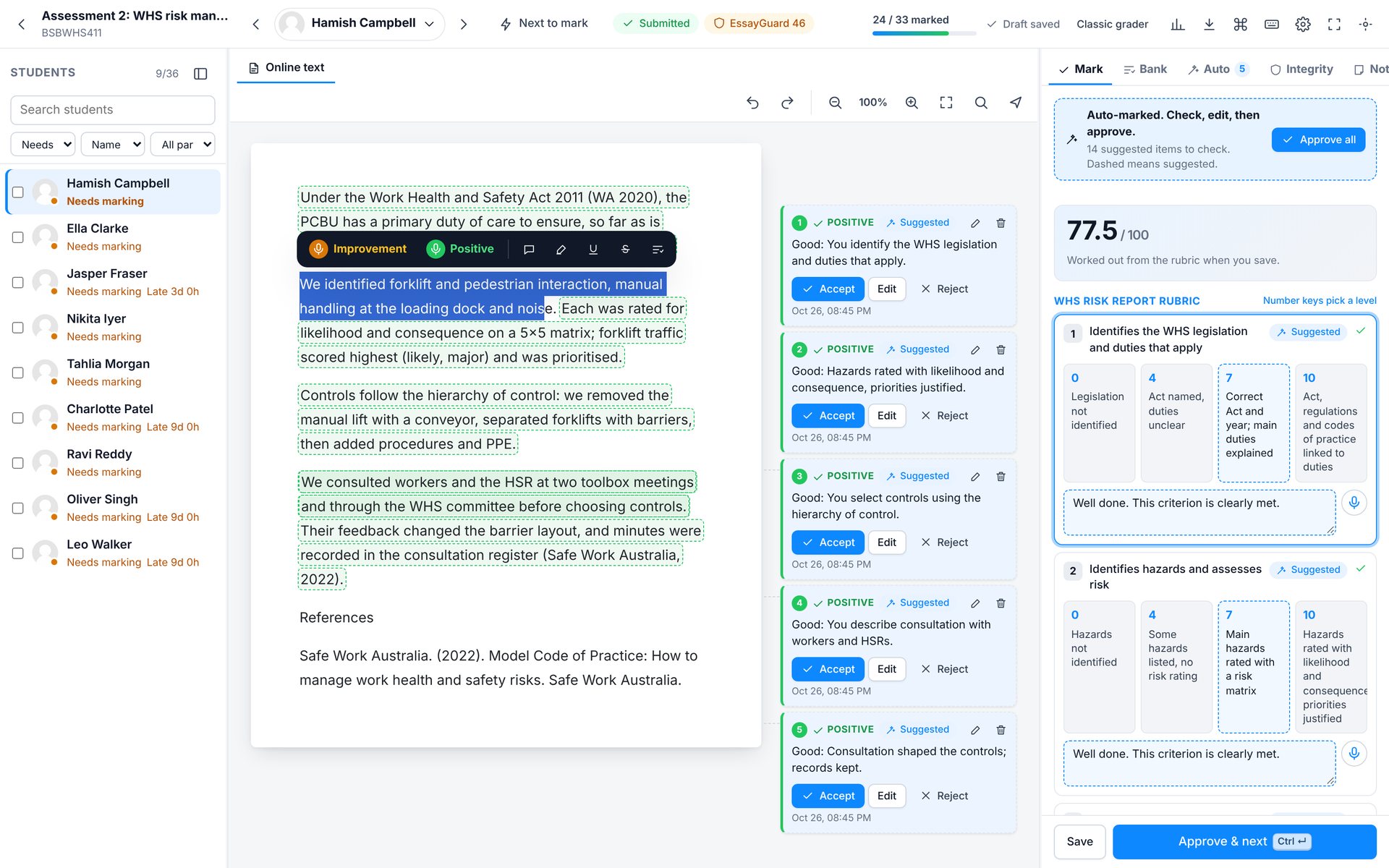
- 1Improvement, Positive, comment, highlight, underline, strike and bank
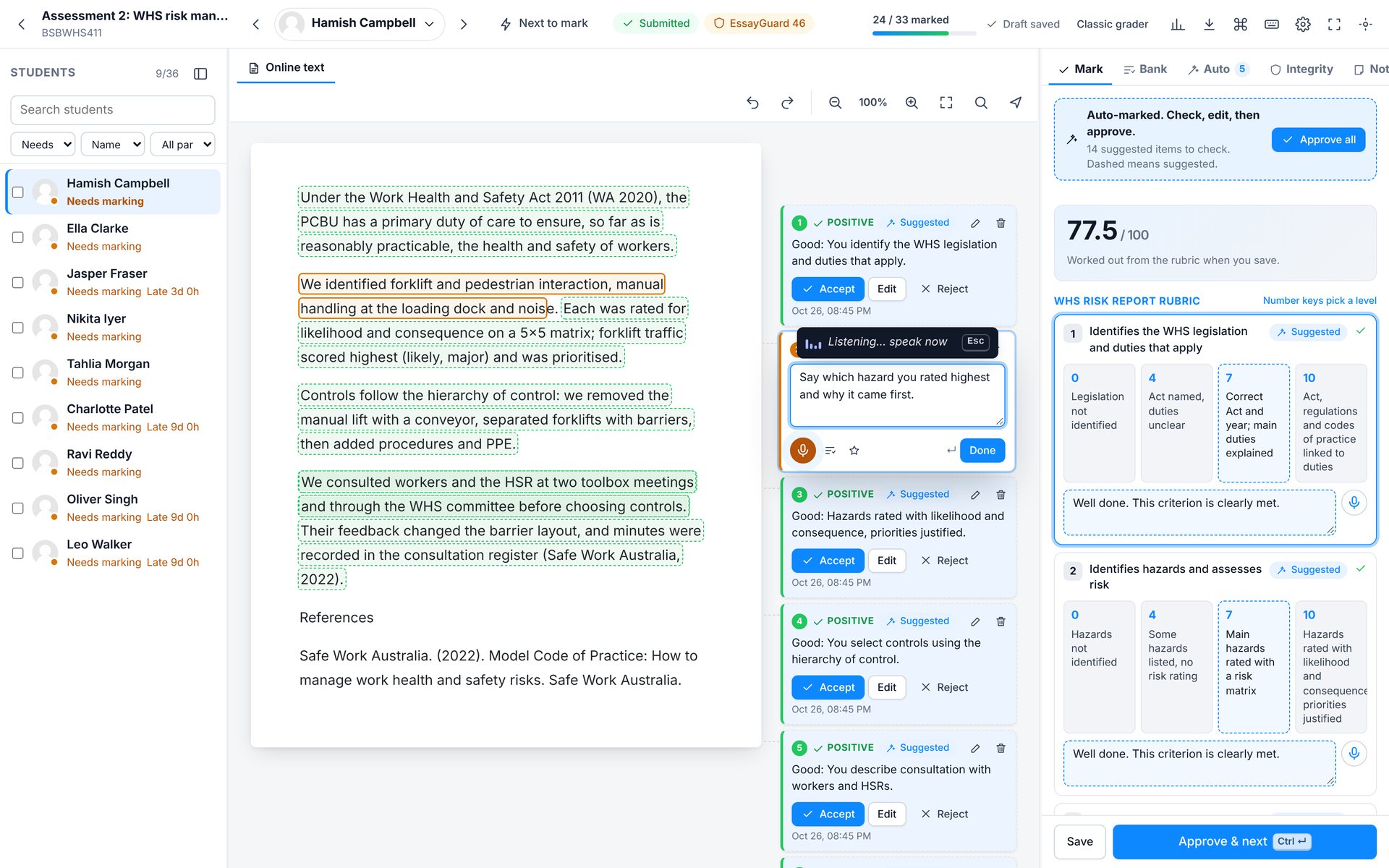
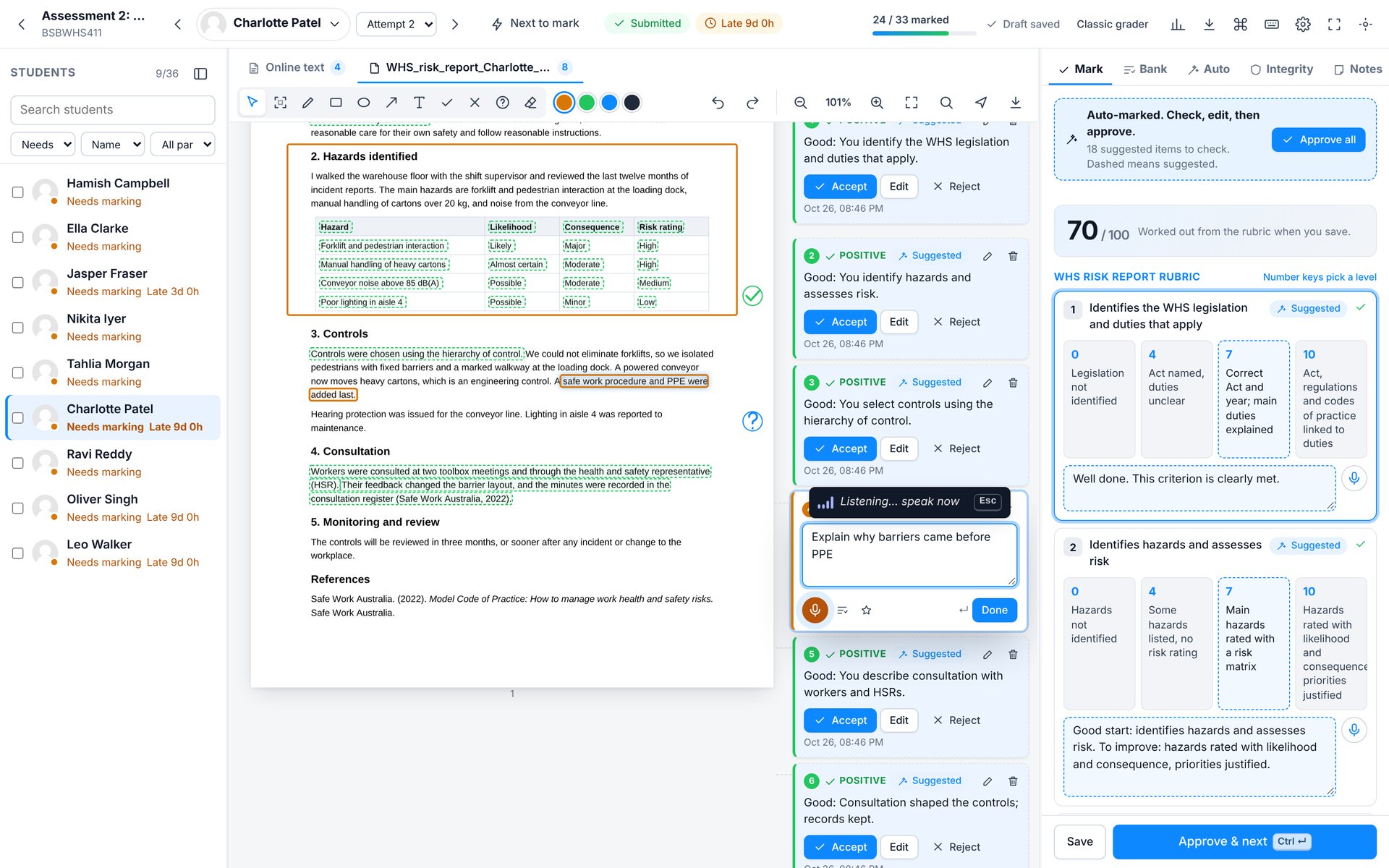
- 1Listening. Speak, or just type
- 2Microphone, comment bank and save to bank
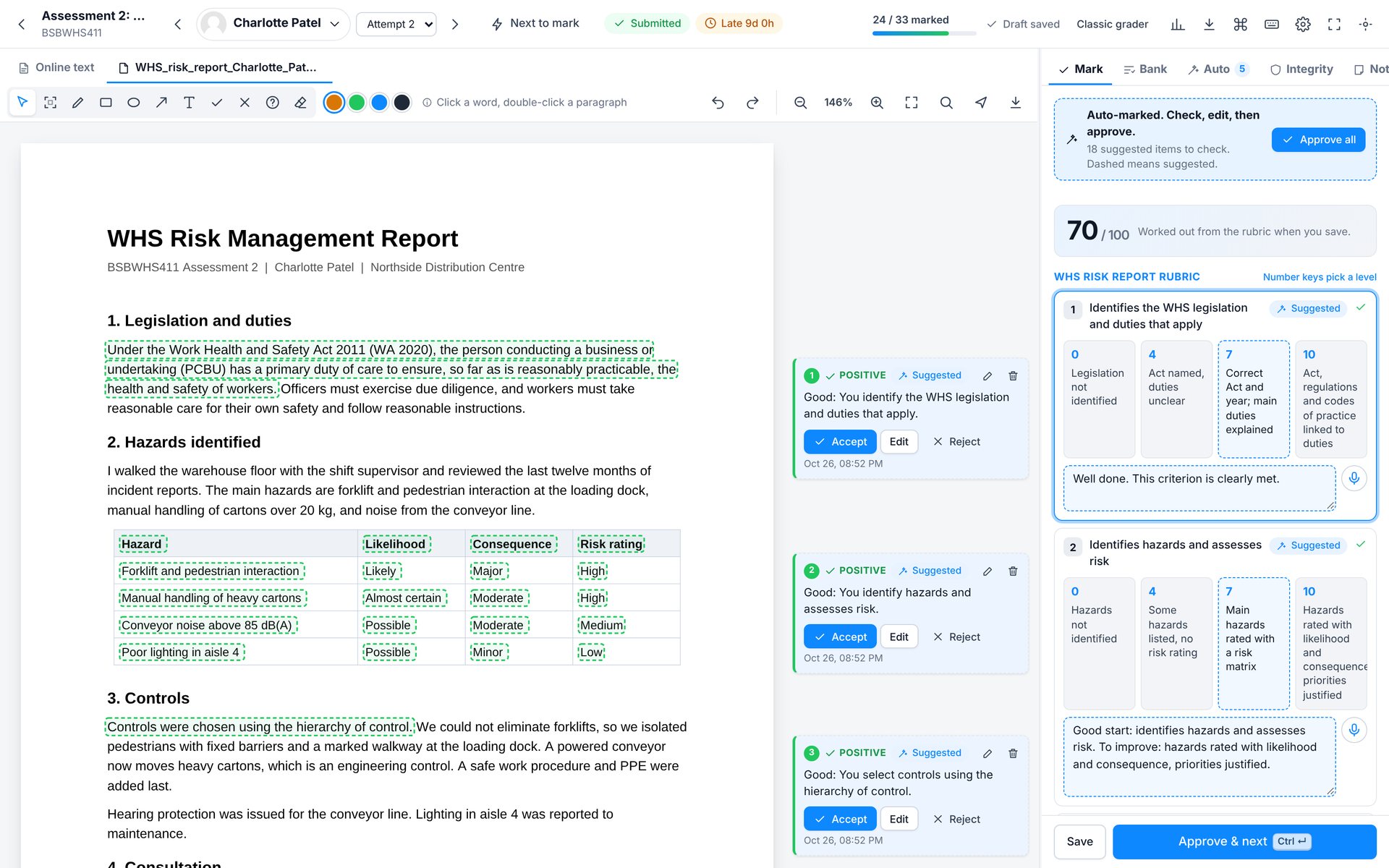
On a PDF, the toolbar adds drawing tools: area, pen, rectangle, ellipse, arrow, text, and tick, cross and question stamps.
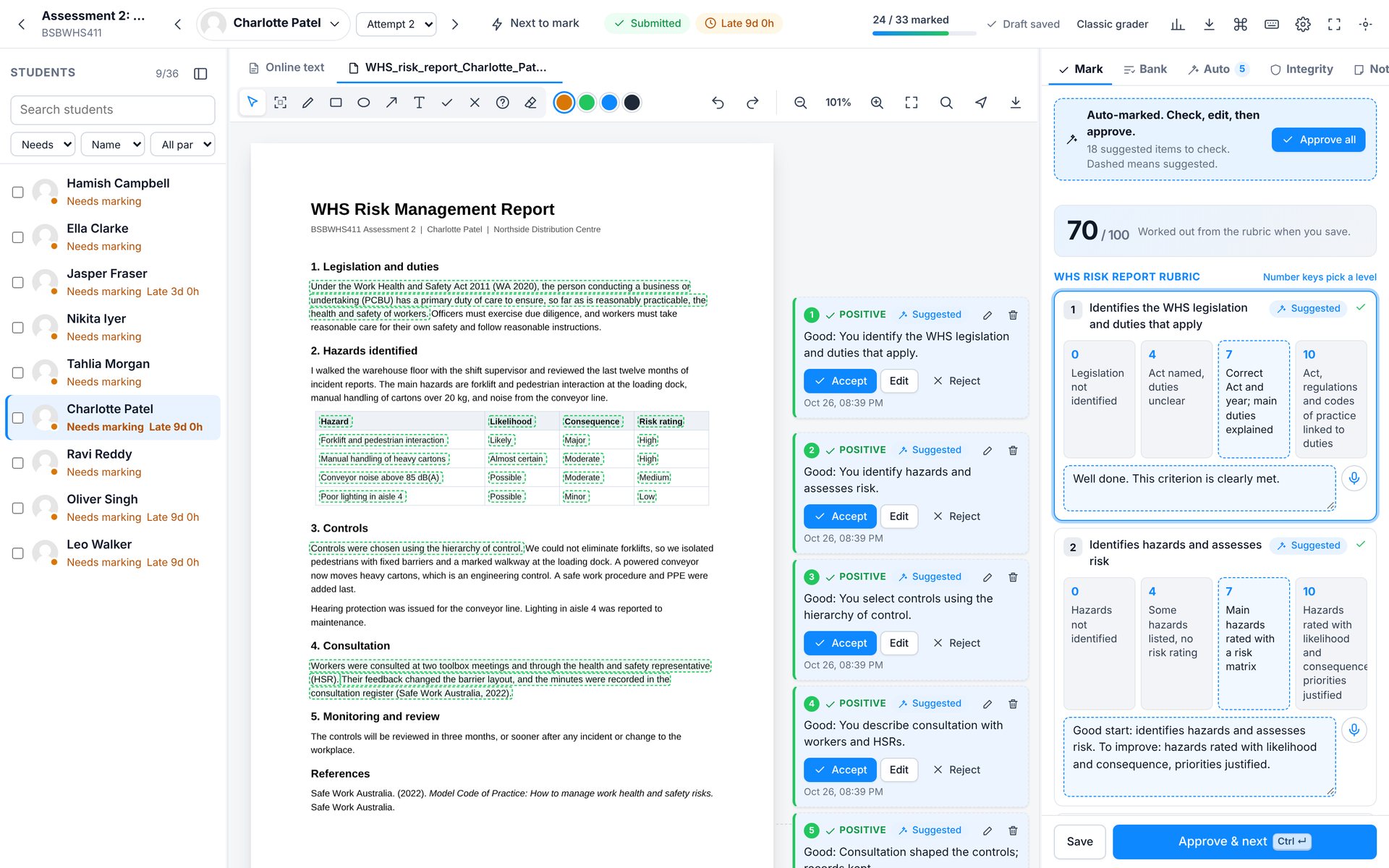
- 1Select, area, pen, shapes, arrow, text and stamps
- 2Annotation colours
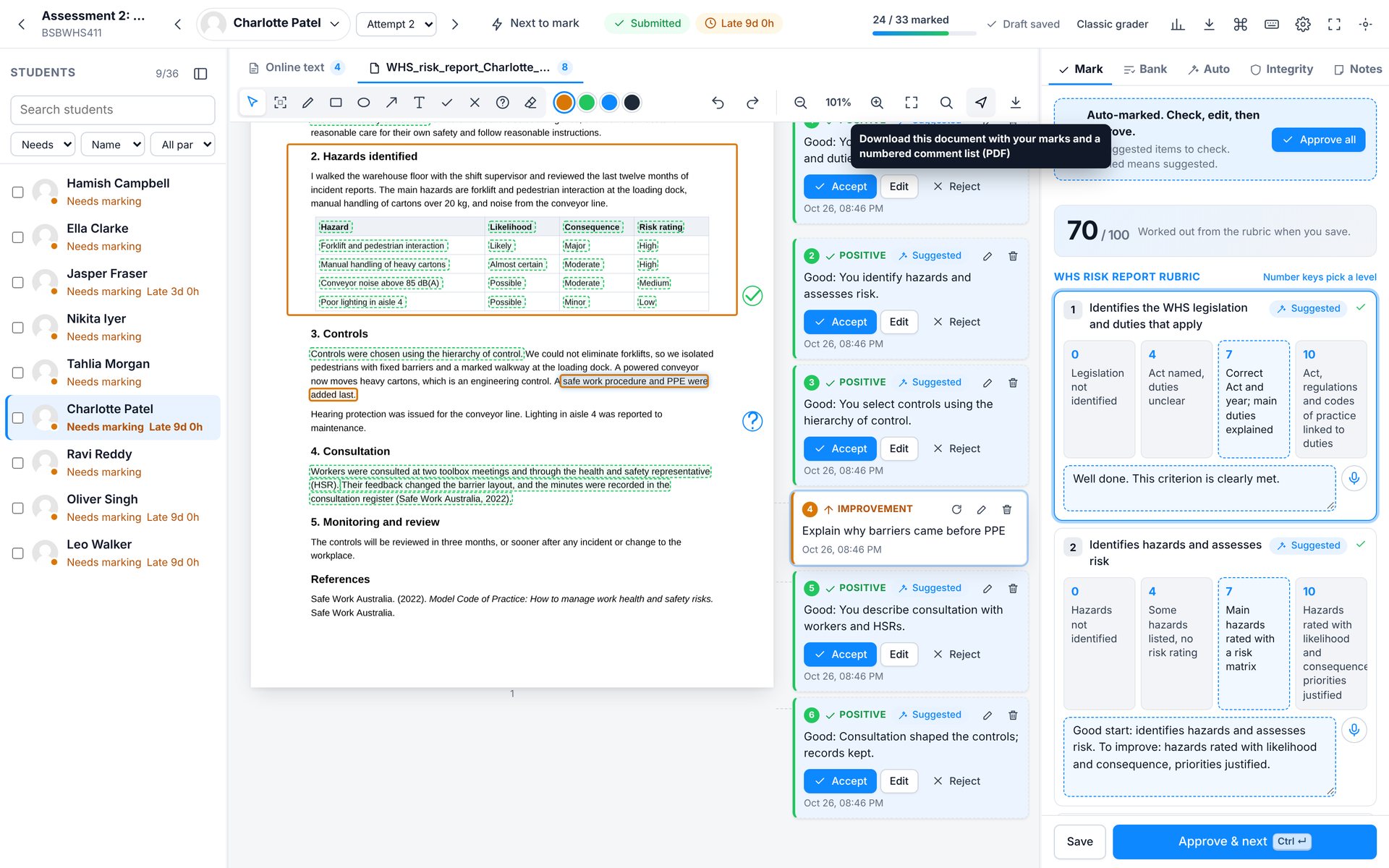
- 3Undo, zoom, fit, find and download with comments
- 4Green highlight: evidence the auto-marker found
- 5Suggested comment. Accept, edit or reject
- 6Grade from the rubric
- 7Dashed levels are suggestions
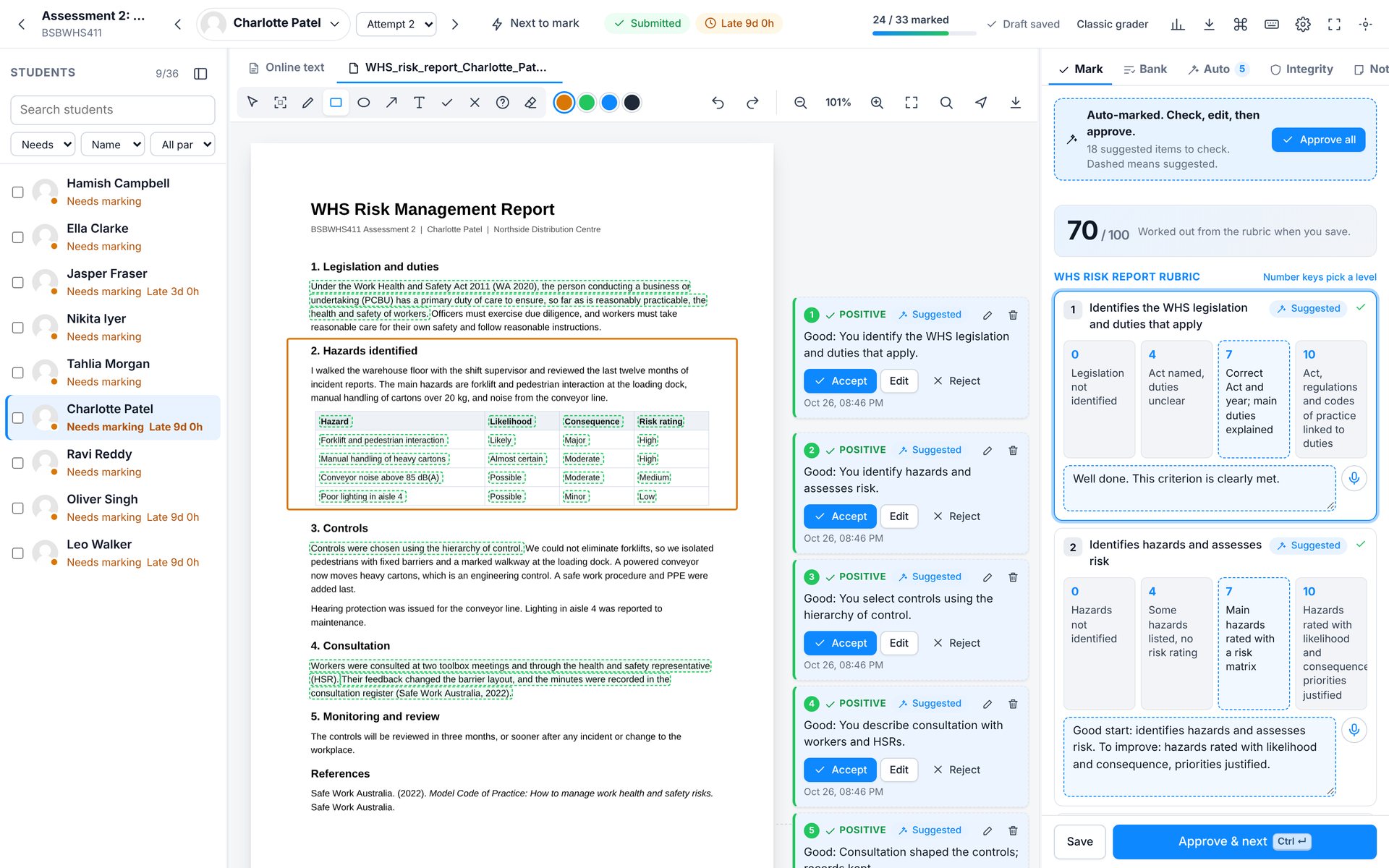
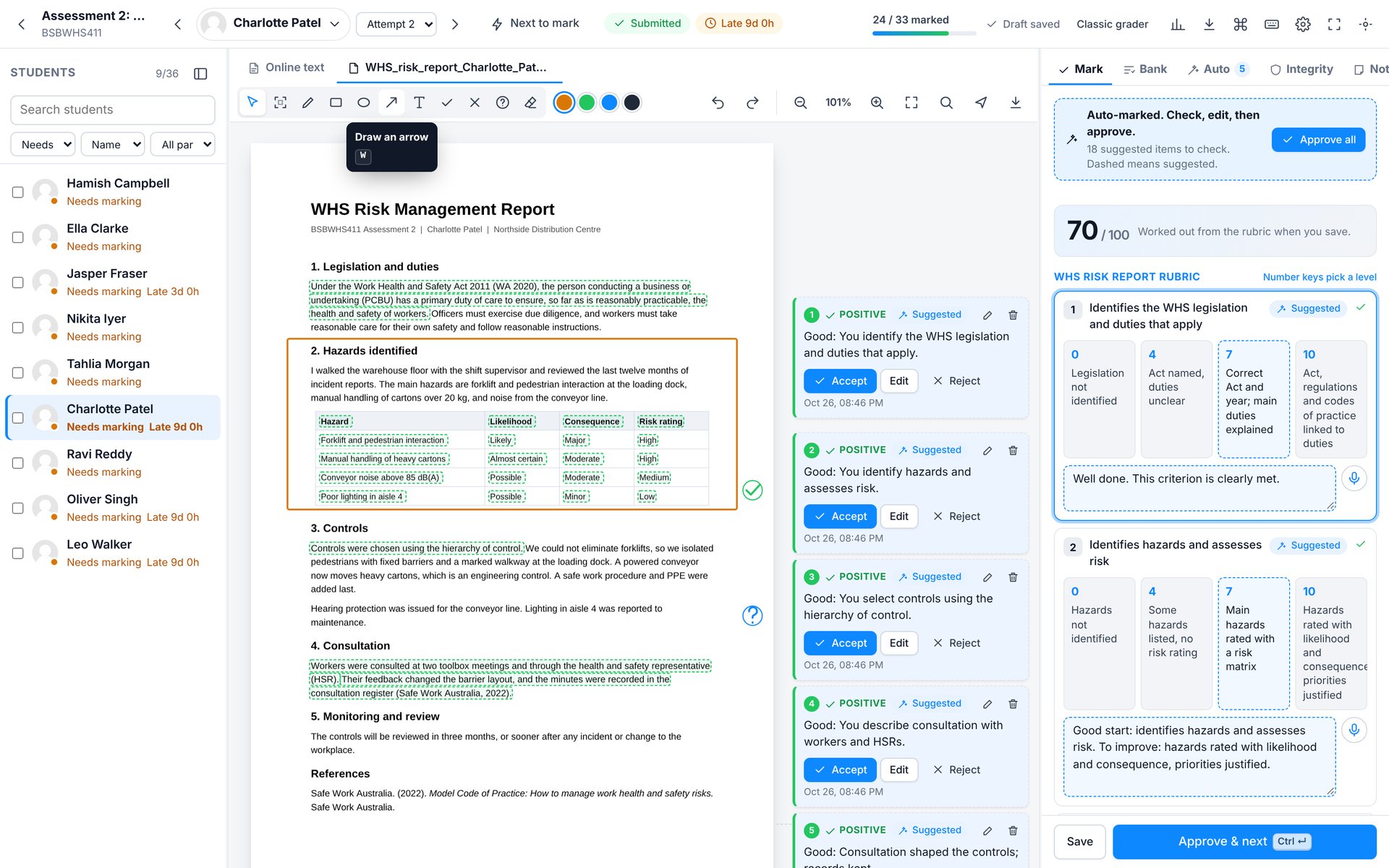
- 1Tick stamp (Shift 1)
- 2Question stamp (Shift 3)
Marking
Voice feedback
Every comment box has a microphone. Click it, or press I or P on a selection, and speak. Your words are typed into the comment. Press Esc or click again to stop; dictation also stops after a few seconds of silence.
Marking
Comment bank
Save comments you write often and insert them with one click, or press # on a selection. Personal comments are yours; course comments are shared with other markers in the course.
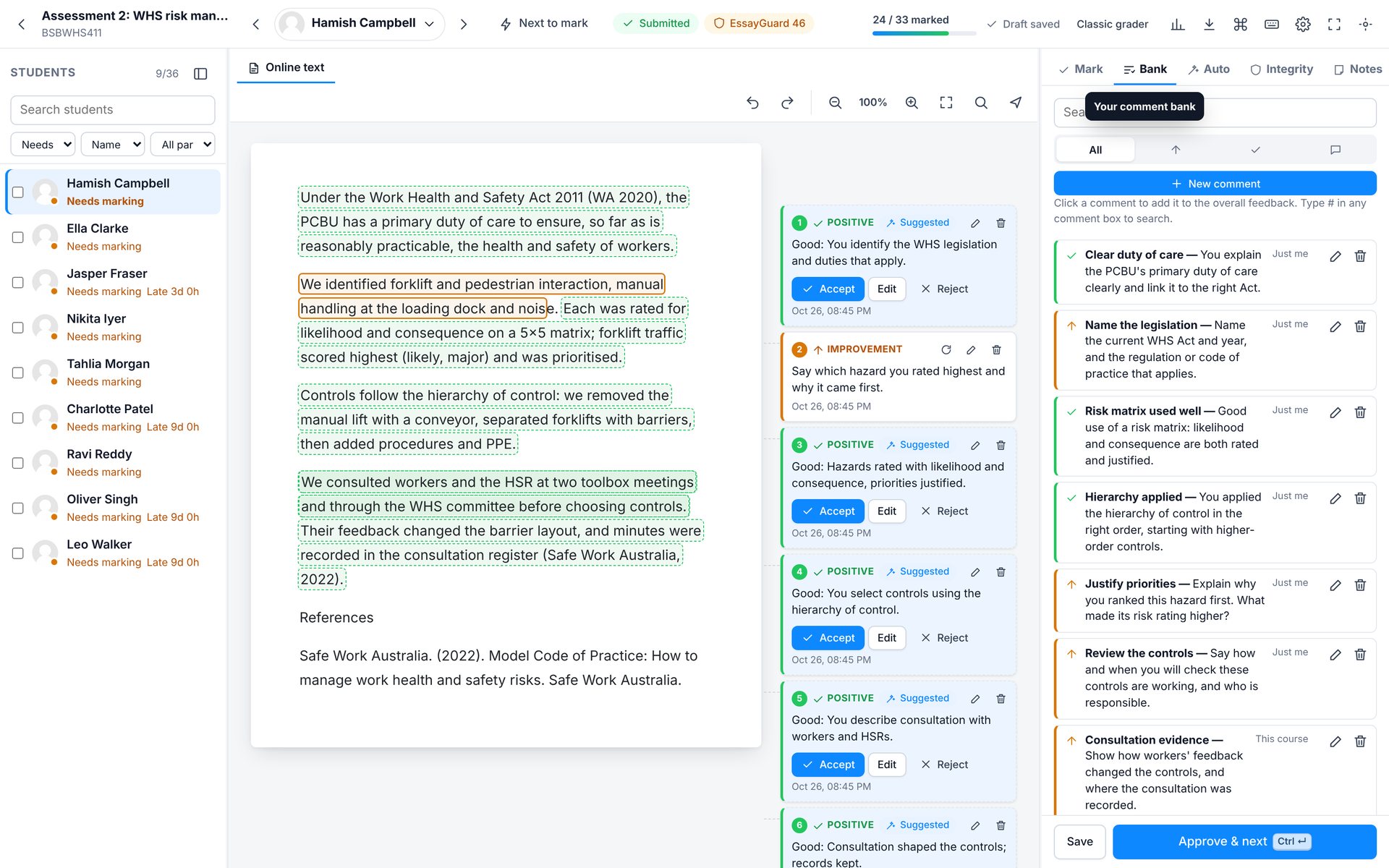
- 1Search, filter by type, or add a new comment
- 2Personal and course comments, most used first
Marking
Any kind of file
Fast Grade opens the files students actually submit.
| File | How it opens |
|---|---|
| Full annotation and drawing tools. | |
| Word, ODT, RTF | Converted to PDF by Moodle's document converter, then marked like a PDF. |
| Excel, ODS, CSV | A real table with every sheet, and a Show formulas switch. |
| PowerPoint | Every slide with its speaker notes. |
| Images | Zoom, draw and comment. |
| Video and audio | Timed comments at any moment. |
| Code and text | Shown with line numbers, ready to comment. |
| Online text | Marked in place, with comments in the margin. |
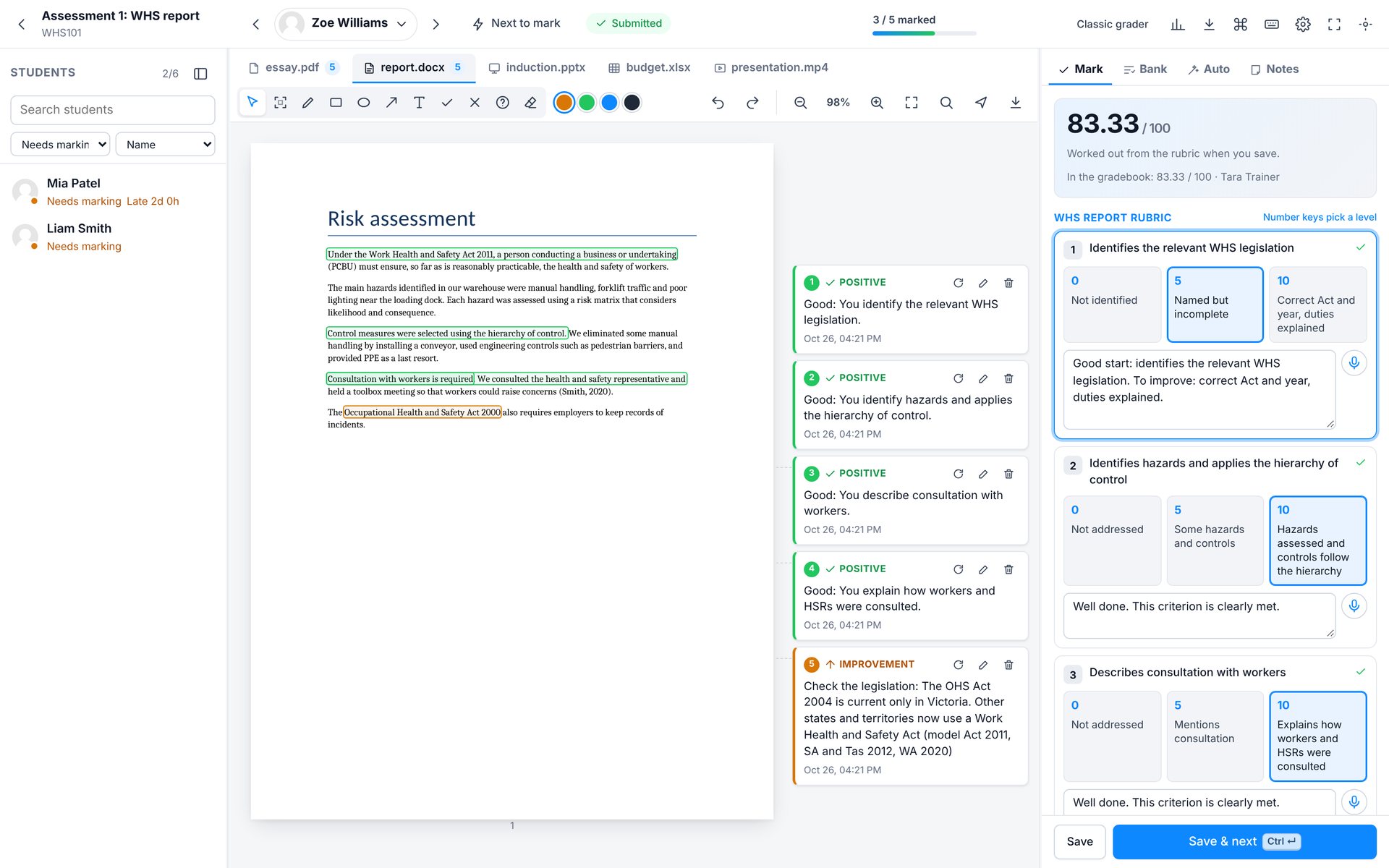
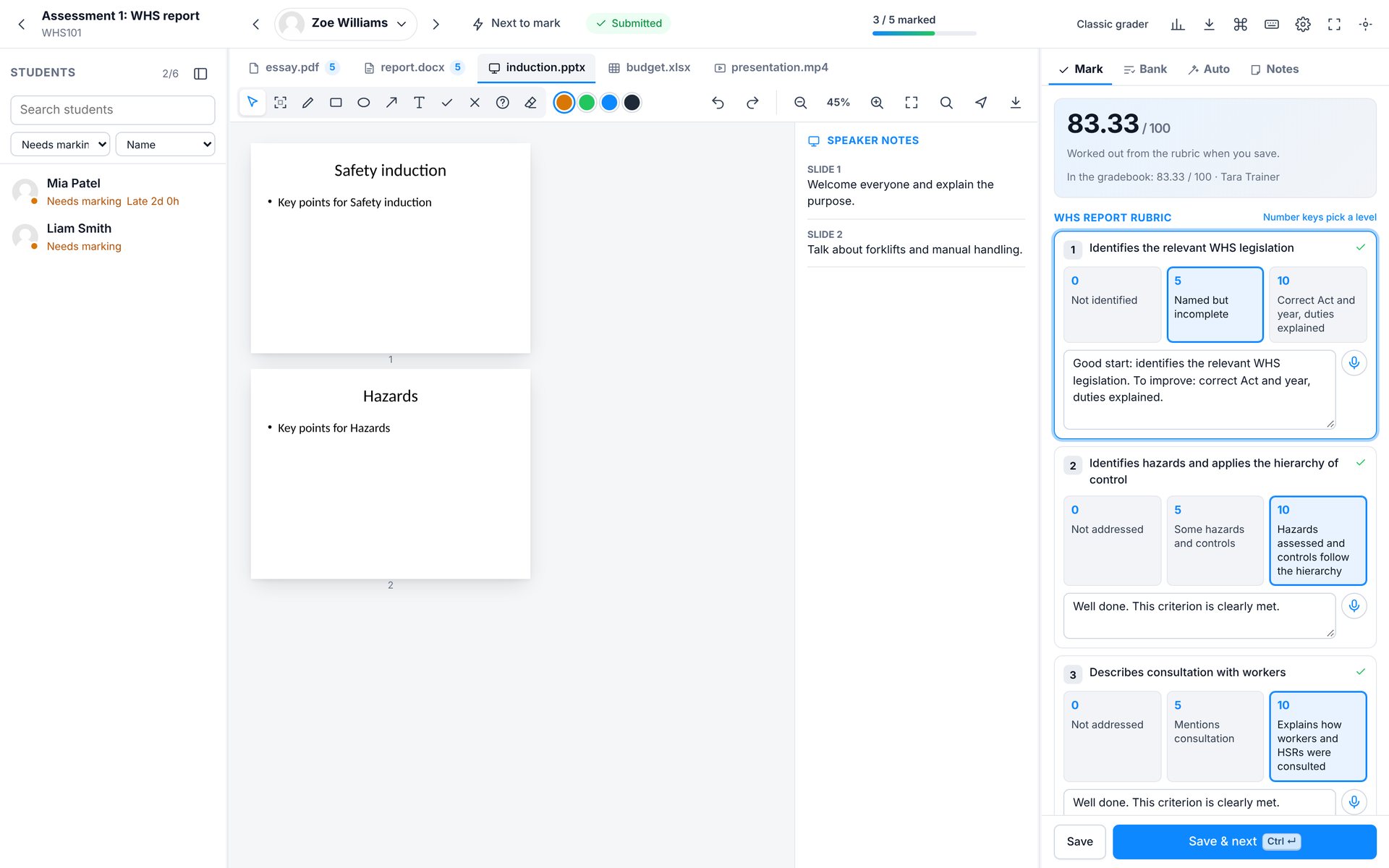
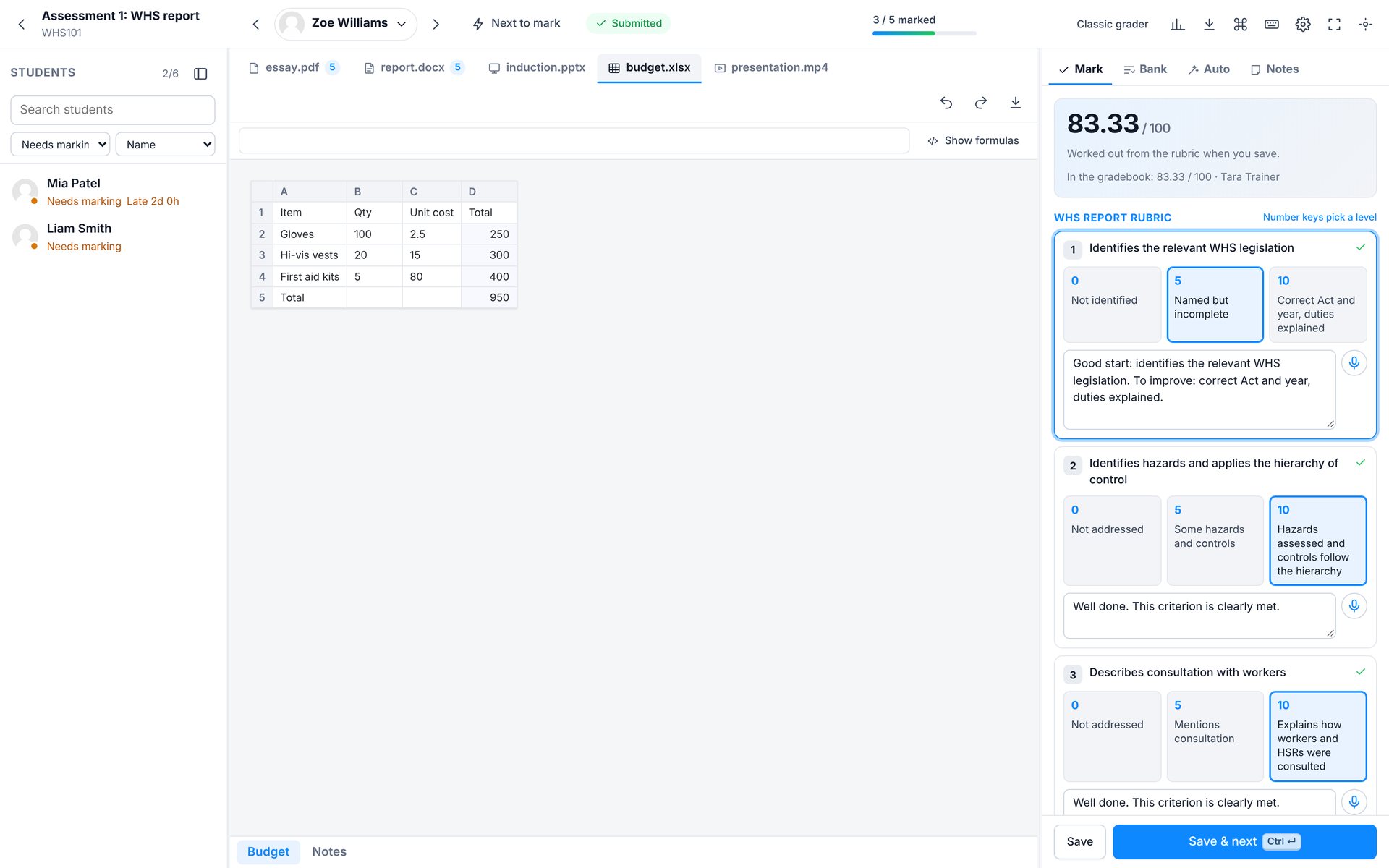
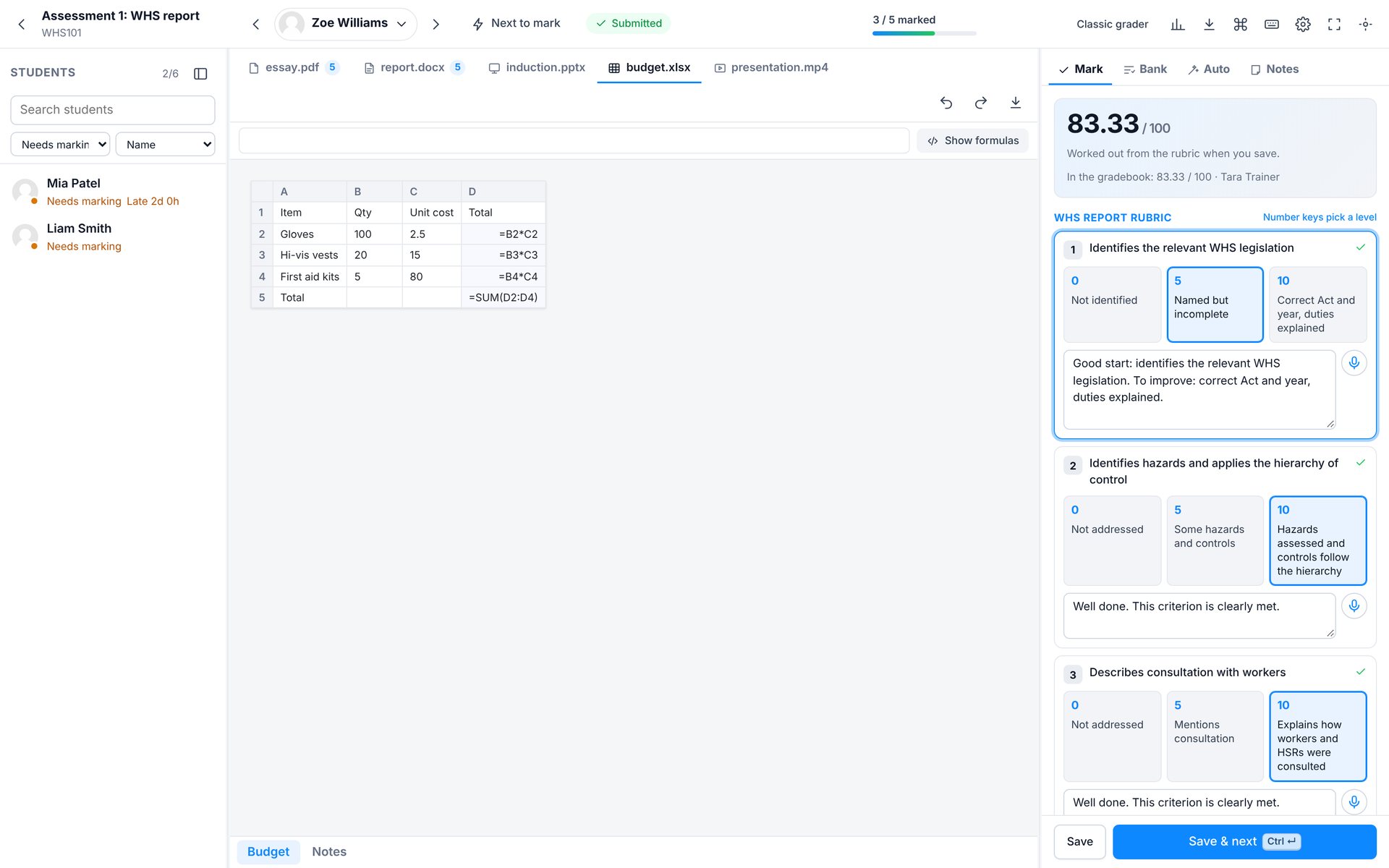
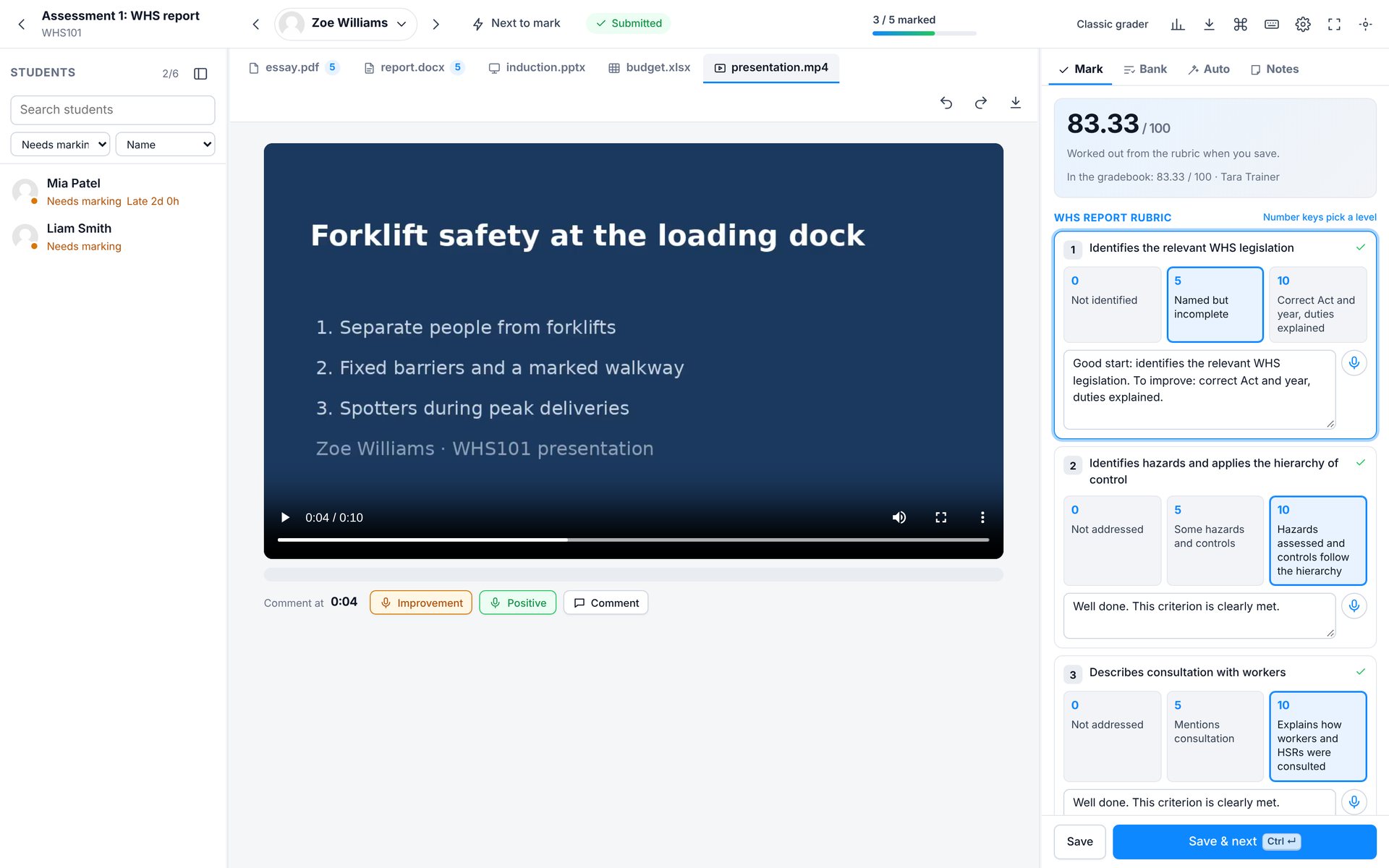
- 1Comment at this moment: improvement, positive or typed
Marking
Rubrics, guides and feedback
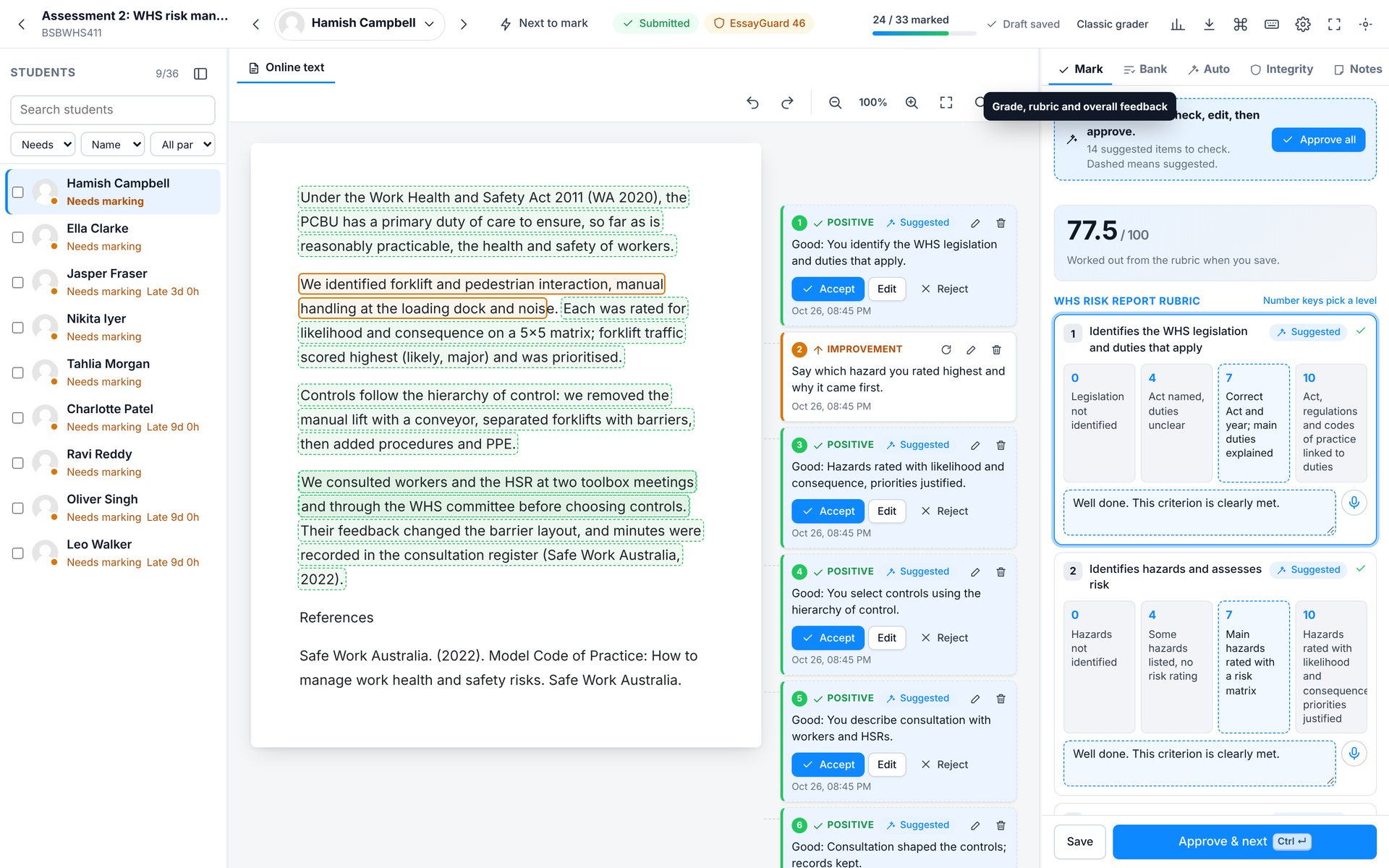
Your rubric or marking guide sits beside the work. Click a level, or press a number key. Each criterion has its own remark box, and the grade is worked out for you. Simple direct grading works too.
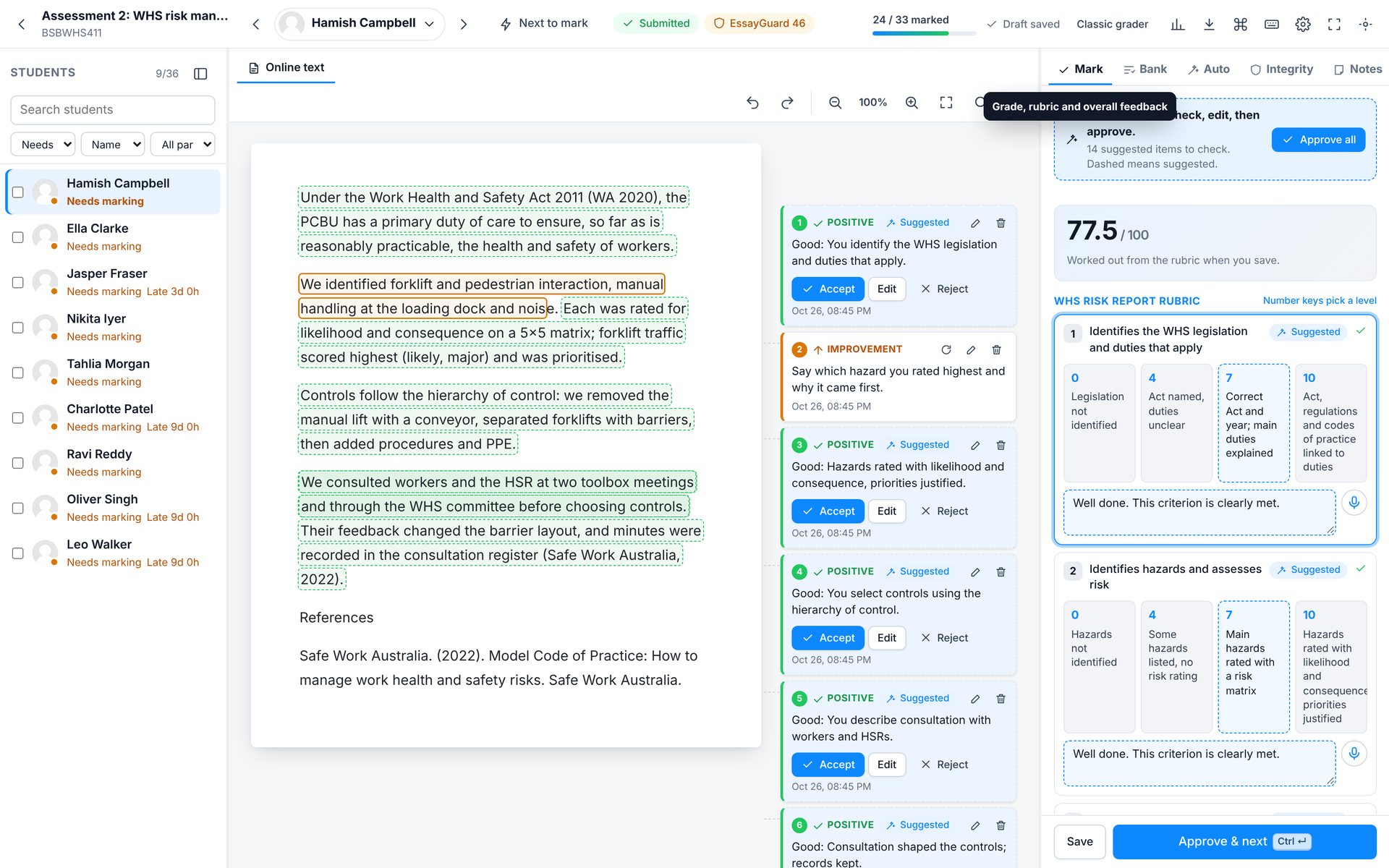
If the assignment uses marking workflow, set the stage at the bottom of the panel and choose whether to notify the student.
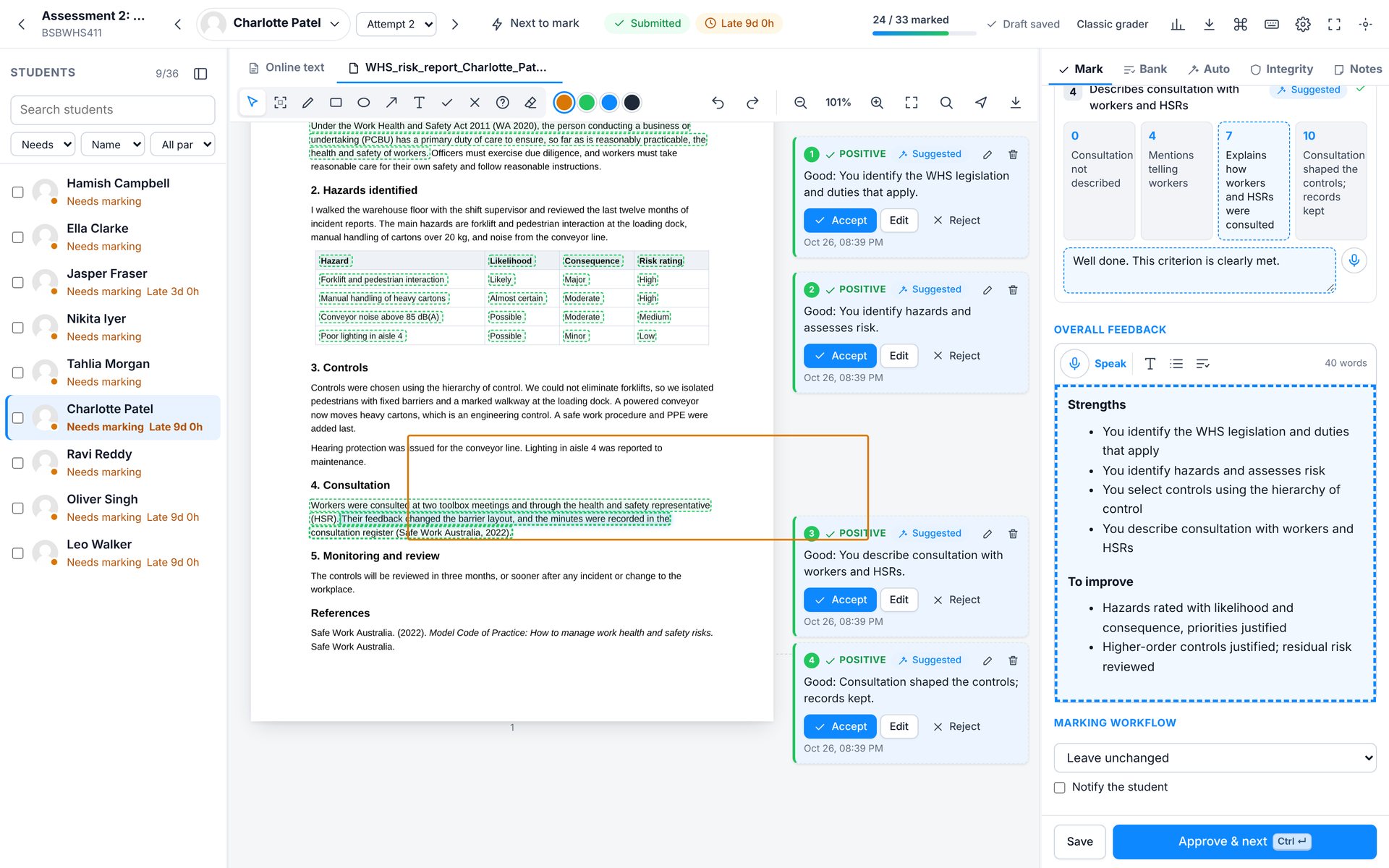
- 1Workflow stage and student notification
Marking
Integrity and private notes
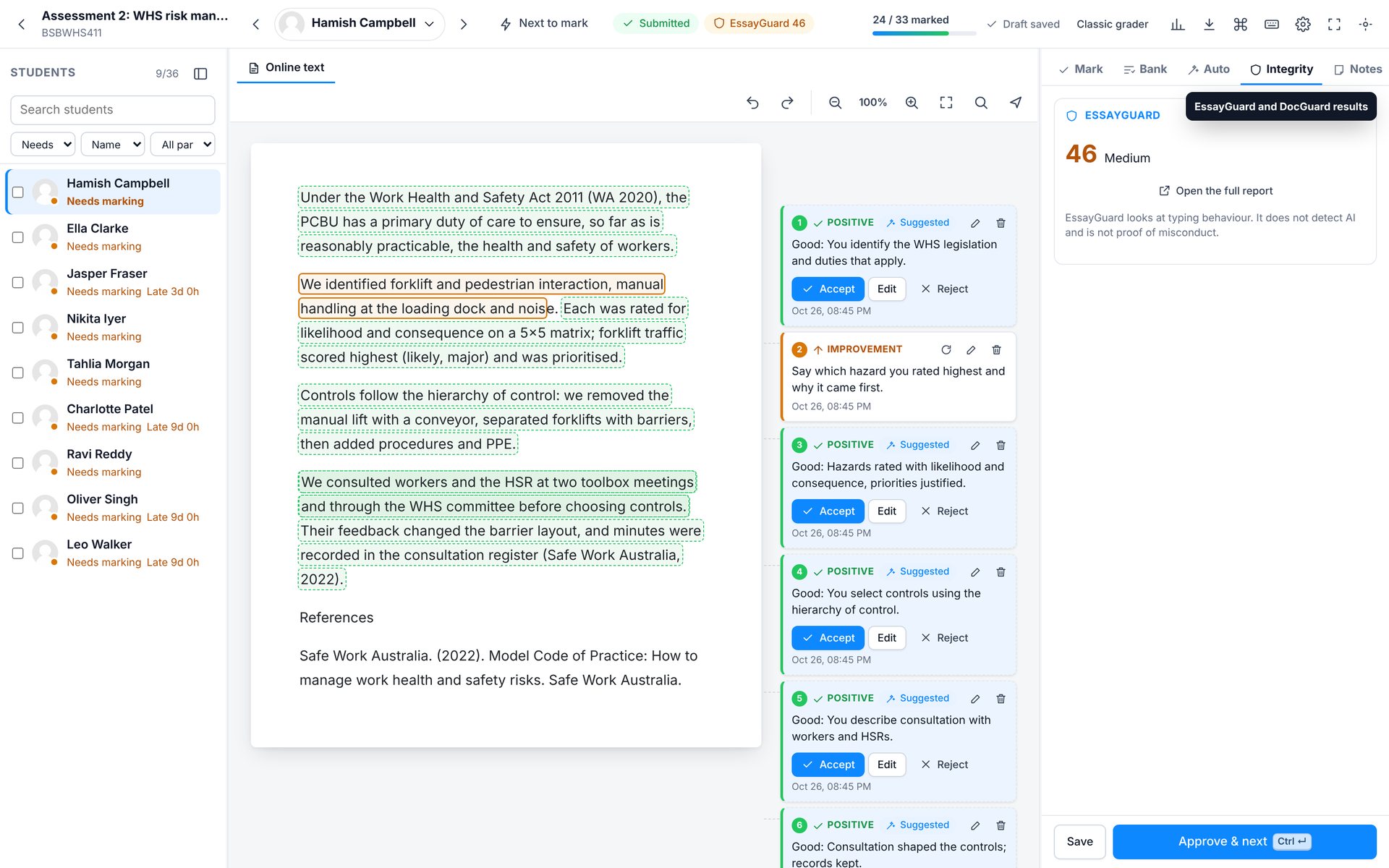
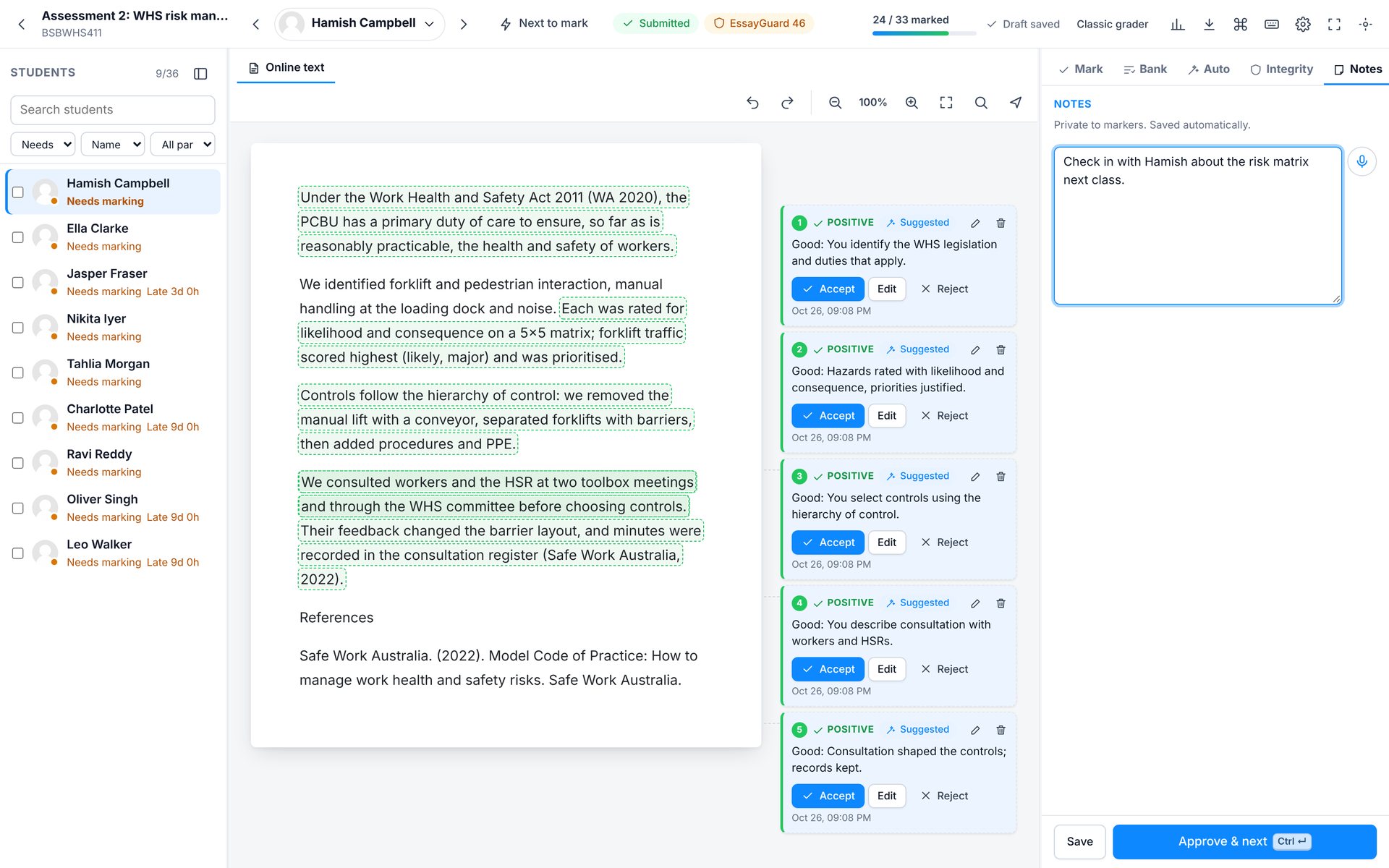
If EssayGuard or DocGuard is installed, its result appears in the top bar and the Integrity tab. Private notes are for markers only and are never shown to students.
Marking
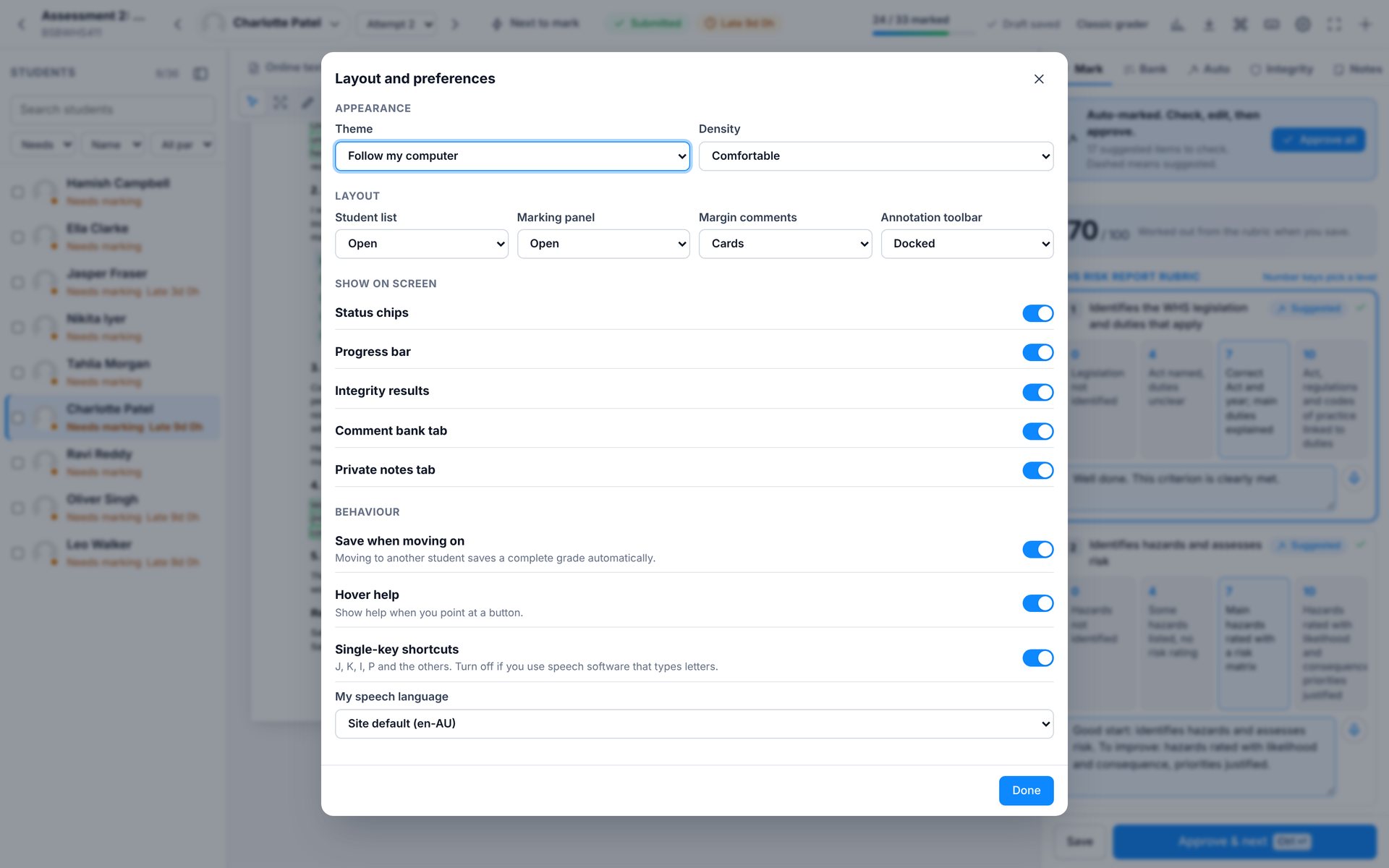
Shortcuts and layout
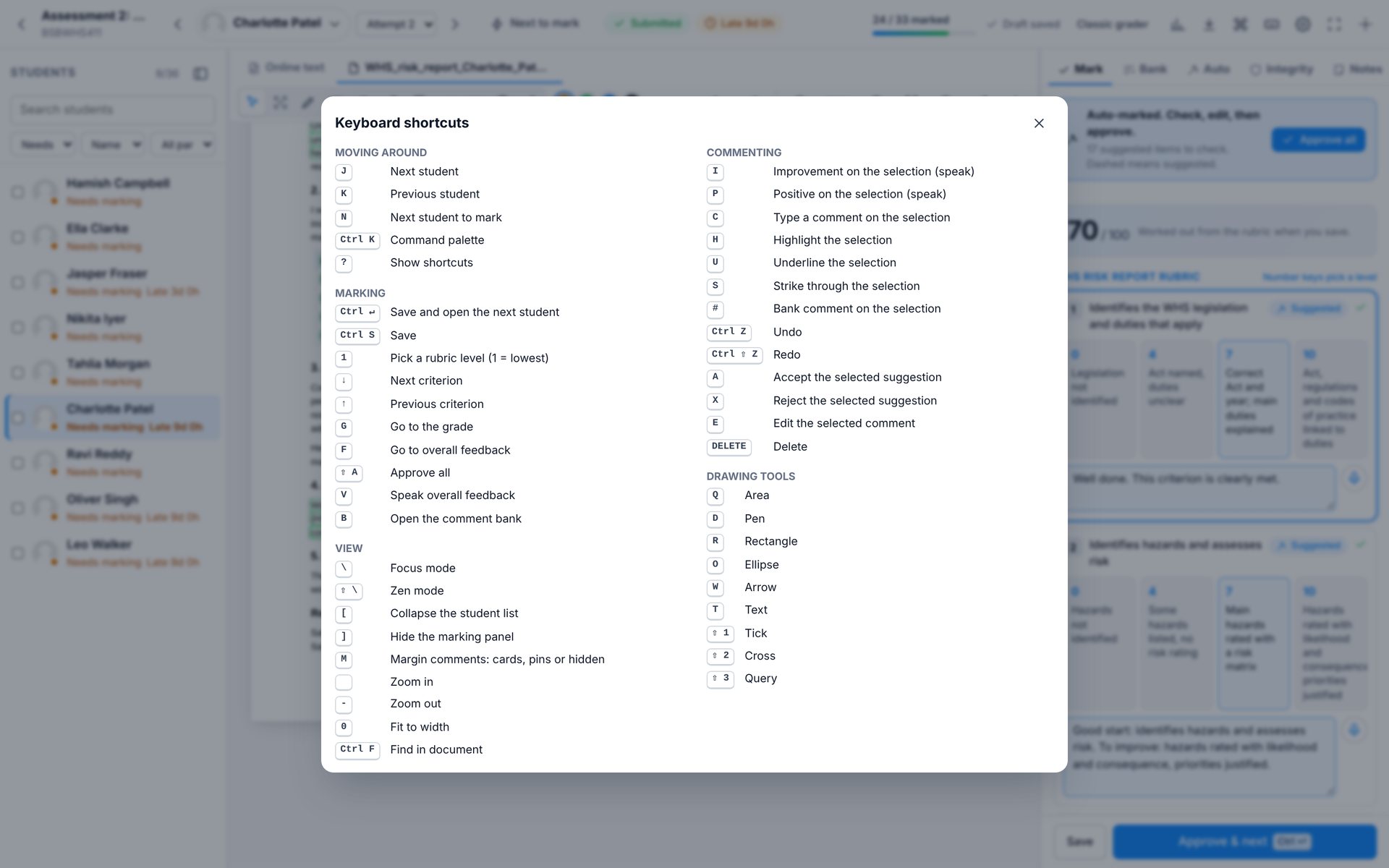
Every action has a shortcut and every button has a tooltip. Press ? to see them all.
Moving around
- J K
- Next and previous student
- N
- Next student to mark
- Ctrl K
- Command palette
- ?
- Show shortcuts
Marking
- Ctrl Enter
- Save and open the next student
- Ctrl S
- Save
- 1–9
- Pick a rubric level
- G
- Go to the grade
- F
- Go to overall feedback
- V
- Speak overall feedback
- Shift A
- Approve all
- B
- Open the comment bank
Commenting
- I
- Improvement on the selection
- P
- Positive on the selection
- C
- Type a comment
- H U S
- Highlight, underline, strike
- #
- Bank comment
- A X E
- Accept, reject, edit a suggestion
- Ctrl Z
- Undo
View
- \
- Focus mode
- Shift \
- Zen mode
- [ ]
- Student list and panel
- M
- Margin comments: cards, pins or hidden
- + - 0
- Zoom in, out, fit width
- Ctrl F
- Find in document
Auto-marking
Auto-marking
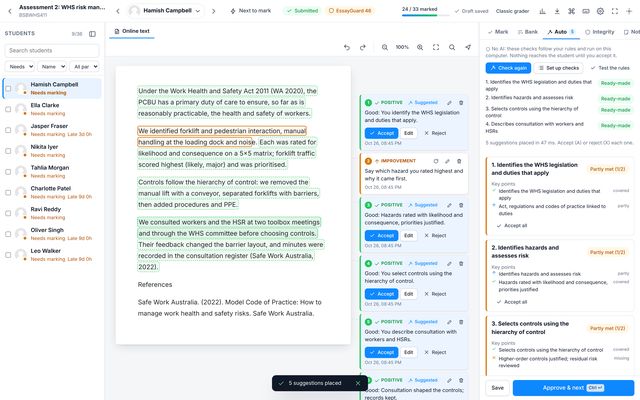
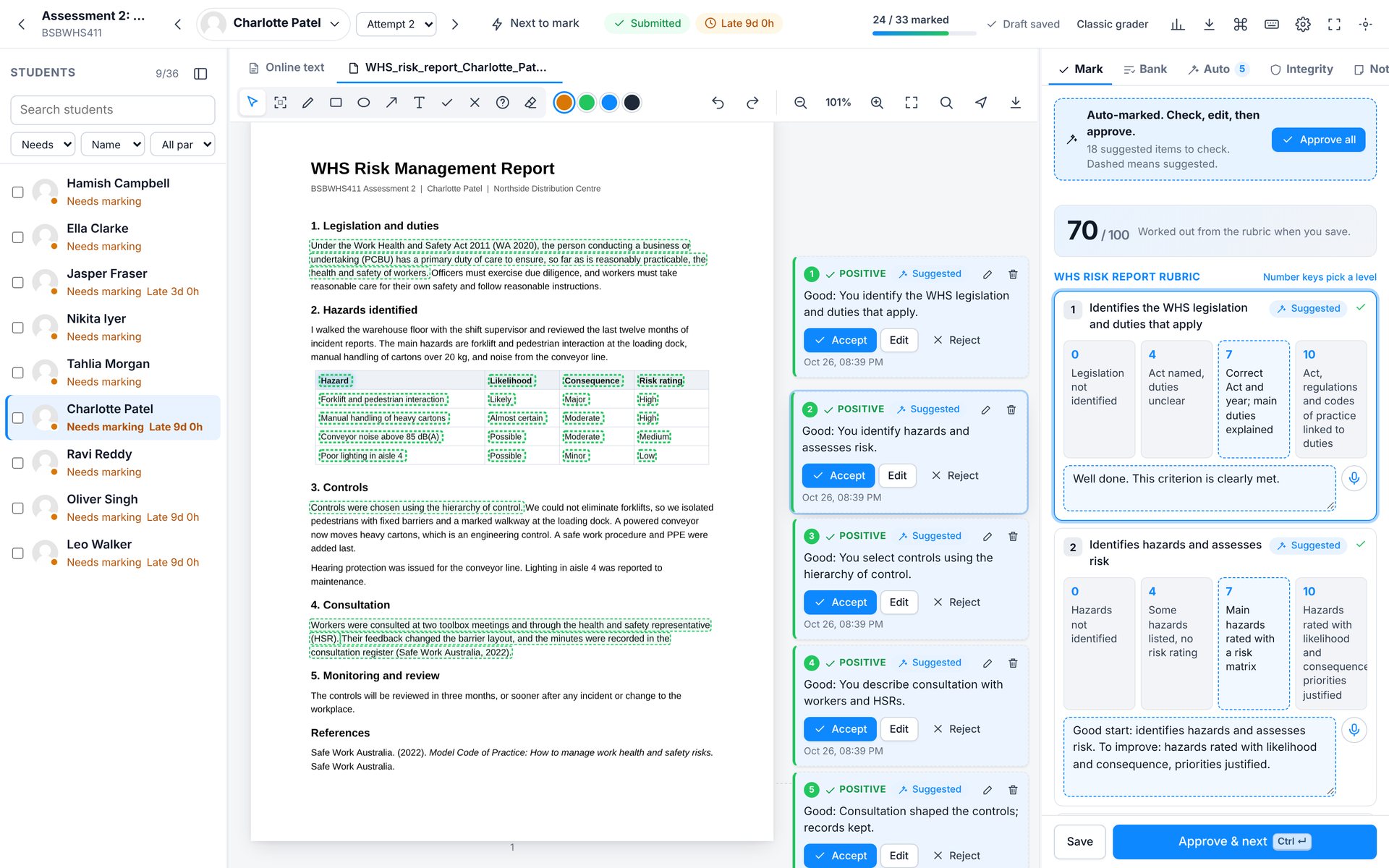
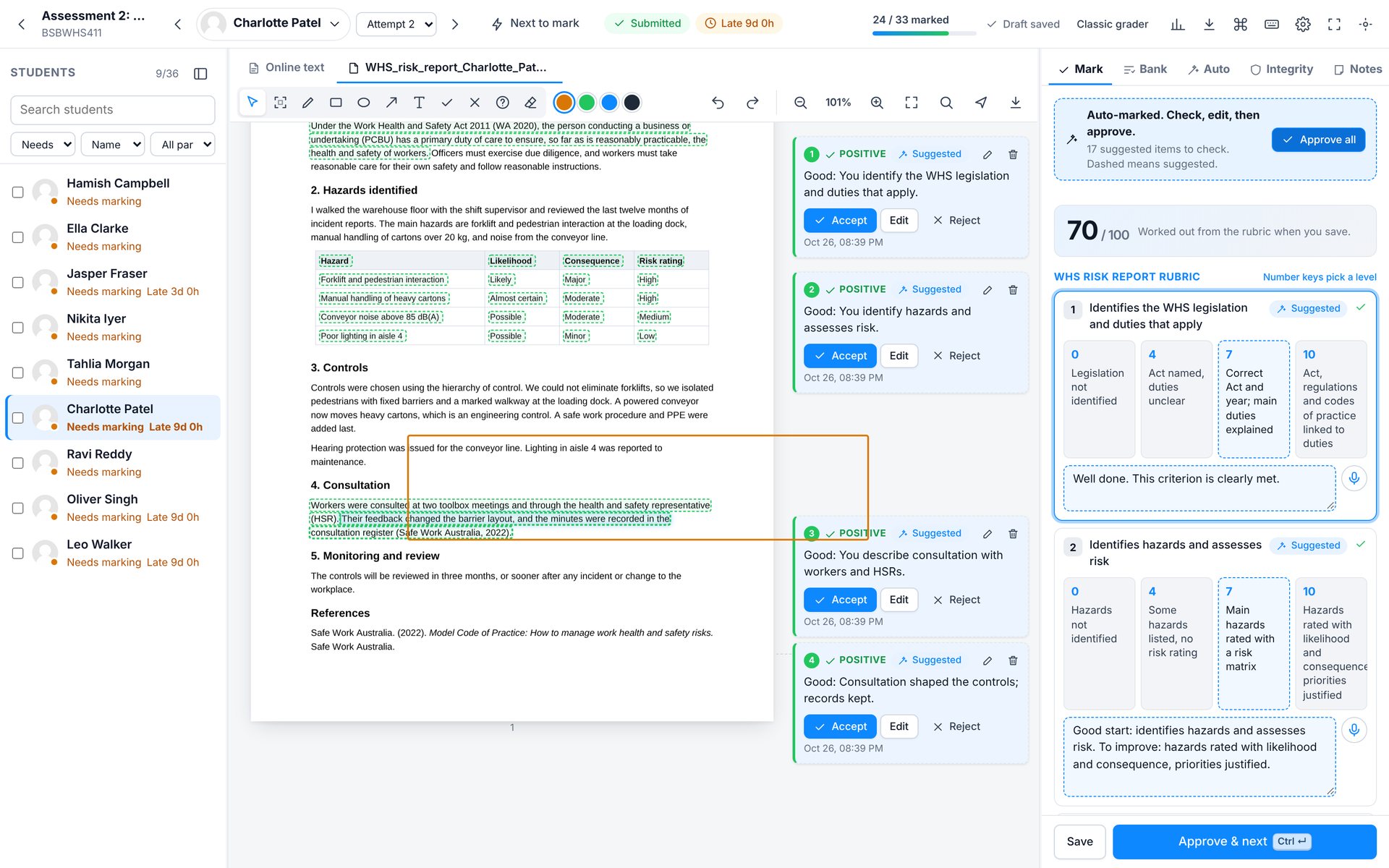
Turn on auto-marking and every submission opens already marked: levels picked, remarks written, the strong evidence highlighted, overall feedback drafted and the grade filled in. Dashed means suggested. You check it, change anything you disagree with, and approve.
- 1Select, area, pen, shapes, arrow, text and stamps
- 2Annotation colours
- 3Undo, zoom, fit, find and download with comments
- 4Green highlight: evidence the auto-marker found
- 5Suggested comment. Accept, edit or reject
- 6Grade from the rubric
- 7Dashed levels are suggestions
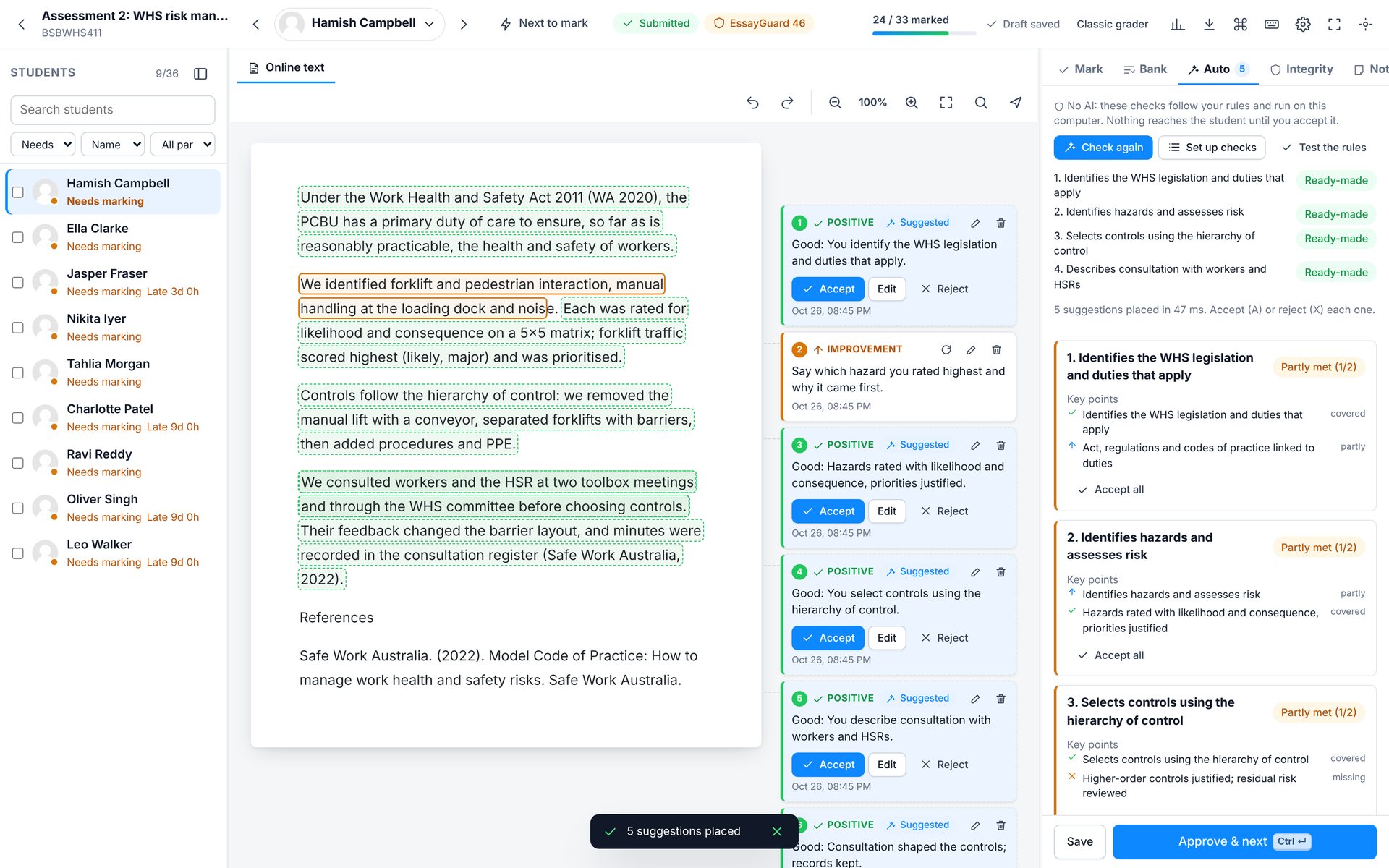
- 1No AI: rules you can read, run in the browser
- 2Run again, set up checks, or test the rules
- 3Every criterion has ready-made checks from your rubric
- 4Key points: covered, partly covered or missing
Auto-marking
Set up and test your checks
For sharper suggestions, choose what the checks look for in each criterion.
| Check | Use it for |
|---|---|
| Key points | Ideas the answer should cover, matched even when written in different words. |
| Required terms | Words or phrases that must appear, with alternatives such as WHS Act | Work Health and Safety Act. |
| Must not say | Outdated or incorrect terms, with a comment to suggest. |
| Word count | A minimum or maximum length. |
| Question parts | Multi-part questions, such as a) hazards, b) controls. |
| Pattern | Citations, references or your own pattern. |
| Legislation and references | Act names and years, and citations that match the reference list. |
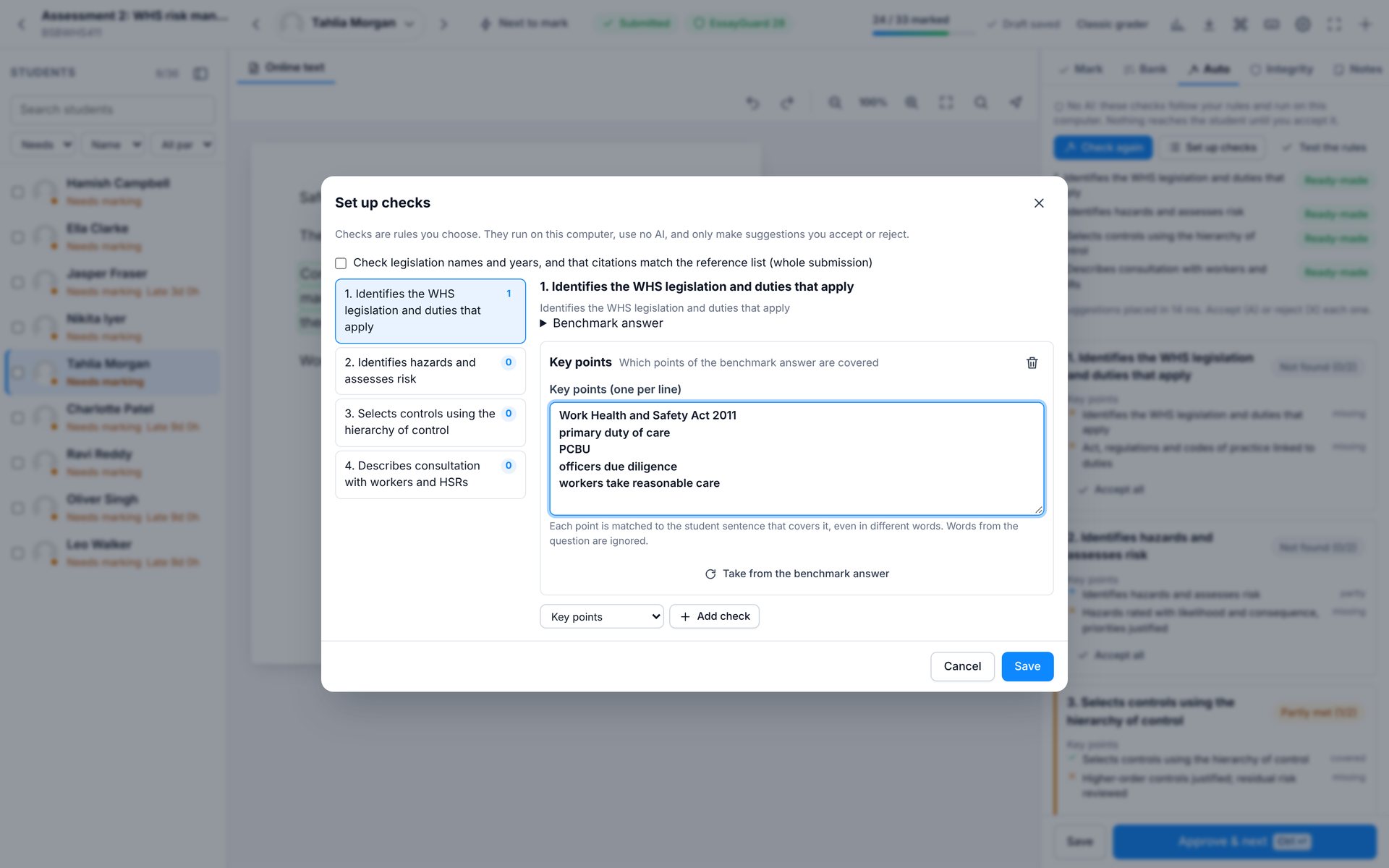
- 1Pick a criterion
- 2Key points, one per line
- 3Add terms, word counts, parts or patterns
Then test your rules against the work you have already marked. You see how often they agree with you, and which phrases separate strong and weak answers.
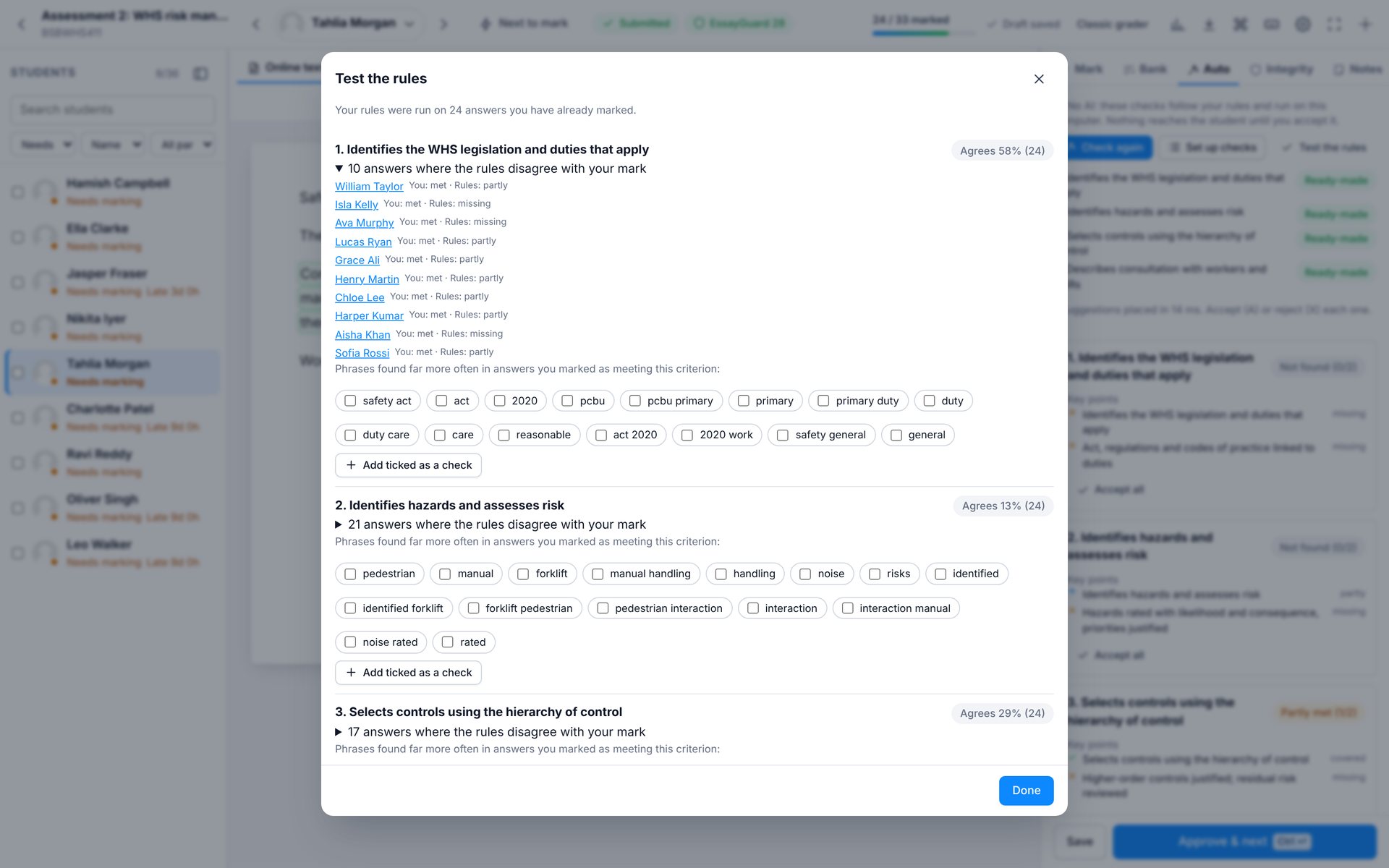
- 1Agreement with your own marks
- 2Phrases that separate strong and weak answers
Quiz essays
Quiz essays
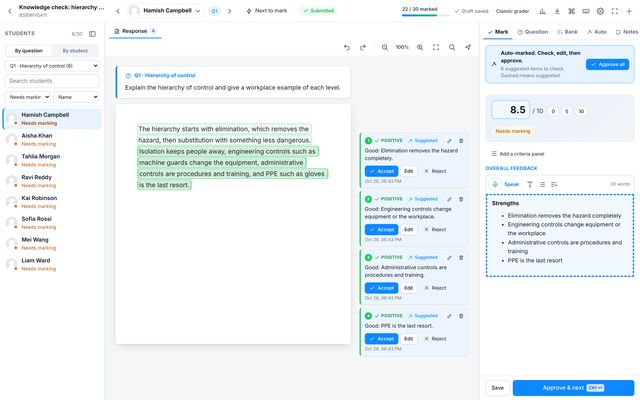
Fast Grade marks essays and other manually graded quiz questions. Mark one question for every student, which is fastest and most consistent, or switch to marking by student. The question always sits above the answer.
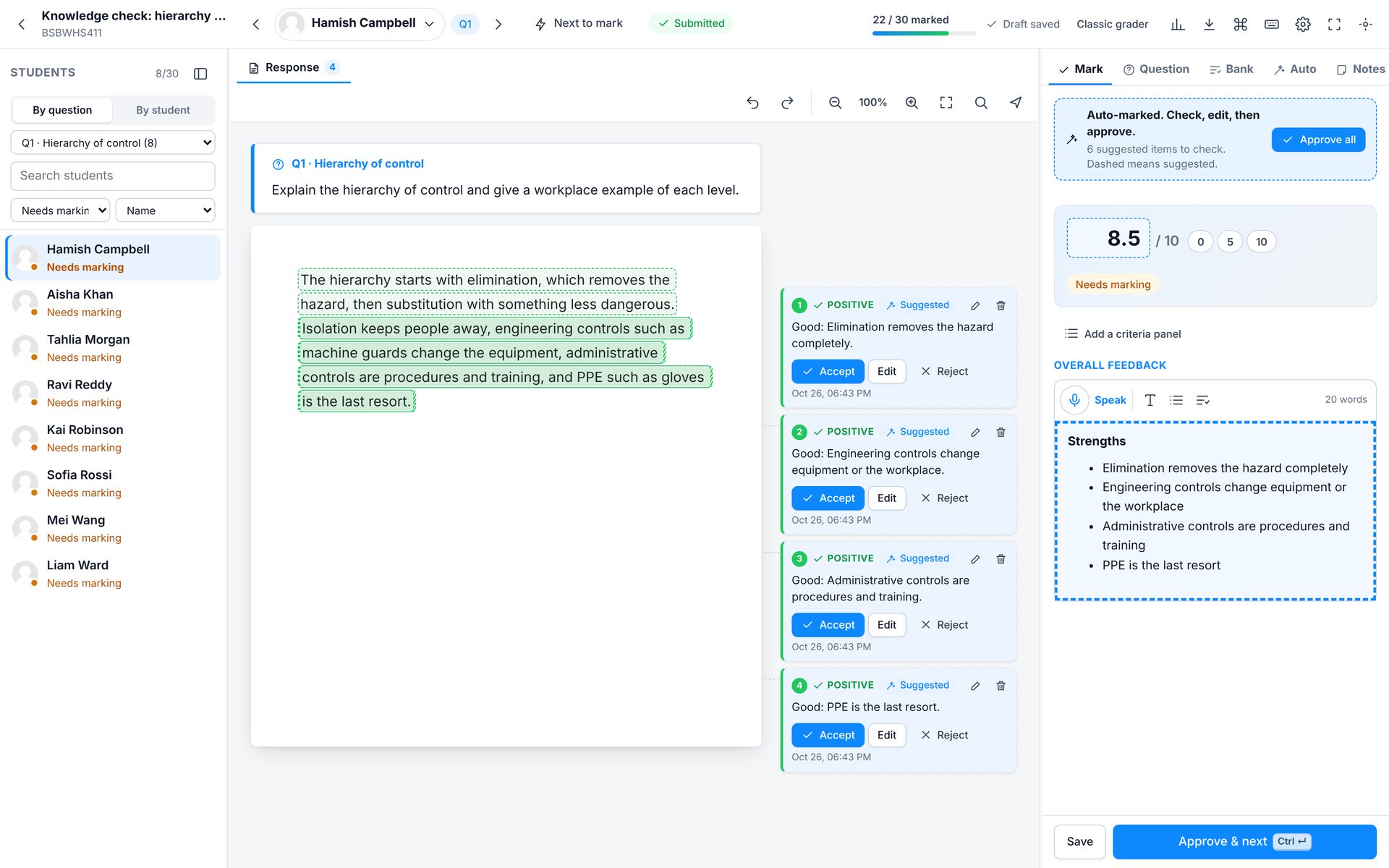
- 1By question or by student
- 2Choose the question; the number still needs marking
- 3The question sits above every answer
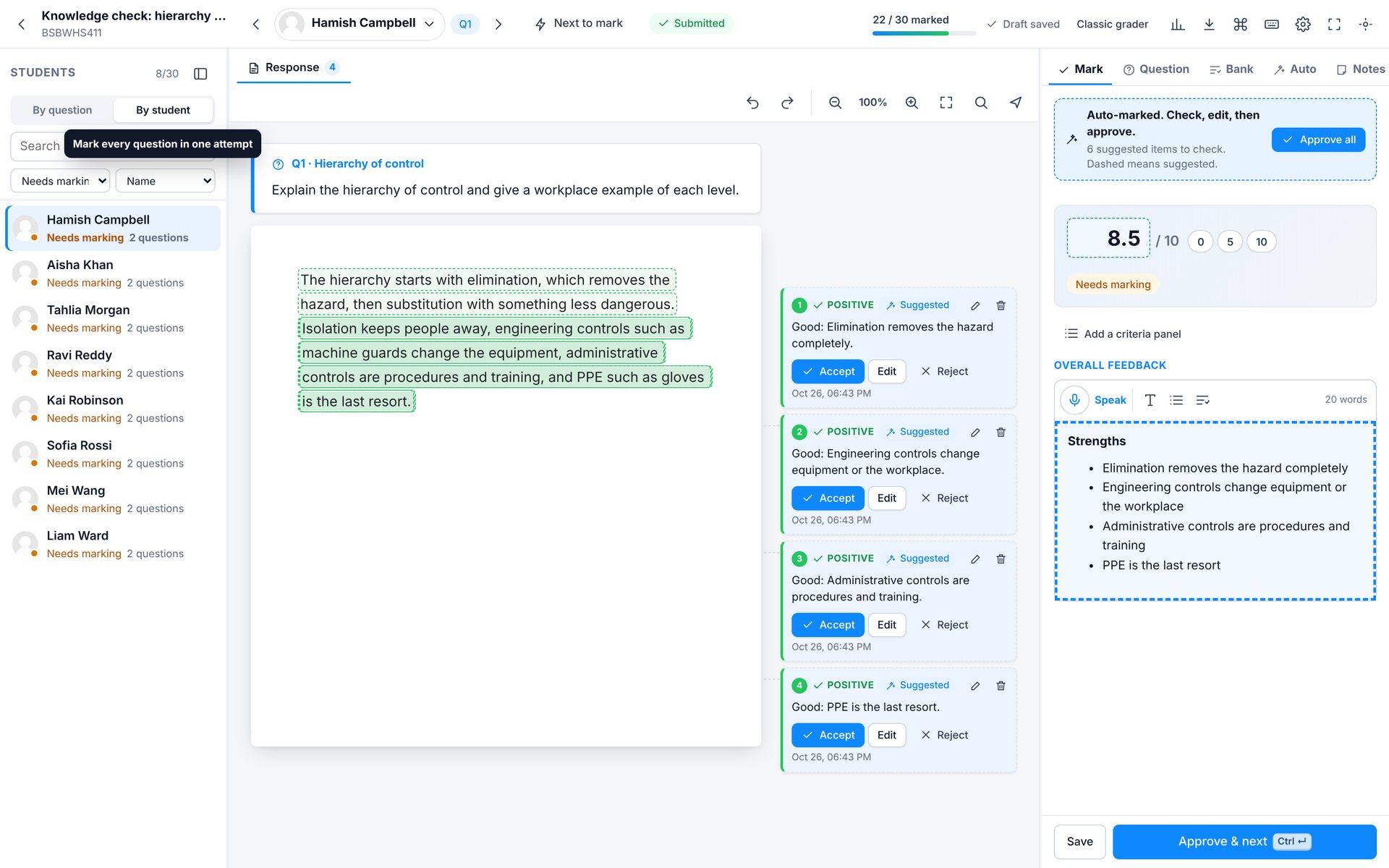
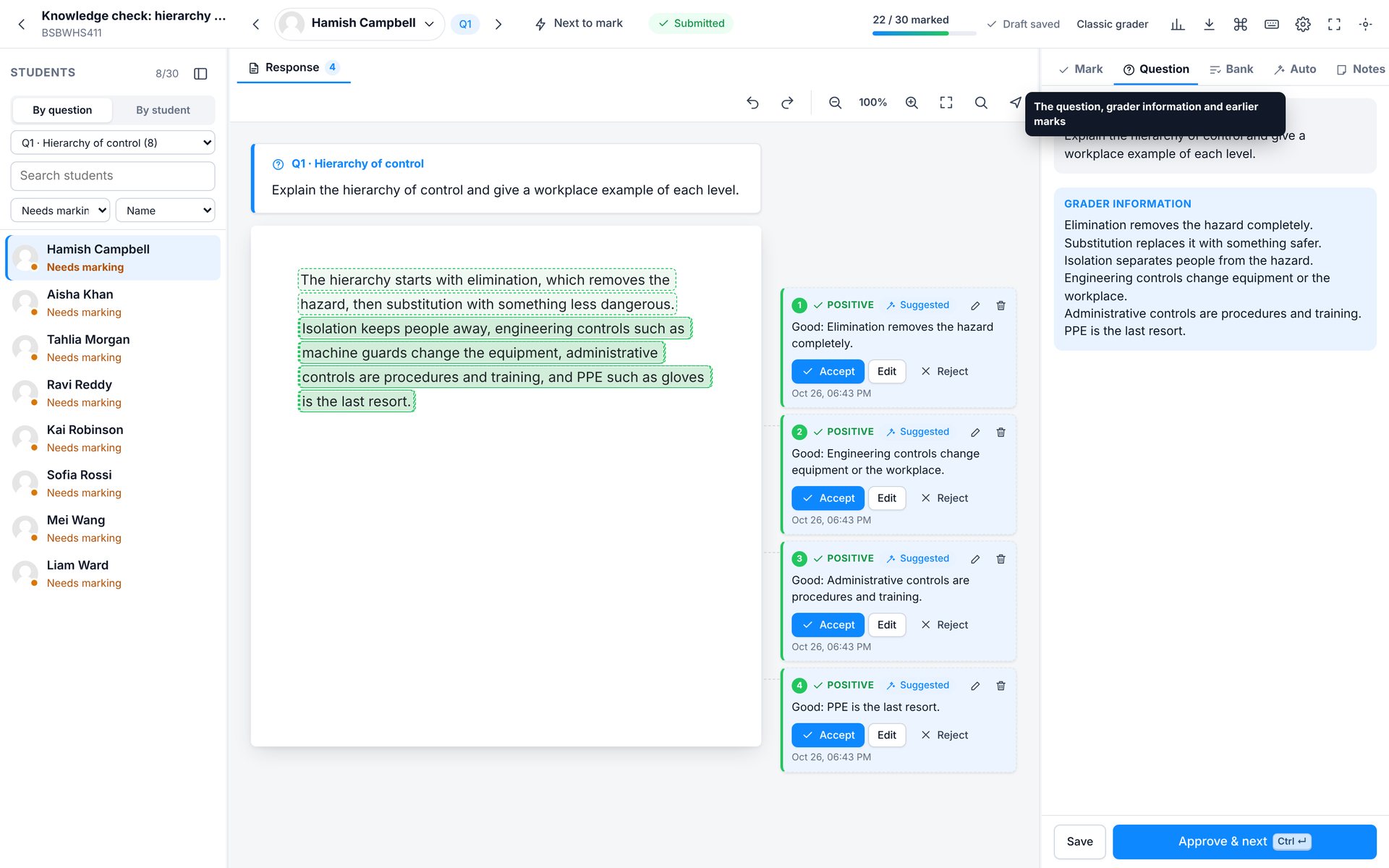
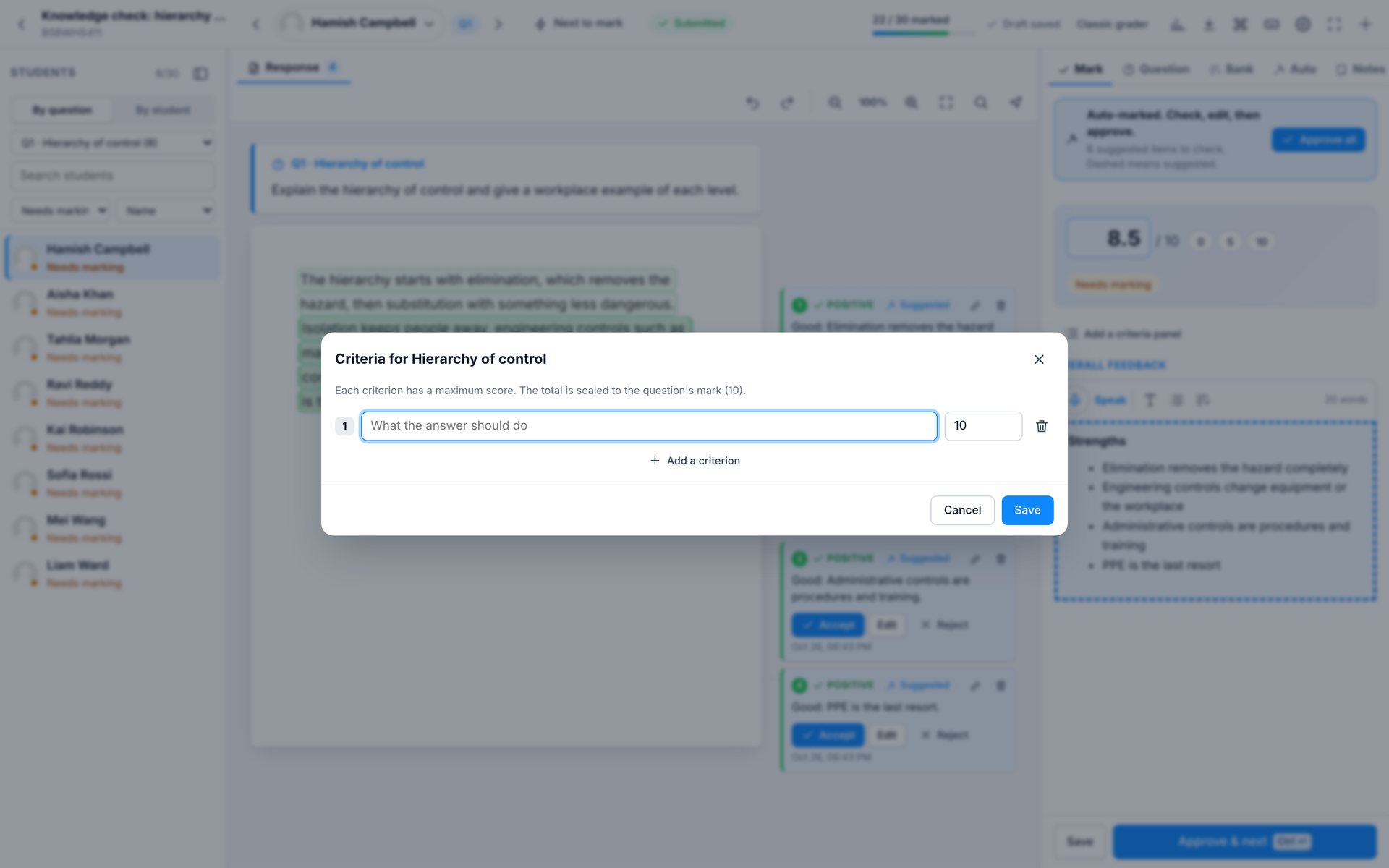
Similar answers are grouped, so you can give a whole group the same mark and comment. Add a criteria panel to mark an essay against a few clear points.
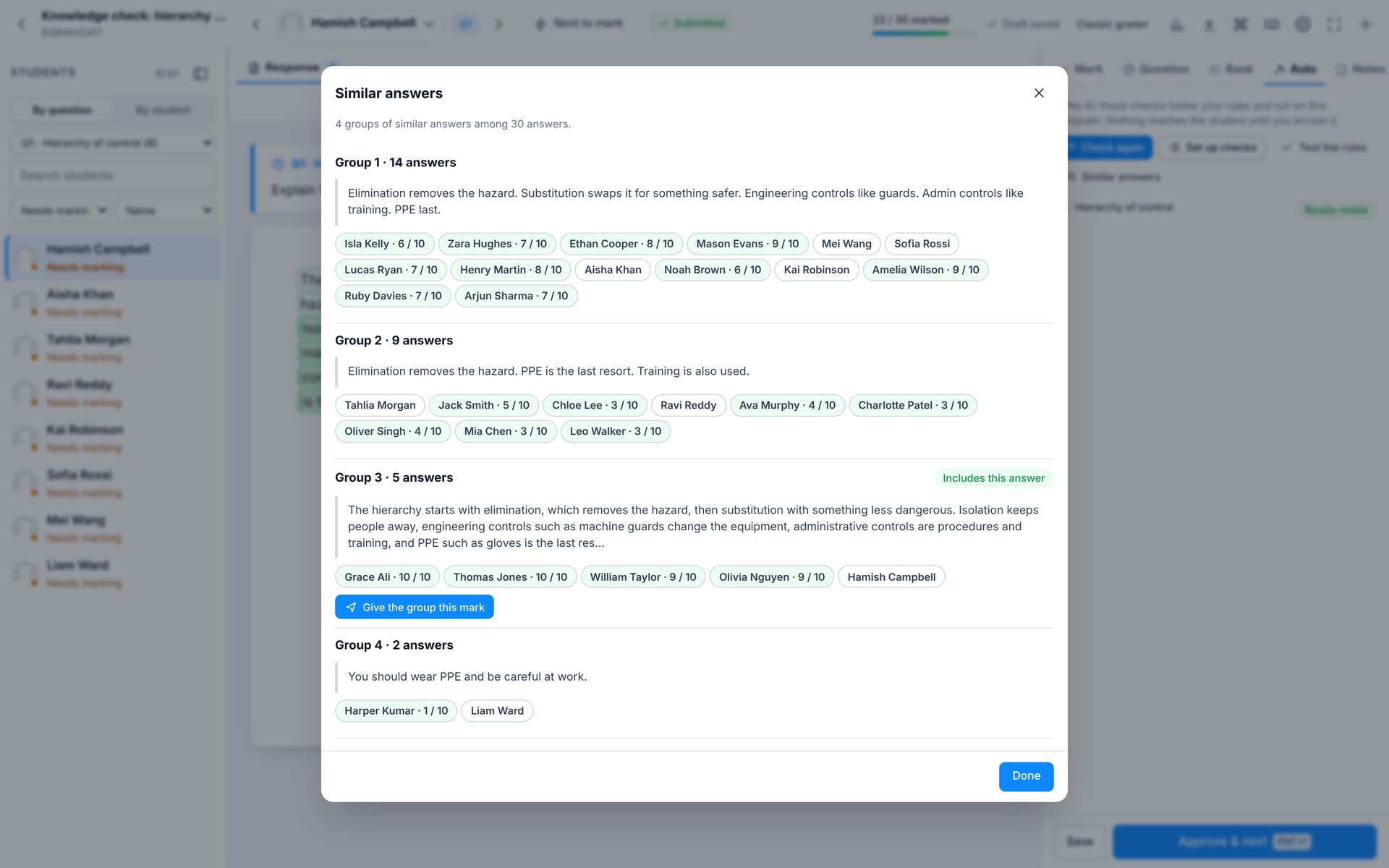
- 1Give the whole group this mark
Students
What students see
When marks are released, students open their feedback from a button on the assignment page. They see your comments on their own work, green and amber, and can download it as a PDF with a numbered comment list.
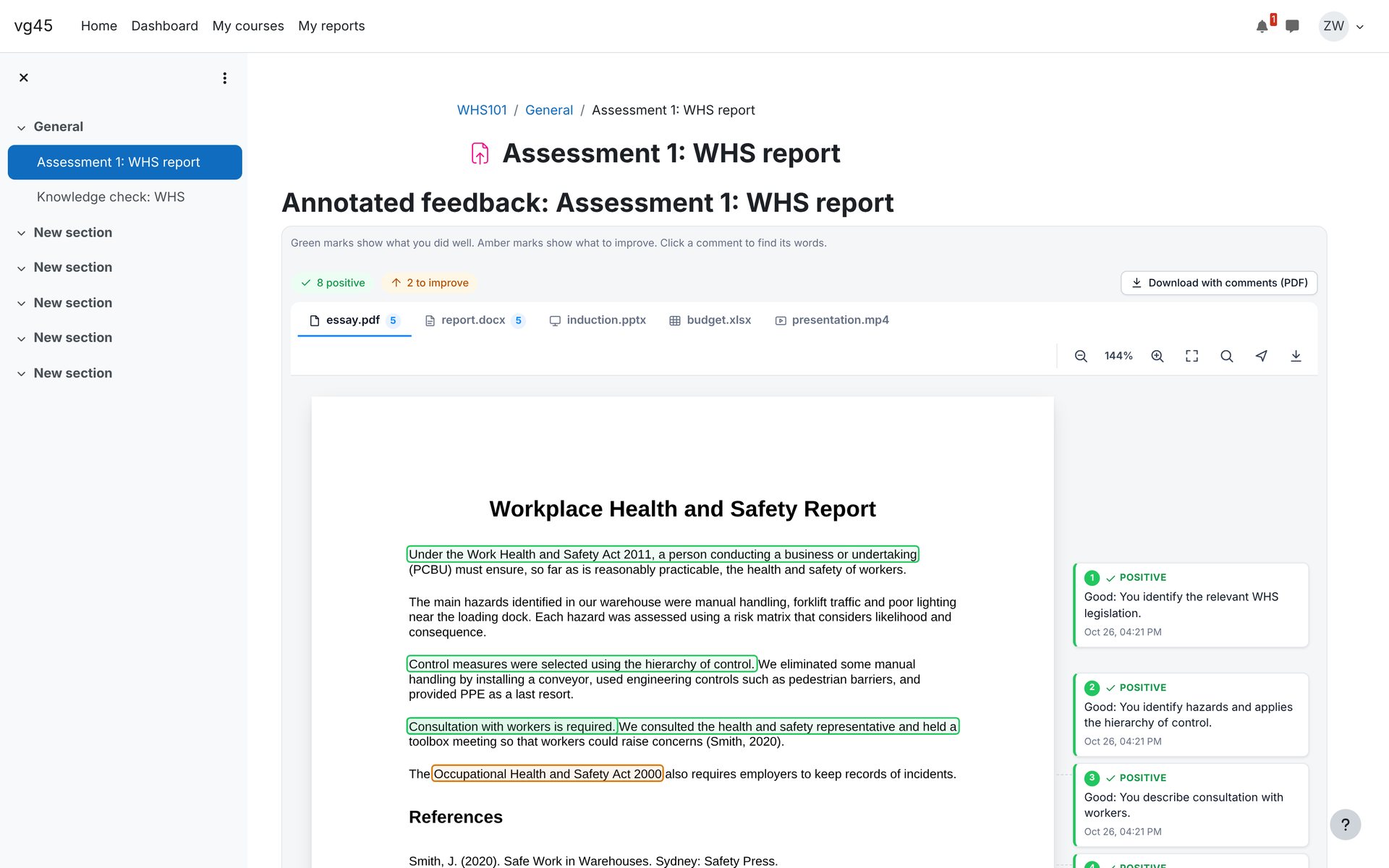
- 1Download with comments (PDF)
- 2Green and amber counts
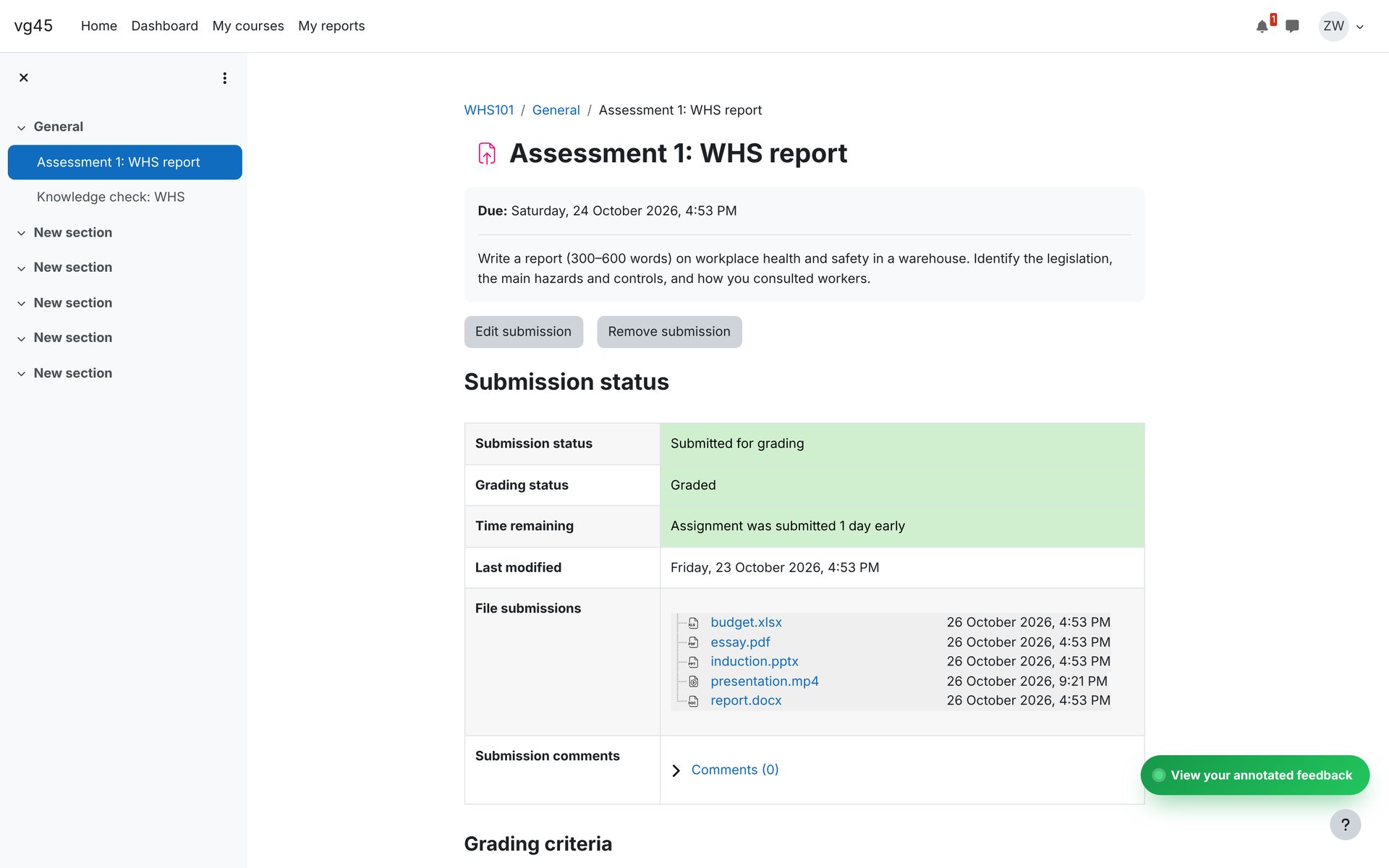
- 1View your annotated feedback
Students
Downloads
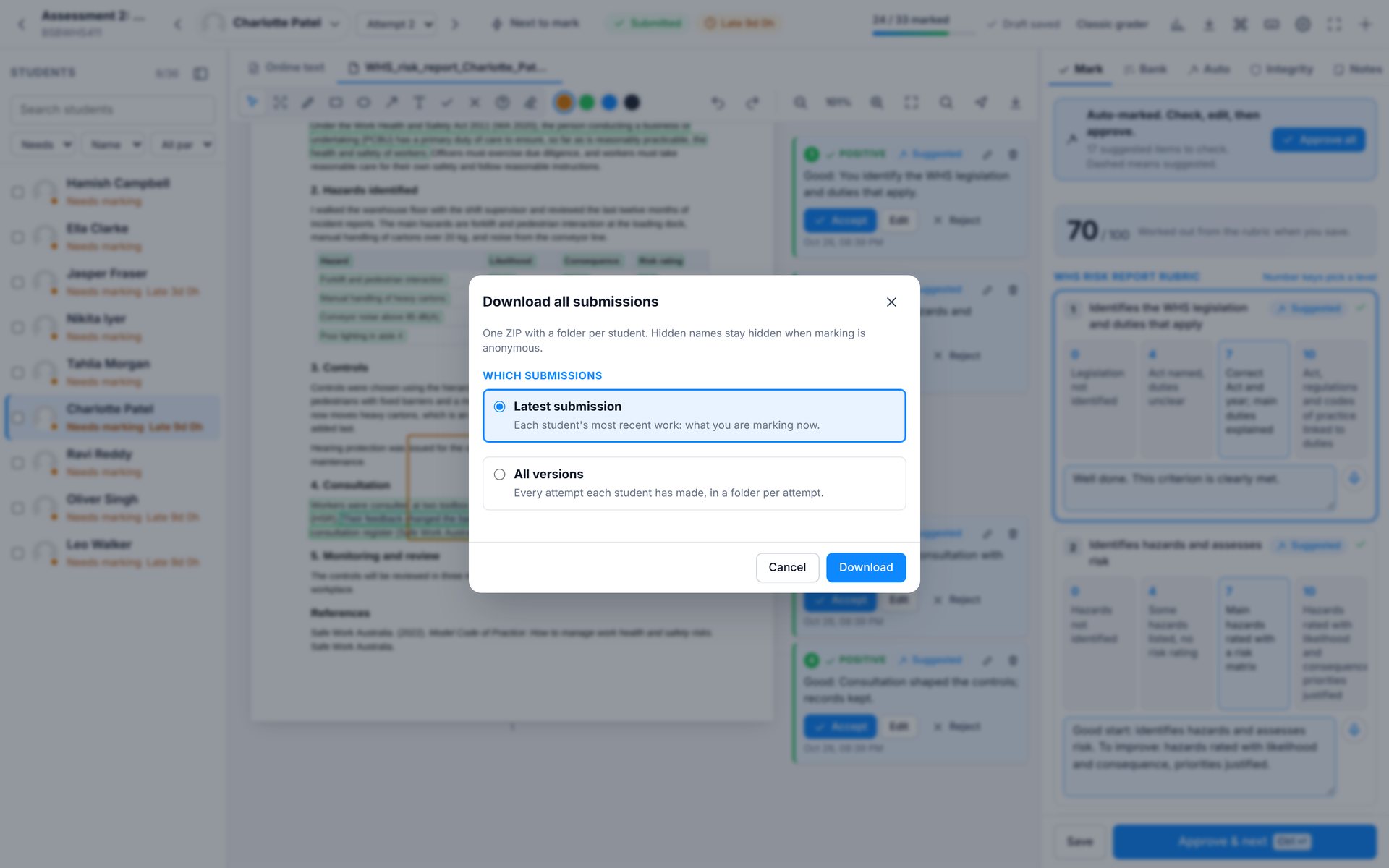
Download every submission for an assignment, or one quiz essay question, as a single ZIP: the latest version of each, or every version, with a folder per student. Hidden names stay hidden when marking is anonymous.
Report
The report
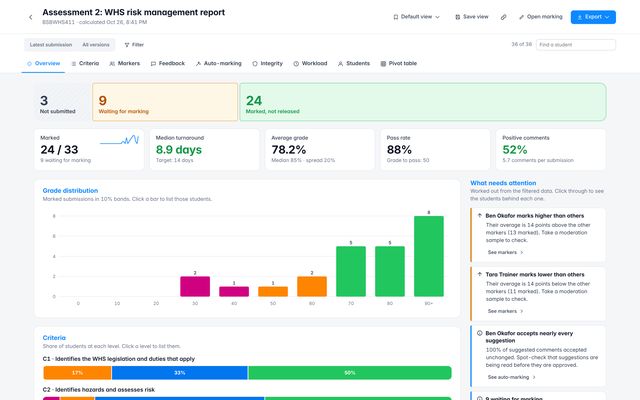
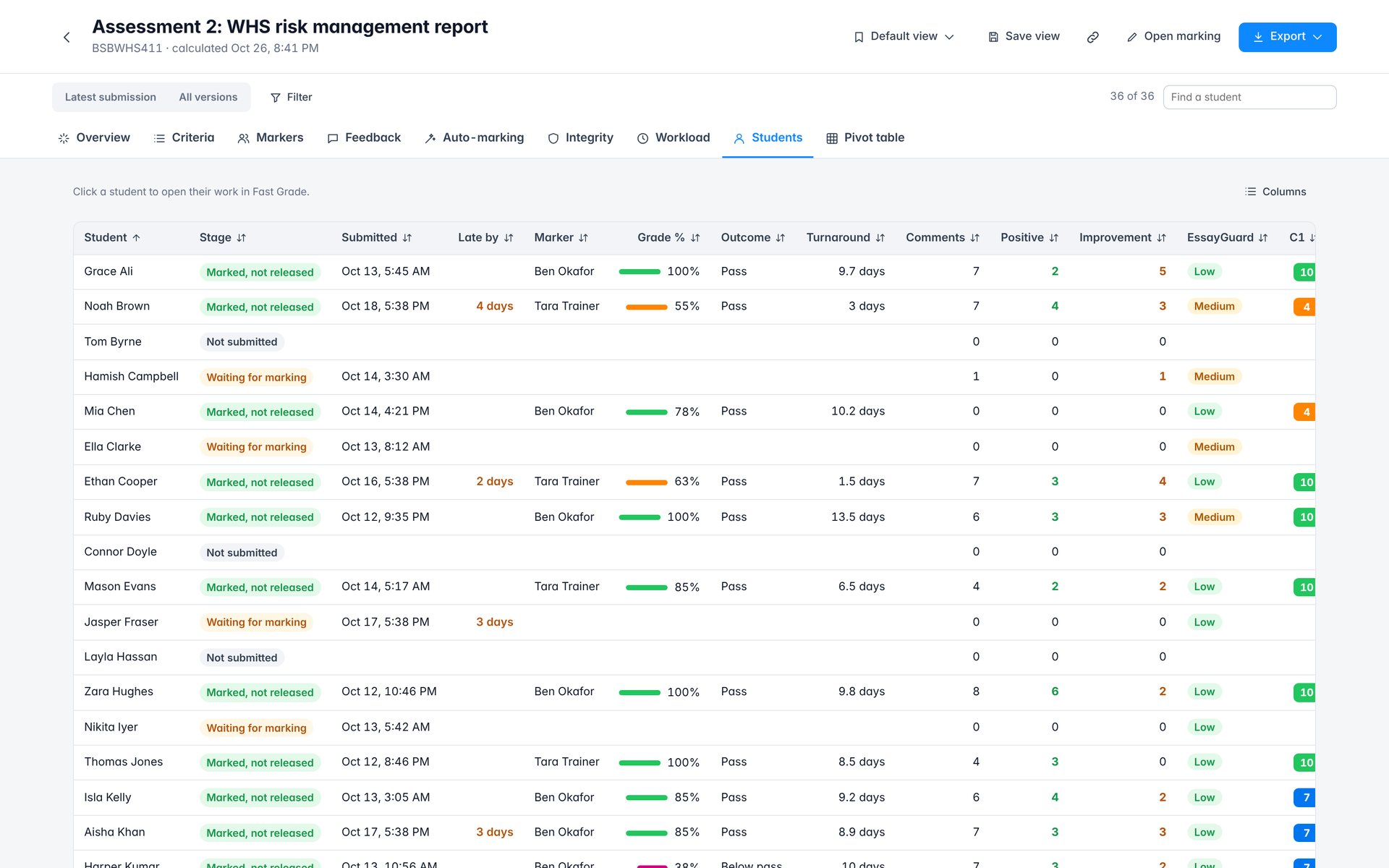
Open the report from the chart button in the top bar, or from the activity menu. It shows how marking is going, how students did on each criterion, how markers compare, and the quality of the feedback.
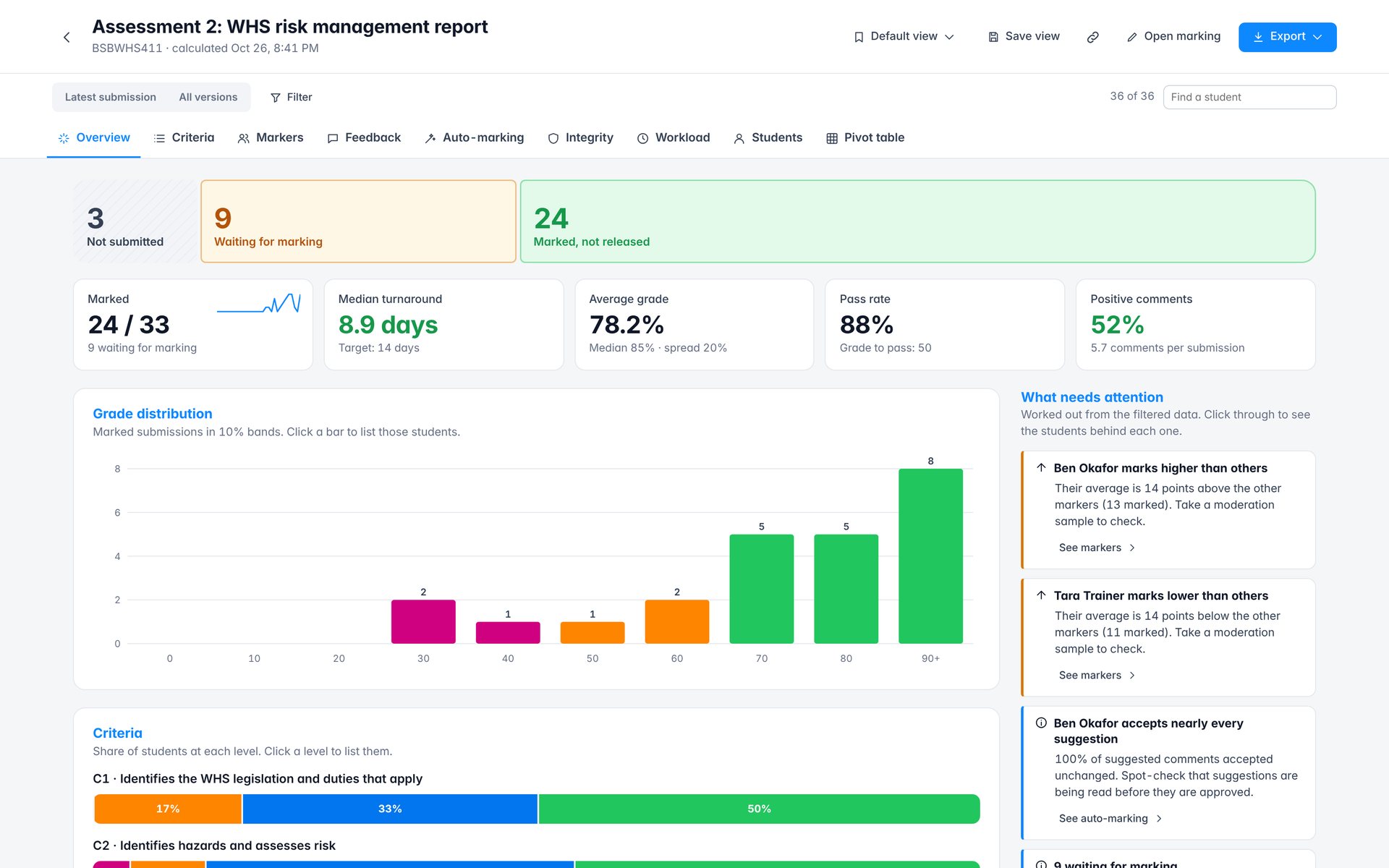
- 1Marking pipeline: click a stage to list those students
- 2Key numbers for the activity
- 3Grade distribution in 10% bands
- 4What needs attention, worked out for you
- 5Report tabs
- 6Latest or all versions, and filters
- 7Saved views, share link and export
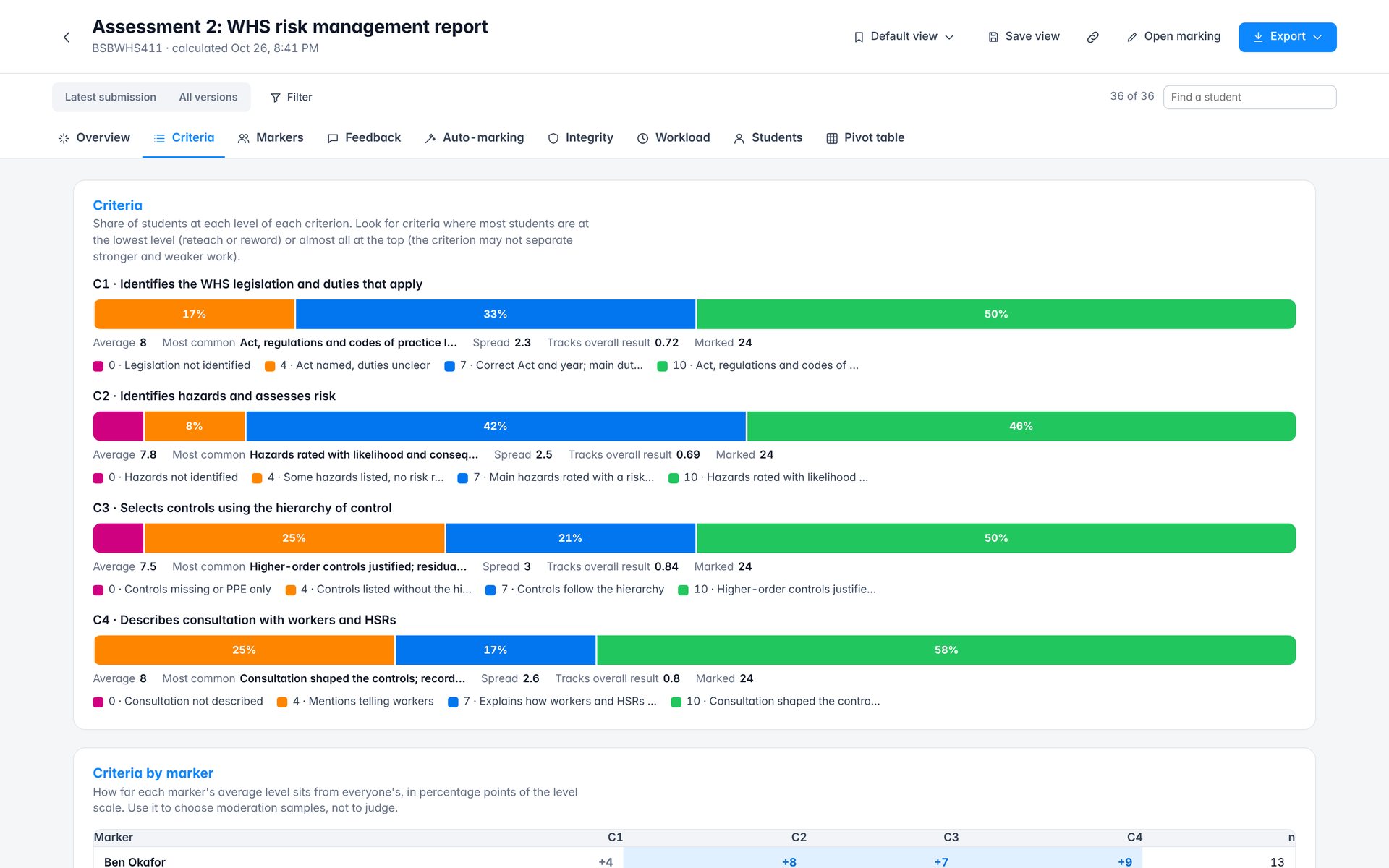
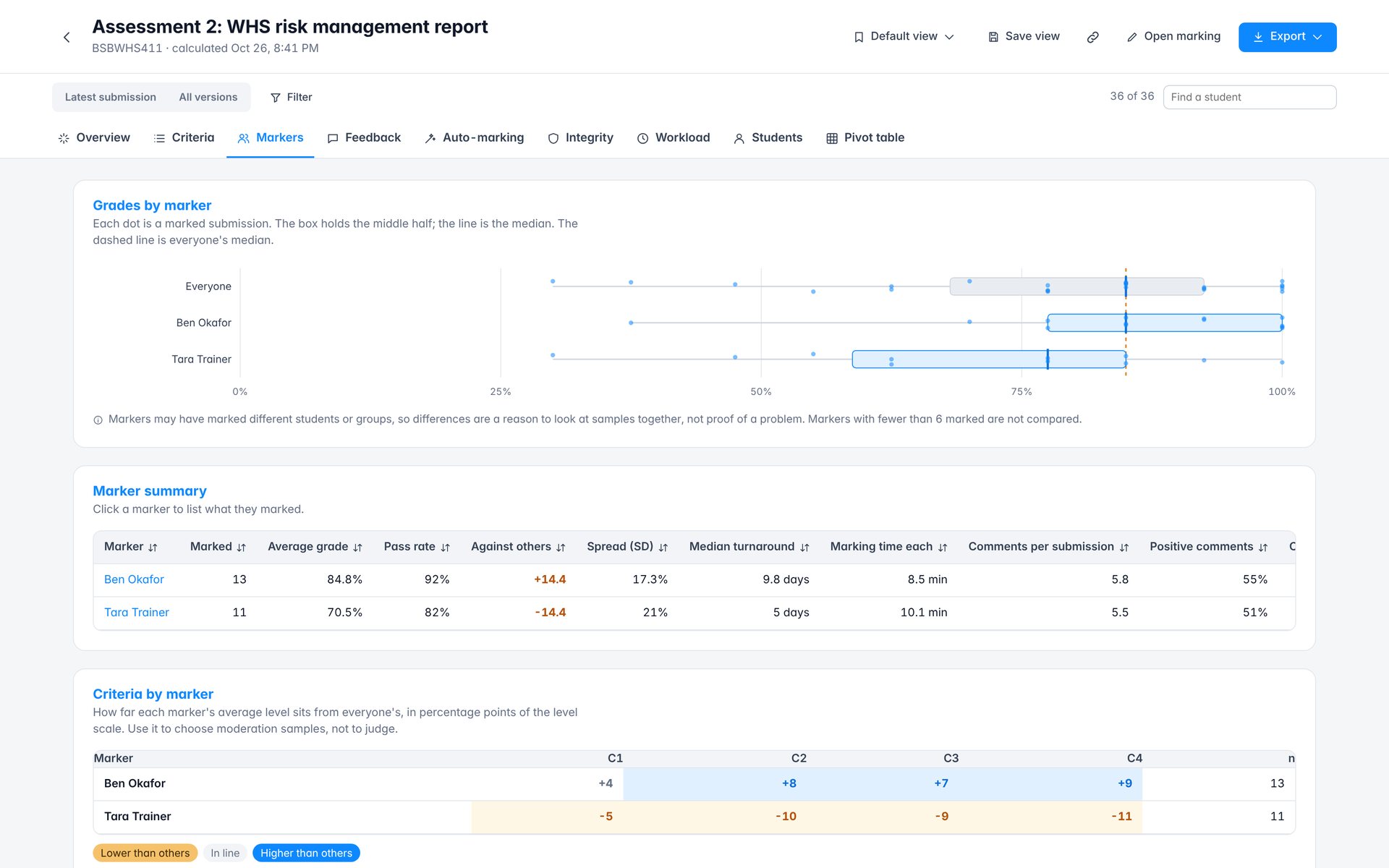
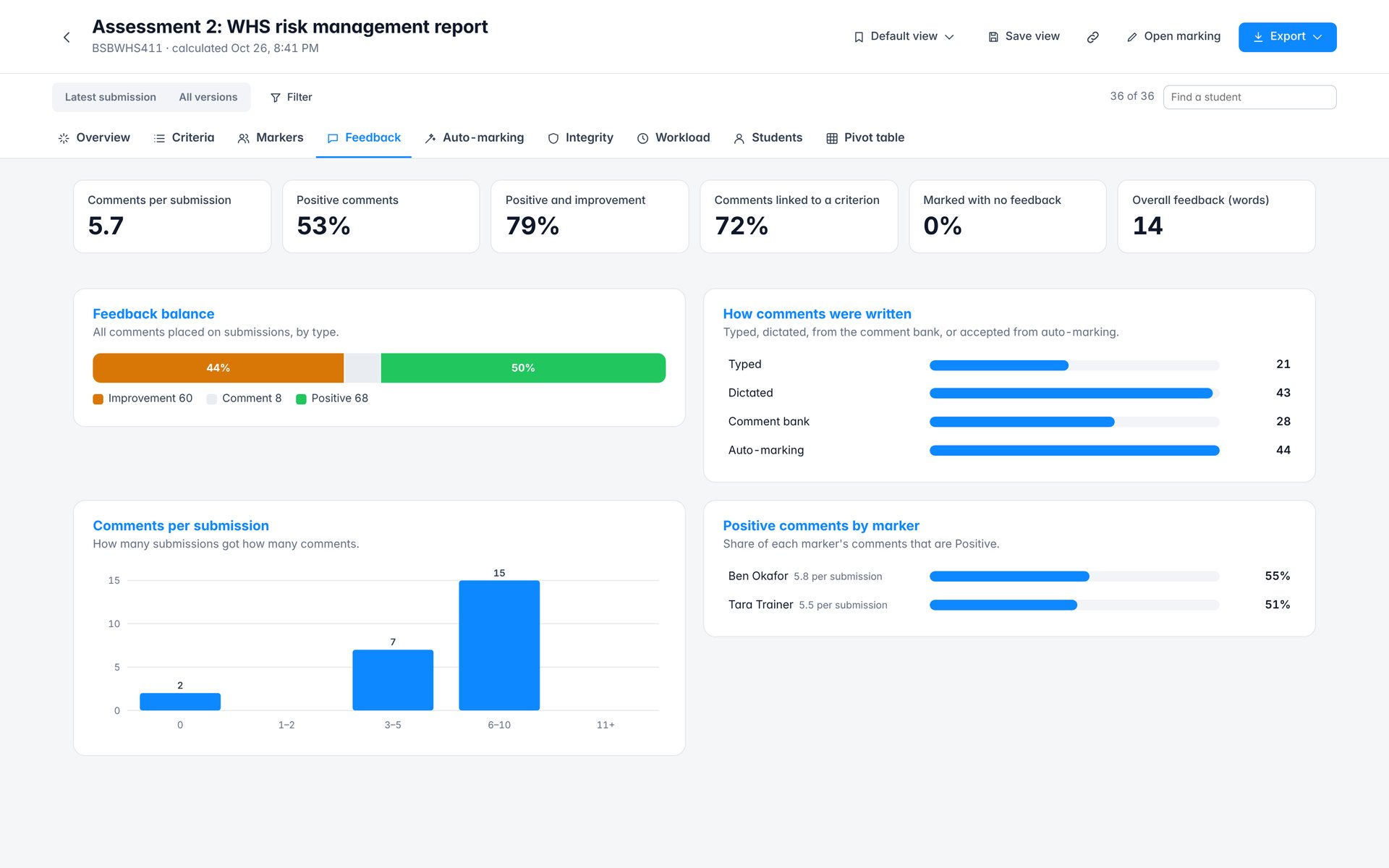
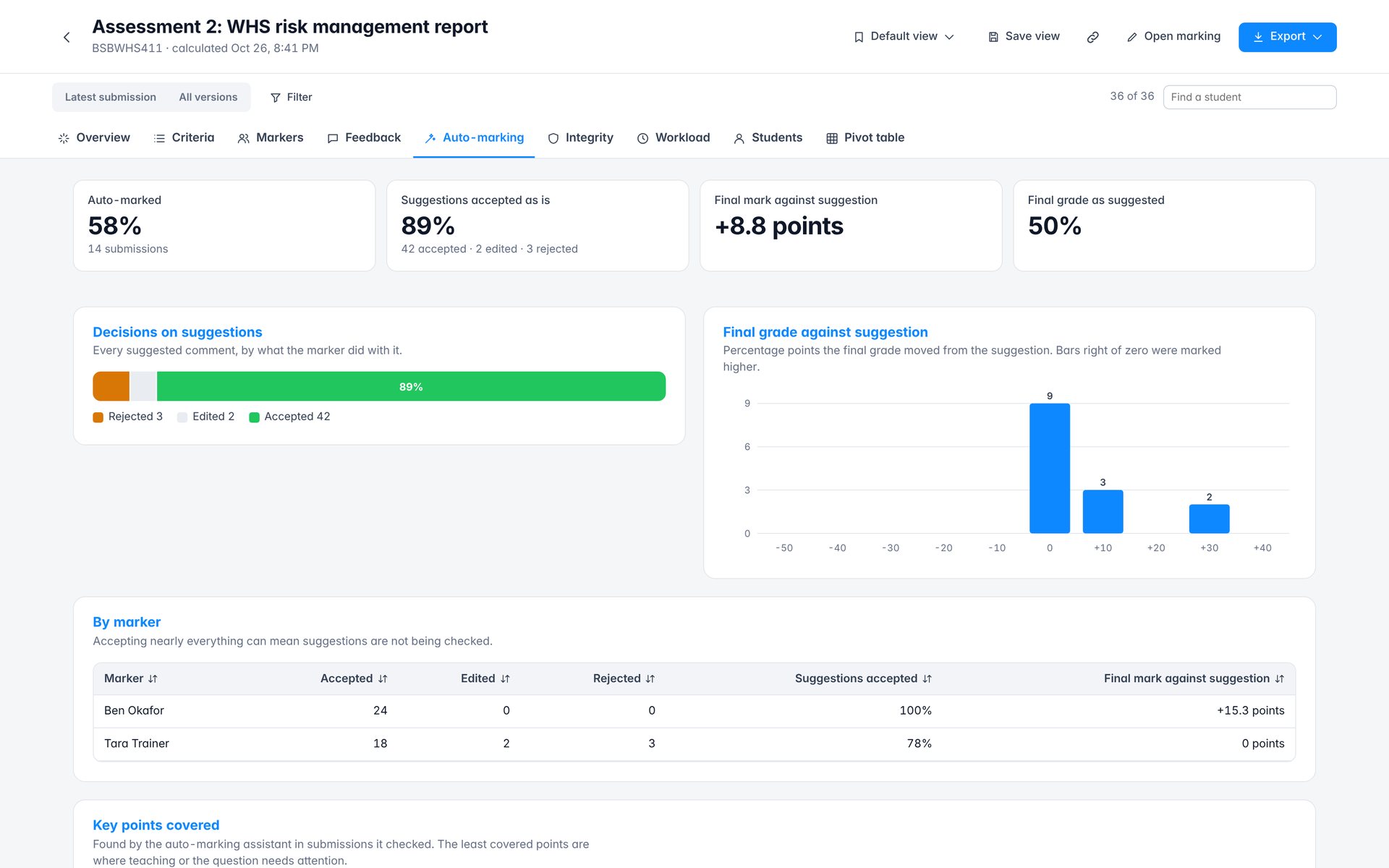
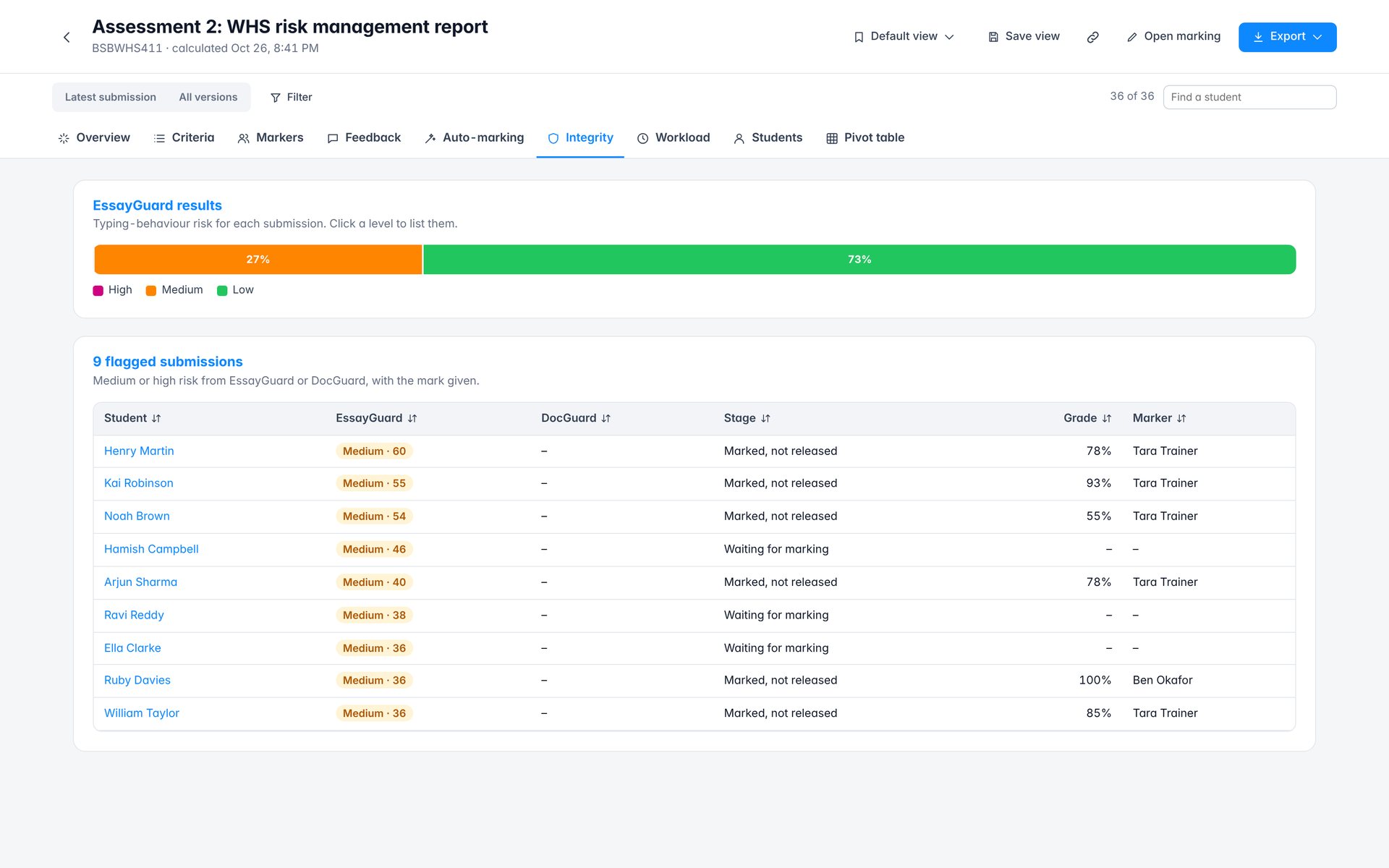
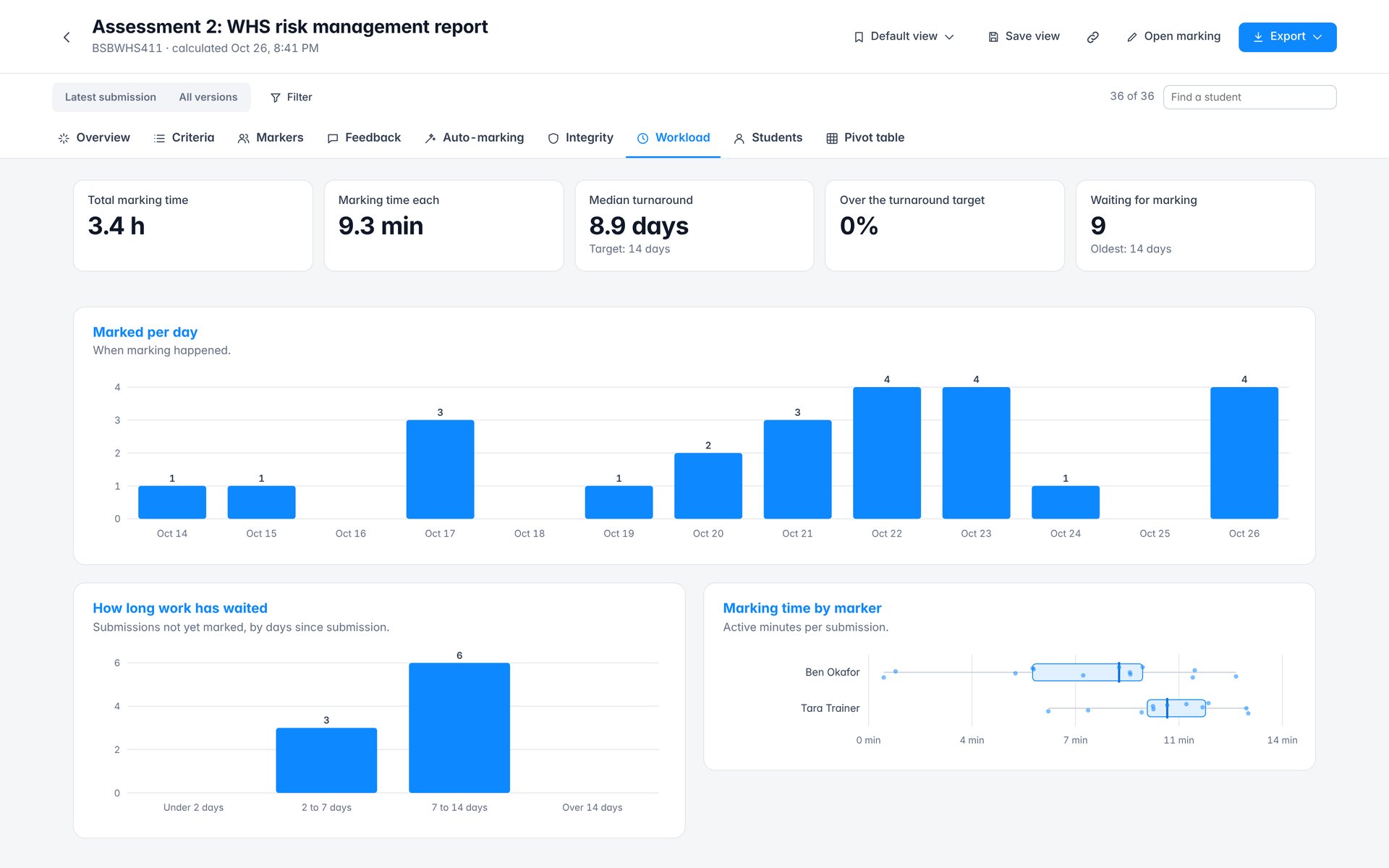
Report
Filter, pivot, save and export
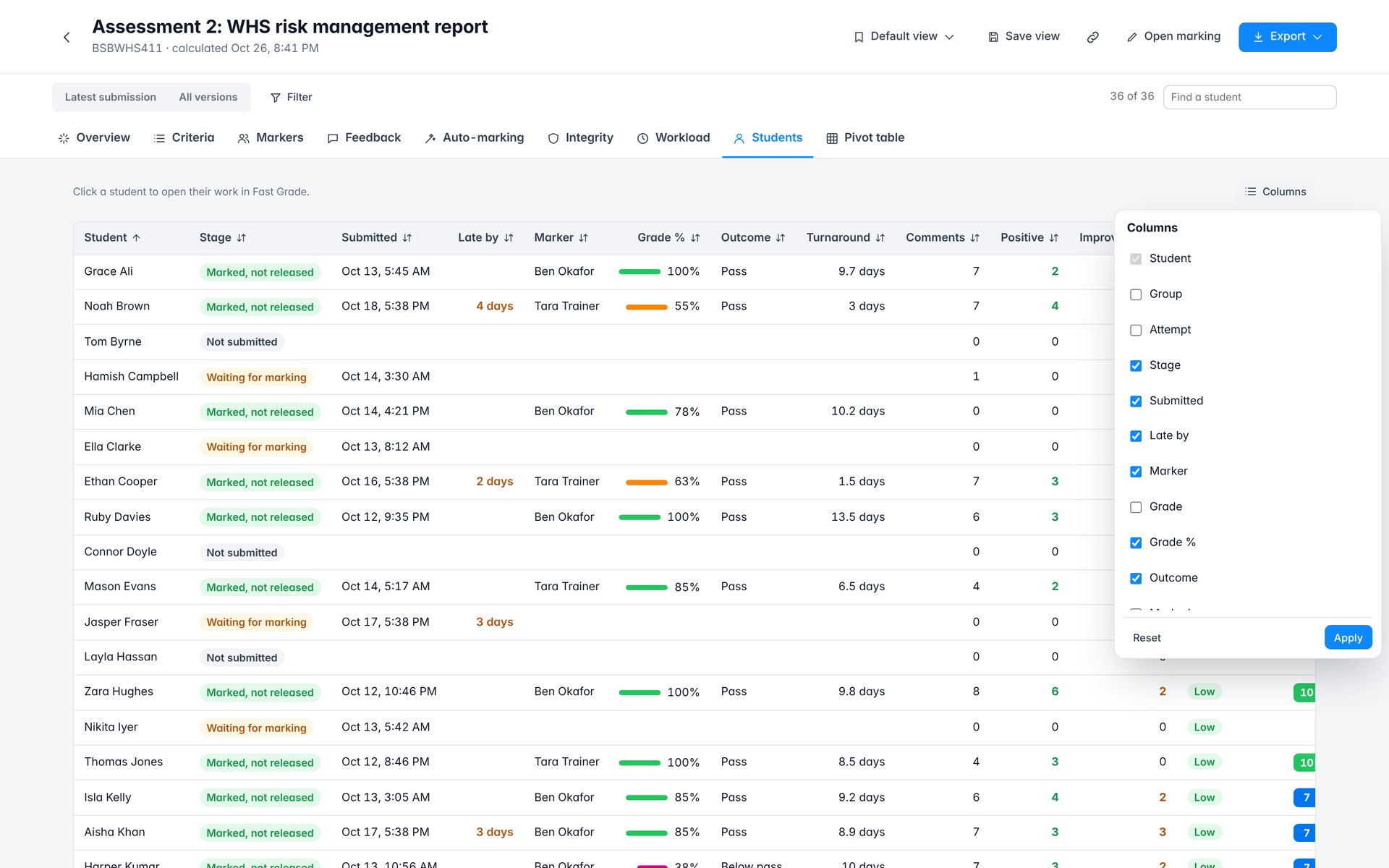
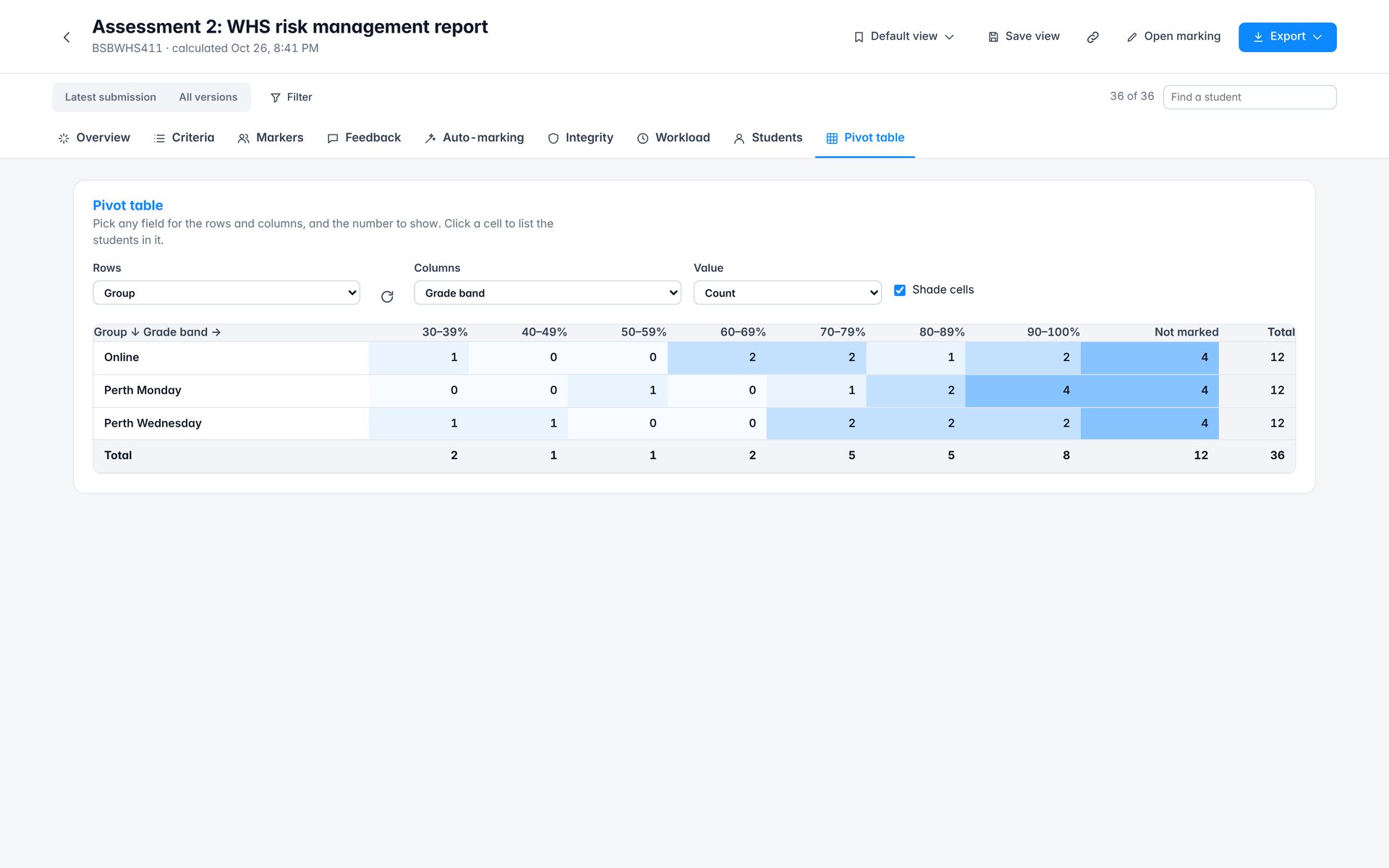
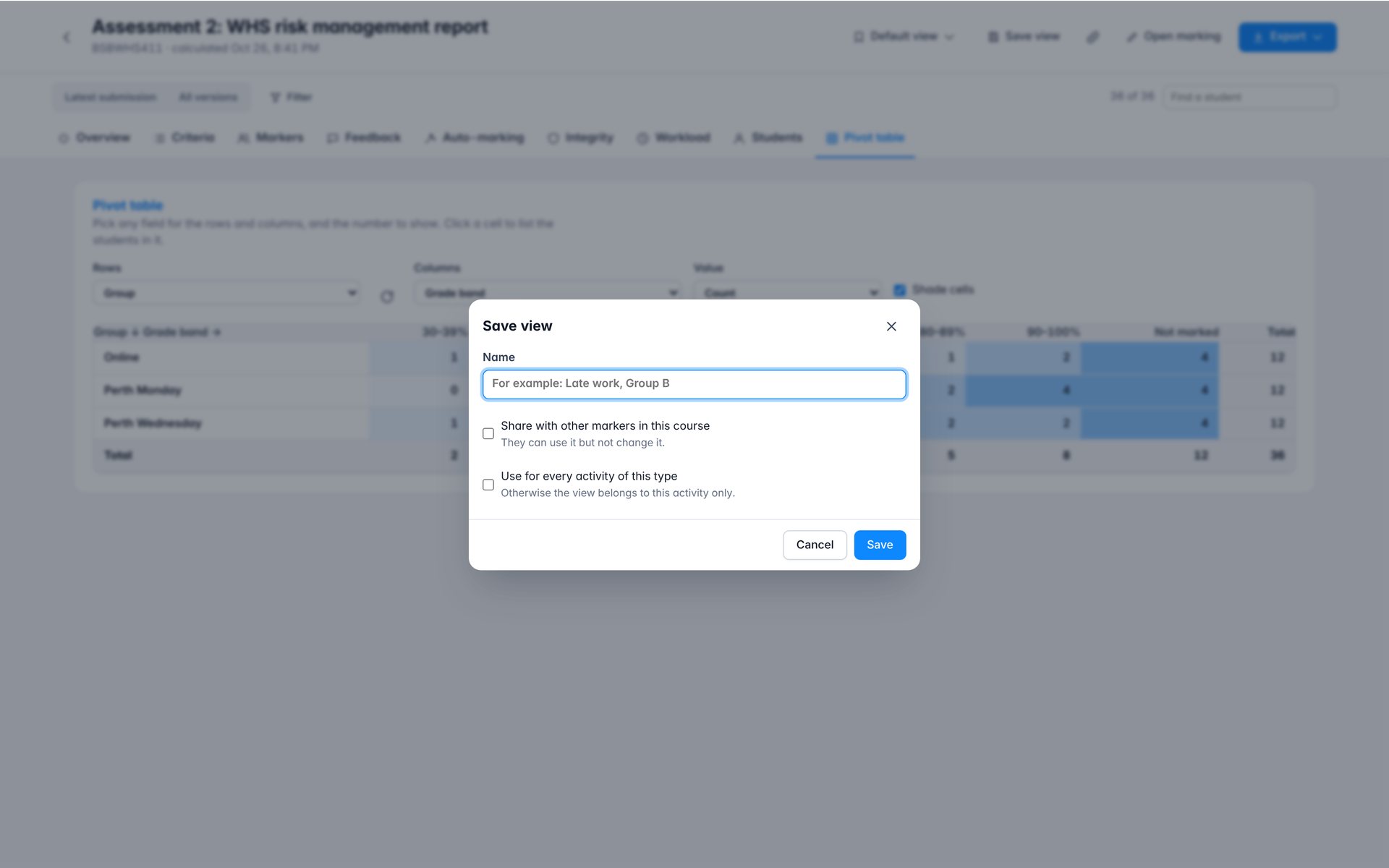
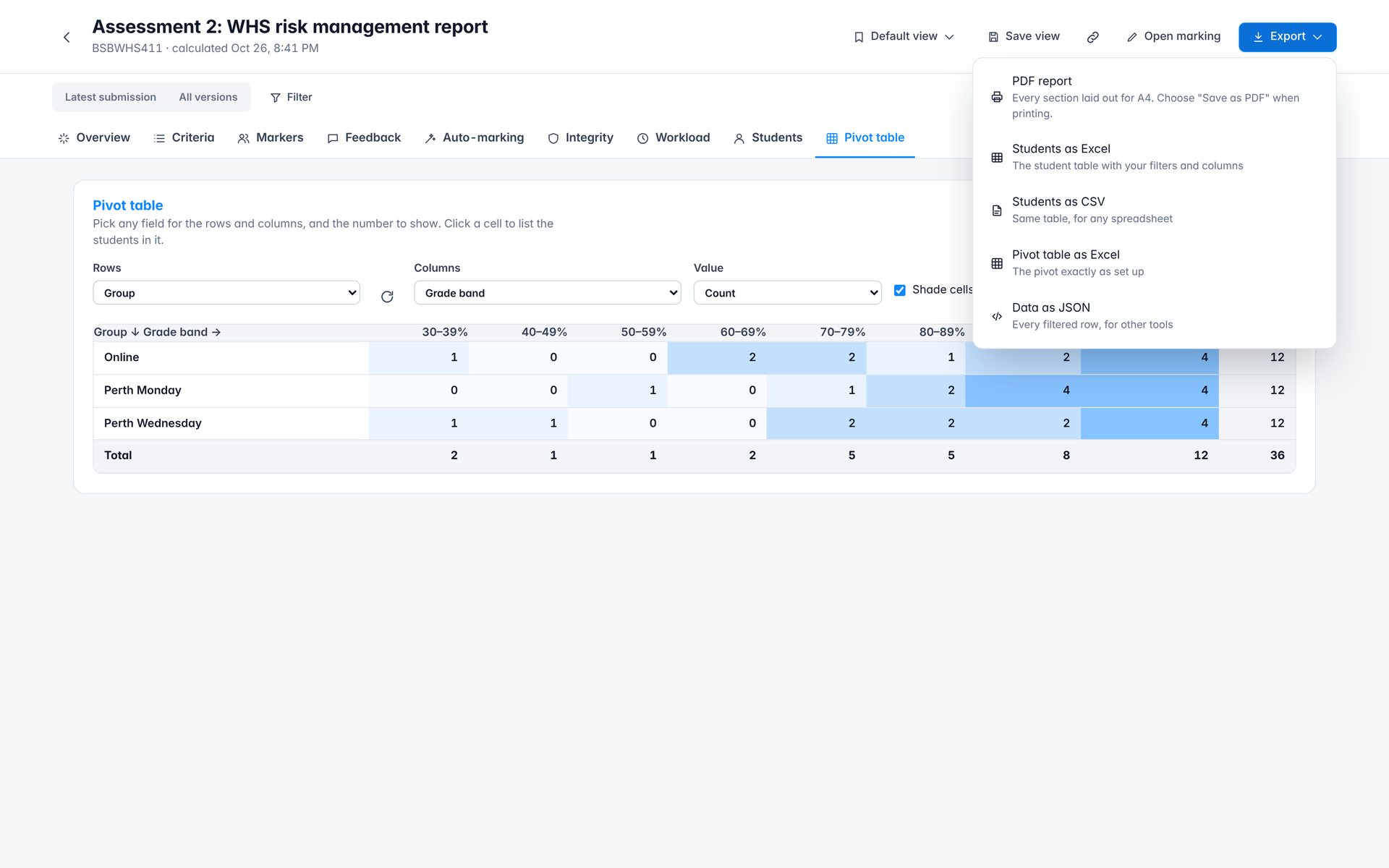
Filter by any field, choose your columns, build a pivot table, and save the view to use again or share with other markers. Export a PDF report, Excel, CSV, the pivot table or JSON.
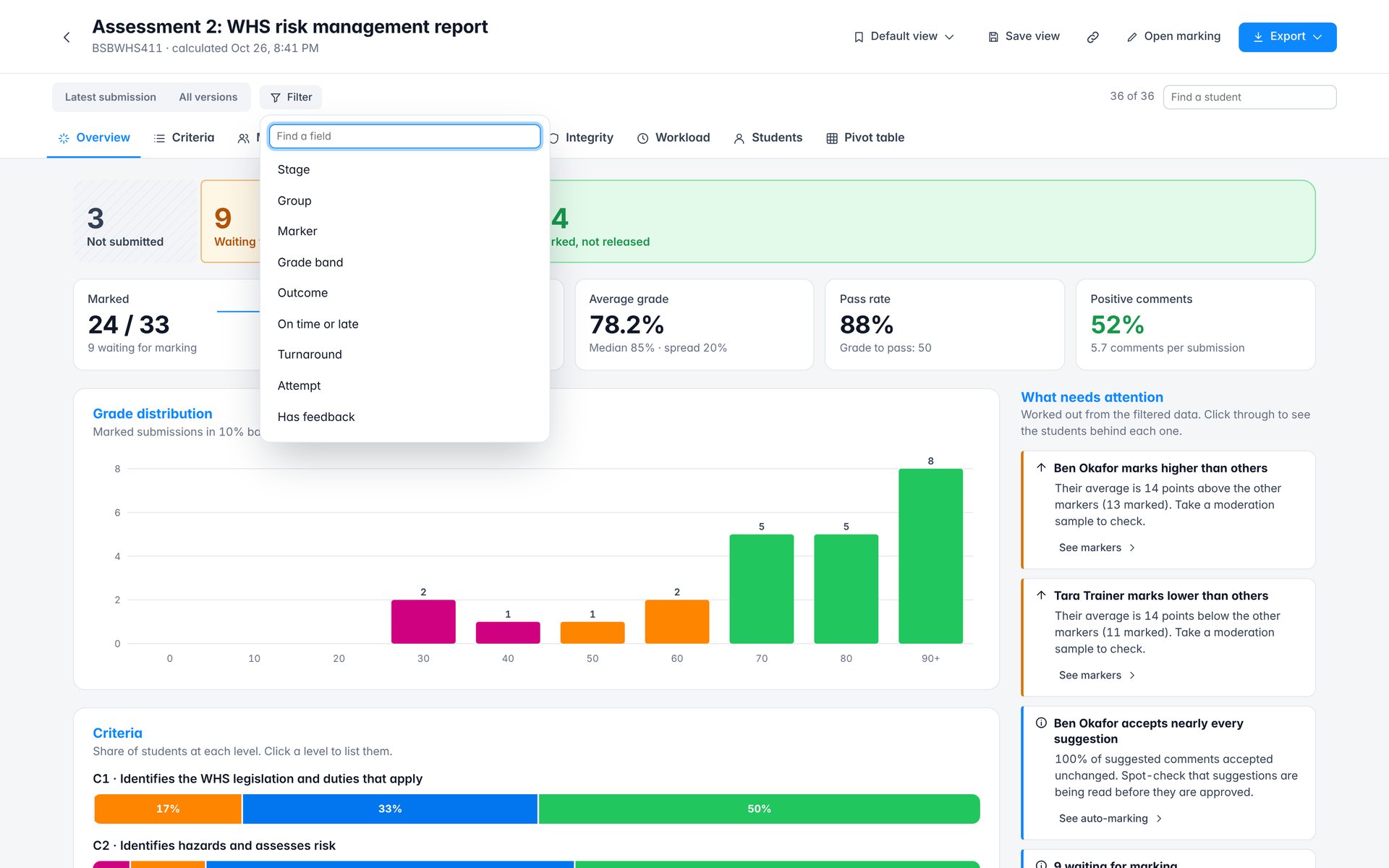
More
Integrations
EssayGuard
Typing-behaviour scores appear in the top bar, the Integrity tab and the report.
DocGuard
Document integrity results for uploaded files, in the same places.
Beacon 2.10+
Marking turnaround, backlog, voice share and feedback balance appear as Beacon metrics and reports.
More
Privacy, backup and data
- Privacy API. Fast Grade reports and deletes its data through Moodle's privacy API, for every table it stores.
- Backup and restore. Annotations, feedback history and marking data are included in activity backups. Rubric criteria are remapped on restore.
- Clean up. Deleting an activity or course removes its Fast Grade data.
- Grades. Grades and feedback are saved through Moodle's own assignment and quiz APIs, so the gradebook, reports and workflow work as normal.
- Processing boundaries. Fast Grade’s rule-based auto-marking makes no AI calls and runs in the browser. Optional browser-vendor dictation, configured document converters (including Google Drive), and installed integrations can involve external processing; review their provider terms and local policy.
More
Questions
Does Fast Grade use AI?
No AI service is called for rule-based auto-marking. The checks use readable rules from your rubric and run in the browser. Optional browser-vendor dictation, configured converters, and installed integrations can involve external processing. Marking has no AI usage charge; one-time plugin acquisition is separate.
Can students see suggestions before I approve them?
No. Suggestions are drafts. Nothing reaches the student until you approve and release the marks.
Does it replace Moodle's grader?
It works alongside it. Grades are saved through Moodle's own APIs, and a Classic grader link is always available.
Which question types can I mark?
Essay questions and any other quiz question that needs manual grading.
Does voice dictation send audio anywhere?
On-device speech keeps audio on the marker's computer when supported. An administrator can allow the browser's speech service, which can involve processing by that vendor, and markers see a notice first.
Does it work with anonymous marking and groups?
Yes. Names stay hidden when marking is anonymous, and group filters follow the activity's group mode.
Can I mark on a tablet?
Yes. The layout adapts to smaller screens, and annotation works with touch and pen.
More
Changelog
- Marking screens for assignments and quiz essays, with annotation, voice feedback, rubrics, marking guides and a comment bank.
- Auto-marking without AI: levels, remarks, highlights, overall feedback and the grade, for the marker to approve.
- Download all submissions, latest or every version.
- The report: criteria, markers, feedback, auto-marking, integrity and workload, with filters, pivot table, saved views and export.
- EssayGuard, DocGuard and Beacon integrations. Backup, restore and privacy support.
Browse
Every screen
All 53 screenshots in one place. Select any screen to see it full size with its notes, then use the arrow keys to move through them.