Chapter 1 · 0:06 in the video
Welcome
 2
S01Teachers and course designers0:06
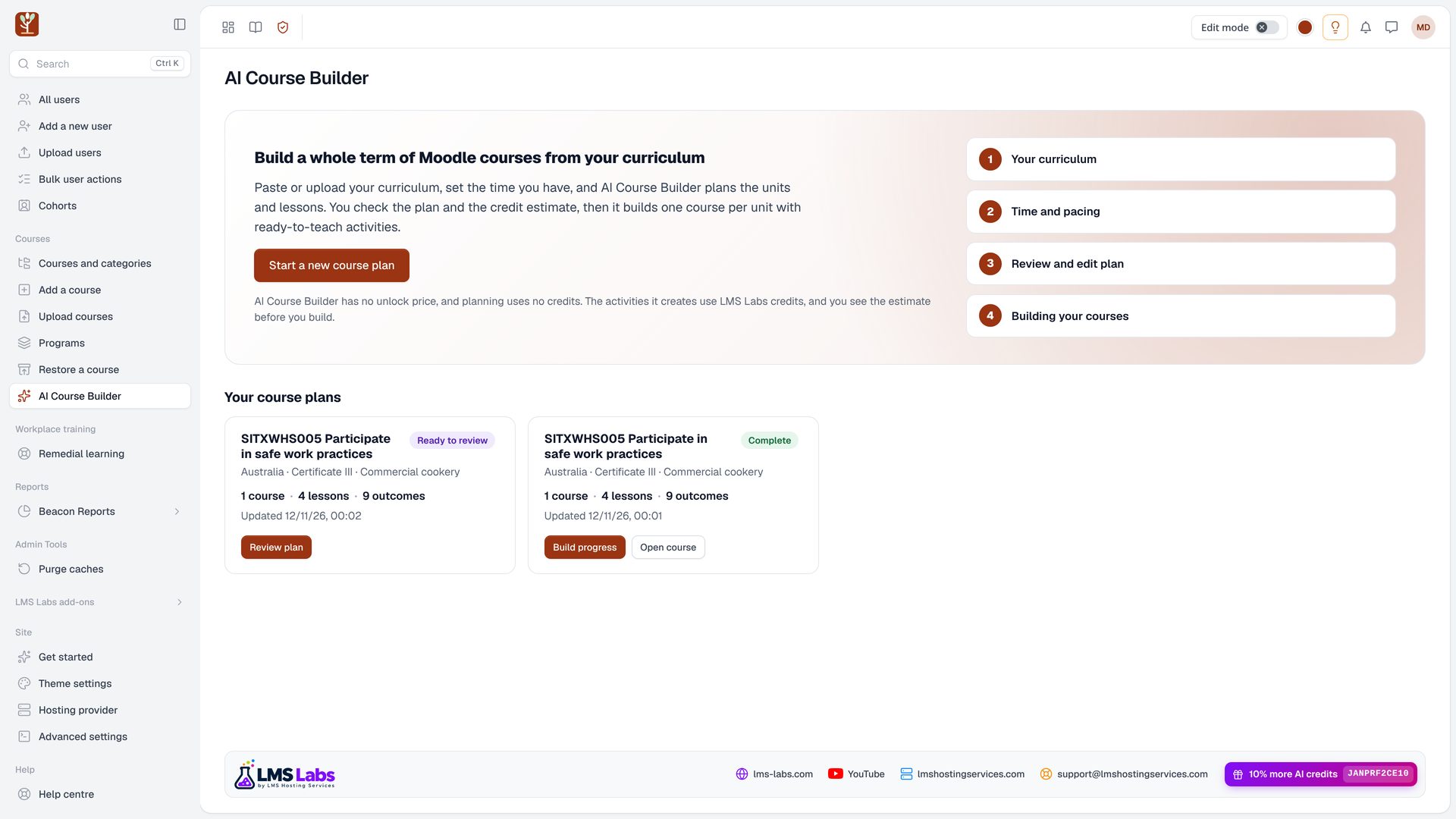
What AI Course Builder does
- Moodle trainers, teachers and course designers, if building a whole term of courses takes you weeks, this one is for you.
- AI Course Builder turns your curriculum into finished Moodle courses.
S02Teachers and course designers0:19
Who it is for
- It works for schools, colleges, universities, training organisations, workplace training and short courses.
- The college in this video is fictional.
1
S03Teachers and course designers0:30
Credits and the estimate
- Planning uses no credits.
- The activities it creates use LMS Labs credits, and you always see the estimate before anything is built.
1
S04Teachers and course designers0:40
Your course plans
- Your course plans are listed below with their status, so you can come back to a plan or a build at any time.
Chapter 2 · 0:51 in the video
Where you teach
 22
S05Teachers and course designers0:51
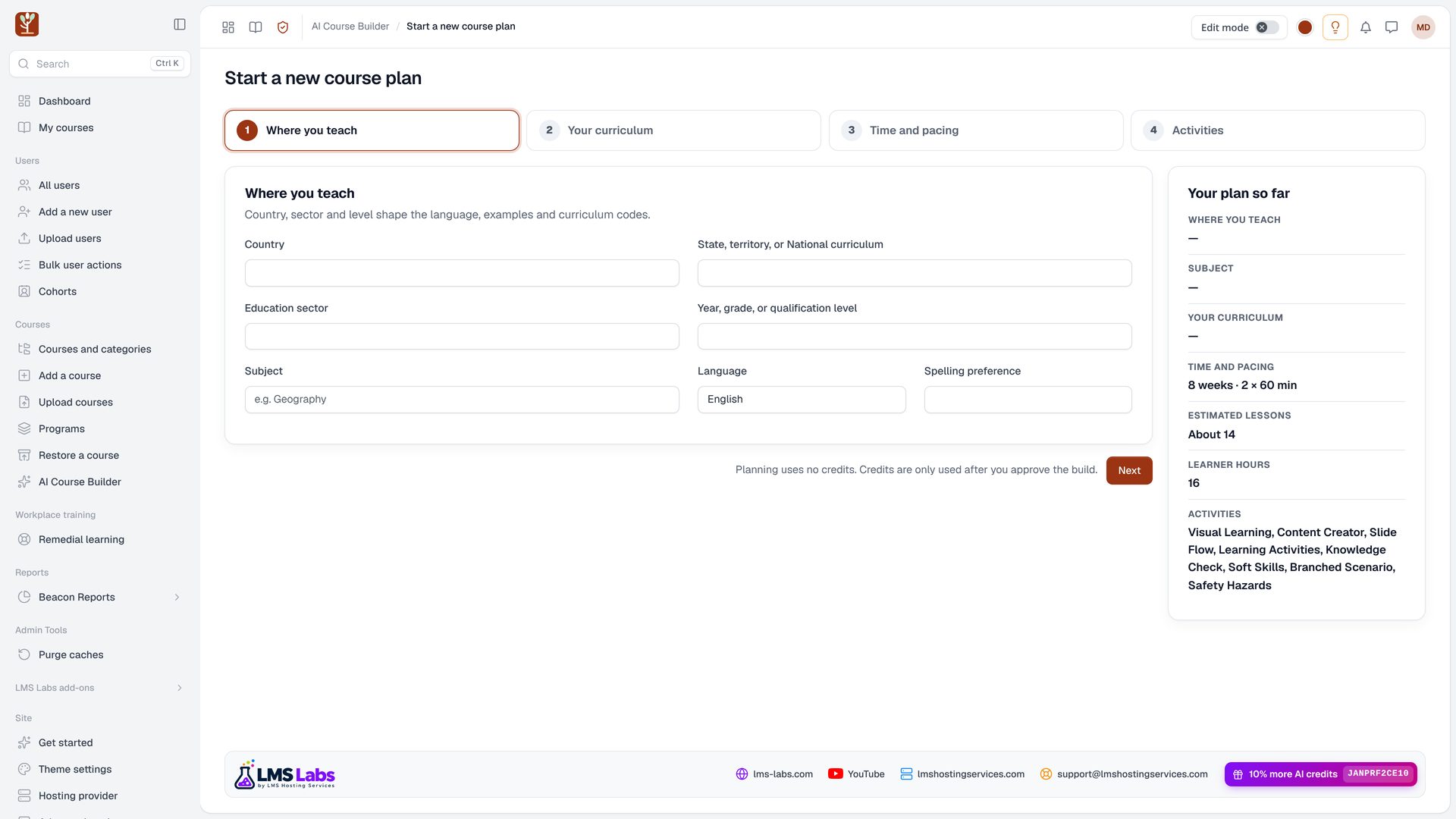
Start a new course plan
- Click start a new course plan.
- The wizard has four steps, and the summary on the right updates as you go.
 12
S06Teachers and course designers0:58
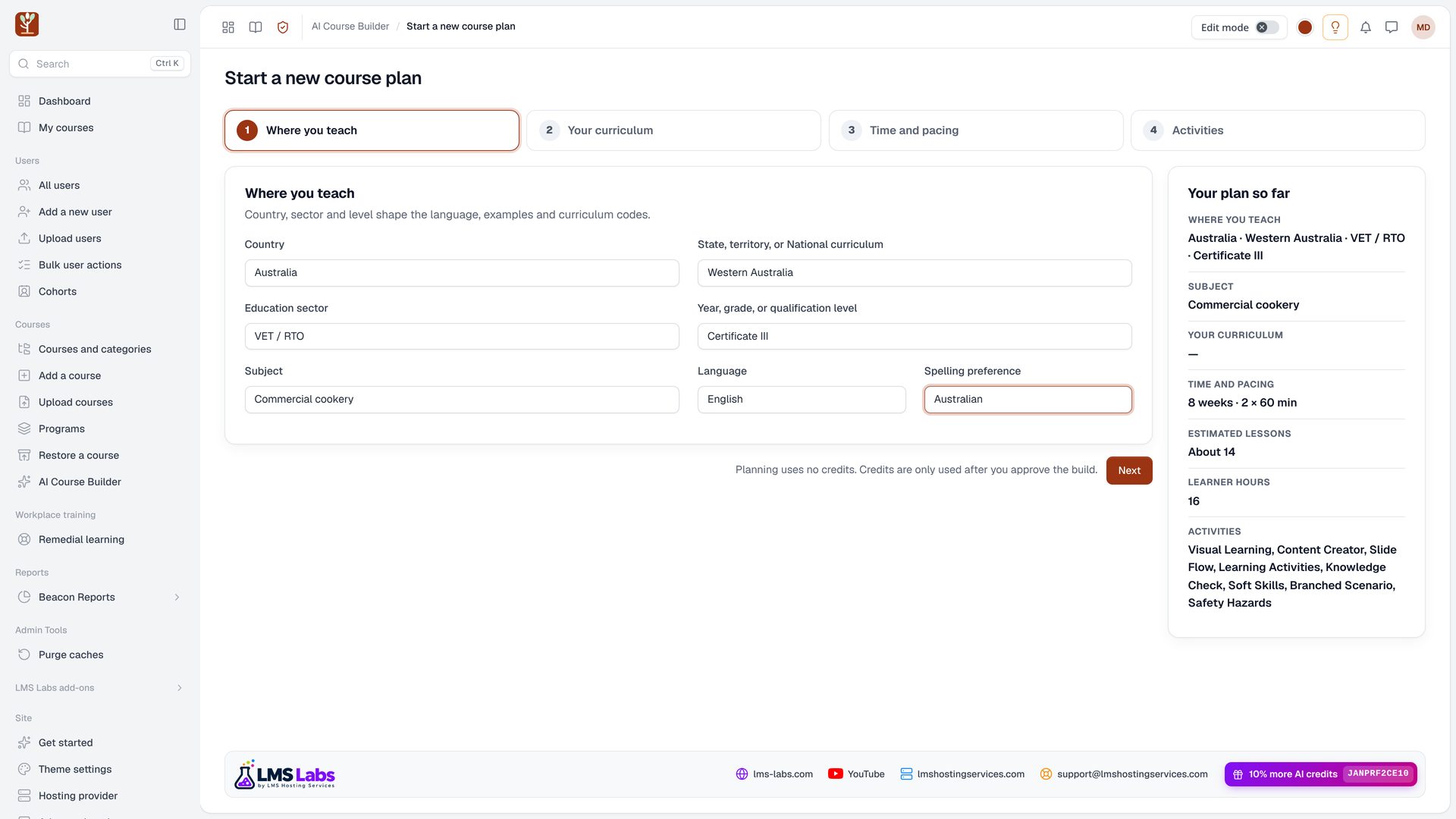
Choose where you teach
- Choose the country, state, sector, level and subject.
- Here it is a Certificate III in commercial cookery in Western Australia, with Australian spelling.
1
S07Teachers and course designers1:09
Why these settings matter
- These settings shape the language, the examples and the curriculum codes in every activity.
Chapter 3 · 1:19 in the video
Your curriculum
 12
S08Teachers and course designers1:19
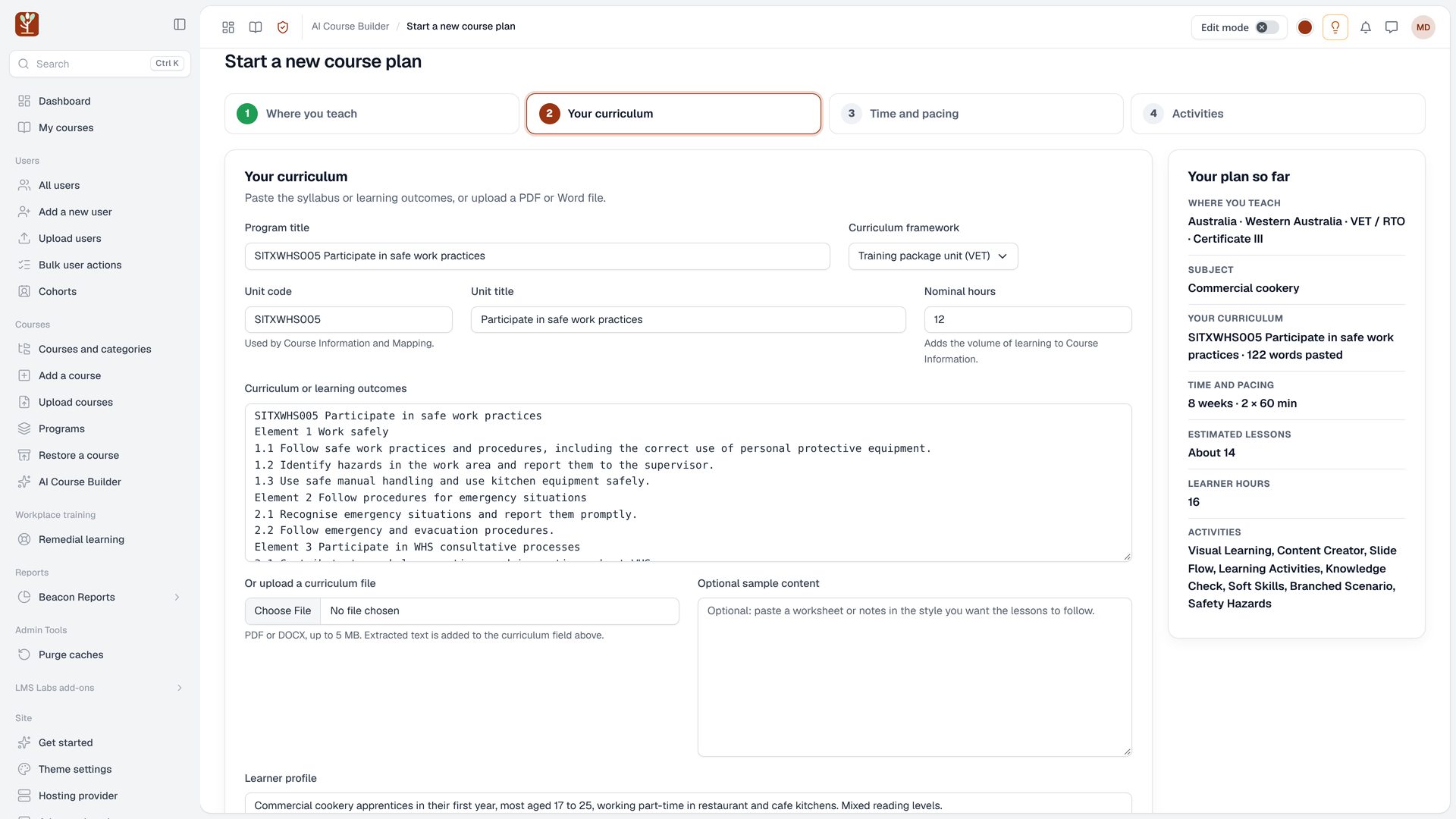
Title, framework and unit details
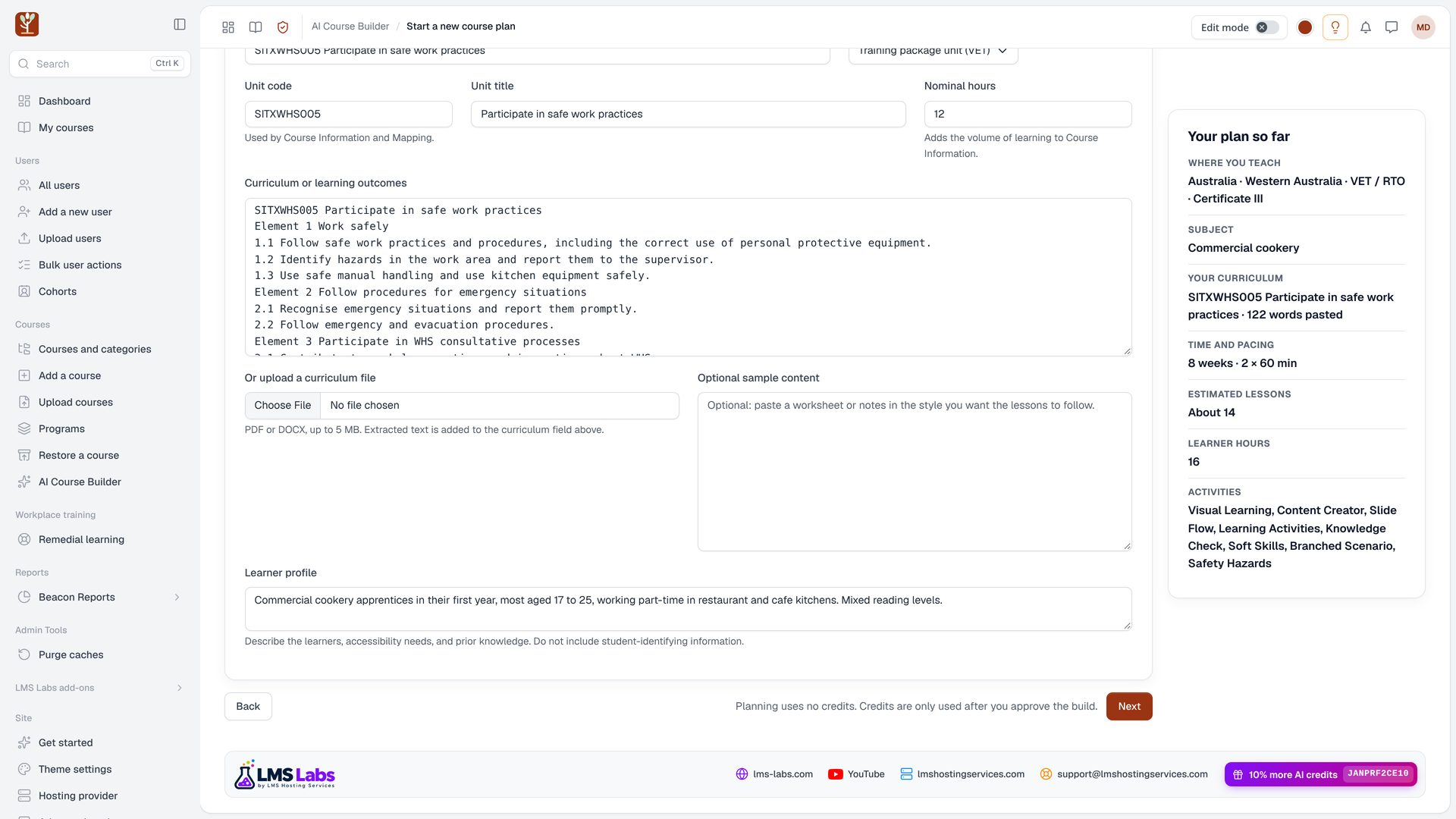
- Give the plan a title and choose the curriculum framework.
- For a training package unit, add the unit code, the unit title and the nominal hours.
 11
S09Teachers and course designers1:29
Paste or upload the outcomes
- Paste the learning outcomes or performance criteria, or upload a PDF or Word file.
- These outcomes drive everything that follows.
1
S10Teachers and course designers1:40
Describe your learners
- A short learner profile helps every activity pitch the language at the right level.
Chapter 4 · 1:49 in the video
Time and pacing
 11
S11Teachers and course designers1:49
Set the time you have
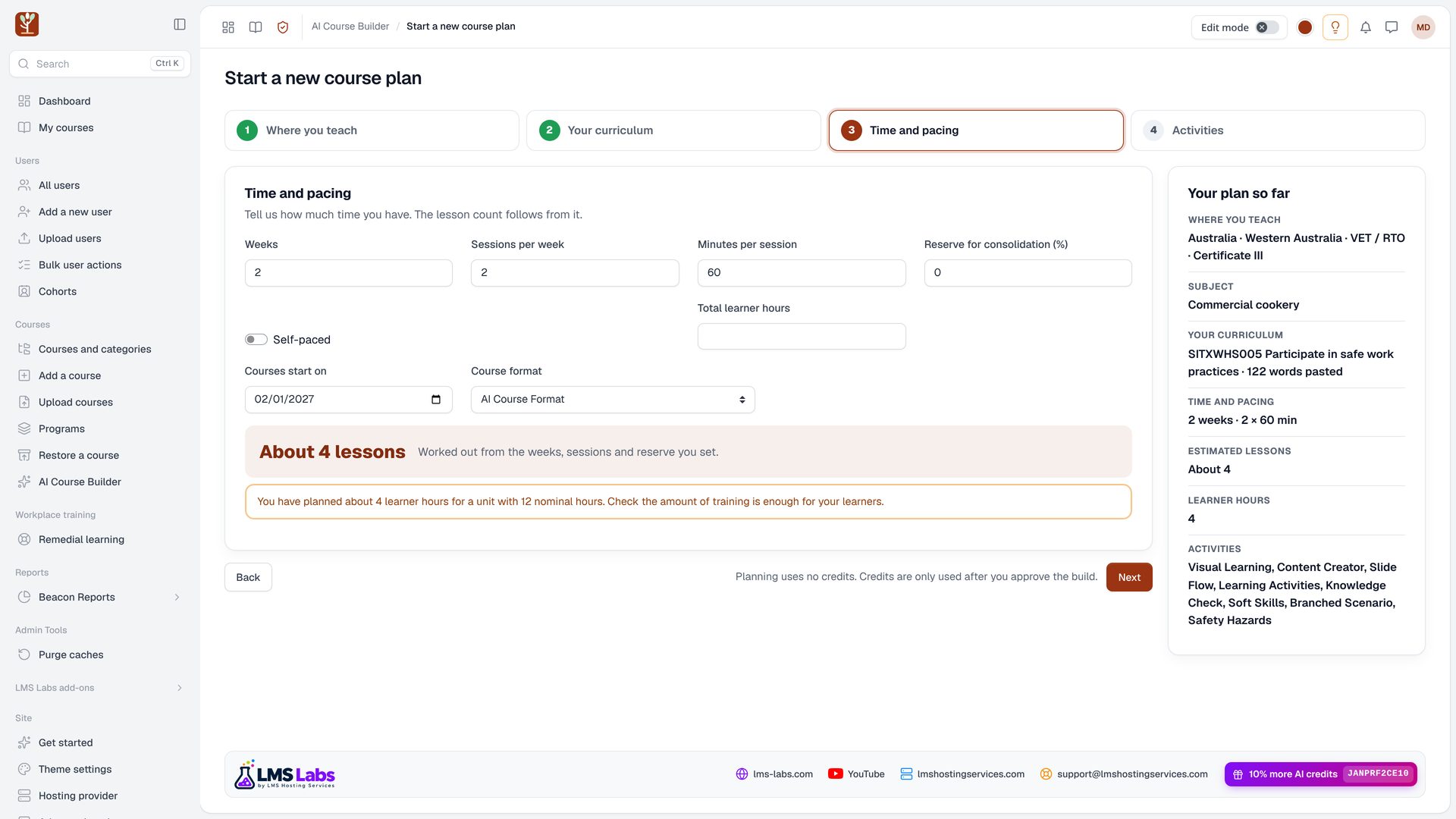
- Tell it how much time you have: weeks, sessions per week and minutes per session, with a reserve for revision if you want one.
112
S12Teachers and course designers1:58
Start date, format and lesson count
- Choose the date the courses start and the course format.
- The lesson count follows from the time, here four lessons.
1
S12bTeachers and course designers2:06
Nominal hours check
- If the time looks short for the unit's nominal hours, it tells you, so you can check the amount of training before you plan.
Chapter 5 · 2:17 in the video
Choose the activities
 1
S13Teachers and course designers2:17
Choose your activities
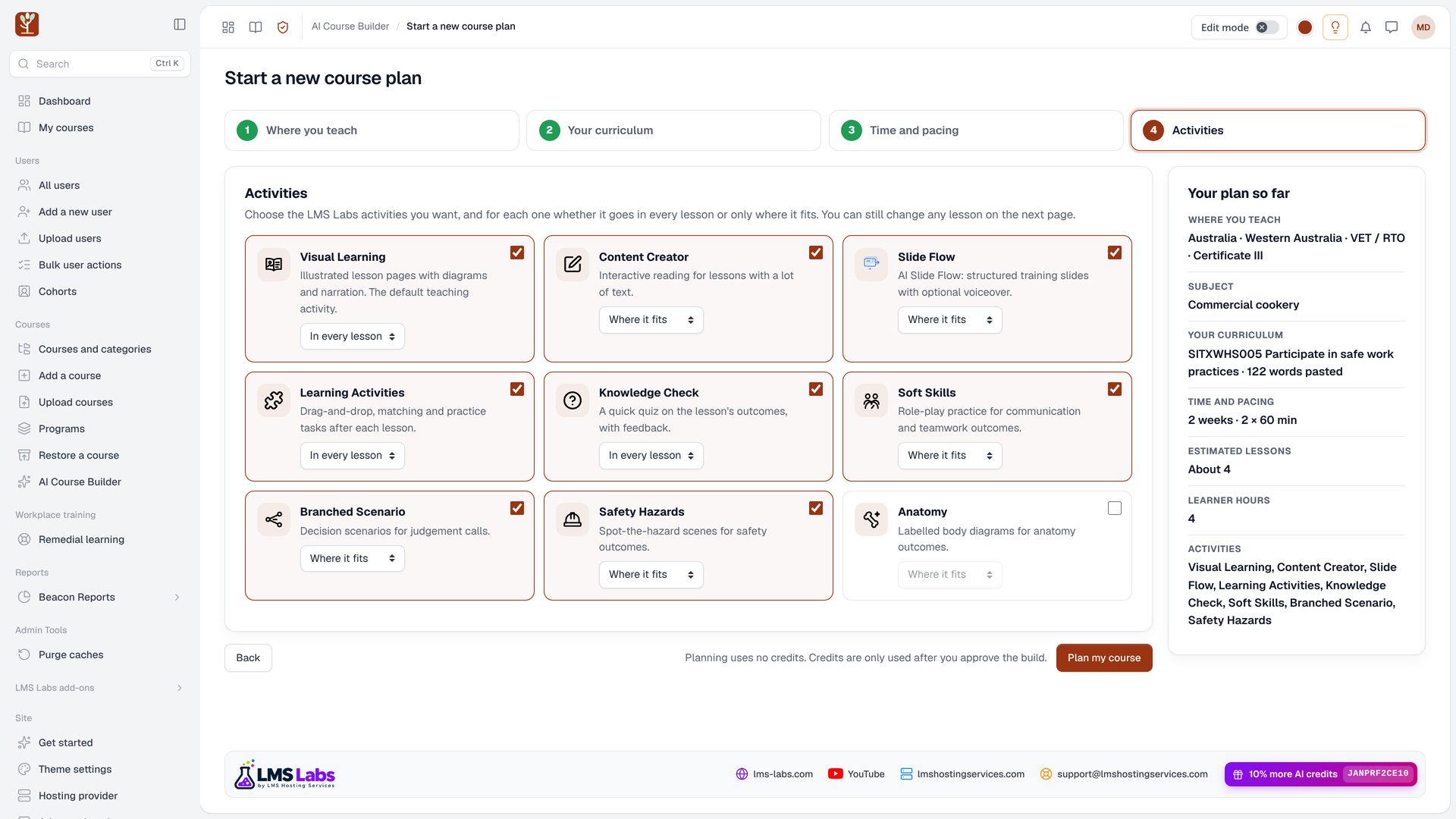
- Choose the LMS Labs activities you want.
- Untick any you never use, so the plan only uses your favourites.
11
S14Teachers and course designers2:26
In every lesson or where it fits
- For each one, choose in every lesson, or where it fits.
- Where it fits means the activity is only added when an outcome needs it, such as safety hazards for a safety outcome.
1
S15Teachers and course designers2:39
Plan the course
- Then click plan my course.
- Planning takes about a minute.
Chapter 6 · 2:46 in the video
Review the plan
 1
S16Teachers and course designers2:46
The plan is ready
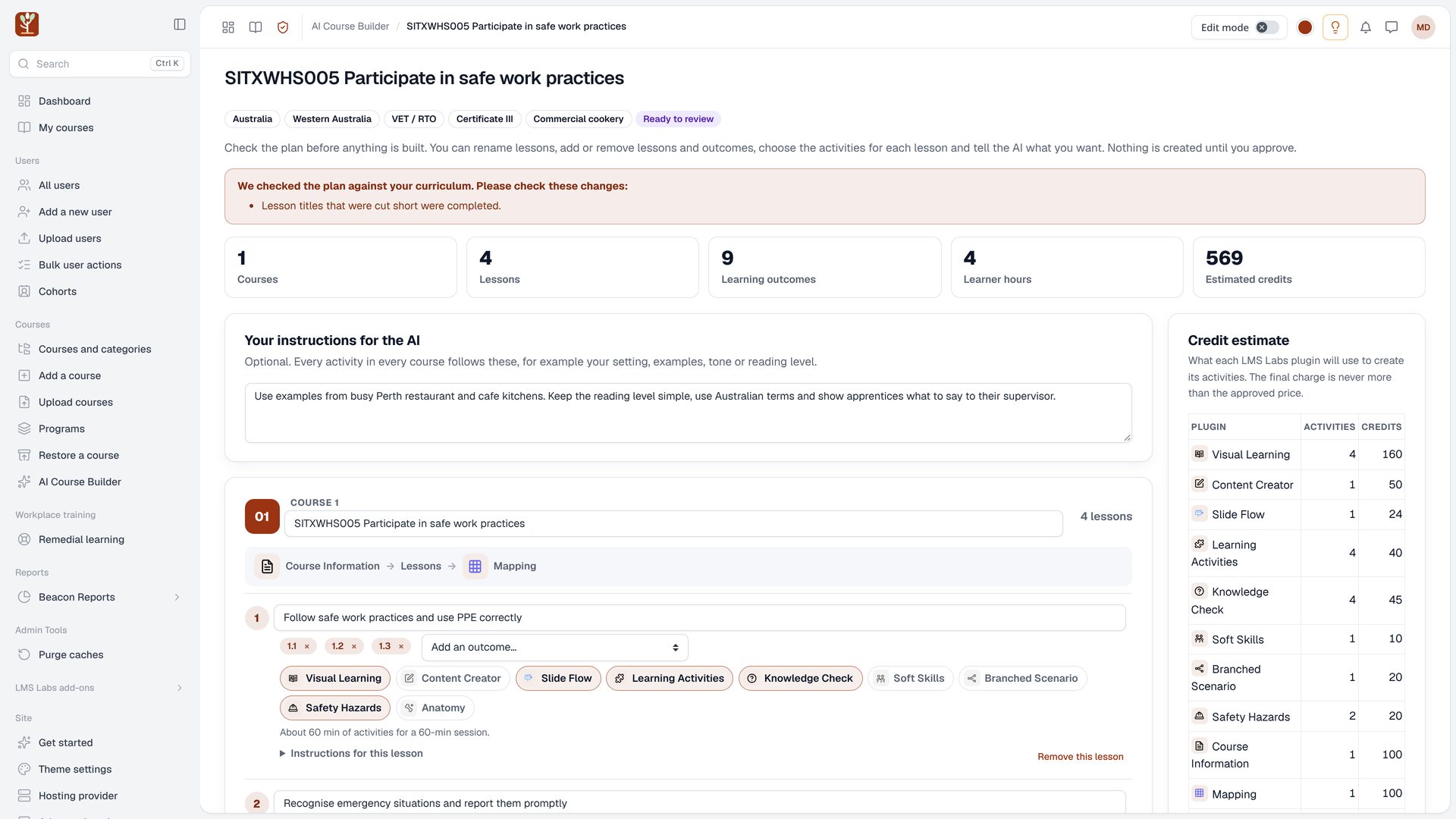
- The plan is ready to review.
- Nothing has been built yet, and nothing is charged.
2
S16bTeachers and course designers2:53
Checked against your curriculum
- The plan is checked against your curriculum first.
- If anything was fixed, such as a lesson title that was cut short, a note tells you what changed.
11
S17Teachers and course designers3:03
Plan totals and credits
- The tiles show the courses, lessons, learning outcomes and learner hours, with the estimated credits for the whole build.
1
S18Teachers and course designers3:12
Instructions for the AI
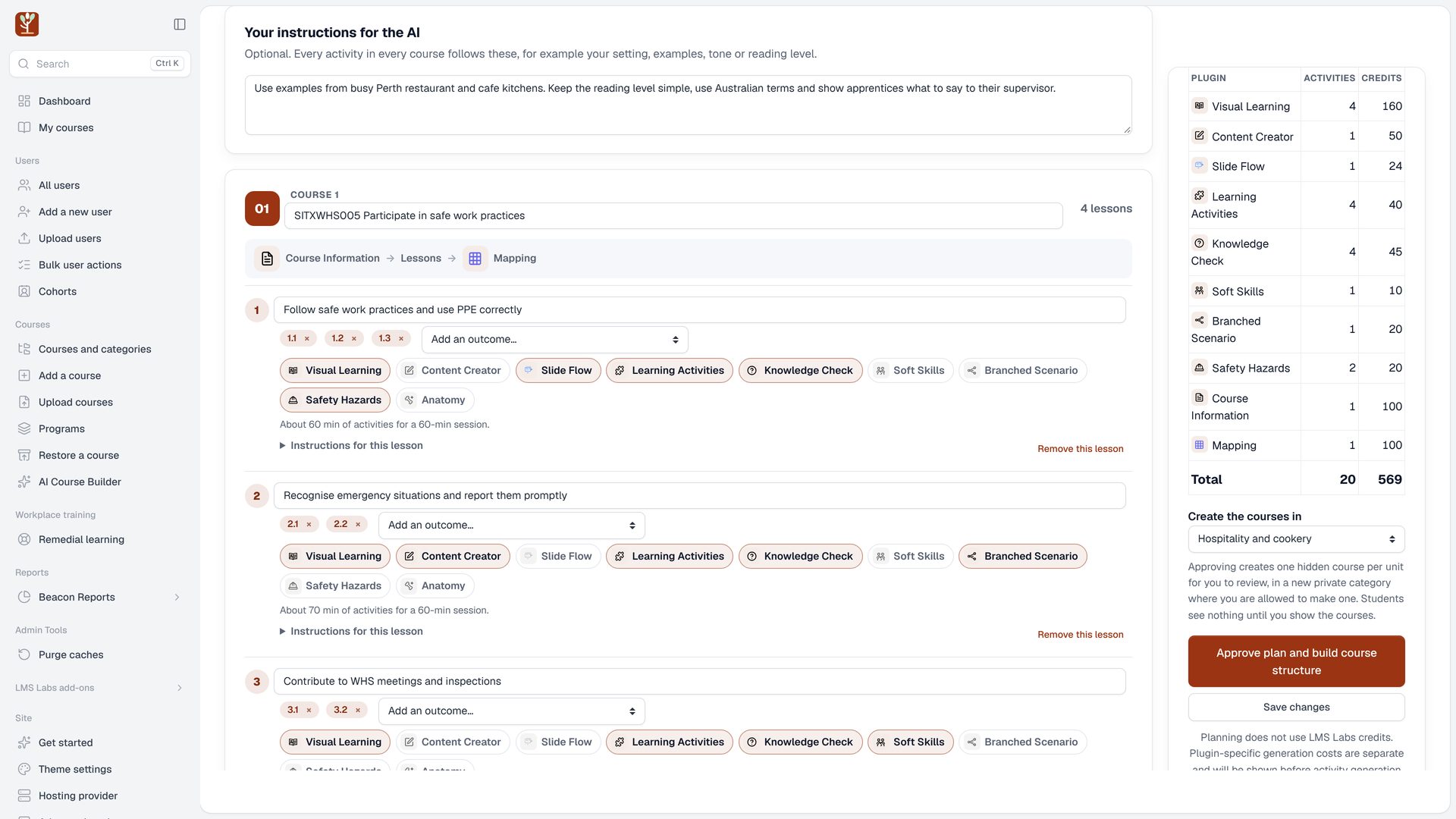
- Use your instructions for the AI to set the scene.
- Every activity in every course follows them, for example your local workplaces, tone or reading level.
12
S19Teachers and course designers3:23
Rename courses and lessons
- Each unit becomes one course.
- Rename any course or lesson right here, so the titles read the way you teach.
1
S20Teachers and course designers3:31
Outcomes in each lesson
- Each lesson shows the outcomes it covers.
- Remove one with the cross, or add another from the list.
1
S21Teachers and course designers3:39
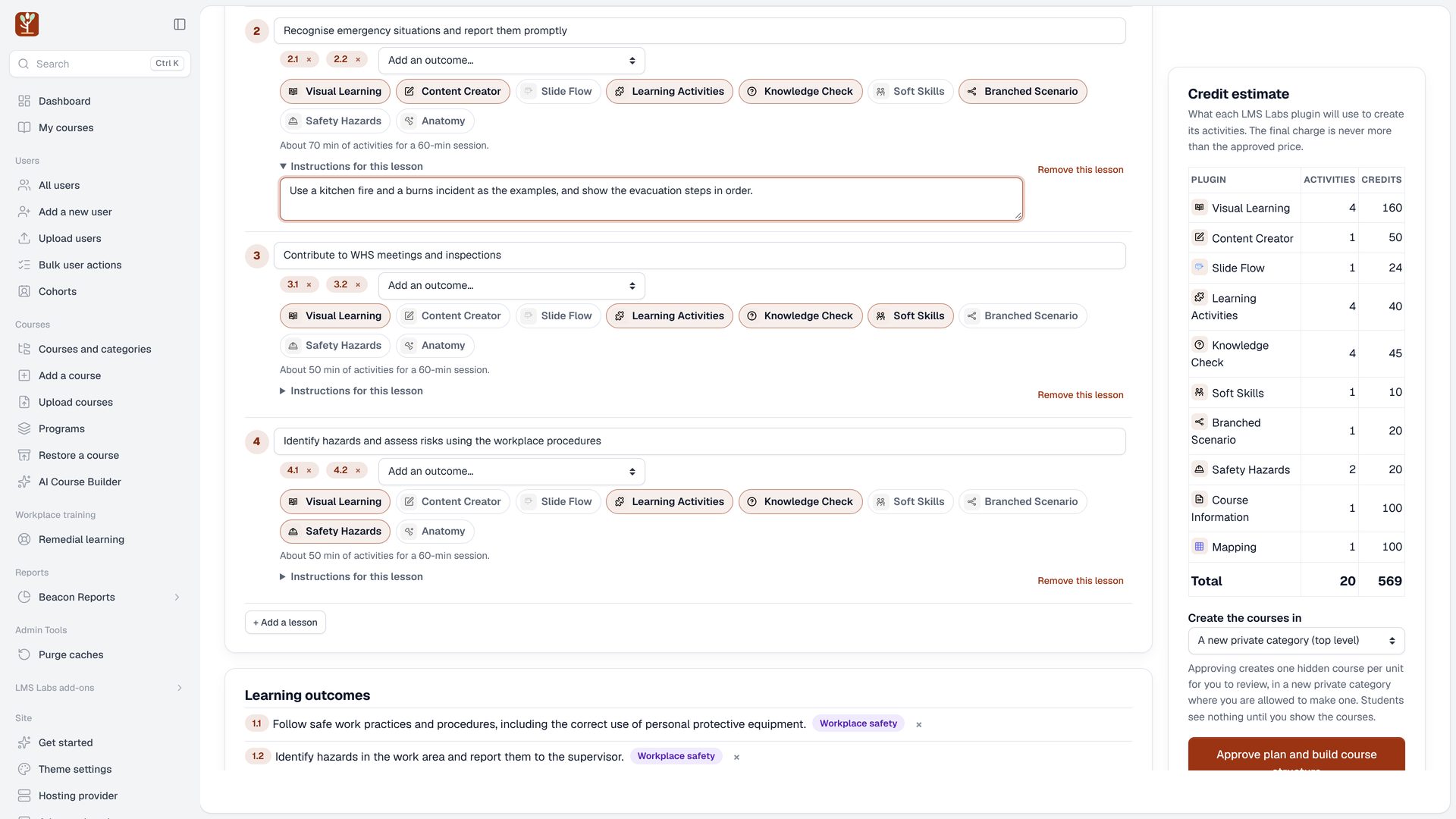
Switch activities on or off
- Click an activity to switch it on or off for that lesson.
- Here Slide Flow was added to lesson one.
1
S22Teachers and course designers3:46
Lesson time
- Under the activities, the lesson time shows how long they take against your session, so you can see when a lesson is too full.
 122
S23Teachers and course designers3:55
Lesson instructions, add and remove lessons
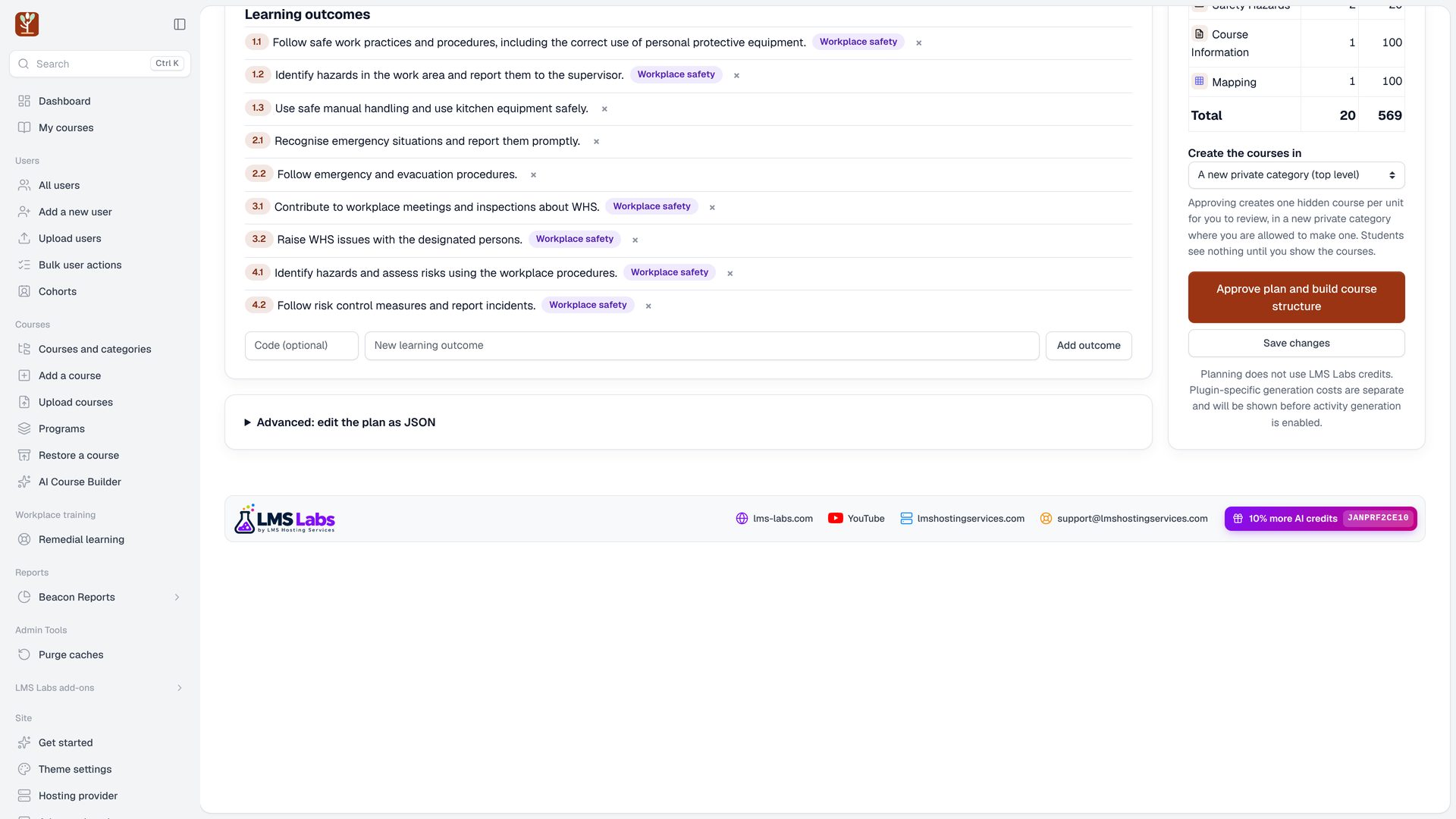
- Open instructions for this lesson to tell the AI what this lesson needs.
- You can remove a lesson, or add a lesson at the end of the course.
 12
S24Teachers and course designers4:05
The learning outcomes list
- The learning outcomes list shows every outcome, and flags any that no lesson teaches yet.
- You can add your own outcome here too.
1
S25Teachers and course designers4:14
The credit estimate
- The credit estimate shows what each activity type will use, and updates as you change the plan.
- The final charge is never more than the approved price.
 11
S26Teachers and course designers4:25
Approve and build
- Choose where to create the courses, then click approve plan and build course structure.
Chapter 7 · 4:34 in the video
Watching it build
 1
S27Teachers and course designers4:34
Building in the background
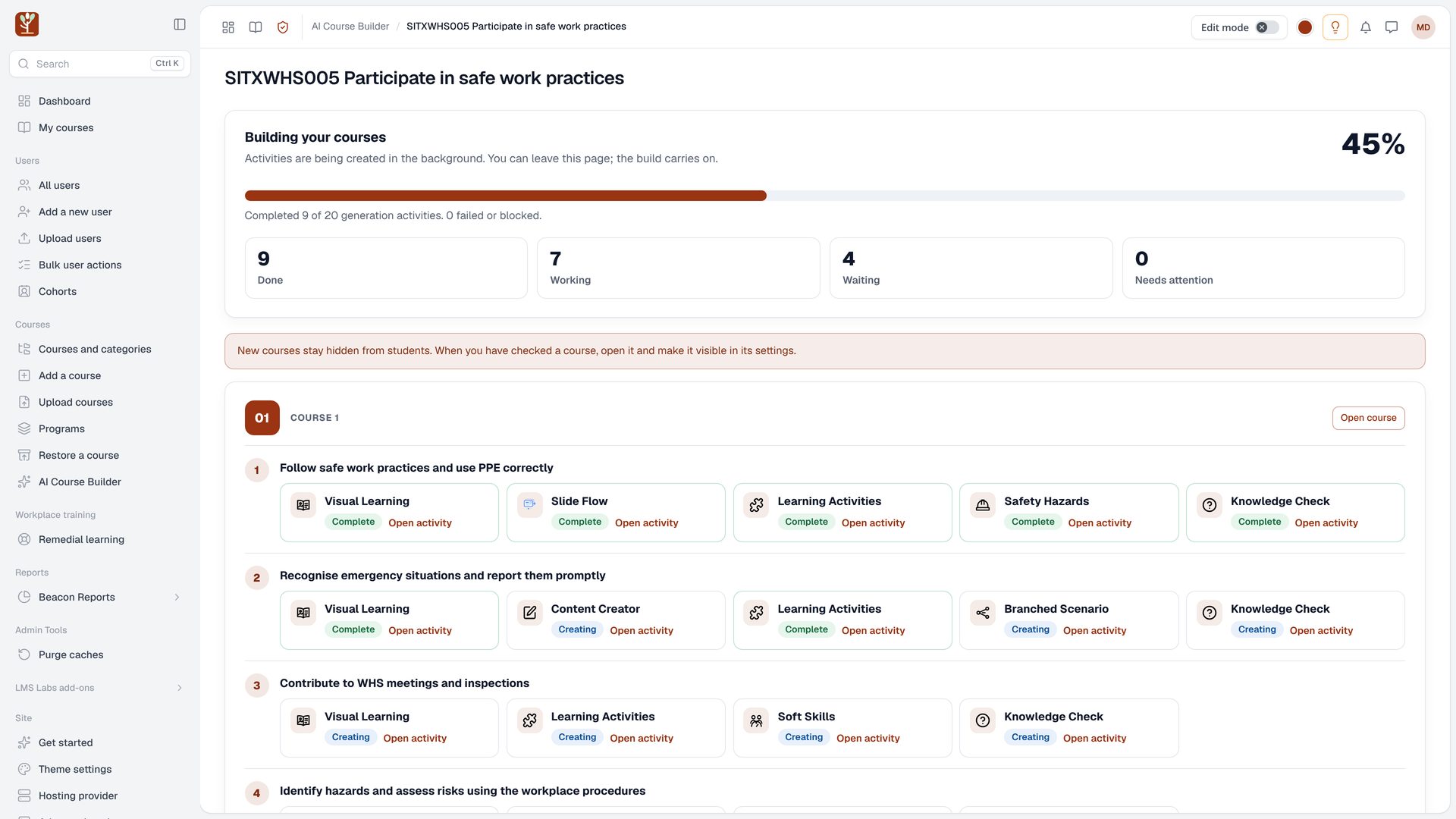
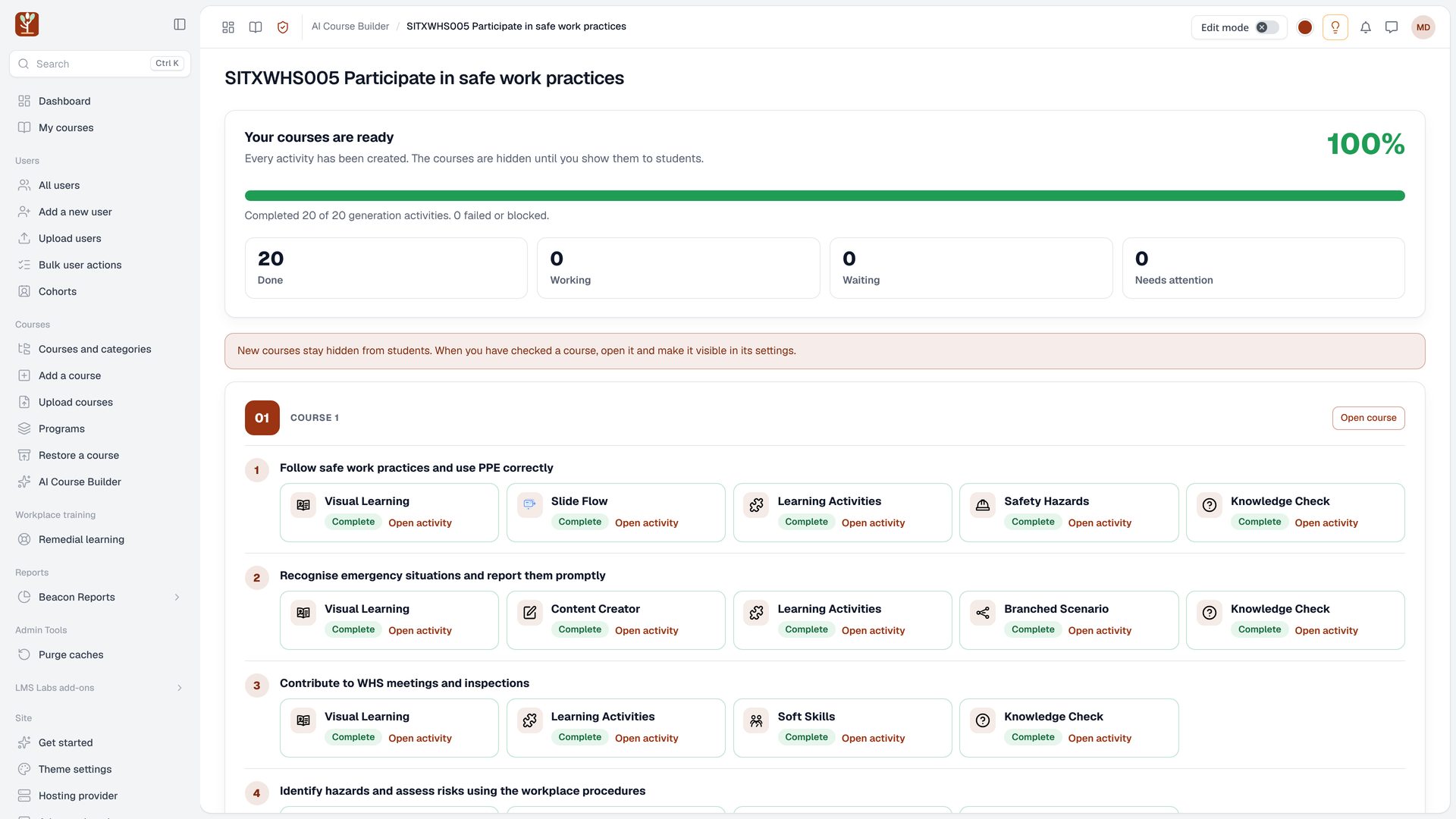
- AI Course Builder creates a hidden course for each unit, then builds every activity in the background.
- You can leave this page and come back.
1
S28Teachers and course designers4:44
Activity status
- Each activity shows waiting, creating or done.
- Course Information and Mapping are built last, once every lesson is ready.
 1
S29Teachers and course designers4:53
Open the finished course
- When everything is complete, click open course.
Chapter 8 · 5:00 in the video
Inside the course
 22
S30Teachers and course designers5:00
The finished course
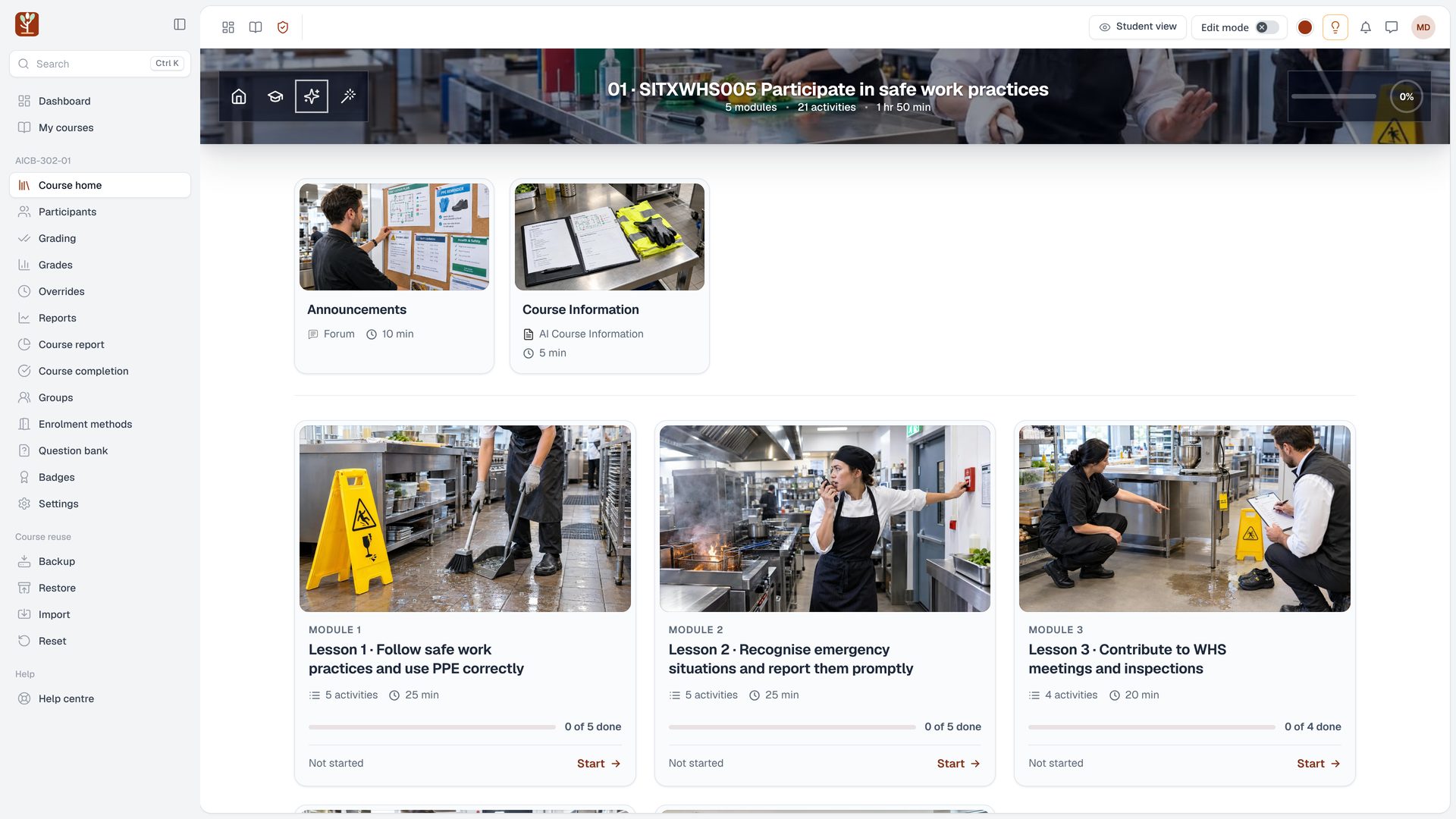
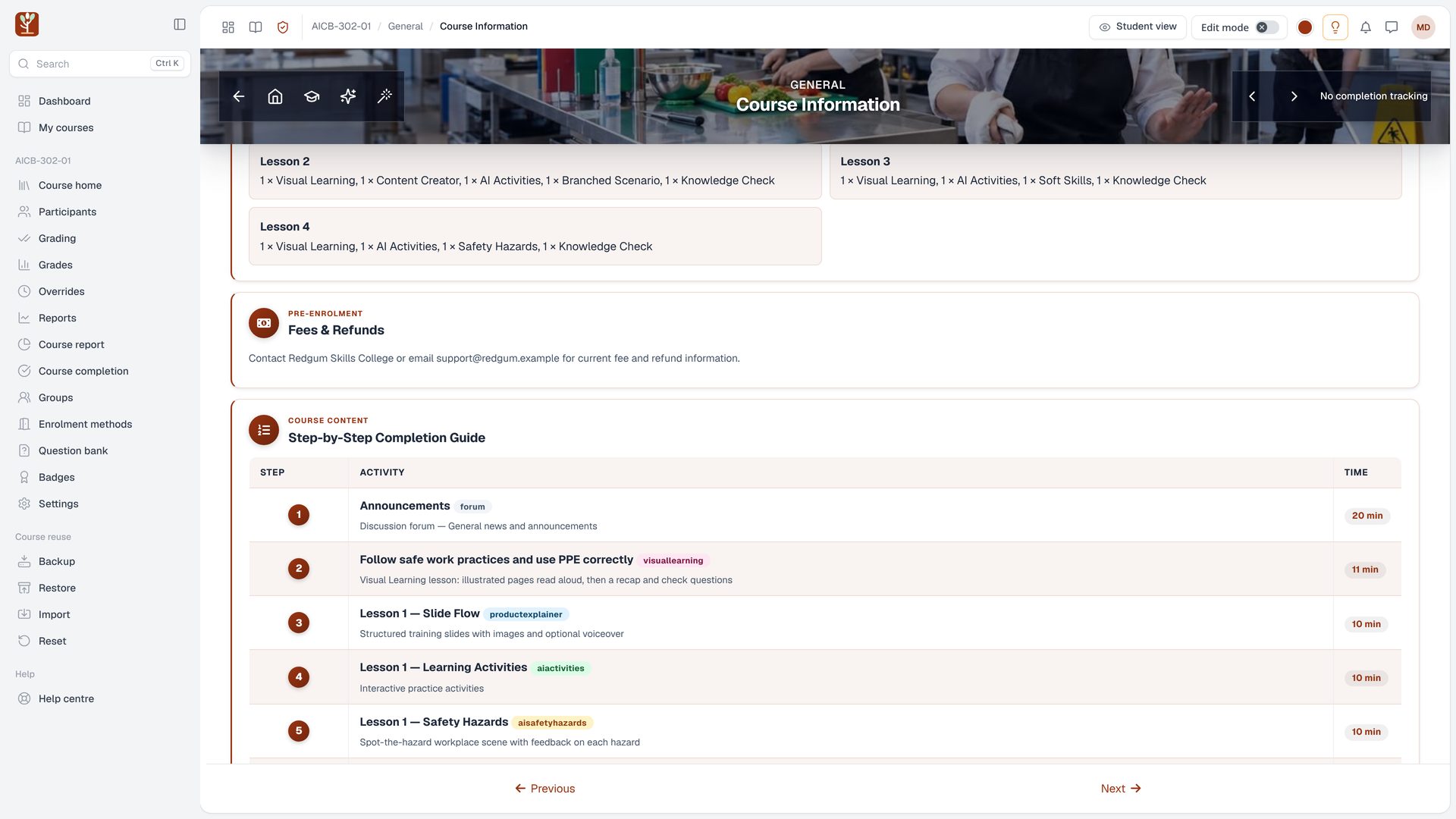
- Here is the finished course in AI Course Format.
- The course banner, every lesson card and every activity card has its own AI image.
 1
S31Teachers and course designers5:10
Inside a lesson
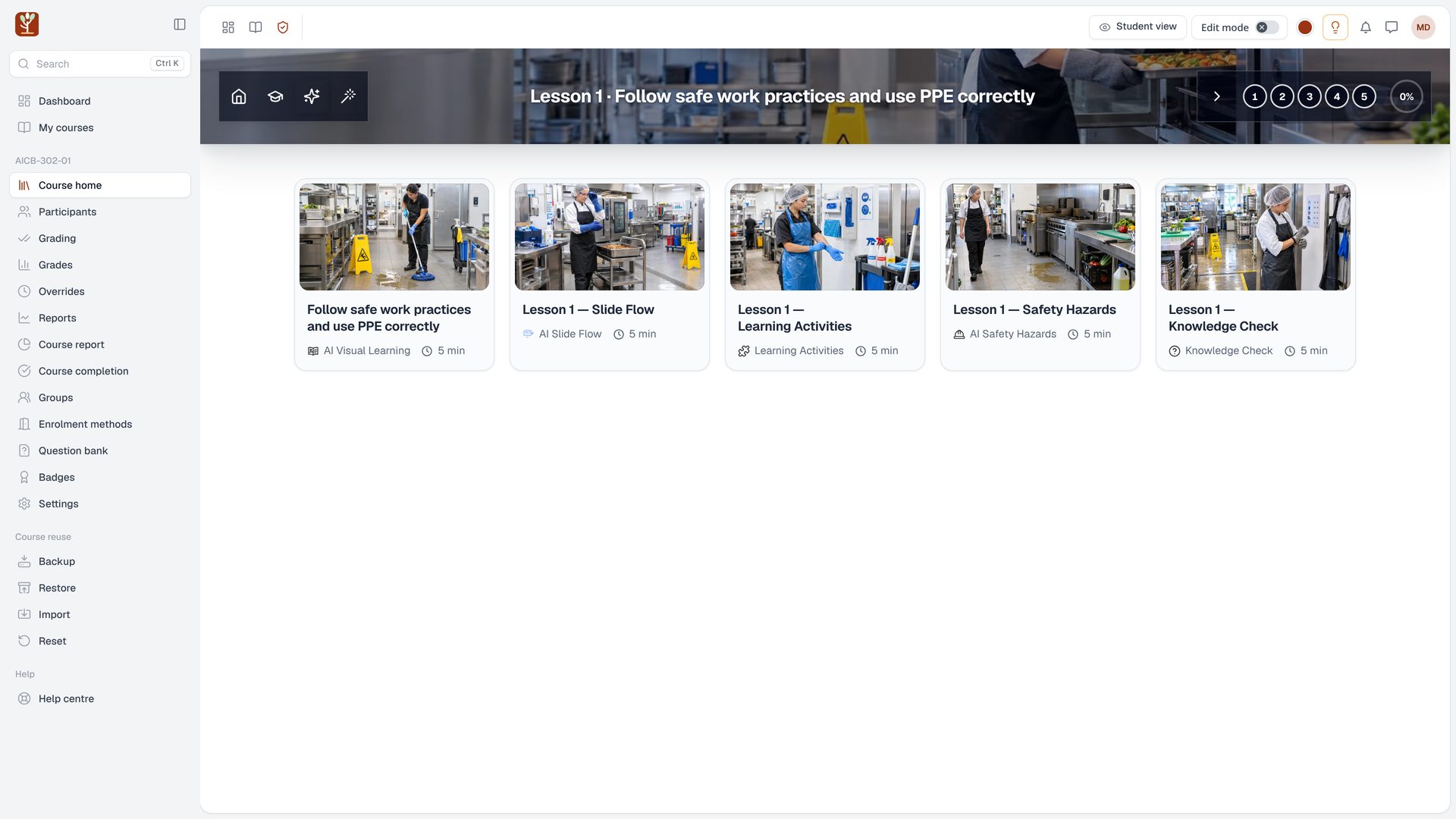
- Open a lesson to see its activities in order, each with an image and the time it takes.
 2
S32Learners5:17
What learners see
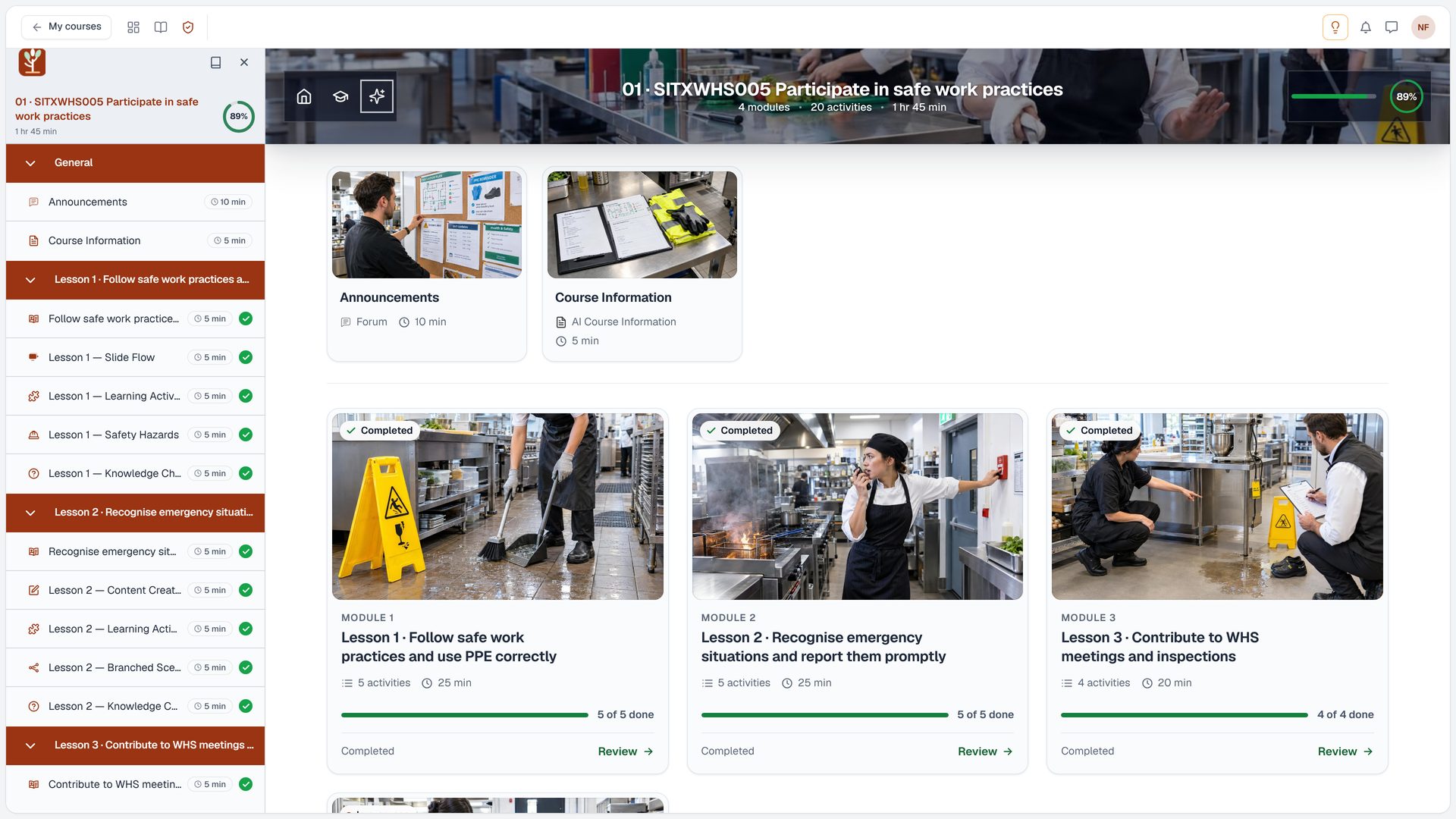
- When you have checked the course, make it visible.
- Learners then see their own progress on every card, and continue where they left off.
Chapter 10 · 5:50 in the video
The lesson activities
S35Learners5:50
Visual Learning
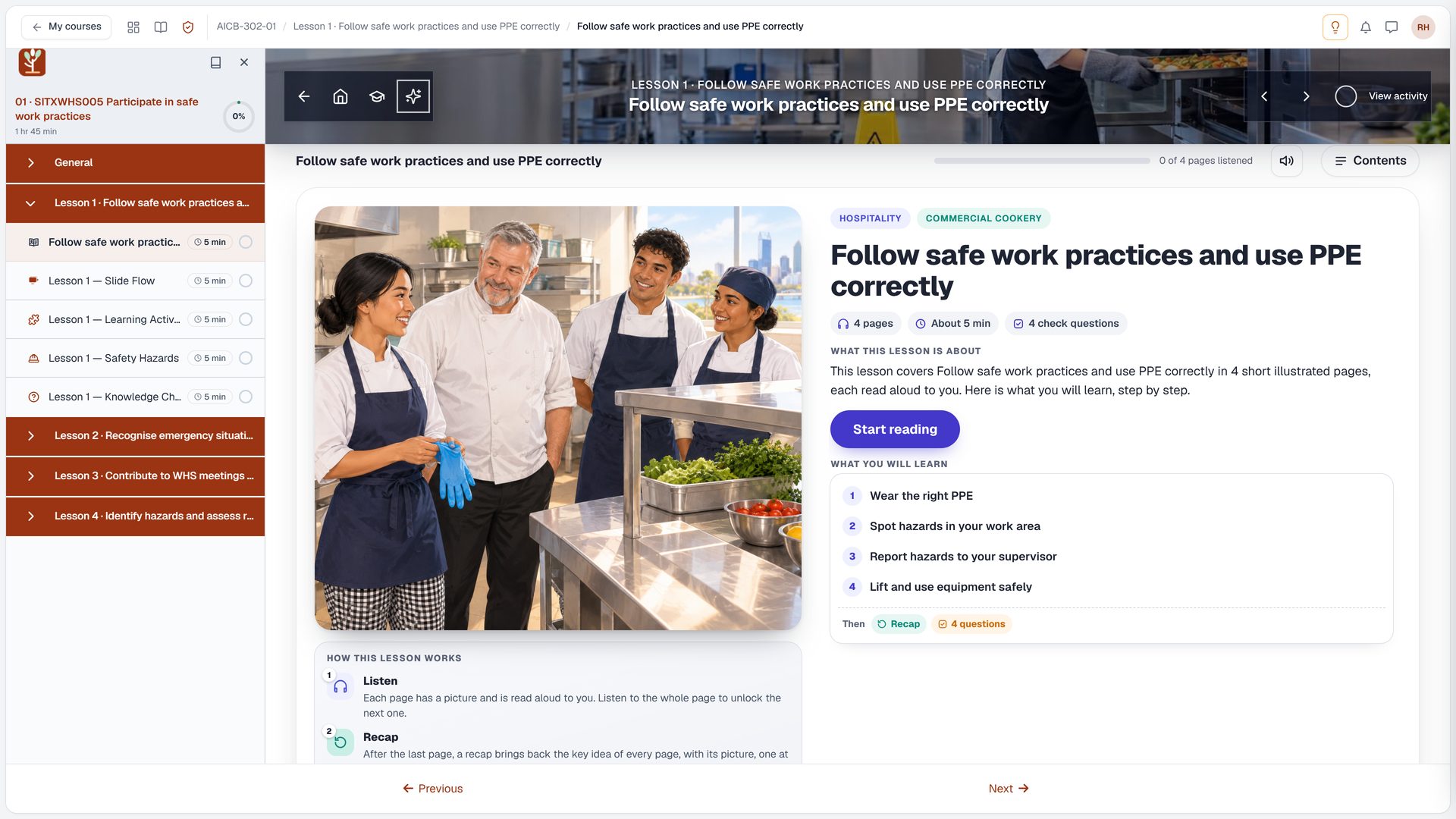
- Visual Learning teaches the lesson with illustrated pages, read aloud one idea at a time.
S36Learners5:57
Slide Flow
- Slide Flow gives you structured training slides with images and an optional voiceover.
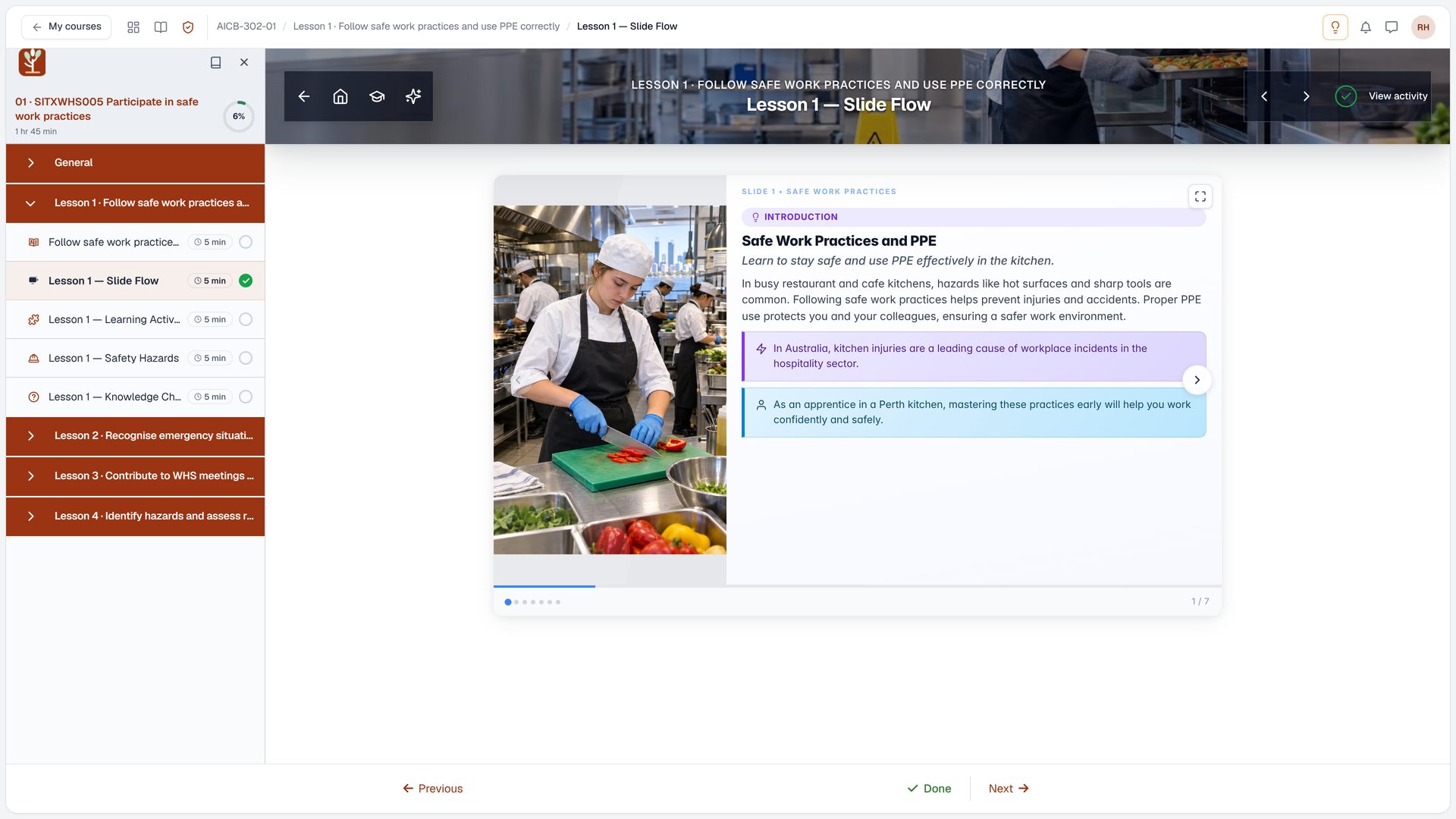
S37Learners6:04
Content Creator
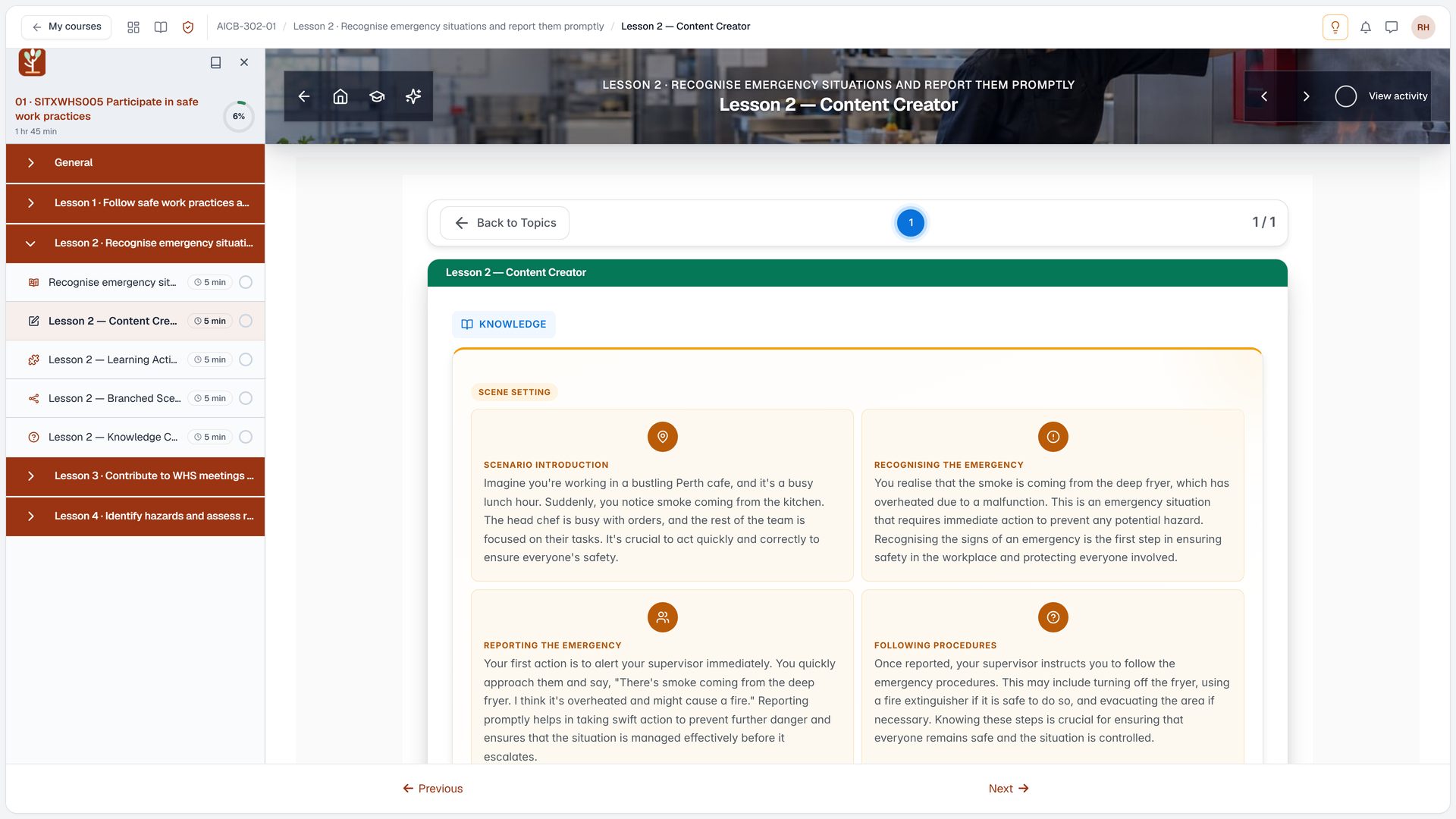
- Content Creator turns a lesson with a lot of reading into an interactive read.
S38Learners6:10
Learning Activities
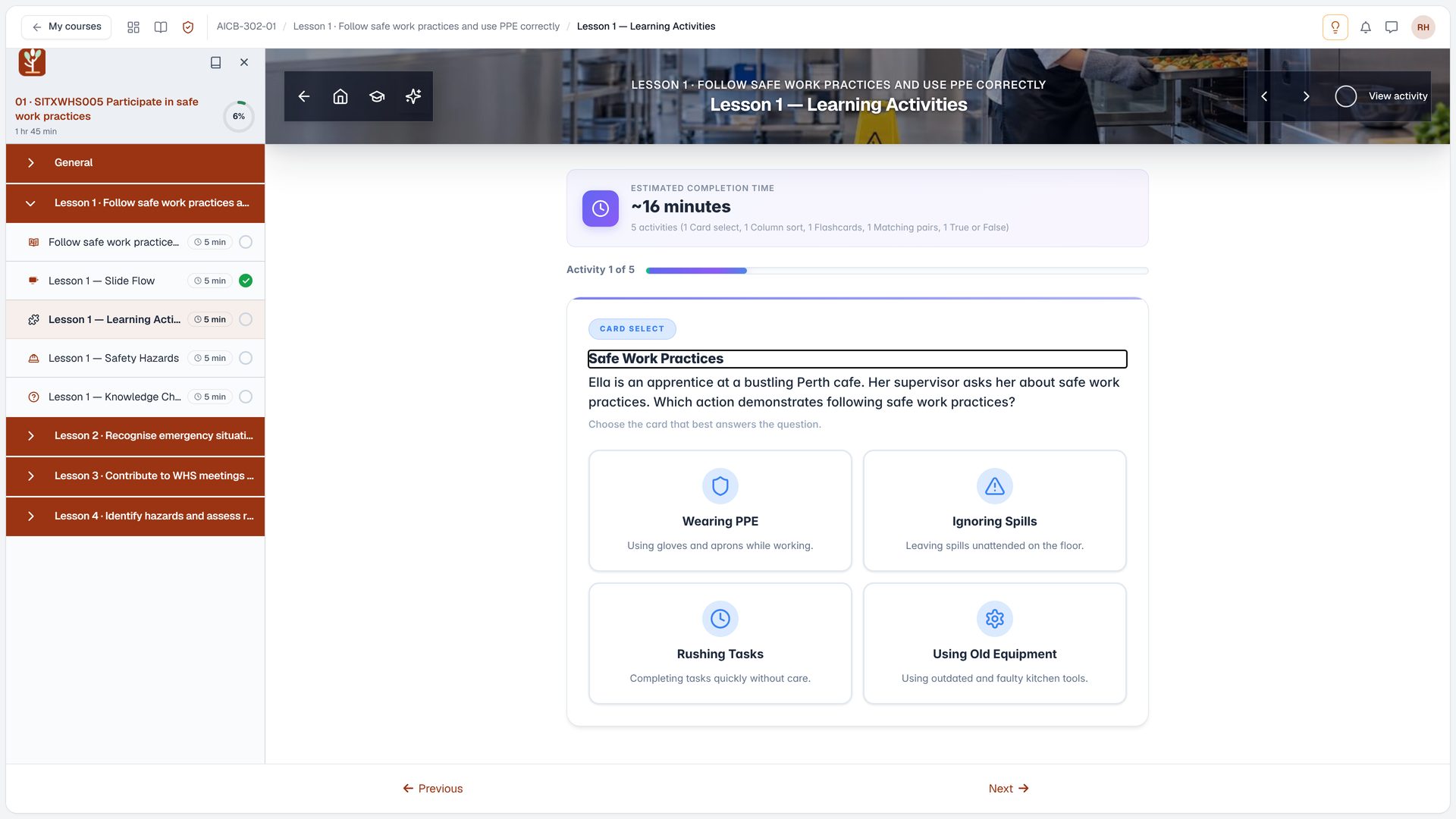
- Learning Activities give learners practice, such as card sorts, matching pairs, flashcards and true or false, all about this lesson.
S39Learners6:20
Knowledge Check
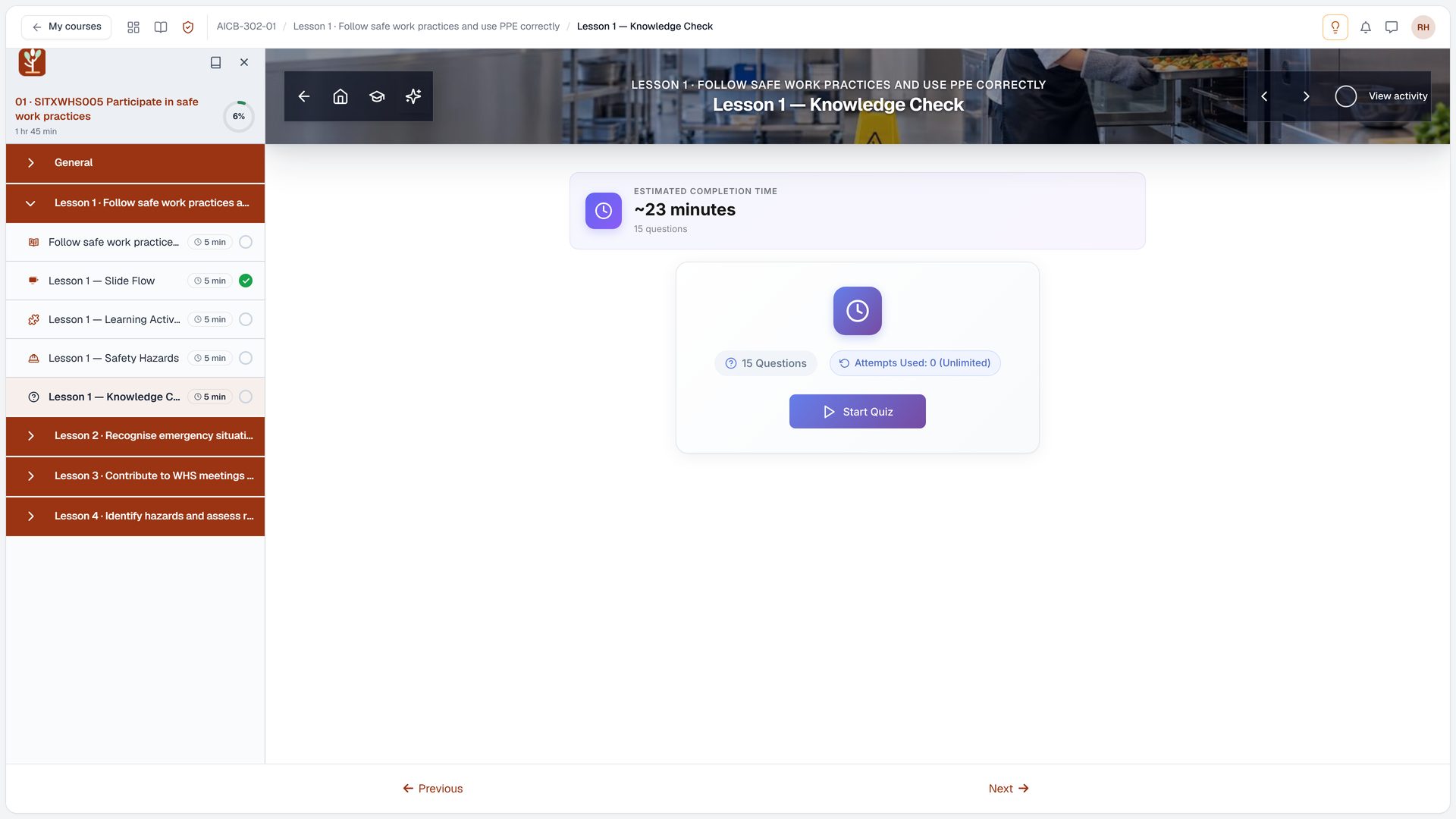
- The Knowledge Check closes each lesson with questions on the lesson outcomes, and the results feed the course report.
S40Learners6:29
Safety Hazards
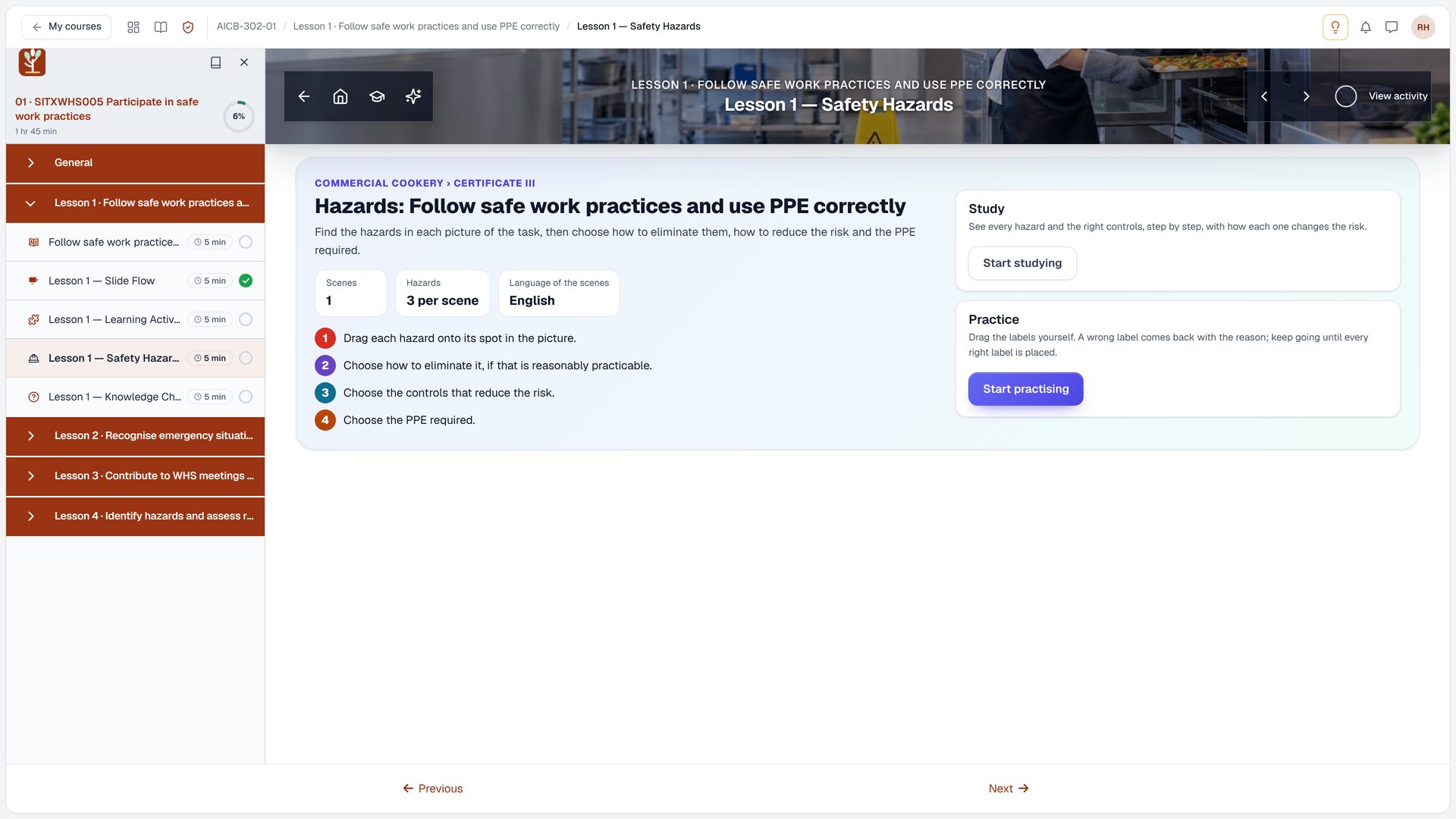
- Where an outcome is about safety, Safety Hazards gives learners a real workplace scene to search for hazards.
S41Learners6:37
Branched Scenario
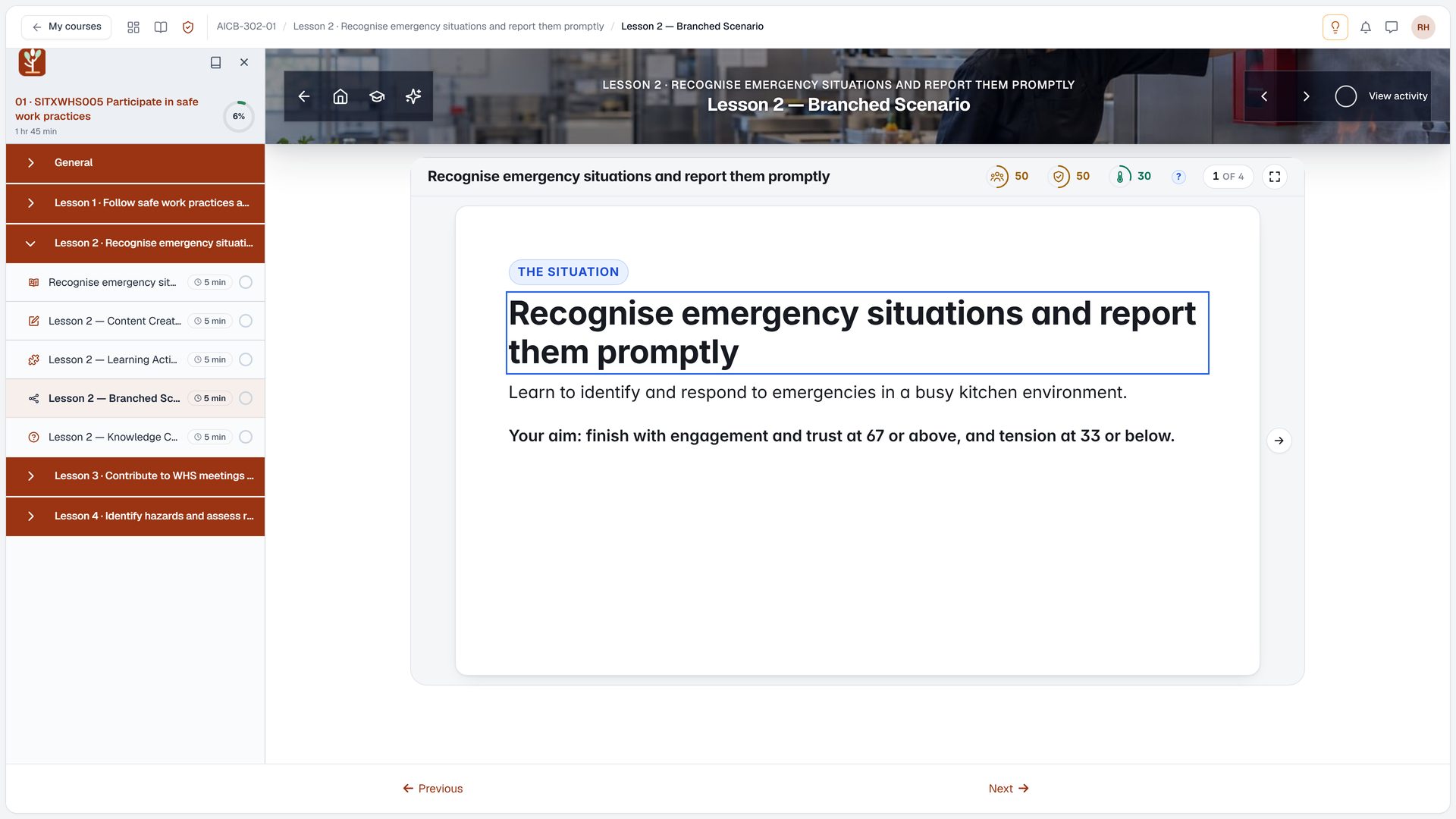
- Branched Scenario puts learners in a judgement call, where each choice leads somewhere different.
S42Learners6:43
Soft Skills
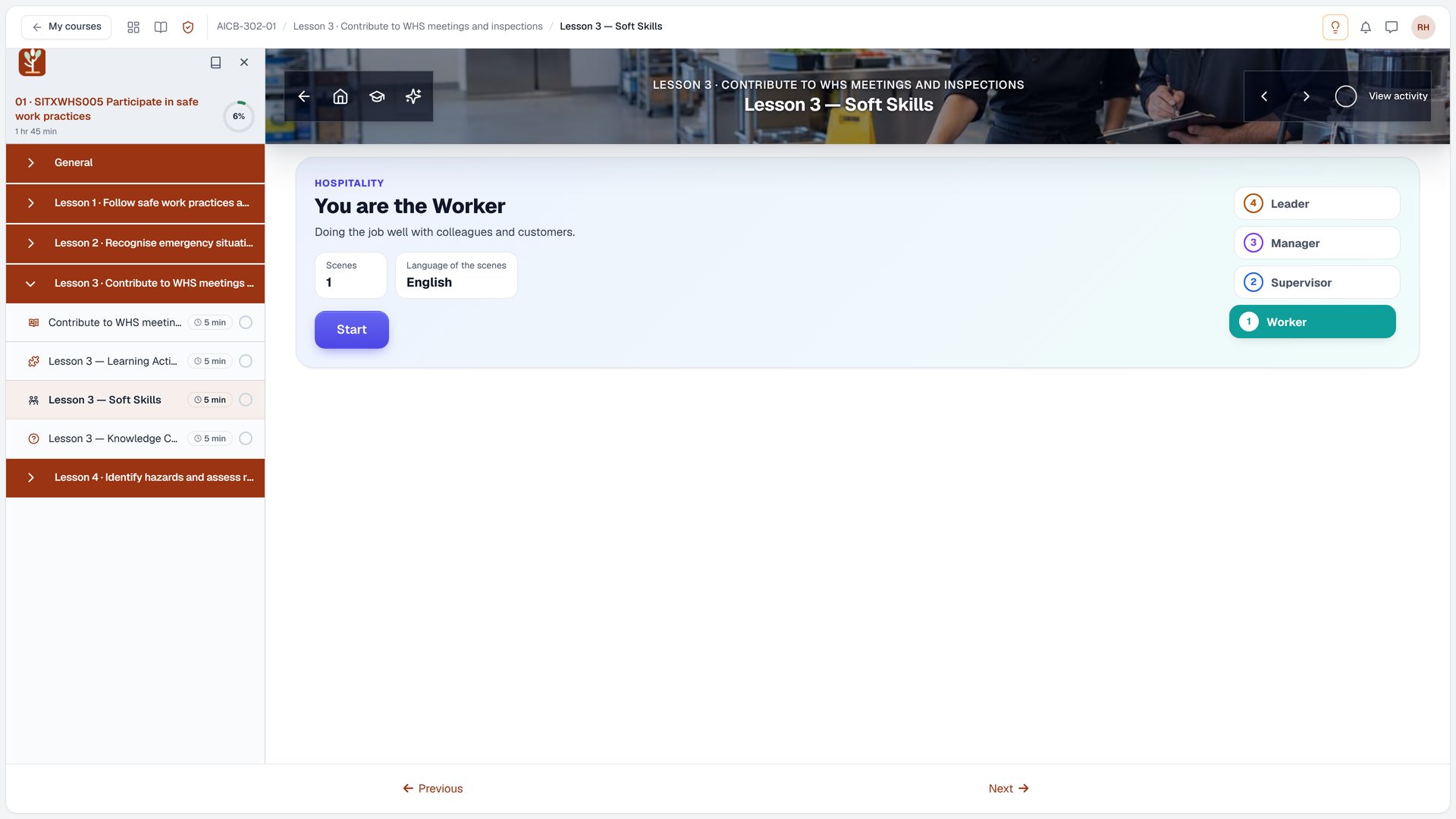
- Soft Skills is role-play practice for conversations, here raising a safety issue with a supervisor.
Chapter 11 · 6:54 in the video
Mapping
 1
S43Teachers and course designers6:54
Mapping
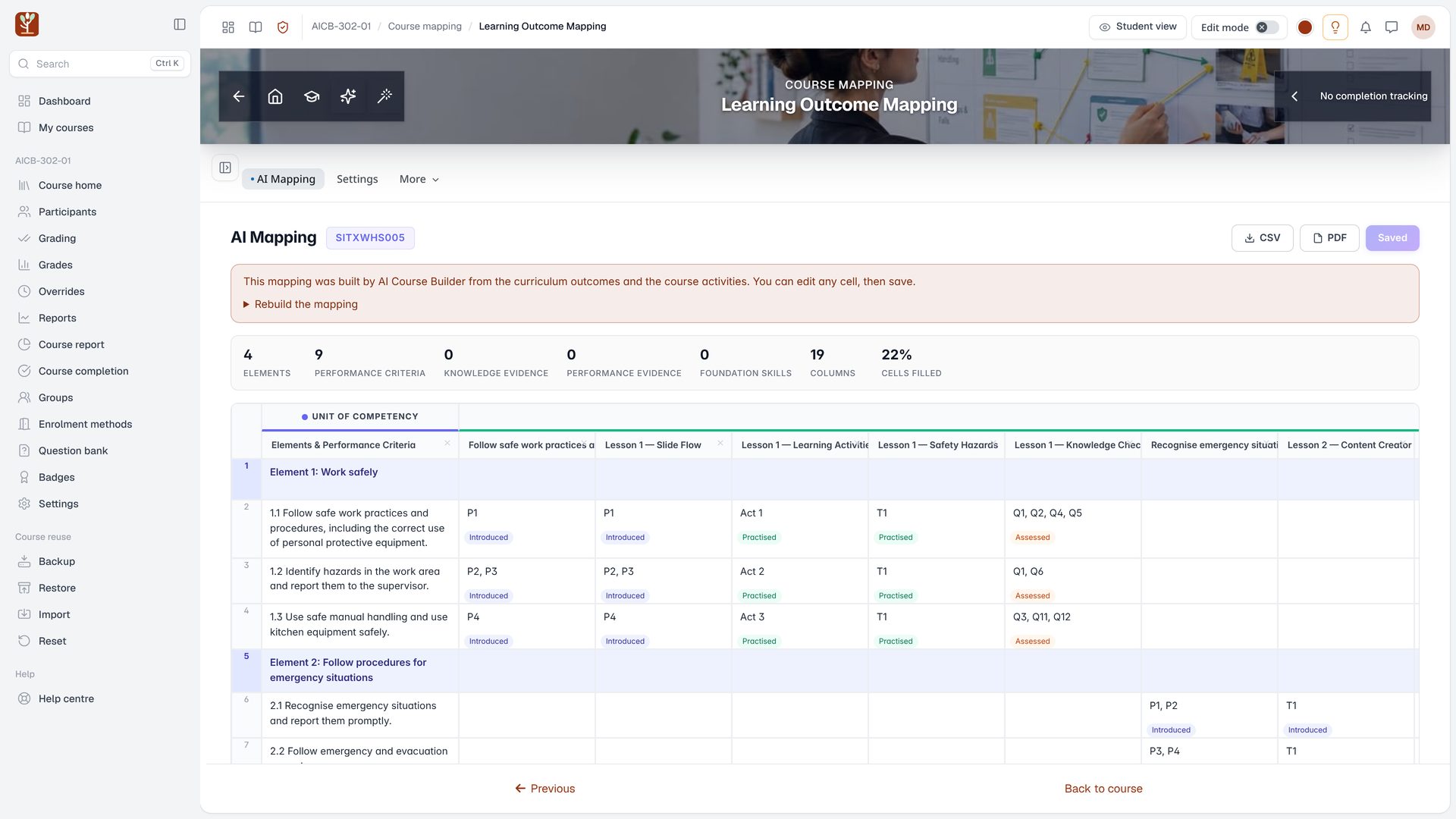
- Mapping maps every outcome to the activities that cover it, with the code and the full text of each performance criterion.
S44Teachers and course designers7:03
Coverage at a glance
- Each cell shows where the outcome is introduced, practised and assessed, so you can check coverage before an audit.
Chapter 12 · 7:14 in the video
Course report
 1
S45Teachers and course designers7:14
Course report
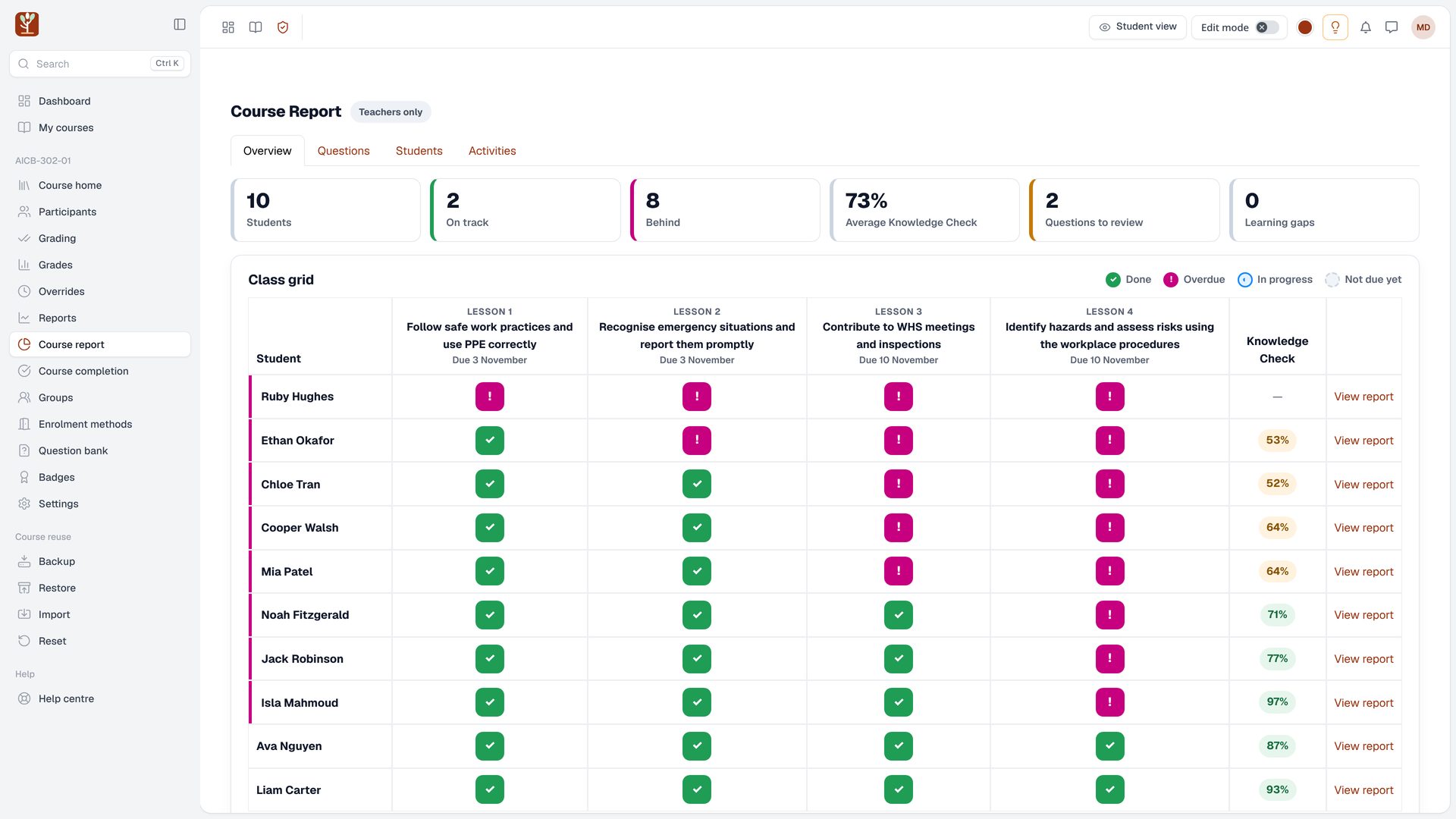
- The course report shows the whole class at a glance: learners on track, learners behind, and the average Knowledge Check score.
 1
S46Teachers and course designers7:23
Question insights
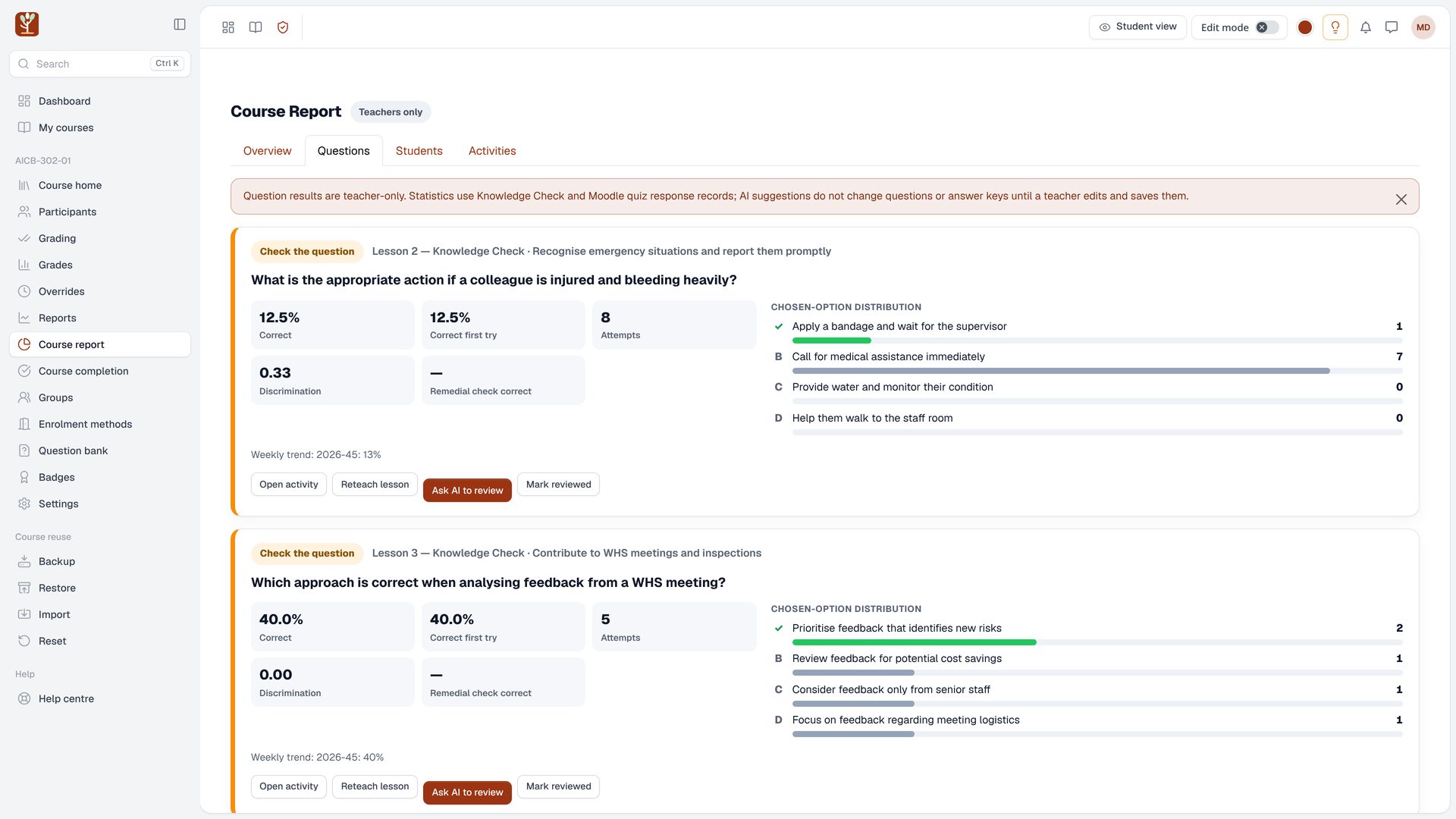
- The questions tab looks at every answer, and flags a question many learners found unclear or an idea worth teaching again.
Chapter 13 · 7:35 in the video
Wrap up
1
S47Teachers and course designers7:35
Summary
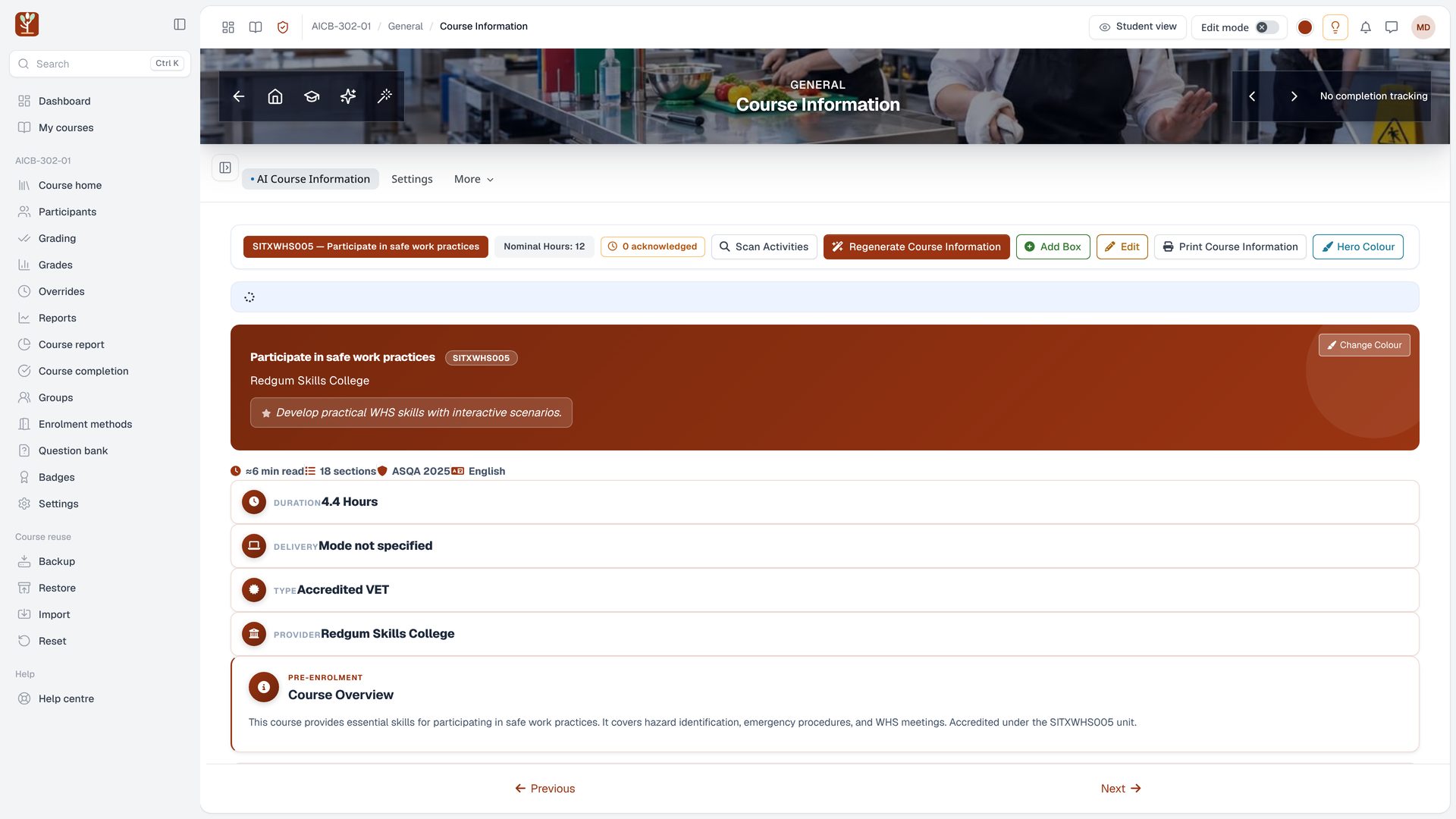
- That is AI Course Builder: your curriculum in, a plan you control, and finished courses with Course Information, Mapping and every activity built against your outcomes.
S48Teachers and course designers7:47
Find out more
- Find it at lms-labs.com, and subscribe on YouTube for more Moodle tutorials.
 1